How to Send Facebook Lead Ads to Telegram: The Complete Guide
Send every new Facebook and LinkedIn lead to Telegram, in your private chat or your sales team's group, with no bot to build. Here's the full setup, what it costs, and what to do when alerts stop.

Table of contents

Telegram Is Where Sales Teams Share Leads
Telegram says it has over 1 billion active users. For a sales team, it has one feature most lead channels lack: a group chat the whole team already watches. This guide shows you how to send Facebook lead ads to Telegram, step by step.
A new lead lands in the group. Whoever is free picks it up. Everyone else sees the lead is taken.
Instantly notify your team on Telegram the moment a new lead submits your Facebook Lead Ad form. No Zapier, no manual CSV downloads, no delay.
LeadsNotify does exactly this. It sends every new Facebook and LinkedIn lead ad to Telegram, in your private chat or your team’s group.

Why Telegram Works for Lead Alerts
Each channel puts the alert in a different place:
| Channel | Where the alert lands | Best for |
|---|---|---|
| An inbox shared with newsletters, receipts and everything else | A permanent record of every lead | |
| One verified phone number | The one person who calls leads back | |
| Telegram | Your private chat, or a group with your whole team | Teams who share and split leads |
Three things make Telegram a good fit:
- Groups. One alert reaches the whole team at once.
- No per-message fee on Telegram’s side. Telegram says its bot platform is free for users and developers.
- Phone and desktop. The alert shows up wherever your team has Telegram open.
Three Ways to Send Facebook Lead Ads to Telegram
Here’s the honest breakdown.
Path A: Forward Leads by Hand
What it is: Someone opens Leads Center, copies the lead and pastes the details into Telegram.
Does it work? For three leads a week, yes. Past a handful, leads wait for whoever remembers to check. Our guide to downloading leads from Facebook covers the manual process.
Verdict: Fine for a test. Not a system.
Path B: Build Your Own Telegram Bot
What it is: You create a bot with BotFather, receive Facebook leads through a webhook, and send each one to Telegram with the Bot API.
Does it work? Yes, with a developer. Plan for:
- A Meta app with permission to read leads, plus a server to receive lead webhooks
- A bot token and the chat ID of every chat or group you send to
- Telegram’s rule: bots never start a conversation. A person has to message the bot or add it to a group first
- Group limits. Telegram’s bot FAQ caps a bot at 20 messages per minute in a group
- Maintenance. When a basic group upgrades to a supergroup, Telegram gives it a new chat ID, and your bot sends to the old one
Verdict: Good for a developer with time. Overkill for a lead alert.
Path C: LeadsNotify (The Shortcut)
What it is: A lead automation platform with Telegram already built in. You connect your Facebook or LinkedIn lead ads, choose Telegram, connect your chat or group with one command, and every new lead arrives as a Telegram message. No bot to build.
How it works:
- Connect your Facebook Page to LeadsNotify
- Create a notifier, pick your lead form and choose Telegram
- Connect your private chat or your team’s group
Telegram alerts are on every LeadsNotify plan, the free plan included.
Verdict: The fastest path from “I want this” to “it’s working.”


How to Send Facebook Lead Ads to Telegram With LeadsNotify (About 5 Minutes)
Before you start, you need: a LeadsNotify account on any plan, free included, admin access to the Facebook Page with your lead forms, and Telegram on your phone or computer. For a group, you need permission to add a bot to the group. No lead form yet? Start with our guide to creating and running Facebook lead ads.
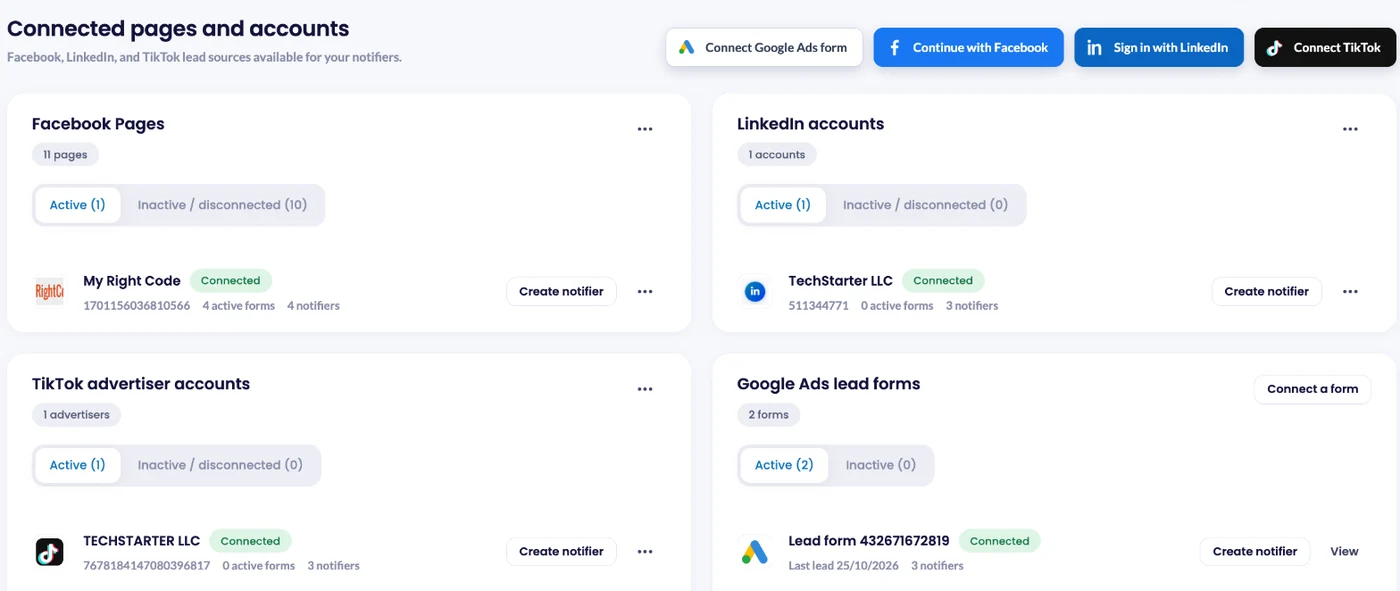
Step 1: Connect Your Facebook Page
Log in to LeadsNotify and open Lead sources. Click Continue with Facebook, tick the Pages that own your lead forms, and approve the permissions Facebook asks for. Every Page you ticked shows as Connected. Managing a client’s Page? The client has to give your business admin access and leads access first. For more detail, see how to connect Facebook Pages to LeadsNotify. Already connected? Skip to step 2.
Step 2: Create a Notifier and Pick Your Form
Click Create notifier. In the Source step, choose Facebook Lead Ads, select your Page and tick one or more forms. Running LinkedIn lead ads? Choose LinkedIn Lead Gen Forms instead.
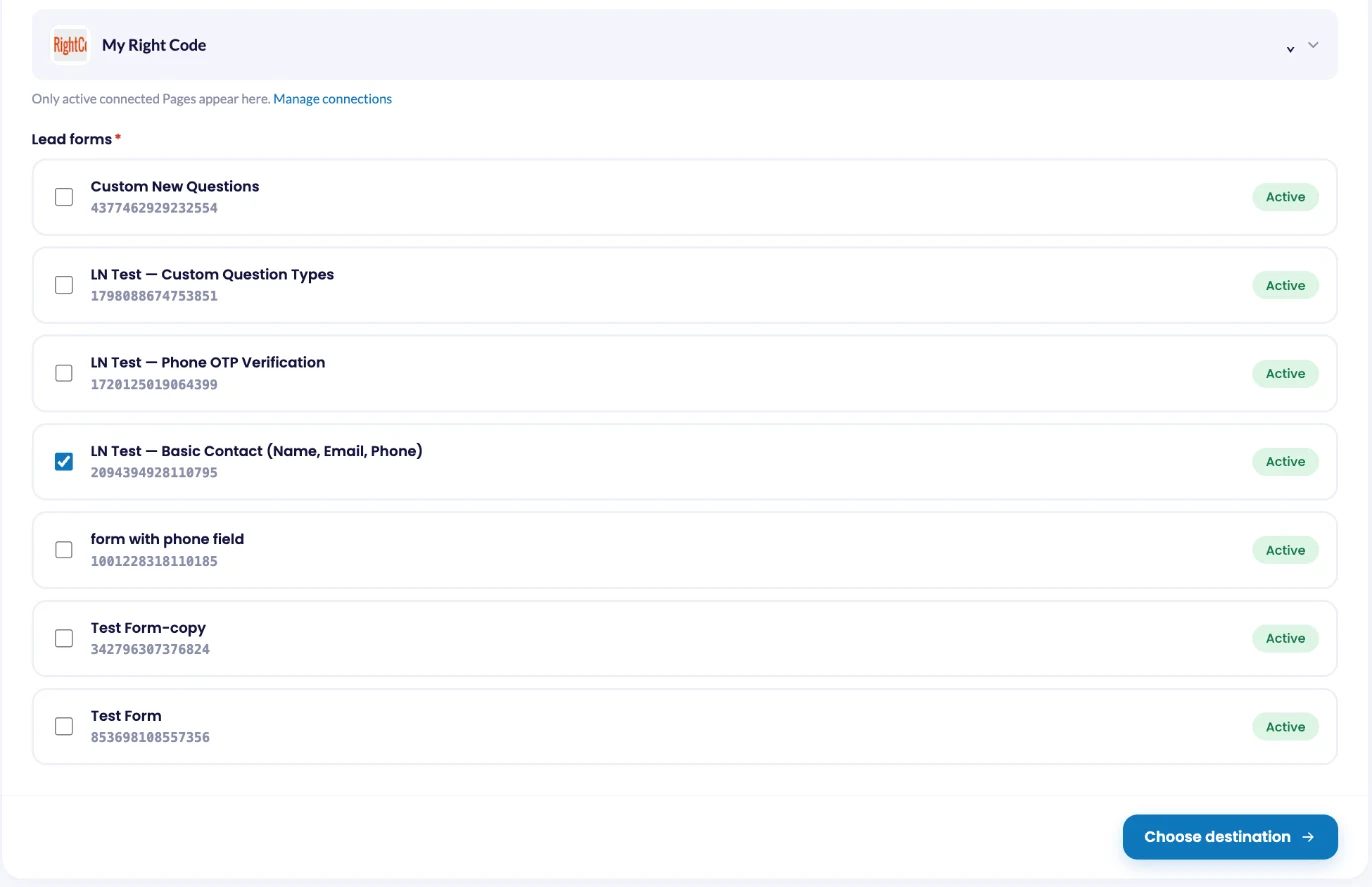
Only active forms are shown. Facebook doesn’t let you edit a published instant form, so if you changed a question, pick the copy your ad is running. New to lead forms? Here’s how to set up a Facebook instant form.
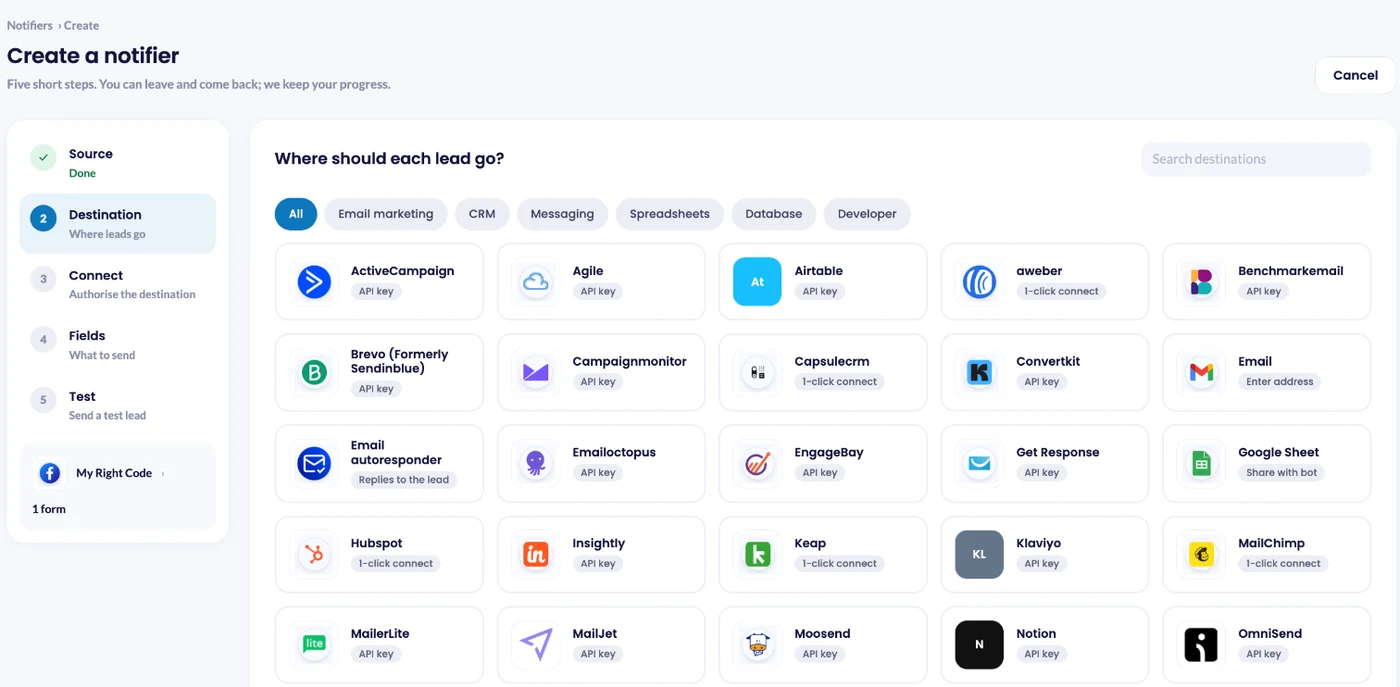
Click Choose destination, select Telegram and click Connect Telegram.
Step 3: Choose a Private Chat or a Group, Then Connect Telegram
In the Connect step, choose where alerts go:
- My private chat for leads only you follow up. Click Start Telegram connection, Telegram opens the LeadsNotify bot, tap Start, and the page confirms the chat automatically.
- A Telegram group for leads your team shares. Click Start Telegram connection, pick the group in Telegram, add the bot, then send
/startin the group.
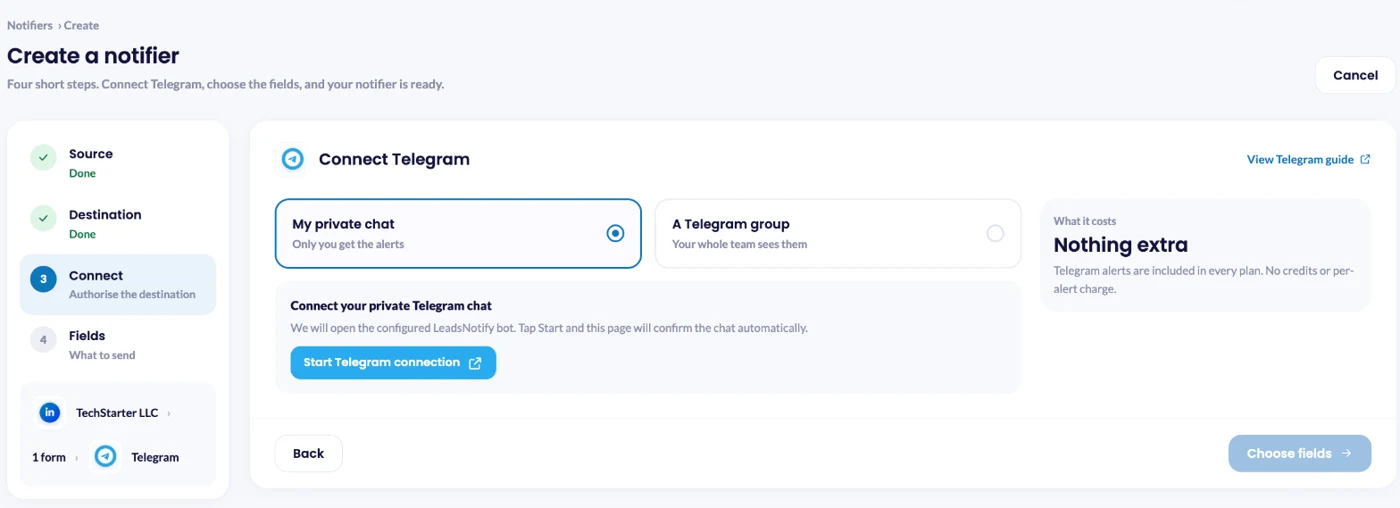
Telegram alerts cost nothing extra. They are included in every plan, with no credits or per-alert charge.
Step 4: Choose What Goes in the Alert, Then Create the Notifier
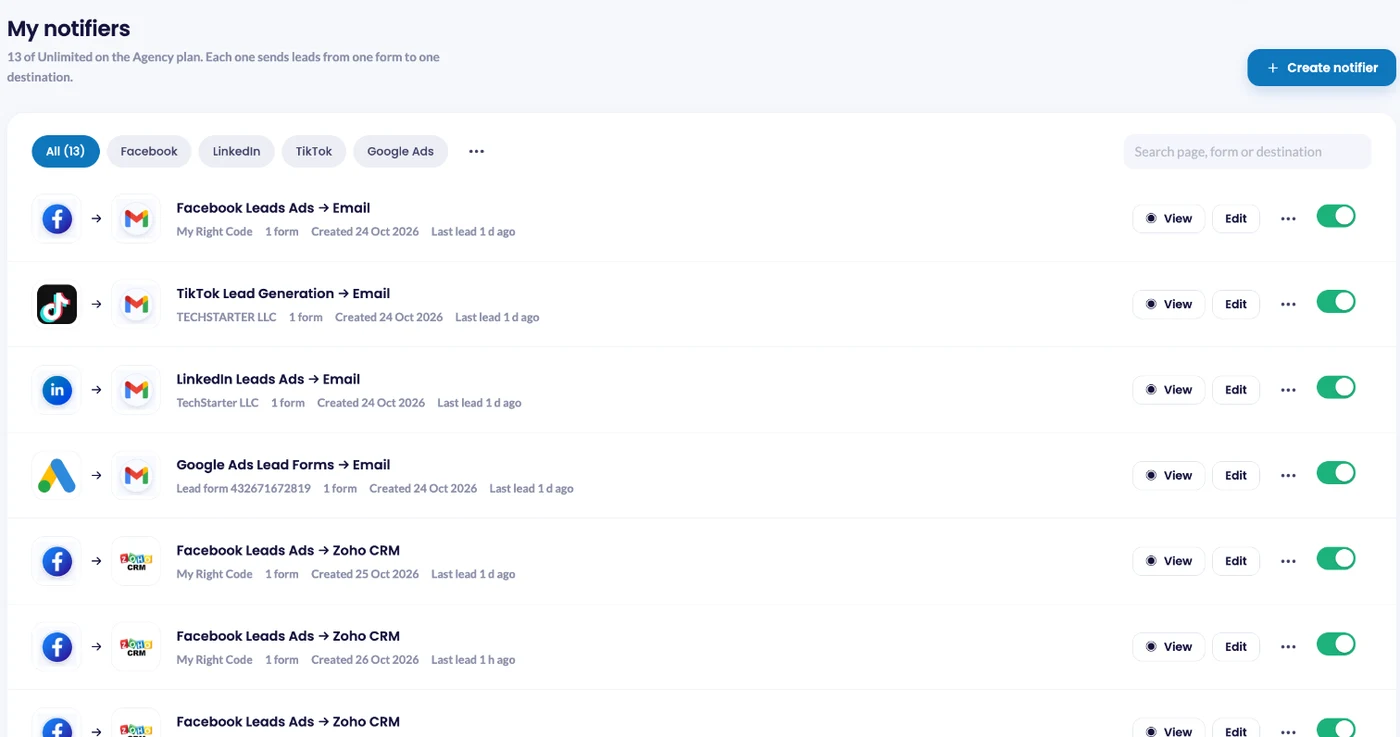
Click Choose fields, pick the lead details for each Telegram message, then click Create notifier. Telegram notifiers take four steps, so the notifier is live as soon as you create it. It appears under Notifiers with a green switch.
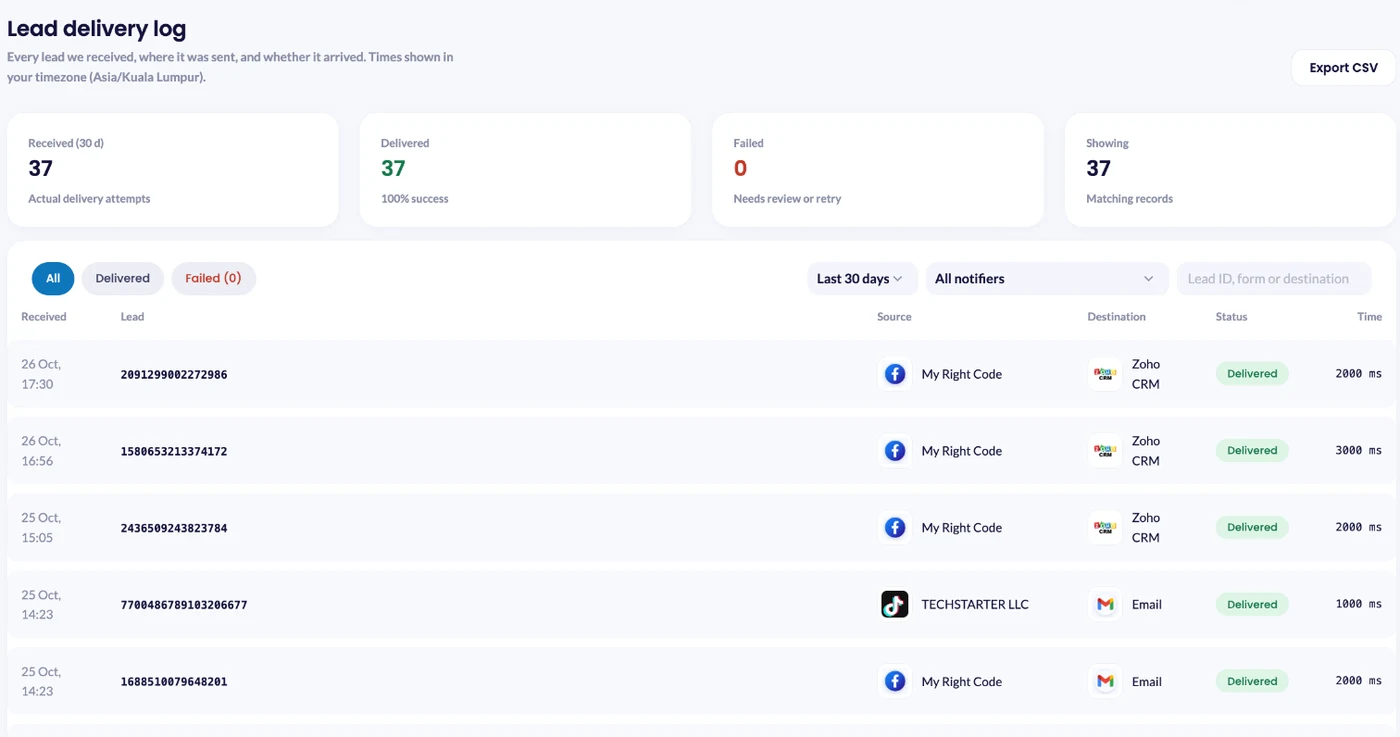
Step 5: Send a Test and Check Lead delivery
In Notifiers, click the ⋯ menu next to your Telegram notifier and choose Send test lead. LeadsNotify asks Meta to create one sample lead on your form and sends it to your Telegram chat or group, so you see the exact alert your team gets. No real customer data is used.
Then open Lead delivery. Every attempt shows the source, the destination, a status of Delivered or Failed and the delivery time. Our guide to the lead delivery status dashboard walks through it.
Total time: about 5 minutes. No bot to build, no server to host.
What a Great Telegram Lead Alert Looks Like
A bad alert tells you a lead came in. A great alert gives you everything you need to respond without opening another app.
The Essential Fields
- Full name: so nobody calls “Unknown”
- Phone number: the number to call back
- Email: for a follow-up message
- Your qualifying question: budget, timeline, product interest
Useful in a Group
- Form Name: when several forms post into one group
- Page Name: when an agency sends several clients’ leads to one team
- Campaign Name or Ad Name: which ad brought the lead in
Keep It Short
Telegram allows up to 4,096 characters per message. A lead form won’t get close. The real limit is attention: a group scrolls fast, and an alert full of IDs gets skipped. Leave Campaign Id and Form Id for your CRM, a Google Sheet or the Lead delivery log.
Private Chat or Group: Which to Pick
| Setup | Best for | Watch out for |
|---|---|---|
| Private chat | Owners and solo sales reps | Leads wait when you’re busy |
| One team group | Sales teams who split leads | Agree who replies first, or two people call the same lead |
| One group per client | Agencies | Each group needs its own notifier |
Everyone in the group sees each lead’s name and phone number. Keep the group to the people who work the leads.
Telegram vs WhatsApp vs Email (When to Use Each)
| Channel | Best for | Watch out for |
|---|---|---|
| Telegram | Team groups, phone and desktop | Your team has to use Telegram |
| The phone number your salesperson already uses | One verified number per notifier, and Meta charges per message | |
| A searchable record of every lead | Easy to miss in a busy inbox |
Most teams run more than one. Send the same form to a Telegram group for speed and to email for the record. Here’s how to set up Facebook lead ads to WhatsApp and Facebook lead ad email notifications.
What Telegram Lead Alerts Cost
On LeadsNotify: Telegram alerts are on every plan, the free plan included. The free plan covers 50 leads a month and 1 notifier, enough to run Telegram alerts on a live form. Need more leads or notifiers? Solo Marketer, Pro Marketer and Agency raise both limits. Compare the plans.
On Telegram: no extra fee. Telegram’s bot platform is free, so there’s no second bill for each lead.
Troubleshooting Common Issues
| Problem | Likely cause | Fix |
|---|---|---|
| No alerts arriving at all | The Facebook Page shows as disconnected, often after an admin leaves or a role changes | Lead sources > Continue with Facebook, and tick the Page again |
| Alerts stopped in a group, and Lead delivery says “bot was kicked from the group chat” | Someone removed the bot from the group | Edit the notifier and connect the group again in the Connect step |
| Alerts stopped after a group settings change | The group became a supergroup and got a new chat ID | Edit the notifier and connect the group again in the Connect step |
| The chat or group never confirms | Start was not tapped in the bot, or /start was not sent in the group | Click Start Telegram connection again, then tap Start (or send /start in the group) |
| Telegram won’t connect | No form picked yet | Select your Page and form in the Source step first |
| Your form isn’t in the list | Only active forms are shown | Check the form’s status in Meta, then reopen the notifier |
| Alerts stopped after you changed the form | Your ad runs a duplicated form | Edit the notifier and select the new form |
| Alerts are hard to read | Too many technical fields | Edit the notifier and remove the IDs |
Tip: the Response column in Lead delivery shows the exact reason Telegram gave for a failed message. Check it first.
Frequently Asked Questions
Do I need to create my own Telegram bot?
No. LeadsNotify runs the bot. You connect your chat or group by sending /start.
Do alerts work in a Telegram group?
Yes. Choose A Telegram group in the Connect step, then add the bot when LeadsNotify asks.
Which plans include Telegram alerts?
Every plan, the free plan included. The free plan covers 50 leads a month and 1 notifier.
Does Telegram charge per message?
No. Telegram doesn’t charge for normal bot messages like lead alerts.
Which lead sources work with Telegram alerts?
Facebook and Instagram lead ads using instant forms, and LinkedIn lead gen forms.

Do I get the same lead in Telegram and my CRM?
Yes. Create a second notifier on the same form, for example to email or Google Sheets.
Get Your Next Lead in Telegram
Here’s your action plan:
- Connect your Facebook Page in Lead sources
- Create a notifier, pick your lead form and choose Telegram
- Choose your private chat or your team’s group
- Tap Start in the bot, or send /start in the group
- Choose your fields and save
- Send a test and check Lead delivery
The fastest teams don’t check for leads. The leads come to them.
Ready to get your next lead in Telegram? Set up Telegram alerts in LeadsNotify today. It takes less time than reading this guide.
Last Updated on October 26, 2026 by Akash Mehra
Set up a free notification in a few minutes.

Abdullah Khan
A Technical Lead and backend architect with 10+ years of experience building reliable, high-scale APIs and automation systems. At LeadsNotify, he helps build and maintain the integrations that route Facebook and LinkedIn leads to email, CRMs, and marketing tools in real time.
Connect on LinkedIn ↗