How to Send Facebook Lead Ads to WhatsApp: The Complete Guide
Send every new Facebook and LinkedIn lead to WhatsApp in about five minutes, with no WhatsApp API account of your own. Here's the full setup, what it costs, and what to do when alerts stop.

Table of contents

WhatsApp Isn’t Just Another App. It’s Where Your Leads Live.
Before we talk about setup, let’s start with the number that changes everything: more than 3 billion people in over 180 countries use WhatsApp. That puts it in a tiny club of consumer products that run at true infrastructure scale. It’s also where your Facebook lead ads should be sending their alerts, and this guide shows you how to send Facebook lead ads to WhatsApp, step by step.
People want to talk to businesses there too. In Meta’s State of Business Messaging research, run by Kantar with 11,056 online adults across 22 markets, 73.3% of consumers said they prefer messaging when communicating with a business.
The businesses winning this game aren’t working harder. They’ve figured out one thing: get the lead to the right person, on the right device, in seconds.
That device is almost always a phone. And the app on that phone? WhatsApp.
That’s exactly what LeadsNotify does. It takes your Facebook and LinkedIn lead ads and sends every new lead to WhatsApp instantly, so your team responds while the lead is still warm.

Why WhatsApp Wins (And It’s Not Even Close)
The gap comes down to where each alert actually lands:
| Channel | Where the alert lands | What gets in the way |
|---|---|---|
| An inbox shared with newsletters, receipts and everything else | It waits until someone checks their mail | |
| Dashboard | A browser tab someone has to open | Nobody logs in on a Saturday evening |
| The phone in your pocket, next to messages from friends and family | Very little. It’s the app people already check all day |
Your team lives on WhatsApp. They check it before coffee, during lunch, and one last time before bed. If your lead notification lands there, it gets seen. Immediately.
Meanwhile, that same lead notification is buried in an inbox with 200 unread emails or sitting in a dashboard nobody logged into today.
The math is simple: Faster response = higher conversion. WhatsApp = fastest response. WhatsApp wins.
The Three Paths to WhatsApp Lead Notifications
Not all WhatsApp setups are created equal. Here’s the honest breakdown.
Path A: The Free WhatsApp Business App
What it is: The app you download from the App Store. Free. Familiar.
Can it send automated lead notifications? No.
The free app is built for one-to-one conversations. It has no API, no automation hooks, and no way to trigger messages from your ad account. You’d have to forward every lead by hand, which defeats the entire purpose.
It also runs on one phone plus up to four linked devices, so it was never designed to be wired into your lead forms.
Verdict: Great for chatting with customers. Useless for automated lead alerts.
Path B: Your Own WhatsApp Business API
What it is: Meta’s official platform for businesses. You apply, get verified, and build your own integration.
Can it send automated lead notifications? Yes, but you’re signing up for work:
- Business verification with Meta, which can take up to 14 business days
- A phone number registered to the API. Moving an existing WhatsApp Business app number across is possible through Meta’s coexistence option, but it runs through a partner and comes with limits
- A developer or a Business Solution Provider (BSP) to set it up
- Approved message templates, quality ratings and billing to manage from then on
Cost: Meta charges for every template message you send, and most Business Solution Providers add a monthly platform fee on top.
Verdict: Powerful, but overkill if all you want is a notification when a lead comes in.
Path C: LeadsNotify (The Smart Shortcut)
What it is: A lead automation platform with WhatsApp already built in. You connect your Facebook or LinkedIn lead ads, choose WhatsApp as the destination, verify the number that should get the alerts, and every new lead arrives as a WhatsApp message. No API account of your own.
How it works:
- Connect your Facebook Page to LeadsNotify
- Create a WhatsApp notifier, pick your lead form and verify your WhatsApp number
- Every new lead lands on that number automatically
LeadsNotify handles the WhatsApp side, so you only receive the alerts. WhatsApp is on every plan. The free plan includes 10 WhatsApp notifications, which is enough to set the whole thing up and watch real leads land on your phone. After that it runs on prepaid credit, at a price set by the country the alert goes to.
Verdict: The fastest path from “I want this” to “it’s working.”


How to Send Facebook Lead Ads to WhatsApp With LeadsNotify (About 5 Minutes)
If you’ve ever built a workflow in a general automation tool, you know the pain. This is simpler. Here’s the full process.
Before you start, you need: a LeadsNotify account, admin access to the Facebook Page that owns your lead forms, and the phone with the WhatsApp number that should receive the alerts. No lead form yet? Start with our guide to creating and running Facebook lead ads.
Step 1: Connect Your Facebook Page
Log in to LeadsNotify and open Lead sources. Click Continue with Facebook, tick the Pages that own your lead forms, and approve the permissions Facebook asks for. Every Page you ticked shows as Connected. Managing a client’s Page? The client has to give your business admin access and leads access first. For more detail, see how to connect Facebook Pages to LeadsNotify. Already connected? Skip to step 2.
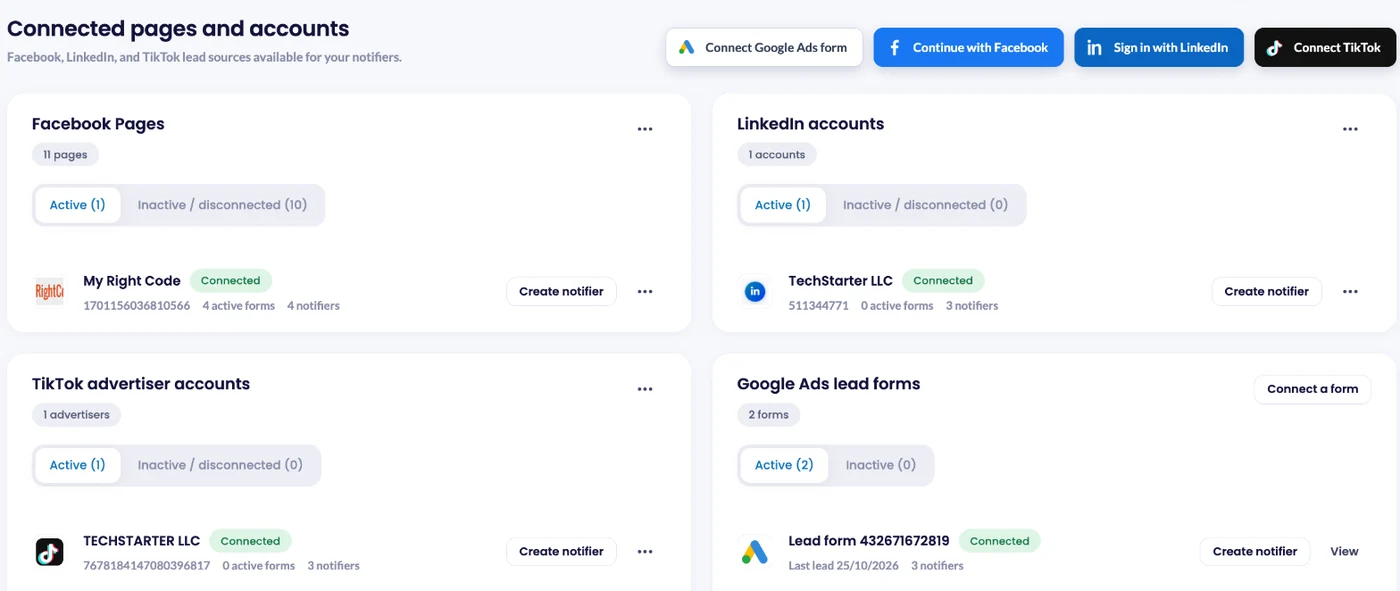
Step 2: Create a Notifier and Pick Your Form
Click Create notifier. In the Source step, choose Facebook Lead Ads, select your Page and tick one or more forms. Running LinkedIn lead ads? Choose LinkedIn Lead Gen Forms instead.
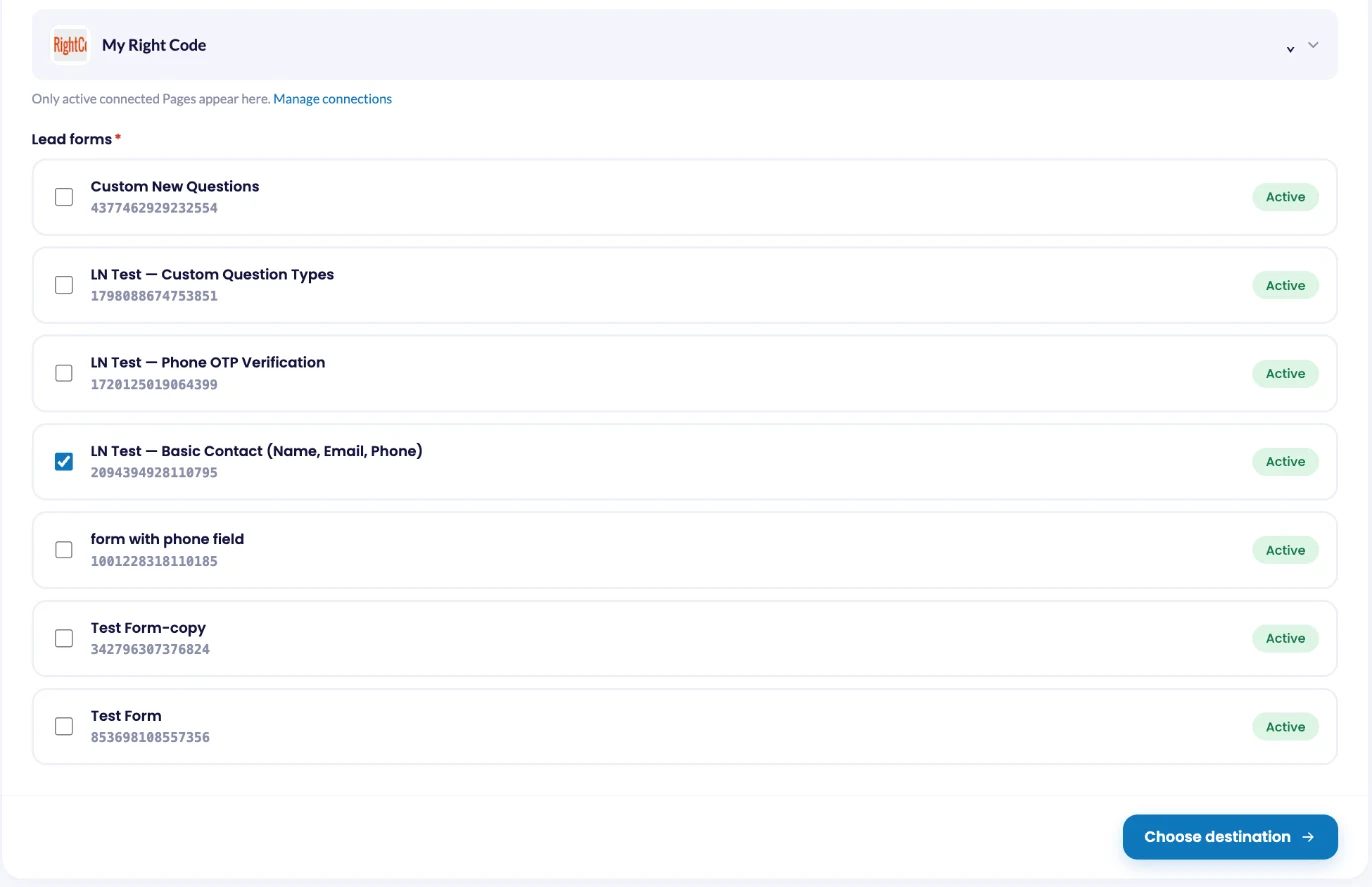
Only active forms are shown. Facebook doesn’t let you edit a published instant form, so if you changed a question, pick the copy your ad is running. New to lead forms? Here’s how to set up a Facebook instant form.
Click Choose destination, select WhatsApp and click Connect WhatsApp.
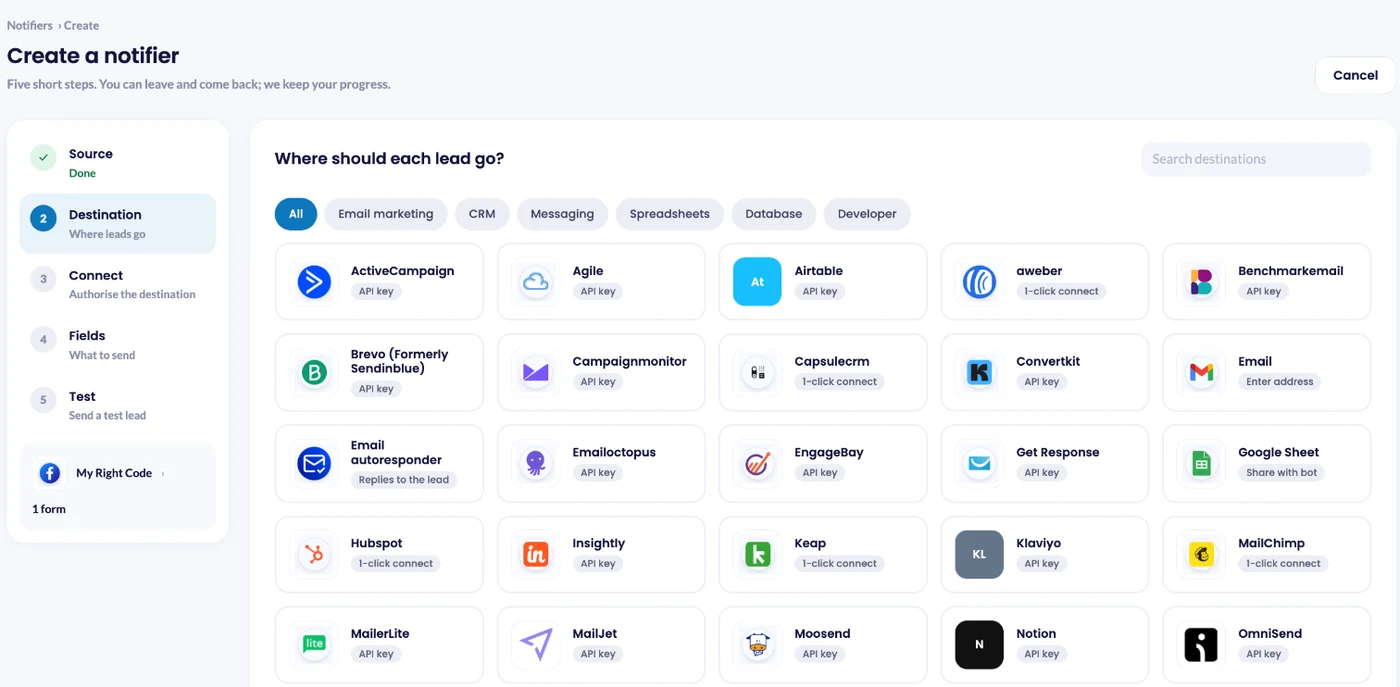
Step 3: Verify the WhatsApp Number That Gets the Alerts
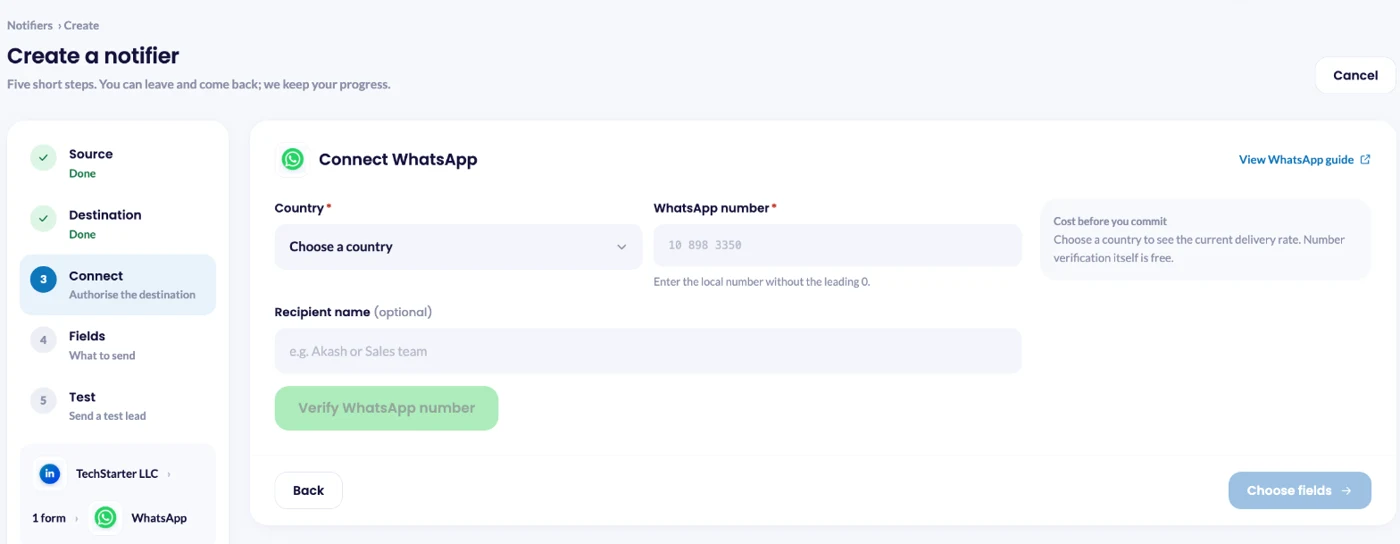
In the Connect step, pick your Country, then type the WhatsApp number without the leading 0. A UK mobile like 07700 900417 becomes United Kingdom (+44) and 7700900417. Add a Recipient name if you want one, such as Sales team. It tells you who a notifier alerts once you are running several of them.
As soon as you pick a country, LeadsNotify shows the current delivery rate for that country, so you see the per-alert cost before anything is charged. Verifying the number is free. Click Verify WhatsApp number and follow the on-screen steps to confirm the number from your phone.
Step 4: Choose What Goes in the Alert, Then Save
Click Choose fields and pick the lead details you want in each WhatsApp message. The next section covers which ones are worth it. Then save the notifier.
Step 5: Check the Notifier Is Switched On
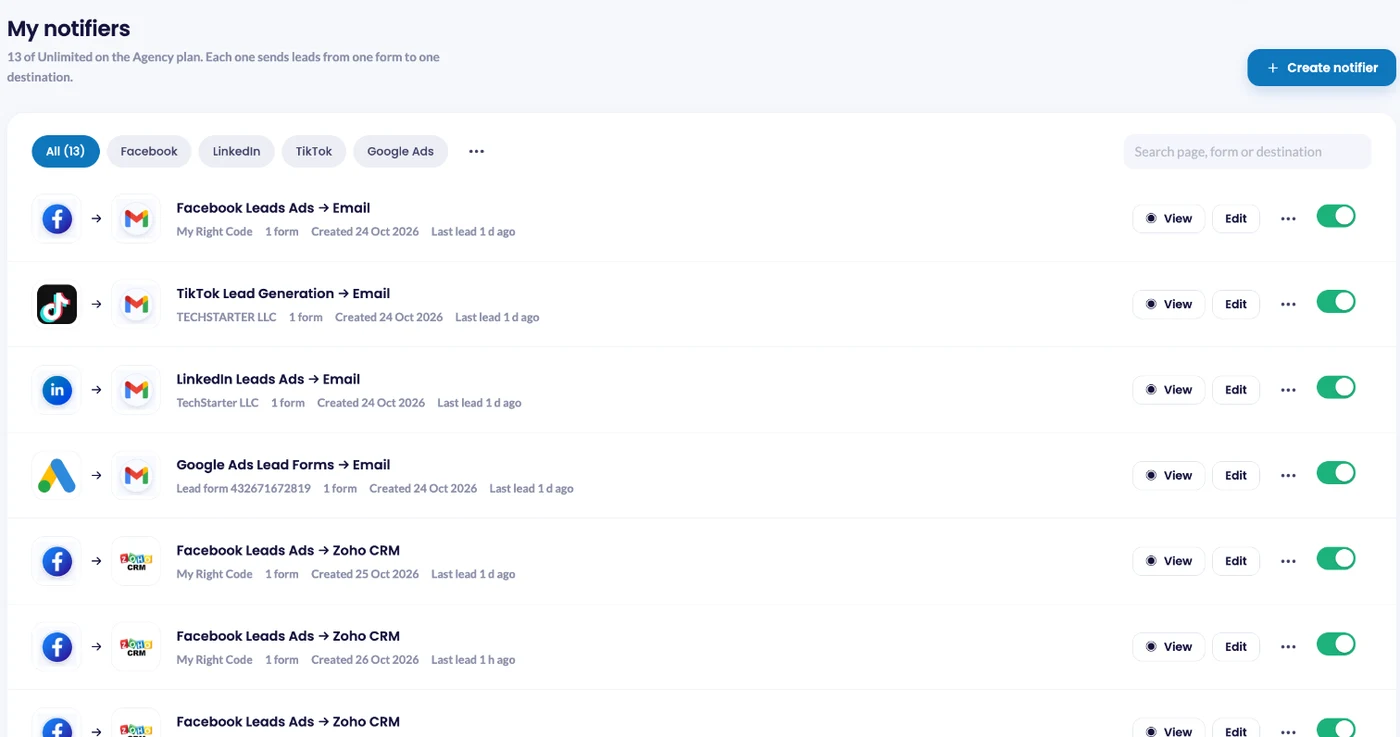
Your new notifier appears under Notifiers, with the Page and form it’s watching. The green switch means it’s live. Use the same switch to pause it, or click Edit to change the form, the fields or the number.
Step 6: Send a Test Lead
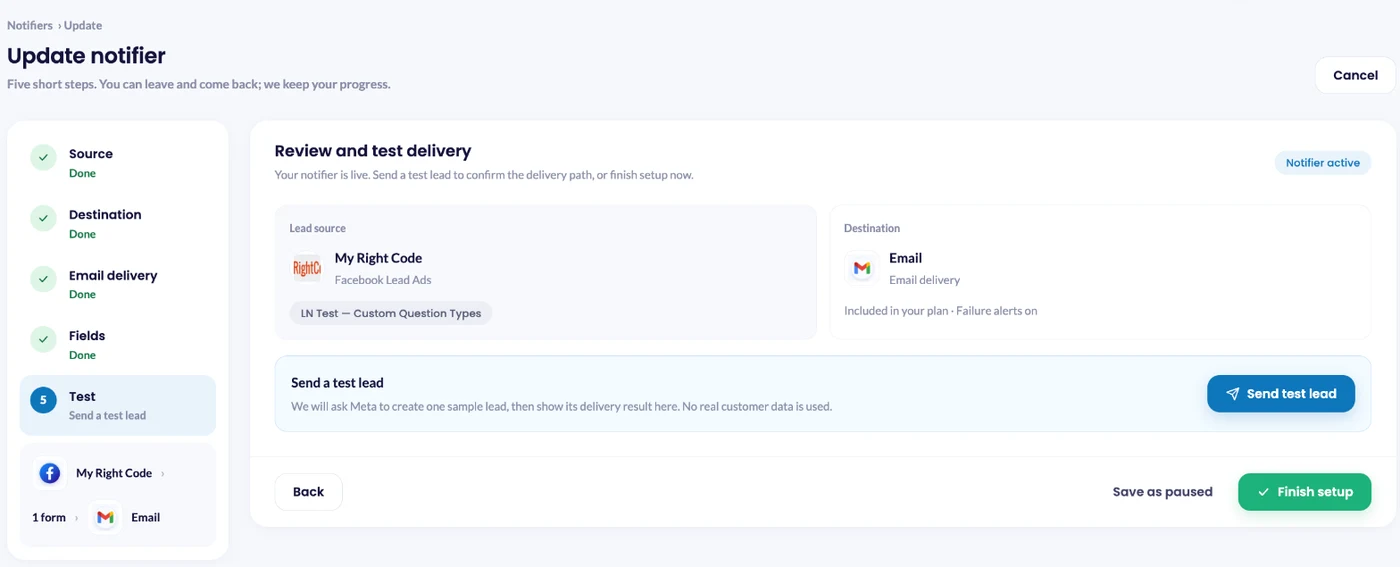
Don’t trust a setup you haven’t tested. Saving the notifier opens Review and test delivery: click Send test lead. LeadsNotify asks Meta to create one sample lead on your form and the message lands on your WhatsApp within seconds. No real customer data is used. You can send another one later from the ⋯ menu next to the notifier.
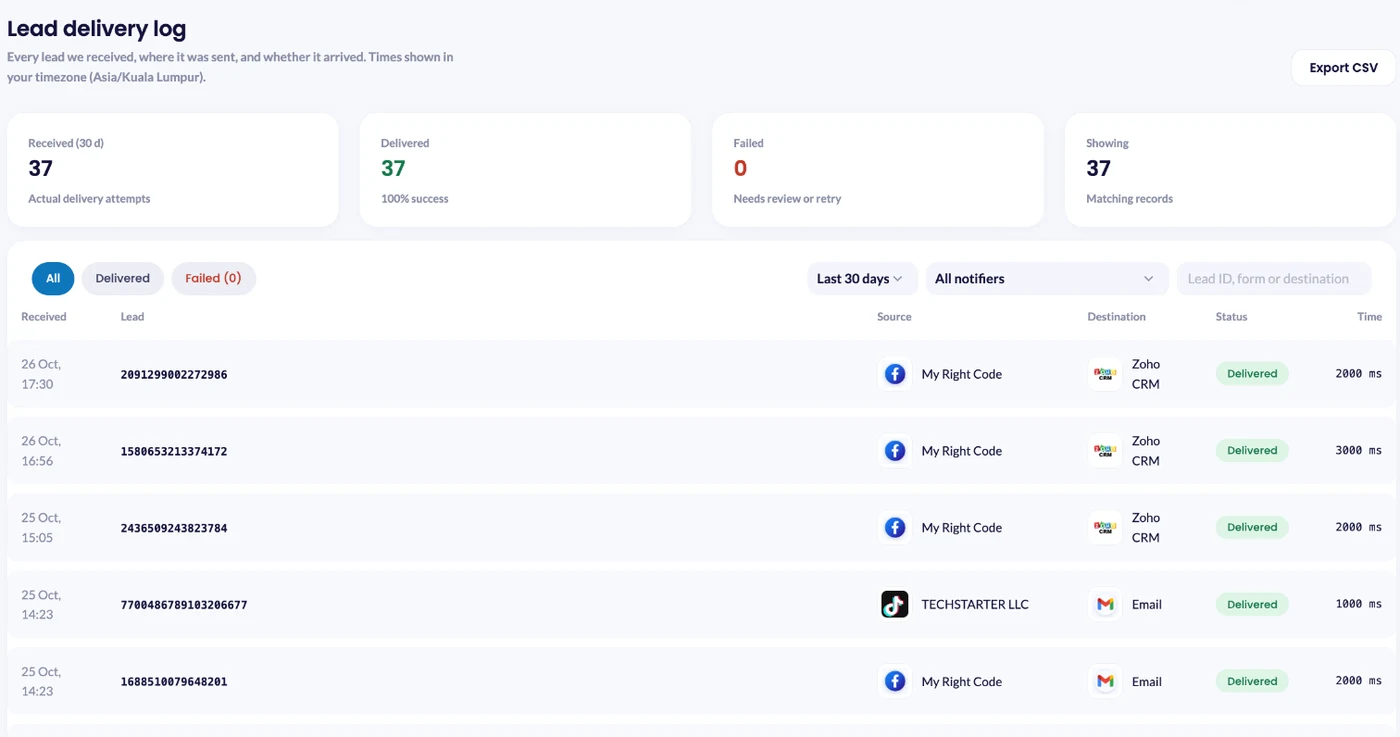
Then open Lead delivery in LeadsNotify. Every attempt is listed with the source, the destination, a status of Delivered or Failed and the delivery time.
What a Great Lead Notification Looks Like
A bad notification tells you a lead came in. A great notification gives you everything you need to respond without opening another app.
The Essential Fields
Every WhatsApp lead alert should include:
- Full name: so you’re not calling “Unknown”
- Phone number: tap it to call
- Email: tap it to write back
- Your qualifying question: budget, timeline, product interest
Optional (But Useful) Fields
- Form Name: if you run more than one form
- Campaign Name or Ad Name: which ad brought the lead in
- Page Name: if you manage several Pages or clients
Keep It Short
Meta caps the body of a WhatsApp template message at 1,024 characters. A normal lead form won’t get close, but the real limit is attention. A message stuffed with Campaign Id, Form Id, Adset Name and Page Name is hard to read on a lock screen.
Best practice: pick the human details in Choose notification fields and leave the IDs for your CRM, a Google Sheet or the Lead delivery log.
WhatsApp vs Telegram vs Email (When to Use Each)
They’re not competitors. They’re layers.
| Channel | Best for | Watch out for |
|---|---|---|
| Instant alerts on the phone your team already uses, in almost any country | Every delivered alert has a price, set by the country it goes to | |
| Telegram | Alerts into a private chat or a group for the whole sales team, free on every plan | Your team has to use Telegram |
| A permanent, searchable record of every lead | Easy to miss in a busy inbox |
The winning setup: point more than one notifier at the same lead form. WhatsApp gets someone calling. Email keeps the paper trail. Here’s how to set up Facebook lead ad email notifications alongside it.
What WhatsApp Alerts Cost
WhatsApp is the one destination in LeadsNotify with a price per message. Telegram and email alerts cost nothing per message, however many you send. WhatsApp runs on prepaid credit.
The Free Plan: 10 WhatsApp Notifications
On the free plan you get 10 FREE WhatsApp notifications. That covers connecting your Page, building the notifier, verifying your number, sending a test lead and watching the first real leads arrive on your phone. Enough to know whether this belongs in your day.
There is no credit balance on the free plan and nothing to top up. Your balance shows zero and stays there. Once the 10 notifications are used, WhatsApp alerts stop. To keep them running, move to the Starter plan and add credit to your account.
How Credits Work
- One credit is one US dollar. Top up under Buy More Credit in the top bar.
- Each delivered alert costs a set amount for the country it is going to, taken off your balance.
- Credit comes off only after delivery. A message that fails costs you nothing.
- Credit sits alongside your plan. The plan sets how many leads you process each month and how many notifiers you run. Credit pays for WhatsApp delivery on top of that.
- We email you when the balance drops below $2, so you have warning before anything stops.
What We Charge Per Message
The price depends on the country the alert goes to, not the country your business sits in. Every country in the list has its own, and the notifier screen shows it the moment you pick one. Check there before you budget a campaign.
Where to See What You Have Spent
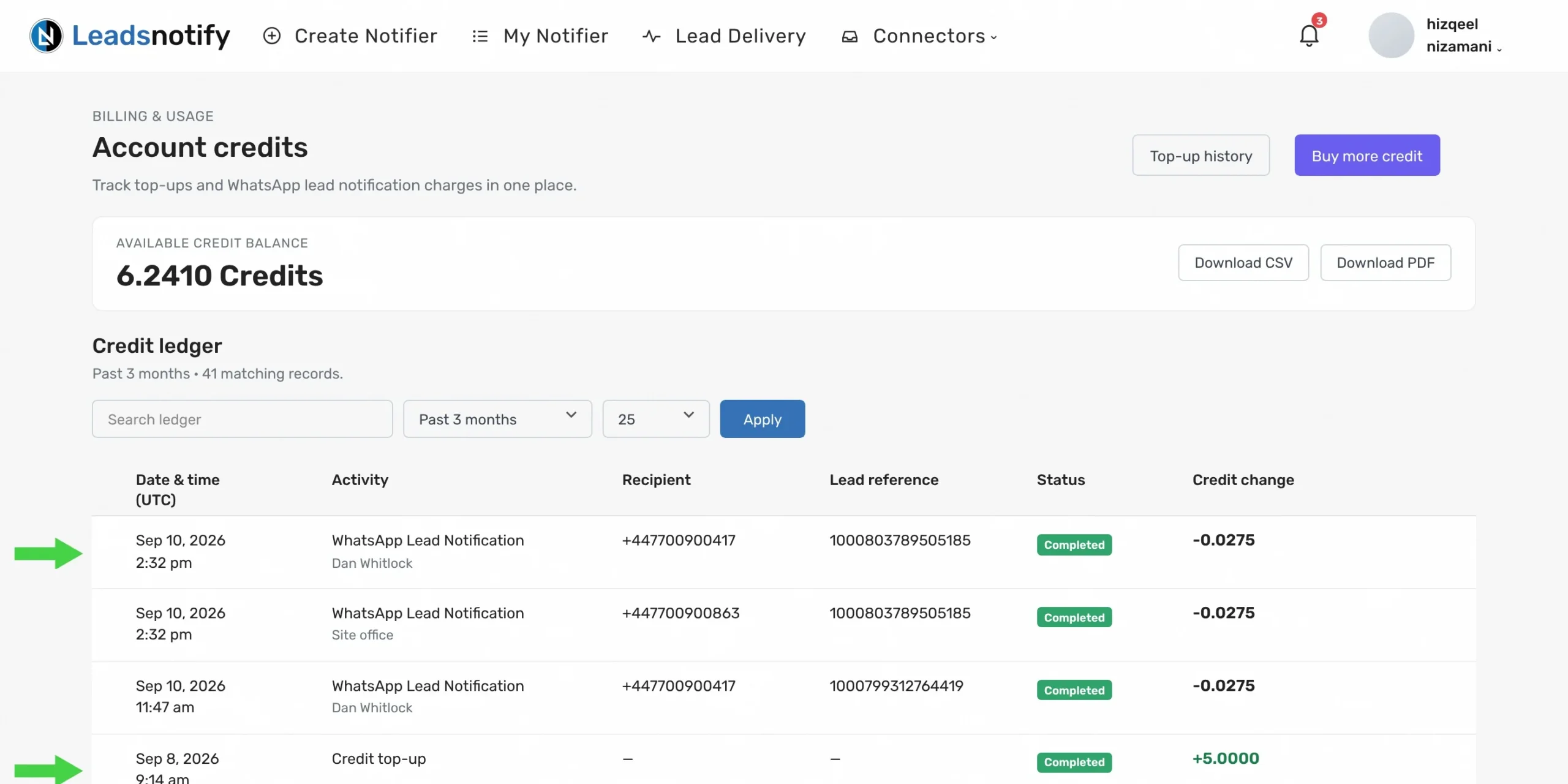
Click the credit balance in the top bar to open credit history. The credit ledger lists every top-up and every WhatsApp charge in one place: the date in UTC, the recipient number, the lead reference, whether it completed, and the credit change. Filter by the past three months, your own dates, or the lifetime of the account, and download the result as CSV or PDF.
Troubleshooting Common Issues
| Problem | Likely cause | Fix |
|---|---|---|
| No alerts arriving at all | The Facebook Page shows as disconnected, often after an admin leaves or a role changes | Lead sources > Continue with Facebook, and tick the Page again. Don’t untick the Pages already connected |
| Alerts stopped after you changed the form | Your ad now runs a duplicated form, and the notifier still watches the old one | Edit the notifier from Notifiers and select the new form |
| Your form isn’t in the list | Only active forms are shown | Check the form’s status in Meta, then reopen the notifier |
| The number won’t verify | The number was typed with the starting 0, the wrong country was picked, or the prefilled message was changed | Click Change phone number, re-enter it, and send the prefilled message exactly as it appears |
| A delivery shows Failed | WhatsApp couldn’t deliver the message | Open Lead delivery and read the Response column. It shows the reason WhatsApp gave |
| The alert is hard to read | Too many technical fields | Edit the notifier and remove the IDs from Choose notification fields |
| Alerts stopped and nothing else changed | The credit balance reached zero, or the free plan’s 10 WhatsApp notifications are used up | Open credit history and top up. Free plan accounts move to the Solo Marketer plan or above before they can add credit |
| Duplicate alerts | Two WhatsApp notifiers on the same form and number | Check Notifiers and switch one off |
Tip: turn on Email me when a lead fails on every notifier, so you hear about a failure without checking the dashboard.
Frequently Asked Questions
Do I need my own WhatsApp Business API account?
No. LeadsNotify sends the alerts for you. You only verify the WhatsApp number that should receive them.
Which plans include WhatsApp alerts?
Every plan. The free plan includes 10 WhatsApp notifications so you set it up and test it end to end. After that you need the Solo Marketer plan or above, with credit on your account.
What does one WhatsApp alert cost?
It depends on the country the alert goes to. The notifier screen shows the exact price as soon as you pick a country, and credit is deducted only after a message is delivered. A few countries do not show a price up front, and for those you see the amount in credit history after the first delivery.
What happens if I run out of credit?
WhatsApp alerts stop until you top up. Your leads keep arriving in LeadsNotify, and any Telegram or email notifier on the same form keeps working. We email you before that point, when your balance drops below $2.
Where do I see what my alerts have cost?
Click the credit balance in the top bar. Credit history lists every top-up and every WhatsApp charge with the recipient, the lead reference and the status, and exports to CSV or PDF.
How fast will I get the notification?
Within seconds of the form being submitted.
Does it work internationally?
Yes. Pick your country from the list and enter the number without the starting 0. WhatsApp itself is used in more than 180 countries.
Which lead sources work with WhatsApp alerts?
Facebook and Instagram lead ads that use instant forms, and LinkedIn lead gen forms.

Can more than one person get the alert?
Each WhatsApp notifier sends to one verified number. To alert a second person, create another notifier for the same form with their number. Each one counts toward your plan’s notifier limit.
The 60-Second Advantage
Every minute a new lead waits, they cool off. By the next morning, many have forgotten which ad they even tapped.
WhatsApp isn’t just another notification channel. It’s the fastest way to get someone who just raised their hand and said “I’m interested” in front of the person who will call them back.
Here’s your action plan:
- Connect your Facebook Page in Lead sources
- Create a notifier, pick your lead form and choose WhatsApp
- Verify the WhatsApp number that gets the alerts
- Choose your fields, turn on failure emails and save
- Send a test lead and check Lead delivery
The businesses winning at lead generation aren’t smarter. They’re just faster.
Ready to get your next lead on WhatsApp? Set up WhatsApp alerts in LeadsNotify today. It takes less time than reading this guide.
Last Updated on October 26, 2026 by Akash Mehra
Set up a free notification in a few minutes.

Abdullah Khan
A Technical Lead and backend architect with 10+ years of experience building reliable, high-scale APIs and automation systems. At LeadsNotify, he helps build and maintain the integrations that route Facebook and LinkedIn leads to email, CRMs, and marketing tools in real time.
Connect on LinkedIn ↗