How to Send TikTok Lead Generation Leads to Email: The Complete Guide
Get every TikTok Lead Generation lead in your inbox the second it is submitted. The five-step setup in LeadsNotify, which fields to include, how to test it, and what to do when an alert does not arrive.
 By Akash Mehra
7 min read
By Akash Mehra
7 min read
Table of contents
Summary
- LeadsNotify sends every new TikTok Lead Generation lead to your inbox the moment it is submitted. No CSV downloads, no API key, nothing to host.
- Setup takes about 5 minutes: connect your TikTok advertiser account, pick the lead form, enter the inbox, choose the fields, then send a test lead.
- Email alerts use no message credits and are on every plan. The free plan covers 50 leads, 1 source, 1 notifier and 1 email recipient, no card needed.
- Each alert can carry the form answers plus the campaign, ad group, ad and form name, so you know which ad produced the lead.
- Every delivery shows in the Lead delivery log as Delivered or Failed, with the exact reply from the mail server.

Why TikTok Leads Need to Reach Your Inbox Fast
TikTok Lead Generation ads use Instant Forms: someone taps your ad, a form opens pre-filled with their TikTok details, they submit. TikTok holds that lead inside Ads Manager, and that is where it stays until someone logs in and downloads it.
Nobody downloads a CSV every ten minutes. Speed is the whole game with lead forms, and an inbox is the one place every team already checks.
This guide shows you how to send TikTok Lead Generation leads to email with LeadsNotify, which fields to include, how to test it, and what to do if an alert does not arrive.
Prefer to watch? Here is the full setup in under two minutes.
How to Send TikTok Lead Generation Leads to Email (About 5 Minutes)
Before you start, you need: a LeadsNotify account on any plan, free included, and admin access to the TikTok advertiser account that runs your Lead Generation campaign. Your form has to be published and Active in TikTok Ads Manager, because only active forms appear in LeadsNotify.
Step 1: Connect Your TikTok Advertiser Account
Log in to LeadsNotify and open Lead sources in the left menu. Click Connect TikTok, sign in to TikTok for Business, and approve the access LeadsNotify asks for so it can read your lead forms and retrieve new leads.

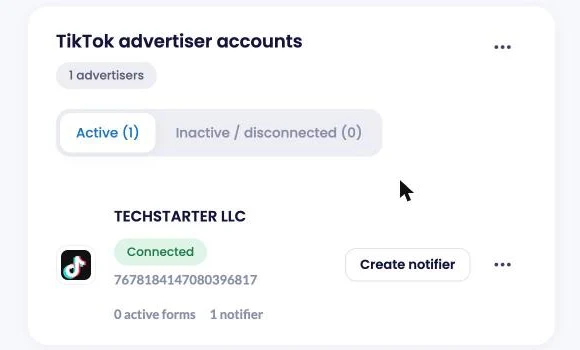
Back in LeadsNotify, your advertiser account appears under TikTok advertiser accounts with a green Connected badge. If you run ads for several brands, connect each advertiser account once and pick the right one when you create the notifier.
Step 2: Create a Notifier and Choose TikTok as the Source
Click Create notifier. The setup runs in five short steps, and you can leave and come back without losing your place.
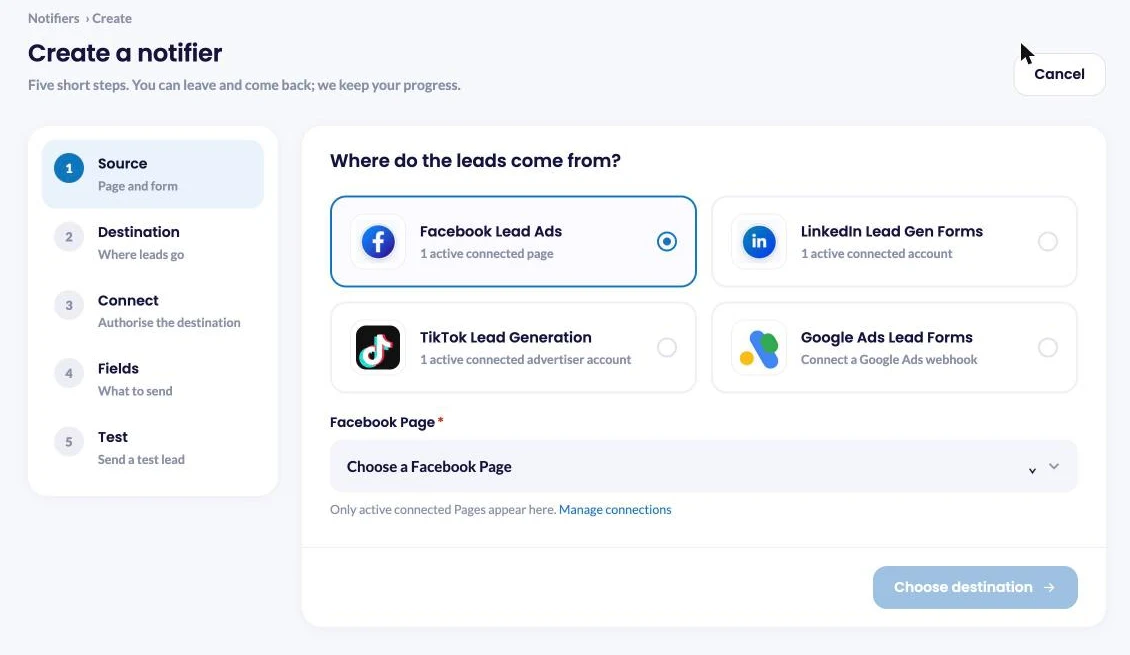
Under Where do the leads come from? choose TikTok Lead Generation. Pick your advertiser account from the dropdown, then tick the lead form you want alerts for. Each form shows its TikTok form ID and status, so you can tell two forms with similar names apart.
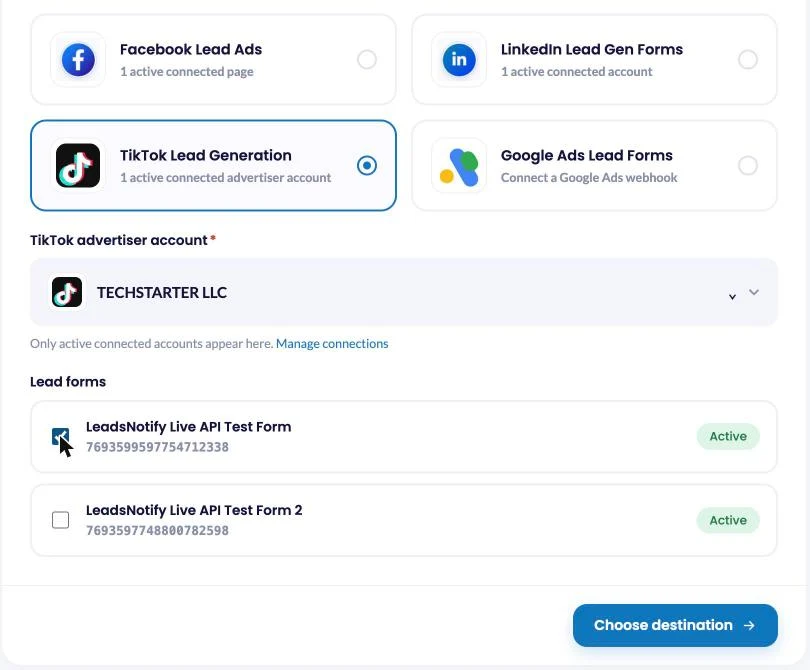
Click Choose destination.
Step 3: Pick Email as the Destination
Under Where should each lead go? select Email. Email alerts are included in every plan and use no message credits, so there is nothing to top up.
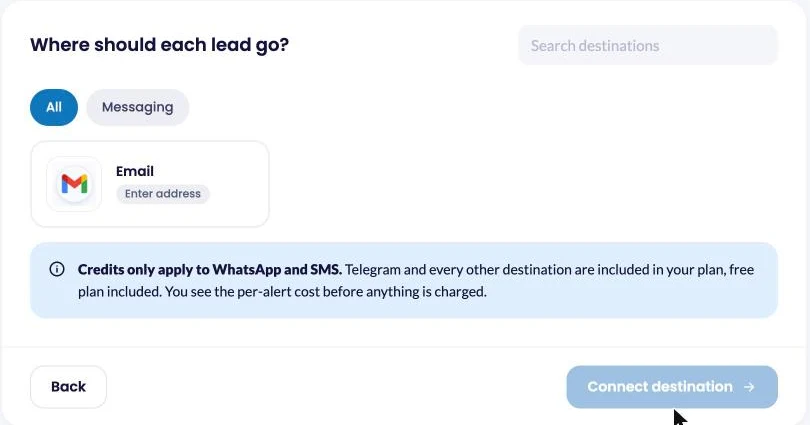
Click Connect destination.
Step 4: Enter the Inbox That Should Get Each Lead
Type the main address under To. Add a manager or a shared sales inbox under CC, and anyone who should get a hidden copy under BCC. No API key or mail setup is needed: LeadsNotify sends the email for you.
Tick Customize email subject if you want something more useful than the default, for example “New TikTok lead” or the name of the campaign. Under Advanced options you can switch on the branded email template, hide questions the person left empty, and rename or reorder fields.
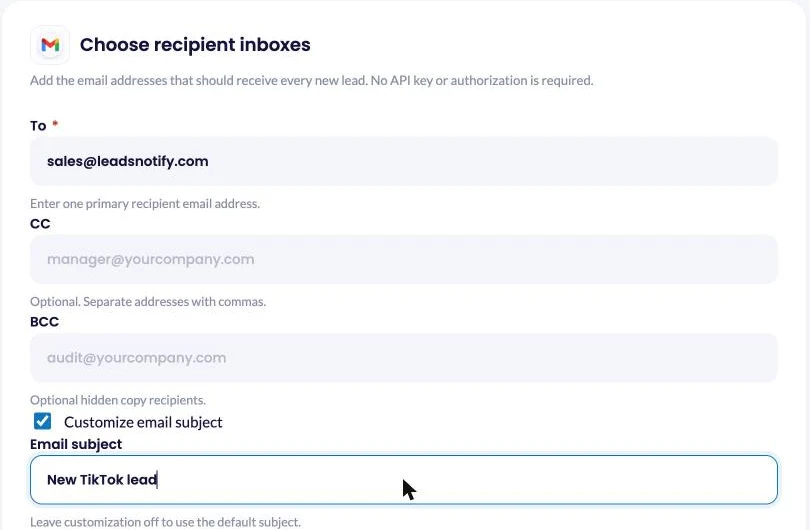
Click Choose fields.
Step 5: Choose What Each Email Says
You see the questions from the form you picked, such as name, email and phone number, plus four pieces of lead metadata from TikTok: Campaign name, Ad group name, Ad name and Form name. Tick the ones you want in the email. The phone preview on the right updates as you go, so you can see exactly what the alert will look like.
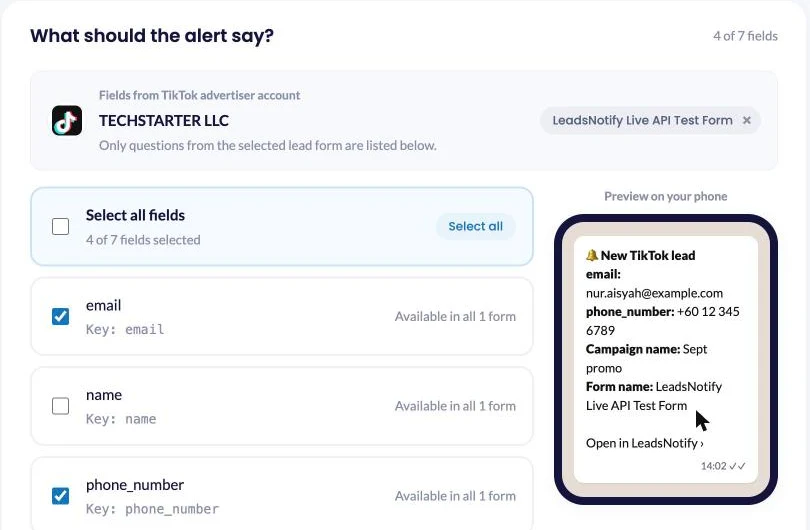
A good default for a sales inbox: name, phone number, email, your qualifying question, and Campaign name. Add Form name if several forms send to the same inbox. Click Save notifier.
Step 6: Send a Test Lead and Check Lead Delivery
The last step is Review and test delivery. Your notifier is already live at this point. Click Send test lead: LeadsNotify asks TikTok to create one sample lead on your form and shows the delivery result on the same screen. No real customer data is used.
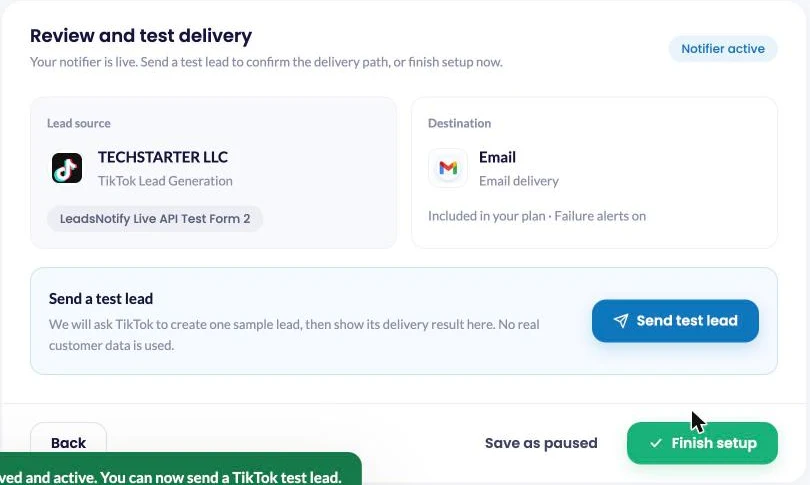
Open the inbox you entered in Step 4 and check that the email arrived with the fields you chose. Then click Finish setup. If you are not ready to receive real leads yet, choose Save as paused instead and switch the notifier on later.
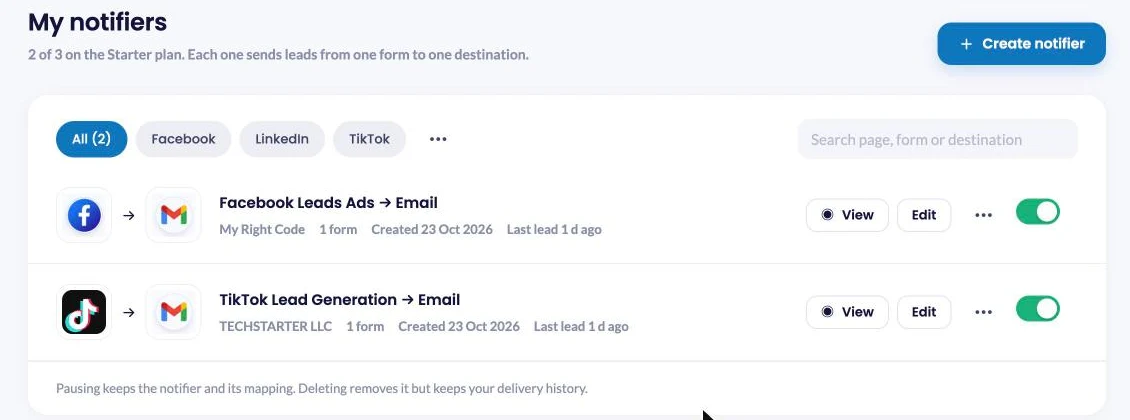
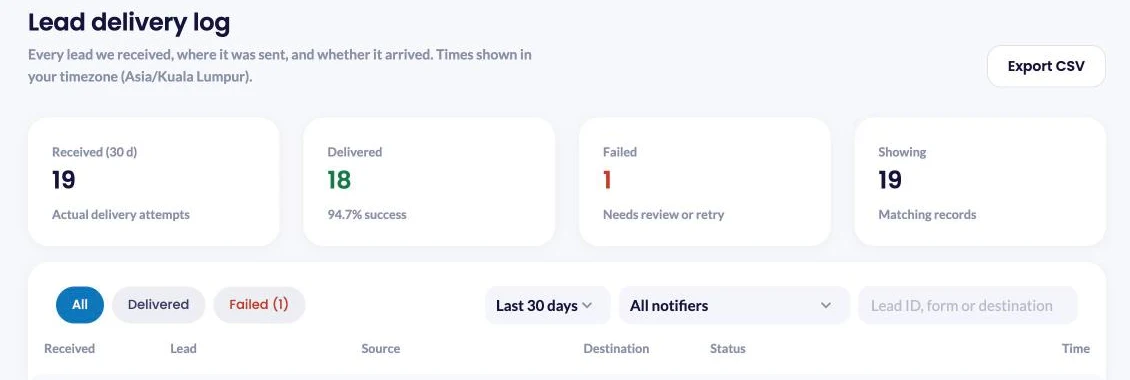
Your notifier now appears under Notifiers with a green switch. Every attempt shows in Lead delivery with the lead ID, the advertiser account, the destination, a status of Delivered or Failed, and the mail server’s own reply when something goes wrong. Our guide to the lead delivery log walks through each column.

Make Sure Someone Actually Replies
Getting the lead into an inbox is the easy part. These habits turn an alert into a conversation.
- Send it to the person who will call, not the owner. Put the rep’s address in To and the manager in CC. The manager gets visibility, the rep gets the ping.
- Use a subject your inbox can filter on. “New TikTok lead” lets you build a rule that stars it, labels it or forwards it to your phone.
- Keep Campaign name in the email. A lead from a “Free quote” campaign and a lead from a “Download the guide” campaign need different first calls.
- Hide empty answers. Optional questions people skip just add noise. Switch on Hide empty answers under Advanced options.
- Keep a second copy. Email is for speed. If your team also lives in a chat tool, see how Telegram lead alerts work on the Facebook side.
When TikTok Lead Emails Don’t Arrive
Start in Lead delivery. If the lead was received but shows Failed, the Status column carries the exact reply from the mail server. If the lead never shows up at all, the problem is on the TikTok side.
| What you see | Why | Fix |
|---|---|---|
| No leads in Lead delivery at all | The advertiser account shows Inactive or disconnected because TikTok’s access expired or was revoked | Lead sources > Connect TikTok and approve access again |
| Your form isn’t in the list | The form is a draft or not yet published, or it belongs to a different advertiser account | Publish the form in Ads Manager, or switch the advertiser account in Step 2 |
| Lead shows Delivered but you can’t find the email | It landed in spam or a promotions tab | Search for the subject line, then mark it as not spam and add the sender to your contacts |
| Lead shows Failed with a 5xx reply | The receiving mail server rejected the message | Read the reply in the Status column, fix the address or ask your mail admin, then send another test lead |
| Alerts stopped after you edited the form | Your ad now runs a different form, for example a duplicate you edited | Edit the notifier and tick the new form |
| The test lead works but real leads don’t arrive | The notifier was saved as paused | Open Notifiers and flip the switch to on |
Frequently Asked Questions
Do I need an API key or a developer account?
No. You sign in to TikTok for Business once from the Lead sources page and approve the access. LeadsNotify handles the lead retrieval. For email there is nothing to connect at all, you just type the address.
How much do TikTok lead email alerts cost?
Email alerts are on every LeadsNotify plan and use no message credits. The free plan includes 50 leads, 1 lead source, 1 notifier, 1 form and 1 email recipient, with no card needed. Paid plans raise the lead count and let you add more sources, notifiers and recipients. Compare the plans.
How fast does the email arrive?
LeadsNotify picks the lead up from TikTok as soon as it is submitted and sends the email straight away. The Time column in the Lead delivery log shows how long each delivery took.
Can I send one form to two inboxes?
Yes. Put the second address in CC or BCC on the same notifier. For a completely separate email, with different fields or a different subject, create a second notifier on the same form.
Can I send leads from several TikTok forms to the same inbox?
Yes. Create one notifier per form and point them at the same address. Tick Form name in Step 5 so you can tell them apart.
What about Facebook and LinkedIn leads?
Same account, same five steps. See how to send Facebook lead ads to email. You can run TikTok, Facebook and LinkedIn notifiers side by side on the paid plans.
Get Your Next TikTok Lead by Email
Connect your advertiser account, pick the form, enter the inbox, choose the fields and send a test lead. Your next TikTok lead lands in your inbox while the person is still on their phone. Set up TikTok lead email alerts in LeadsNotify, free plan included.
Last Updated on October 24, 2026 by Akash Mehra
Set up a free notification in a few minutes.