How to Send Facebook Lead Ads to Pipedrive (Step-by-Step)
Send Facebook leads to Pipedrive automatically. Connect your Page, connect Pipedrive, map fields and test it with LeadsNotify in about 5 minutes.
 By Akash Mehra
6 min read
Table of contents
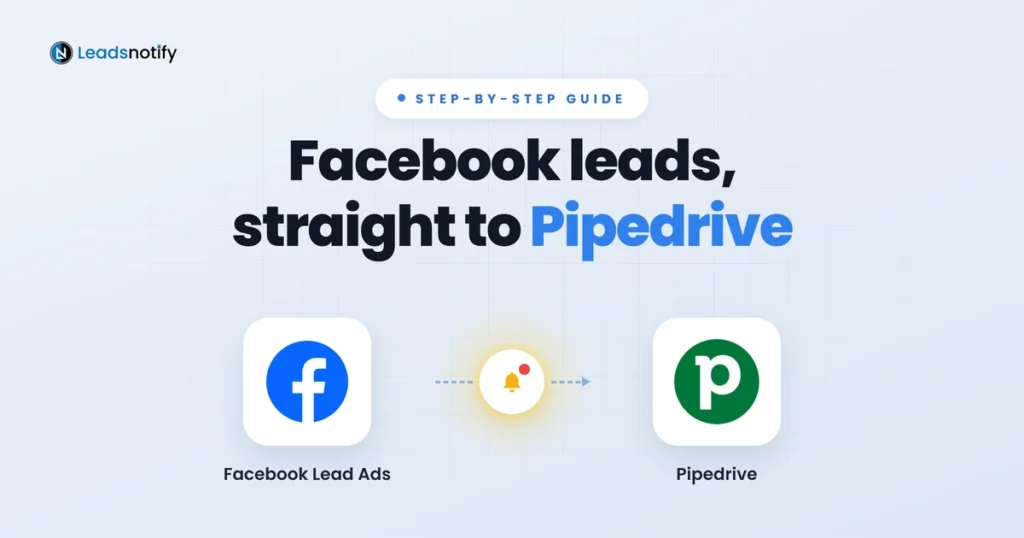
Pipedrive is a sales CRM built around a visual pipeline, used by sales teams that want to see every deal and the next step on it. If you run Facebook Lead Ads, sending every new lead to Pipedrive automatically saves you downloading files from Leads Center and importing them by hand.
This guide shows you how to send Facebook Lead Ads to Pipedrive with LeadsNotify: connect your Facebook Page, connect Pipedrive, choose where leads go, and test it. It takes about five minutes.
Why Send Facebook Leads to Pipedrive?
A lead that is not in Pipedrive has no next activity and no owner. Getting ad leads in automatically means reps work them from the pipeline instead of from a spreadsheet.
Facebook keeps leads in Leads Center, but nobody works leads there. The longer a lead waits for an export, the colder it gets.
How to Send Facebook Lead Ads to Pipedrive (About 5 Minutes)
Before you start, you need: a LeadsNotify account on any plan, free included, admin access to the Facebook Page that runs your instant forms, and your Pipedrive login.
Installed LeadsNotify from the Pipedrive Marketplace? After you click Allow and install, you land on LeadsNotify. Sign in, or create a free account, and start at Step 1. If Pipedrive already shows as connected in Step 4, go straight to Step 5.
Using LinkedIn Lead Gen Forms? The steps are almost the same. See our LinkedIn Lead Gen Forms to Pipedrive guide.
Step 1: Connect Your Facebook Page
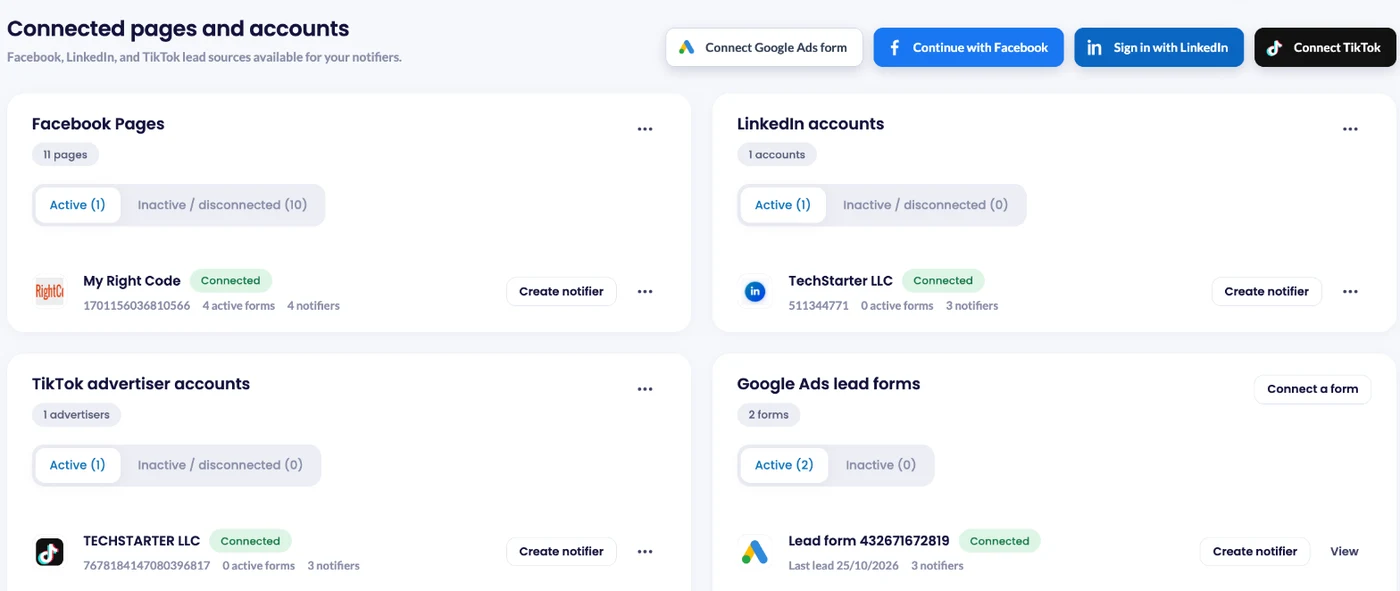
Log in to LeadsNotify and open Lead sources. Click Continue with Facebook, tick the Pages that own your lead forms, and approve the permissions Facebook asks for. Every Page you ticked shows as Connected. Managing a client’s Page? The client has to give your business admin access and leads access first, otherwise the Page won’t appear in the Facebook popup. Already connected your Page for another notifier? Skip to step 2.
Step 2: Create a Notifier and Pick Your Instant Forms
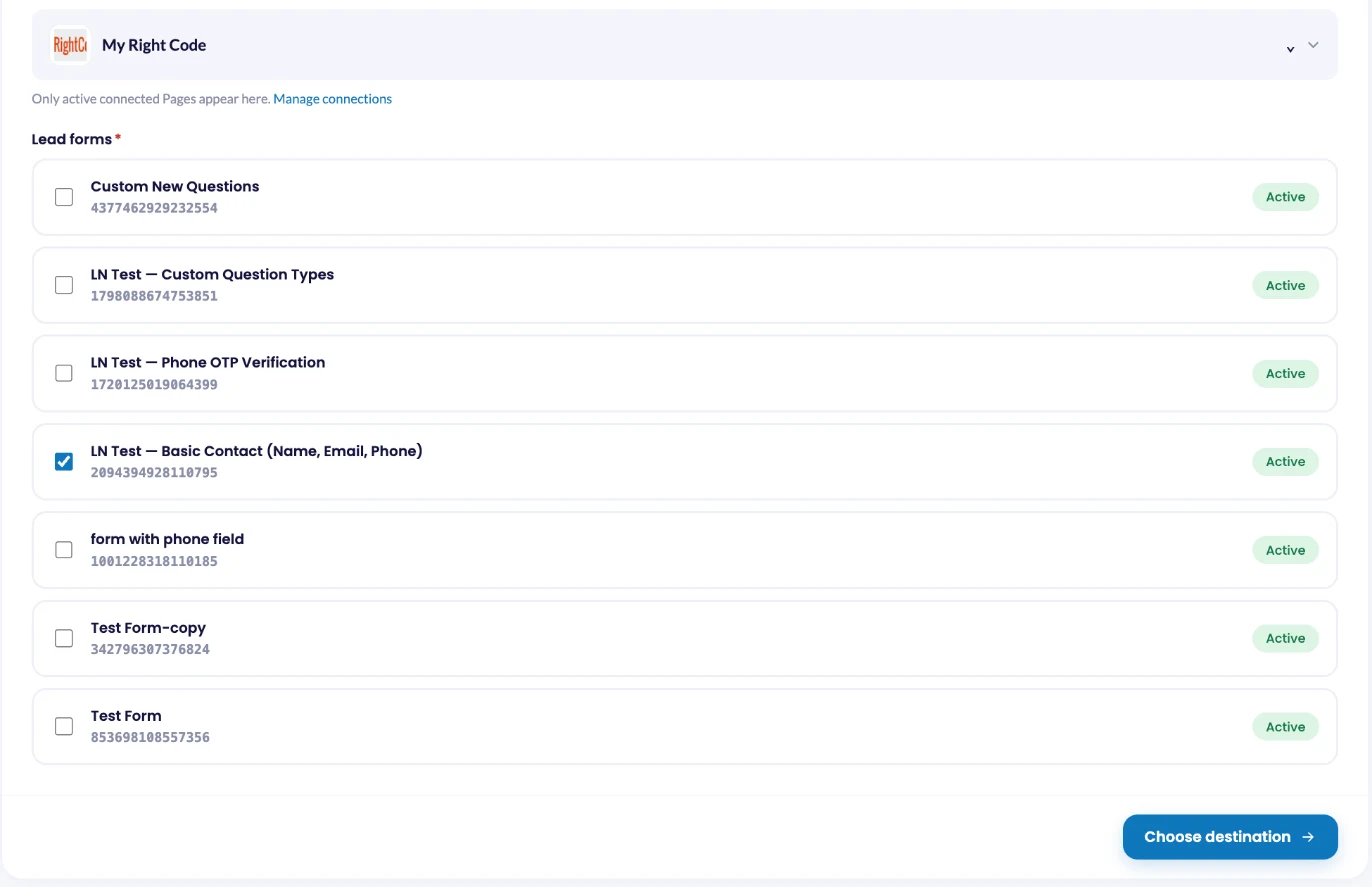
Click Create notifier. In the Source step, choose Facebook Lead Ads, select your Page and tick one or more instant forms. LeadsNotify reads the fields on those forms so you can send them on.
Only active forms are shown. Facebook doesn’t let you edit a published instant form, so if you changed a question you duplicated the form. Pick the copy your ad is actually running. New to lead forms? Here’s how to set up a Facebook instant form.
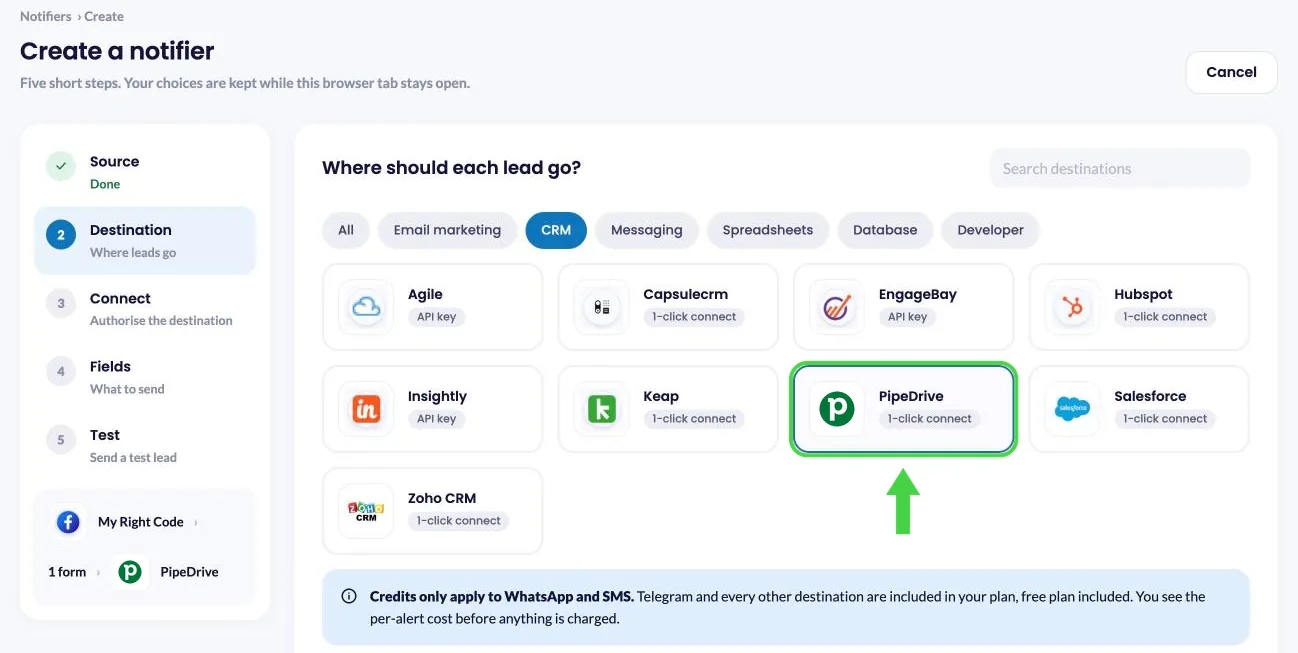
Step 3: Choose Pipedrive as the Destination
Click Choose destination, find Pipedrive in the list (you can search for it) and click the button to connect it.
Step 4: Connect Pipedrive
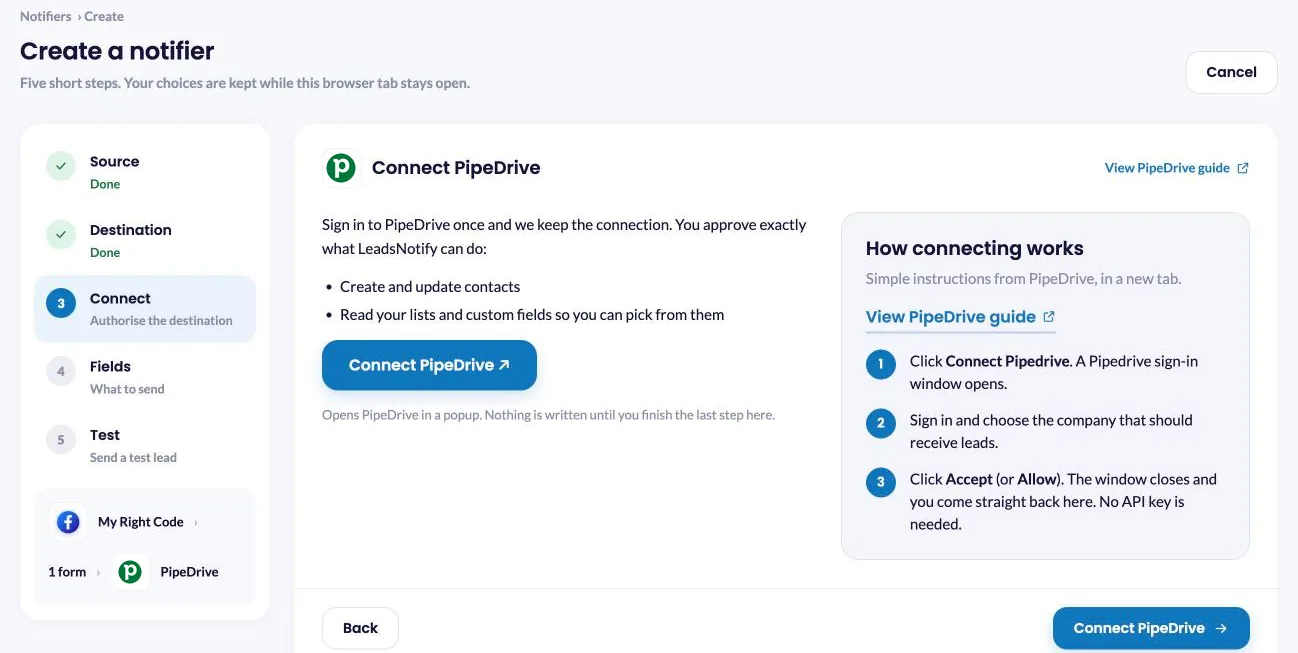
In the Connect step, connect your Pipedrive account. There is no key to copy: you sign in to Pipedrive and allow access.
- In the Connect step, click Connect Pipedrive.
- Pipedrive asks you to sign in, then shows what LeadsNotify is asking for.
- Click Allow and install. You return to LeadsNotify.
Pipedrive shows the access LeadsNotify is asking for before you click Allow and install. LeadsNotify uses it to read your Pipedrive fields and to create Persons and Leads from your form submissions. You can remove the app at any time in Pipedrive under Tools and apps → Marketplace apps.
Step 5: Match Your Fields and Save
Once Pipedrive is connected, choose what LeadsNotify creates for each new lead:
- Person: adds the lead as a contact in Pipedrive. Pick this if your team works contacts and deals directly.
- Lead: adds it to your Pipedrive Leads Inbox, linked to a Person, so your team can qualify it before it becomes a deal.
LeadsNotify then loads your Pipedrive fields, including custom fields. Match each form field to the Pipedrive field it belongs in, so name, email and phone land where your team expects them. Use custom fields for extra answers, such as budget or the form name, so you can filter by them later.
Save the notifier. It appears under Notifiers, and the green switch means it’s live. Keep failure alerts turned on for the notifier, so LeadsNotify emails you if Pipedrive can’t accept a lead.
Step 6: Send a Test Lead and Check Lead delivery
Saving the notifier opens Review and test delivery. Click Send test lead: LeadsNotify asks Meta to create one sample lead on your form and shows the delivery result right there. No real customer data is used. You can send another one later from Notifiers: click the ⋯ menu next to the notifier and choose Send test lead.
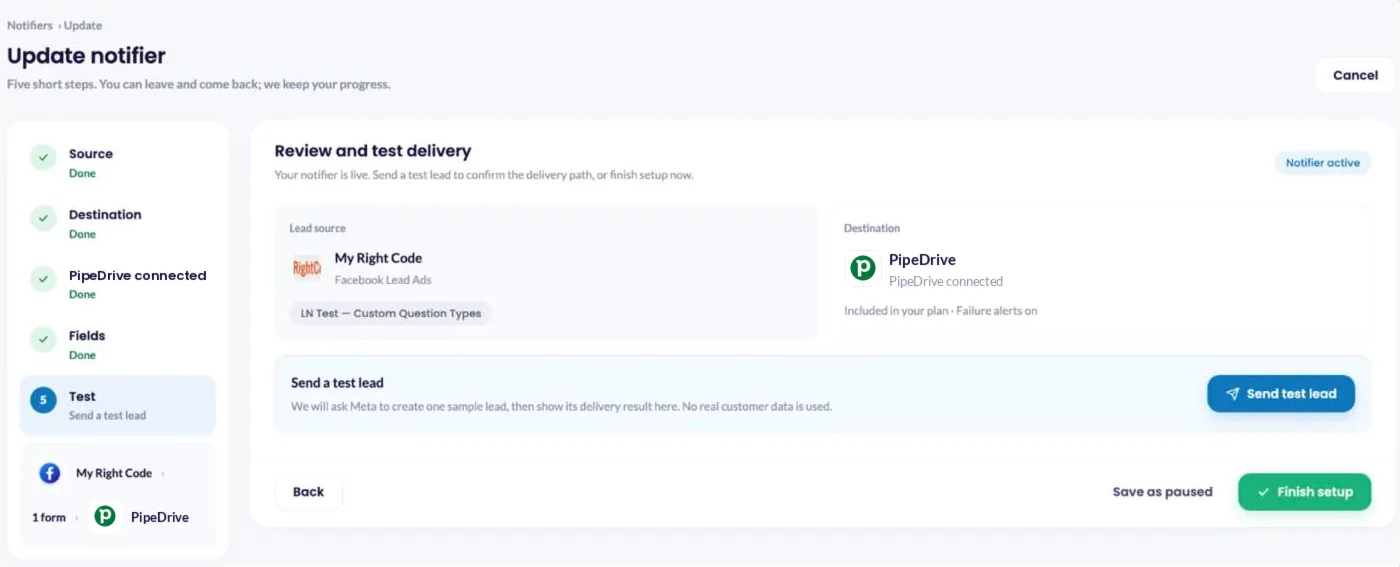
Open Pipedrive and search for the test lead by name or email. If the test lead is there with the right details, the notifier is working.
Then open Lead delivery in LeadsNotify. Every attempt is listed with the source, the destination, a status of Delivered or Failed and the delivery time. Our guide to the lead delivery status dashboard walks through every column.

Tips for Getting More From Facebook Leads in Pipedrive
- Create a Pipedrive automation that adds an activity, such as a call, whenever a new record arrives from your ads.
- Add a custom field for the form name so you can filter by campaign.
Troubleshooting the Facebook Lead Ads to Pipedrive Integration
Start with the Lead delivery page. It shows whether each lead was Delivered or Failed, and the failure alert email includes the reason.
| What you see | Likely cause | Fix |
|---|---|---|
| No leads arriving at all | The Facebook Page shows as disconnected, often after an admin leaves or a role changes | Lead sources > Continue with Facebook, and tick the Page again |
| Leads stopped after you changed the form | Your ad now runs a duplicated form and the notifier still watches the old one | Edit the notifier from Notifiers and select the new form |
| Your form isn’t in the list | Only active forms are shown | Check the form’s status in Meta, then reopen the notifier |
| Pipedrive connection stops working | The app was uninstalled in Pipedrive, or the user who connected it left | Edit the notifier and click Connect Pipedrive again |
| A delivery shows Failed | Pipedrive refused the lead | Open Lead delivery to find the lead, and read the reason in the failure alert email |
Frequently Asked Questions
How do I connect Facebook Lead Ads to Pipedrive?
Use LeadsNotify. Connect your Facebook Page, create a notifier with Pipedrive as the destination, pick your instant forms, click Connect Pipedrive and allow access, then save and send a test lead.
Can Facebook leads go to Pipedrive automatically?
Yes. Once the notifier is switched on, every new lead from the forms you picked is sent to Pipedrive within seconds, with no CSV downloads.
Do I need a Pipedrive API token?
No. You connect Pipedrive by signing in and clicking Allow and install. There is no token to copy.
Do I need to write any code?
No. Everything is set up in the LeadsNotify screens. You only need access to your Facebook Page and to your Pipedrive account.
Can I send the same lead to Pipedrive and another tool?
Yes. Create a second notifier on the same form, for example email alerts or Slack. See every Facebook Lead Ads to Pipedrive option on our integrations page.
What happens if a lead can’t be delivered?
Keep failure alerts on for the notifier and LeadsNotify emails you when Pipedrive refuses a lead. The alert includes the reason. Here’s more on lead failure email alerts.
Which LeadsNotify plans include it?
Every plan, the free plan included. The free plan covers 50 leads a month and 1 notifier. Compare the plans.
Can I send LinkedIn Lead Gen Forms leads to Pipedrive too?
Yes. The setup is almost the same: connect your LinkedIn ad account in Lead sources, create a notifier and choose Pipedrive as the destination. Follow our LinkedIn Lead Gen Forms to Pipedrive guide for each step.
Start Sending Facebook Leads to Pipedrive
Connect your Facebook Page, connect Pipedrive, pick your forms and save the notifier. Your next lead lands in Pipedrive seconds after the form is sent, instead of waiting for a download. Create your free LeadsNotify account and set up your Pipedrive notifier today.
Last Updated on November 11, 2026 by Akash Mehra
Set up a free notification in a few minutes.