Never Miss a Failed Lead: Introducing Instant Lead Failure Email Alerts
When someone submits a lead form, their interest is at its highest. They may be asking for a quote, requesting a consultation, booking a demo, or waiting for a member of your team to contact them. Every minute matters. But even a…

Table of contents

When someone submits a lead form, their interest is at its highest. They may be asking for a quote, requesting a consultation, booking a demo, or waiting for a member of your team to contact them. Every minute matters.
But even a well-built lead workflow can occasionally run into a problem. A connected CRM may reject a request, an integration credential may expire, a field may no longer match, or a destination service may be temporarily unavailable. Without an immediate alert, a failed delivery can remain unnoticed until somebody checks a report, after the best time to respond has already passed.
That is why we introduced instant lead failure delivery notifications via email in LeadsNotify.
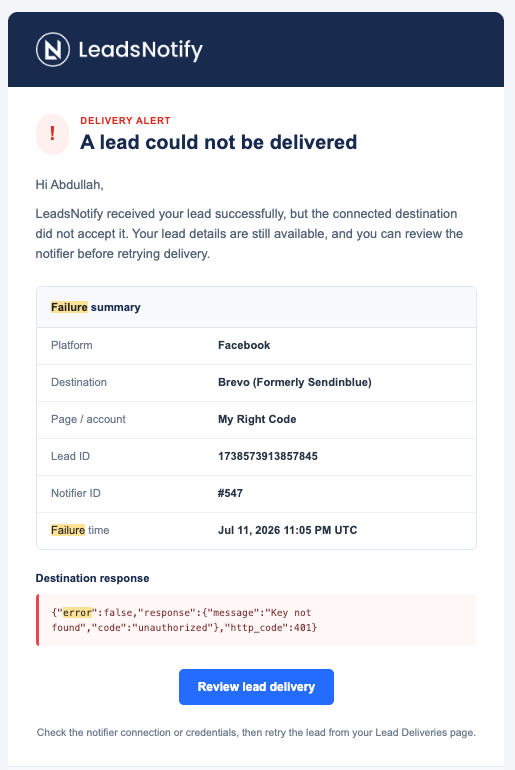
With this feature enabled, LeadsNotify sends an email as soon as an enabled notifier cannot deliver a lead to its connected destination. Instead of discovering the issue hours or days later, you get a clear failure receipt with the information needed to investigate it.
The result is simple: faster awareness, faster troubleshooting, and a much smaller chance that a valuable lead will be forgotten.
Why failed lead delivery needs an instant alert
Lead generation does not end when a prospect presses Submit. The lead still has to travel from the advertising platform to the destination your team uses, such as a CRM, email platform, or another connected application.
Most of the time, that transfer happens smoothly. However, a destination can reject a lead for reasons outside the original form submission. Common examples include:
- An expired or revoked connection
- Changed login credentials or permissions
- A required field that is missing or incorrectly mapped
- A validation rule introduced by the destination
- An API or server error at the receiving service
- A temporary outage or rate limit
- A change to the connected page, account, form, or notifier
The lead may have reached LeadsNotify successfully while still failing at the final destination. That distinction is important: the prospect completed the form, but the sales or support team may not see the lead where it normally works.
Without an alert, teams often discover this type of problem indirectly. Someone notices that a campaign has generated leads but the CRM looks unusually quiet. A salesperson asks why a contact is missing. An administrator finds failures during a later audit. By then, several leads may have been affected.
Instant failure emails replace that uncertainty with a direct, actionable notification.
How instant lead failure emails work
Once failure emails are enabled for a notifier, LeadsNotify monitors the delivery of every lead handled by that notifier.
If the destination accepts the lead, the workflow continues normally and no failure email is sent. If the destination does not accept the lead, LeadsNotify records the failed delivery and sends one failure receipt for that lead to the configured recipients.
The process looks like this:
- A prospect submits a Facebook Lead Ad form or LinkedIn Lead Gen Form.
- LeadsNotify receives the lead.
- LeadsNotify sends the lead through the notifier to its connected destination.
- If the destination rejects the delivery, LeadsNotify records the response.
- LeadsNotify immediately queues a failure email for the account email and any additional recipients you configured.
- Your team reviews the details, corrects the underlying issue, and checks the lead in Lead delivery.
This alert is focused specifically on the delivery failure. It is not a generic activity email or a daily summary that requires you to search for the affected record.
What information is included in the email?
The failure receipt is designed to help your team understand what happened without first searching across several systems.
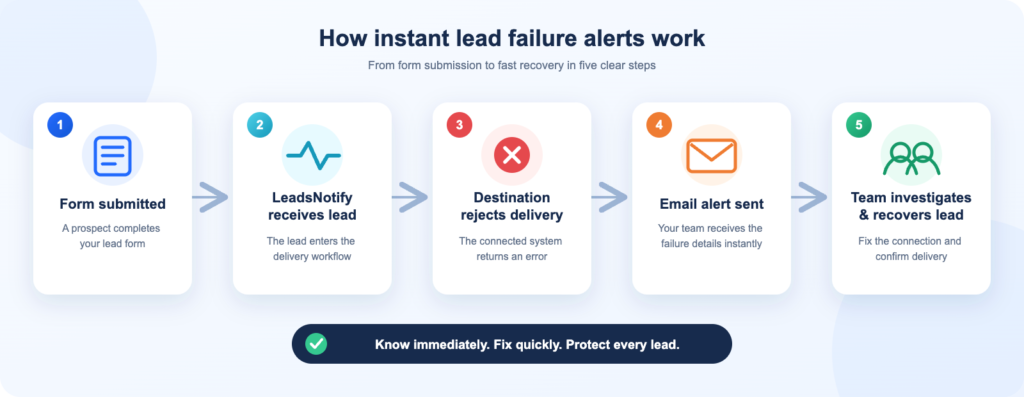
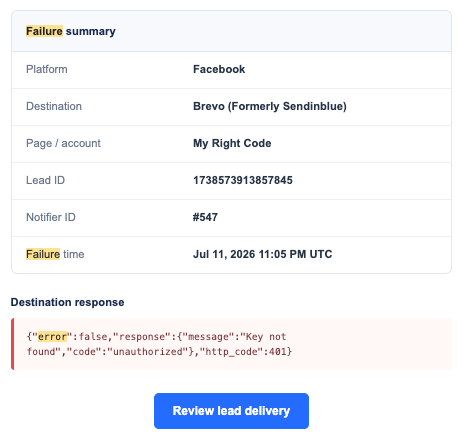
Each email includes:
- Lead source platform: Facebook or LinkedIn
- Destination: The connected action or application that did not accept the lead
- Page or account: The page or account associated with the notifier
- Lead ID: The unique identifier for the affected lead
- Notifier ID: The exact LeadsNotify notifier used for the delivery
- Failure time: When LeadsNotify recorded the failed delivery
- Destination response: The technical response returned by the connected destination
The email also includes a Review lead delivery button that takes you to the Lead delivery area in LeadsNotify. There, you can review delivery activity and use the available details to confirm the problem has been resolved.
The destination response can be especially useful. For example, an authentication error points you toward reconnecting the notifier, while a field-validation response may indicate that a mapping or destination requirement needs attention.
The practical benefits for your business
1. Know about delivery problems sooner
You no longer have to keep refreshing a dashboard or wait for somebody to notice that leads are missing. The alert arrives in the same inbox your team already monitors.
2. Respond while the lead is still fresh
The sooner you know about a failure, the sooner you can correct it and continue the follow-up process. This is particularly important for high-intent campaigns where response time can influence conversion.
3. Troubleshoot with better context
The email identifies the platform, page, destination, notifier, lead, time, and destination response. That context helps an administrator or support team narrow down the cause much faster than a vague “something failed” warning.
4. Alert the right people
Failure emails always go to the account email. You can also add multiple additional recipients, separated by commas. This makes it possible to notify the people responsible for the workflow, for example, a marketing operations inbox, CRM administrator, agency contact, or sales manager.
5. Control alerts notifier by notifier
You may not want the same settings for every workflow. LeadsNotify lets you enable failure emails for individual notifiers or enable them for all notifiers at once from your profile.
This is helpful when different teams own different integrations, when some campaigns are more time-sensitive than others, or when you want to introduce alerts gradually.
6. Create a clear operational record
The email provides a time-stamped receipt of the failure, while the Lead delivery page gives you a central place to review recent delivery results. Together, they make it easier to monitor reliability and follow up on exceptions.
How to enable instant lead failure emails
You manage failure alerts in one place in LeadsNotify.
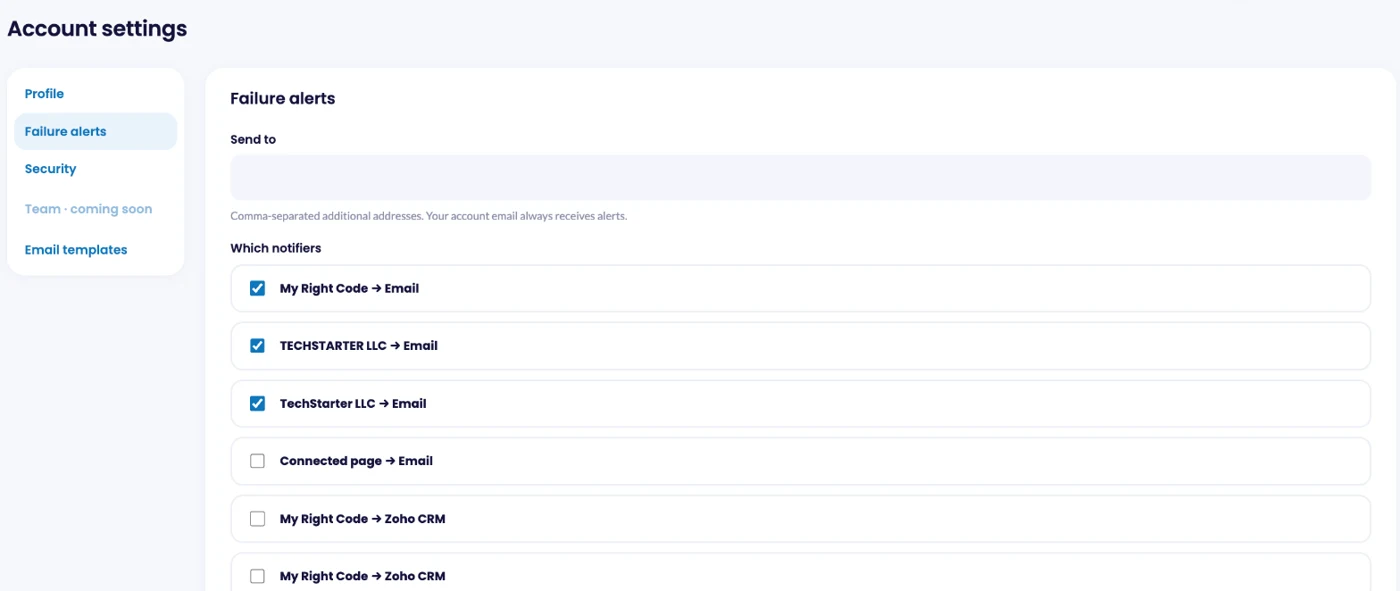
- Sign in to your LeadsNotify account and open Account.
- Open the Failure alerts tab.
- Under Which notifiers, tick every notifier you want alerts for.
- Optionally enter more recipients under Send to, separating addresses with commas.
- Click Save changes.
Your account email always receives the alerts for every ticked notifier. Additional recipients receive the same failure receipt, so everyone sees the same diagnostic information. The Test step of each notifier also shows whether failure alerts are on for it.
What to do when you receive a failure email
A failure alert is most valuable when your team has a simple response process. We recommend the following:
Step 1: Read the destination response
Start with the response shown in the email. It often indicates whether the issue is related to authentication, permissions, field validation, or the availability of the receiving service.
Step 2: Identify the affected workflow
Use the platform, page or account, destination, and notifier ID to locate the exact connection. This avoids changing an unrelated campaign or integration.
Step 3: Check the notifier connection and configuration
Confirm that the destination is connected, its credentials are current, and the expected fields are mapped correctly. If the response mentions access or authorization, reconnecting the integration may be necessary.
Step 4: Open Lead delivery
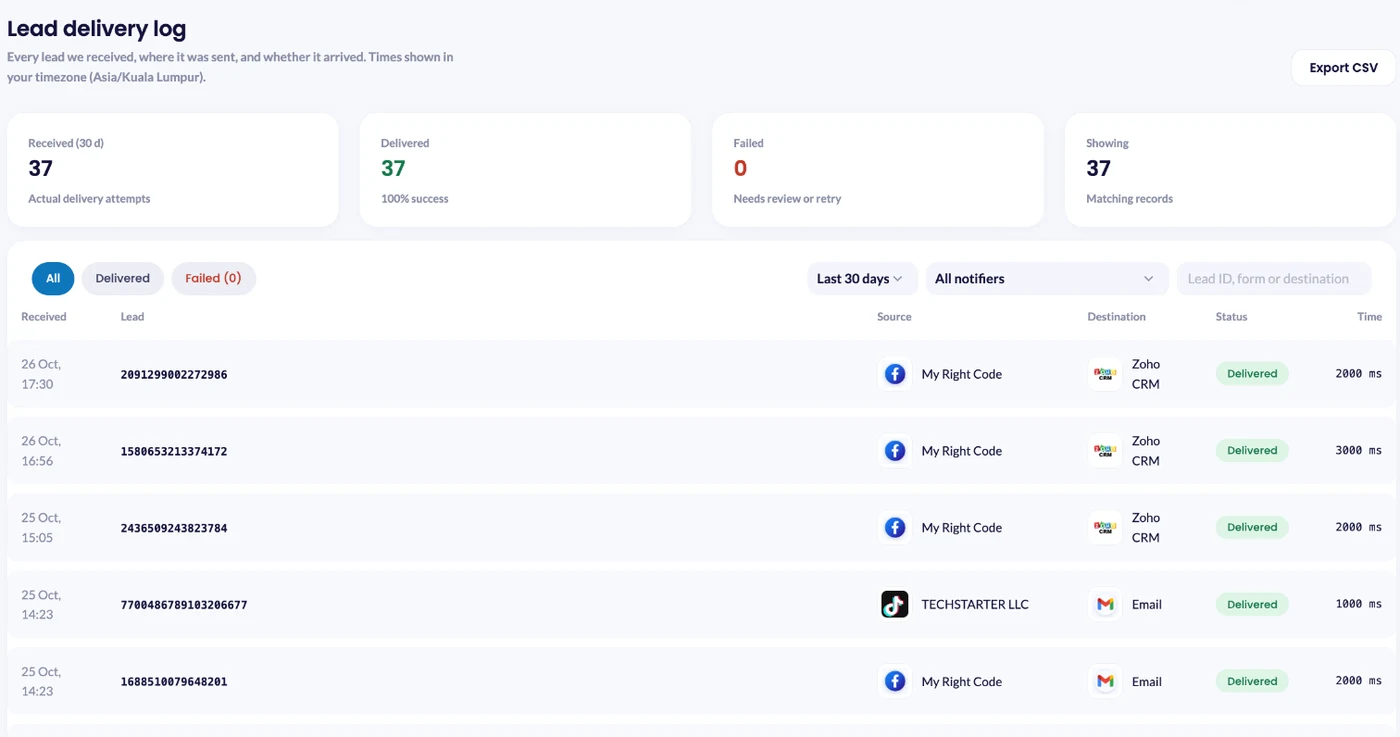
Select Review lead delivery in the email or open Lead delivery from the LeadsNotify menu. It shows received, delivered and failed leads and lets you filter by date range, status and notifier, or search by lead ID, form or destination.
Step 5: Confirm that delivery is working again
After correcting the issue, verify the affected lead and monitor the next incoming lead. Where a retry or repush action is available for the affected delivery, use it after the destination problem has been fixed. If the delivery still fails, review the latest response rather than repeatedly retrying an unresolved connection
Recommended setup for teams and agencies
For a small business, sending alerts to the account owner may be enough. Larger teams and agencies can make the feature even more effective with a shared process.
Consider adding:
- A shared operations inbox that is monitored throughout the working day
- The person who manages CRM credentials and field mappings
- A campaign owner for time-sensitive lead-generation campaigns
- An agency contact responsible for the client’s integrations
Avoid adding people who cannot act on a delivery problem. A short, purposeful recipient list keeps the alert important and reduces the chance that it becomes background noise.
It is also worth enabling alerts for all active, business-critical notifiers. A workflow is often most vulnerable when everyone assumes somebody else is monitoring it.
Frequently asked questions
Does LeadsNotify send an email for every successful lead?
No. This feature sends an operational email only when a lead cannot be delivered through a notifier that has failure emails enabled.
Will I receive more than one email for the same failure?
LeadsNotify is designed to send one failure receipt for each failed lead on an enabled notifier, preventing the same recorded failure from generating duplicate alerts during concurrent processing.
Which lead sources are supported?
Instant failure receipts are available for failed deliveries handled by supported Facebook and LinkedIn notifier workflows.
Who receives the failure email?
The LeadsNotify account email receives the alert. You can also configure additional valid email addresses under Send to in Account > Failure alerts, separated by commas.
Can I enable the feature only for selected notifiers?
Yes. You can turn failure emails on or off for each notifier. Tick or untick them under Which notifiers in Account > Failure alerts.
Does the email contain the full lead’s personal information?
The alert focuses on delivery diagnostics, including the lead ID and delivery context. Review the lead and its delivery record securely inside LeadsNotify.
What if I do not understand the destination response?
Send the failure details to support@leadsnotify.com. The platform, notifier ID, failure time, and response included in the receipt will help the support team investigate.
Turn delivery failures into fast, manageable exceptions
No integration can guarantee that every external service will accept every request at every moment. What matters is how quickly your team learns about a problem and how easily it can act.
Instant lead failure email alerts give you that visibility. They bring the affected workflow, lead identifier, failure time, and destination response directly to your inbox, without requiring constant dashboard monitoring.
If your business depends on fast lead follow-up, enable the feature for your active notifiers today.
Sign in to LeadsNotify, open your profile, and enable Lead failure emails for the notifiers that matter to your business.
If you need help setting up alerts or understanding a failure response, contact us at support@leadsnotify.com.
Last Updated on October 26, 2026 by Abdullah Khan
Set up a free notification in a few minutes.

Abdullah Khan
A Technical Lead and backend architect with 10+ years of experience building reliable, high-scale APIs and automation systems. At LeadsNotify, he helps build and maintain the integrations that route Facebook and LinkedIn leads to email, CRMs, and marketing tools in real time.
Connect on LinkedIn ↗