
How to Connect LinkedIn Leads with ConvertKit (Kit)
ConvertKit, now known as Kit, is an email marketing platform built for creators, bloggers, and businesses that want to grow and manage an email audience. It provides tools for email campaigns, subscriber management, forms, automation, segmentation, and audience engagement. If you generate…

Table of contents
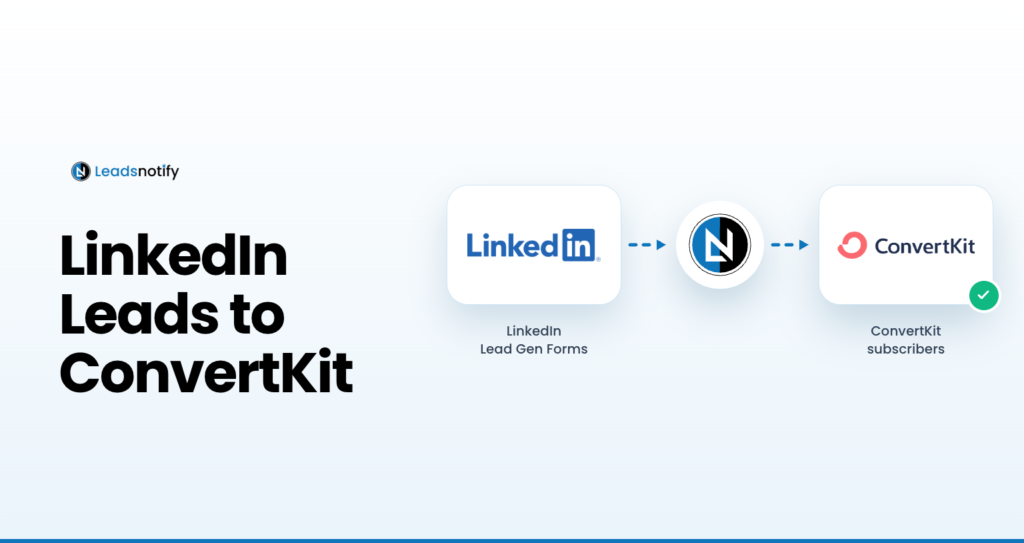
ConvertKit, now known as Kit, is an email marketing platform built for creators, bloggers, and businesses that want to grow and manage an email audience. It provides tools for email campaigns, subscriber management, forms, automation, segmentation, and audience engagement.
If you generate leads through LinkedIn Lead Gen Forms, you can connect LinkedIn to ConvertKit using LeadsNotify. This ConvertKit LinkedIn integration automatically sends new LinkedIn leads to your ConvertKit account, reducing manual data entry and helping you follow up with new subscribers more quickly.
In this guide, we’ll show you how to connect LinkedIn leads to ConvertKit with LeadsNotify, configure the API connection, select the appropriate tag and form, and test the integration.
How to Connect LinkedIn Leads with ConvertKit
The setup requires three main steps: connect your LinkedIn account to LeadsNotify, create a ConvertKit notifier, and configure your ConvertKit API key and subscriber settings.
Step 1: Sign Up and Log In to LeadsNotify
First, sign up or log in to LeadsNotify.
After logging in, you can create a notifier that connects your LinkedIn lead source with ConvertKit.
Step 2: Connect LinkedIn to LeadsNotify
Open Lead sources in LeadsNotify and click Sign in with LinkedIn, then approve the permissions. Your LinkedIn account shows as Connected.
If you need additional help connecting your LinkedIn lead source, follow our guide on setting up lead notifications and connecting a lead source.
Step 3: Create a ConvertKit Notifier
After connecting LinkedIn, go to the Create notifier option in LeadsNotify.
Click Create notifier. In the Source step, choose LinkedIn Lead Gen Forms, then select your LinkedIn account and the lead forms you want to connect. LeadsNotify loads the fields from those forms. Click Choose destination, select ConvertKit and continue to connect it.
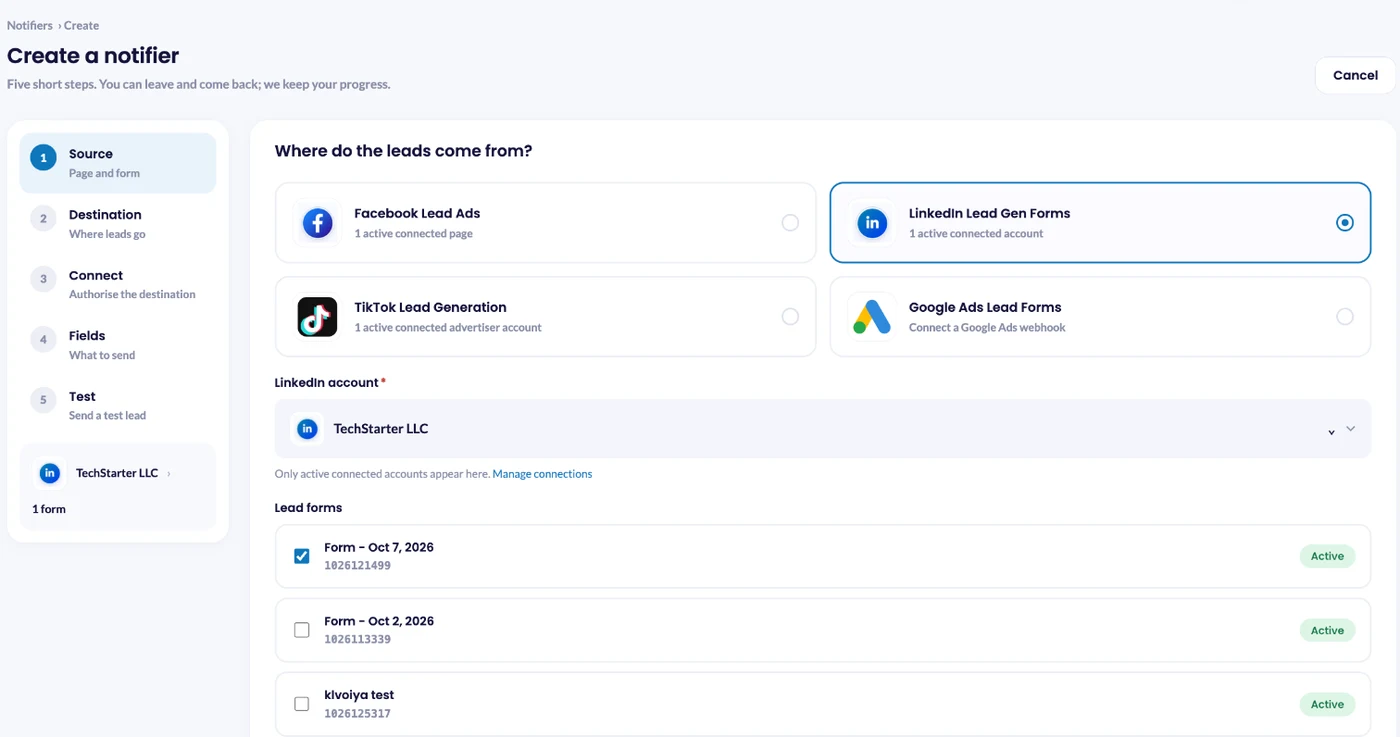
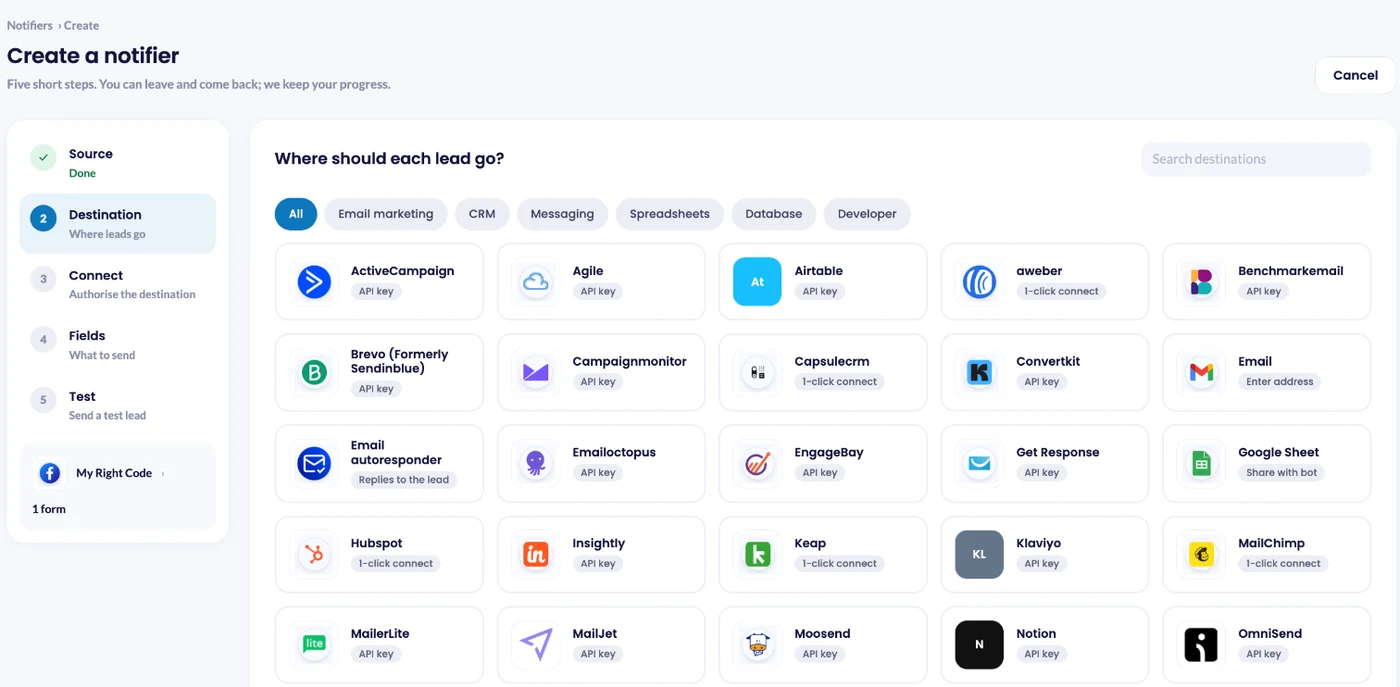
Once you select the appropriate LinkedIn Instant Form, LeadsNotify will display the available fields from that form.
Connect ConvertKit Using Your API Key
In the right-hand section, you will need to enter your ConvertKit API key. This allows LeadsNotify to connect to your ConvertKit account and deliver the LinkedIn leads to your selected audience.
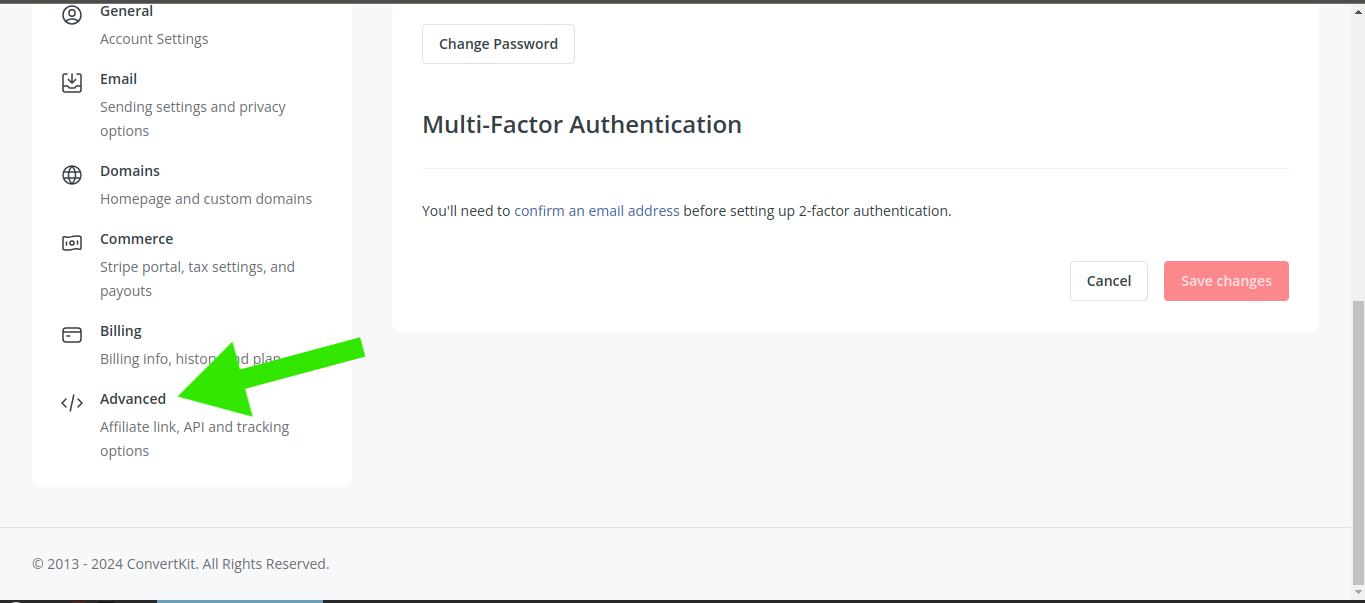
To find your API key, log in to your ConvertKit account, open your profile, and go to Settings.
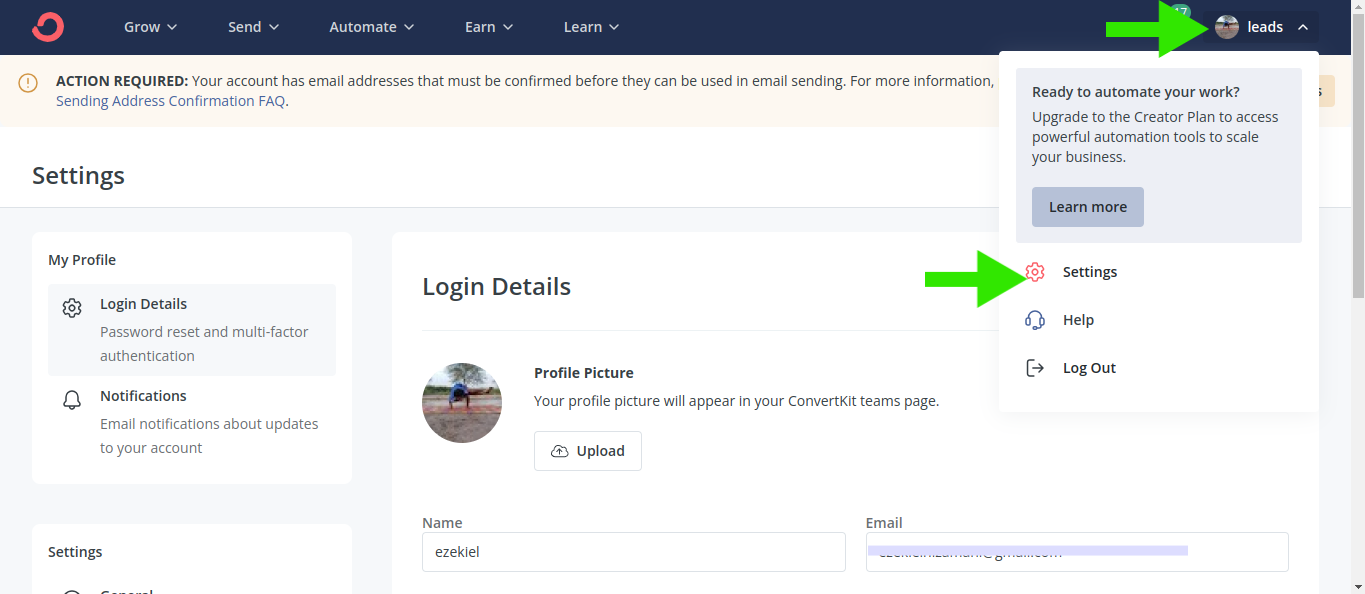
Scroll down through the settings page and select Advanced.
Locate your API key and copy it.
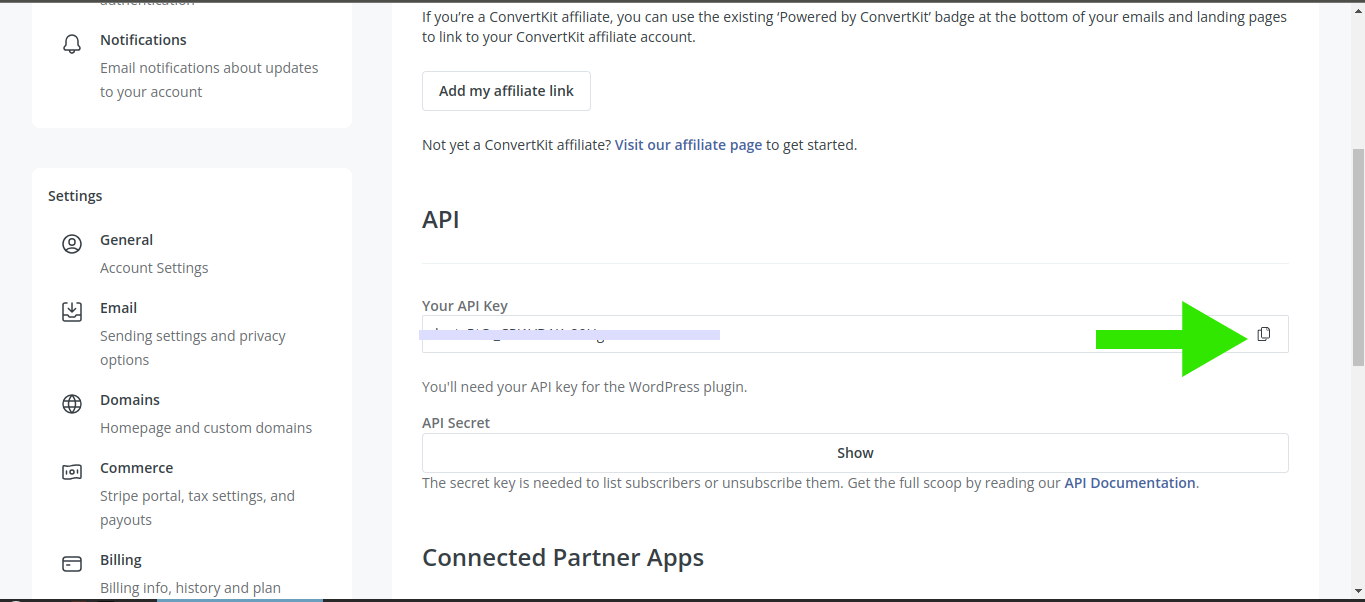
Return to LeadsNotify and paste the API key into the API Key field. Then click Submit.
Select a ConvertKit Tag and Form
After the API key is submitted successfully, LeadsNotify will display additional input fields along with dropdown menus for your ConvertKit settings.
Select the tag and form where you want the LinkedIn leads to be added. Choosing the correct tag and form helps you organize new leads inside ConvertKit and use them in your existing email marketing workflows.
Once you’ve selected the appropriate options, submit the configuration to complete the notifier.
How the LinkedIn to ConvertKit Integration Works
Once the notifier is configured, the workflow is simple:
- A prospect submits a LinkedIn Lead Gen Form.
- LeadsNotify receives the new lead.
- LeadsNotify processes the lead through your ConvertKit notifier.
- The lead is sent to your selected ConvertKit form and tag.
- You can then manage and engage with the new subscriber through your ConvertKit email marketing workflows.
This automation removes the need to manually export or copy LinkedIn leads into ConvertKit and can help your team respond to new leads more efficiently.
How to Test the ConvertKit LinkedIn Integration
After creating the notifier, test the integration before relying on it for live campaigns. A test lead confirms that LinkedIn, LeadsNotify, and ConvertKit are connected correctly.
Step 1: Send a LinkedIn Test Lead
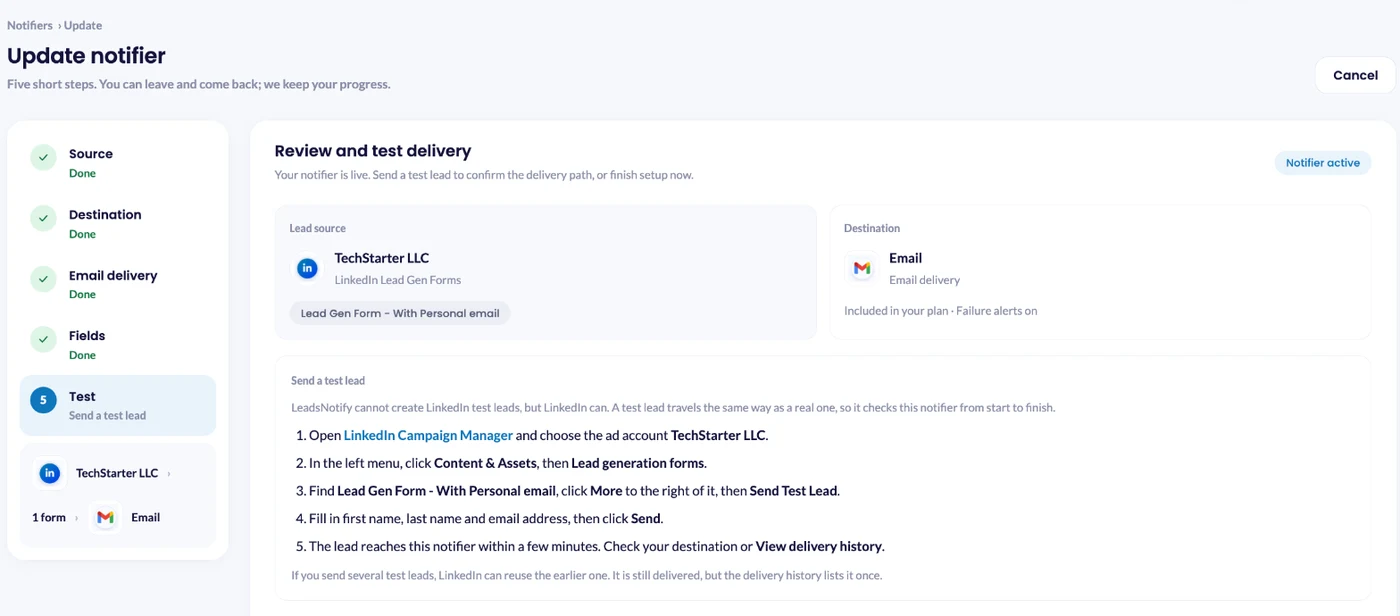
LeadsNotify cannot create LinkedIn test leads itself, but LinkedIn can. In LinkedIn Campaign Manager, choose your ad account, go to Content & Assets > Lead generation forms, click More next to the form and choose Send Test Lead. Fill in a name and an email address you own, then click Send. The lead reaches your notifier within a few minutes, and the ⋯ menu next to the notifier in Notifiers has How to send a test lead with the same steps.
Step 2: Check ConvertKit
After submitting the test form, open your ConvertKit account and check the selected form or tag.
If the test contact appears in ConvertKit, your LinkedIn to ConvertKit integration is working correctly.
If the lead does not appear, review the notifier configuration, API key, selected form, and tag. You can also contact support@leadsnotify.com for assistance.
Benefits of Connecting LinkedIn Leads to ConvertKit
Automating the connection between LinkedIn and ConvertKit can make lead management easier, especially when you’re generating multiple leads through LinkedIn campaigns.
- Reduce manual data entry: New LinkedIn leads can be sent to ConvertKit automatically.
- Improve follow-up speed: Leads can enter your email marketing workflow without waiting for a manual import.
- Reduce missed leads: Automation helps create a more consistent process for handling new submissions.
- Save time: Your team can spend less time transferring contact information between platforms.
Best Practices for LinkedIn and ConvertKit Automation
- Test the integration first: Always submit a test lead before sending traffic to a live campaign.
- Check your field mappings: Make sure the LinkedIn form collects the information you need for your ConvertKit workflow.
- Use consistent tags: Apply appropriate ConvertKit tags so you can segment LinkedIn leads later.
- Monitor delivery: If a lead does not arrive, review the notifier configuration and delivery status in LeadsNotify.
Frequently Asked Questions
Can I connect LinkedIn leads to ConvertKit?
Yes. You can use LeadsNotify to connect supported LinkedIn Lead Gen Forms with ConvertKit and automatically send new leads to your selected ConvertKit form and tag.
How does the ConvertKit LinkedIn integration work?
The integration connects your LinkedIn lead source to LeadsNotify and then connects LeadsNotify to ConvertKit using your ConvertKit API key. When someone submits a connected LinkedIn lead form, LeadsNotify processes the lead and sends it to the configured ConvertKit destination.
Is ConvertKit now called Kit?
Yes. ConvertKit has rebranded as Kit. Existing users and search queries may still use the ConvertKit name, so you may see both names when looking for documentation or integrations.
Can I test the LinkedIn to ConvertKit connection?
Yes. Send a test lead from LinkedIn Campaign Manager with Send Test Lead on your form and then check the selected form or tag in ConvertKit to confirm that the contact was delivered successfully.
What should I do if a LinkedIn lead does not appear in ConvertKit?
First, verify that your LinkedIn account and lead form are connected correctly. Then check the ConvertKit API key, selected form, tag, and notifier configuration in LeadsNotify. If the issue continues, contact support@leadsnotify.com for assistance.
Can LinkedIn leads be added to a ConvertKit automation?
Yes. Once the lead is added to the appropriate ConvertKit form or tag, you can use your existing ConvertKit automation workflows to manage communication with those subscribers.
Automate LinkedIn Leads with ConvertKit
Manually transferring LinkedIn leads into an email marketing platform can take time and create unnecessary opportunities for data-entry errors. A ConvertKit LinkedIn integration through LeadsNotify provides a simple way to automate that process.
Once your LinkedIn account is connected, you can create a ConvertKit notifier, enter your API key, select the appropriate form and tag, and test the workflow with a lead submission.
If you’re using LinkedIn Lead Gen Forms to grow your audience, automating the connection with ConvertKit can help you move new leads into your email marketing workflow faster and spend less time transferring contact data manually.
Ready to connect your LinkedIn leads with ConvertKit? Sign up for LeadsNotify and create your ConvertKit notifier.
Set up a free notification in a few minutes.

Hizqeel Nizamani
Hizqeel Nizamani is a software engineer and backend developer working on CRM integrations, automation, APIs, and lead management systems. At LeadsNotify, he helps build and improve technology that enables businesses to capture, manage, and respond to leads more effectively.
Connect on LinkedIn ↗