How to Send Google Ads Lead Form Leads to Email (Step-by-Step)
Get every Google Ads lead form submission in your inbox within seconds. Connect the webhook Google Ads already offers, choose the fields, test it, and fix the common problems. No code, free plan included.
 By Akash Mehra
9 min read
By Akash Mehra
9 min read
Table of contents
Summary
- LeadsNotify sends every new Google Ads lead form submission to your inbox within seconds, through the webhook Google Ads already offers. No code, no CRM, no CSV downloads.
- Setup has three parts: add your lead form in LeadsNotify, paste the webhook URL and key into Google Ads, then send test data from Google Ads.
- After that you build a notifier: pick the form, choose Email, enter the inbox, choose the fields.
- Each email can carry the form answers plus the Lead ID, Campaign ID, Ad group ID, Google click ID (GCLID), submitted time and form name.
- Email alerts use no message credits and are on every plan. The free plan covers 50 leads, 1 source, 1 notifier and 1 email recipient, no card needed.

Why Google Ads Lead Form Leads Belong in Your Inbox
A Google Ads lead form lets someone send you their details without leaving the ad: they tap, the form opens with their Google account details filled in, they submit. Fast for them. On your side, the lead lands inside Google Ads, under Assets, in the lead form report, and it waits there until someone signs in and downloads a CSV.
Two things make that a problem. Speed matters with lead forms, because the person who just asked for a quote is comparing options right now. And Google does not keep the leads forever: per Google’s own help page, Google Ads stores leads for 60 days, and you can only download leads from the last 30 days.
The fix Google itself recommends is a webhook: Google Ads sends each lead to a URL the moment it is submitted. This guide shows you how to point that webhook at LeadsNotify and get every Google Ads lead by email, with the fields you choose, without writing any code.
How to Send Google Ads Lead Form Leads to Email
Before you start, you need: a LeadsNotify account on any plan, free included, and access to edit the lead form in your Google Ads account. The form can be new or already running.
Step 1: Add Your Lead Form in LeadsNotify
Log in to LeadsNotify, open Lead sources in the left menu and click Connect Google Ads form.

LeadsNotify asks for the lead form’s link. In another tab, open Google Ads, go to Assets in the left menu and click the Lead form filter. Your lead forms are listed by headline.
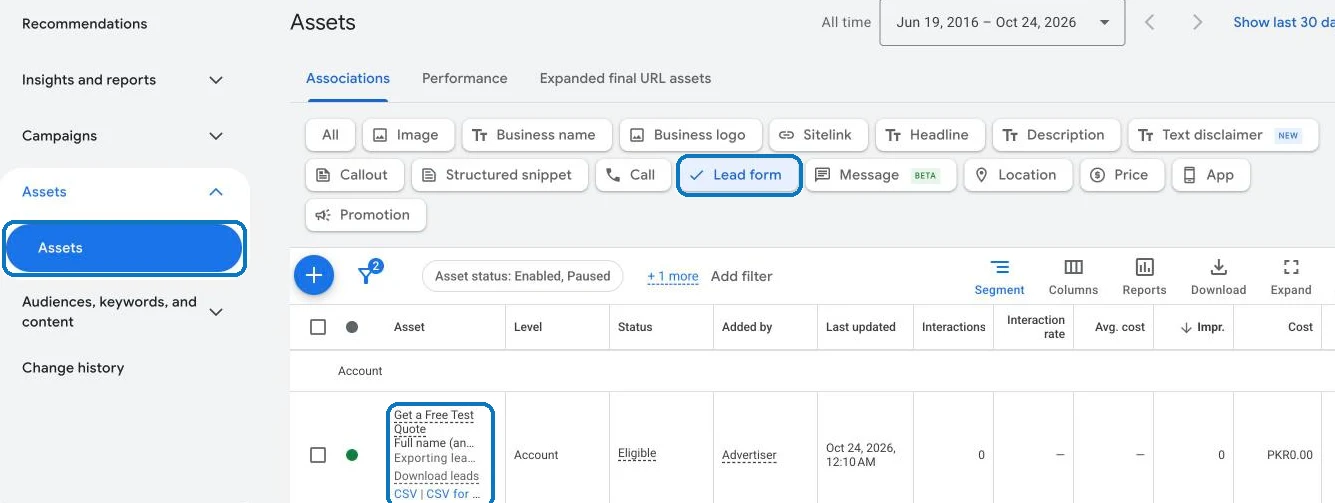
Click the form you want so it opens in the Edit lead form screen.
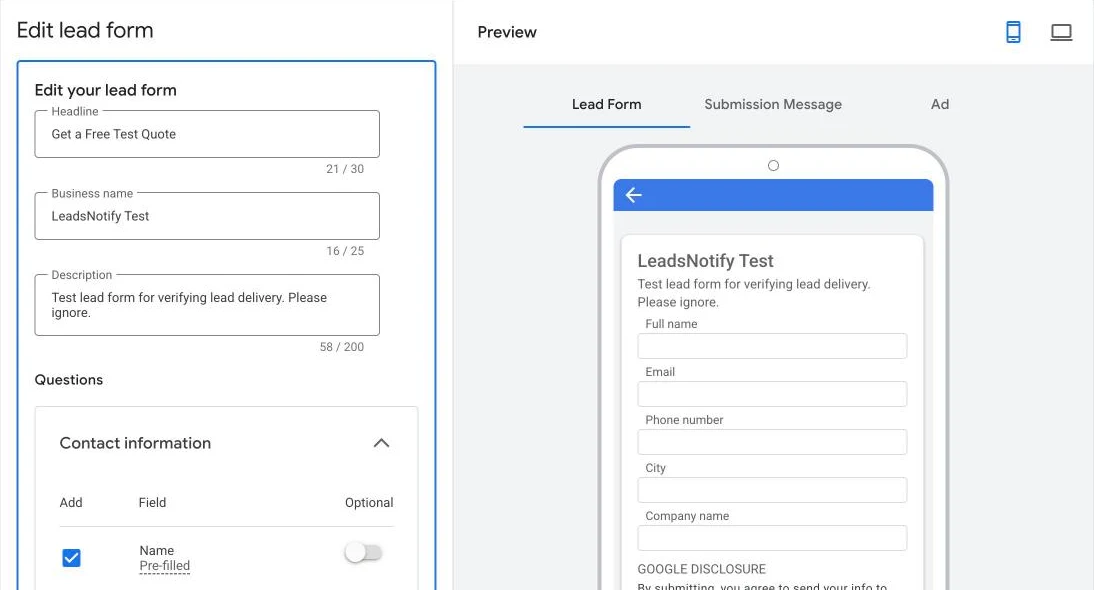
Copy the full address from your browser’s address bar and paste it into Lead form link or form ID in LeadsNotify. If you know the form ID, you can type that instead. Click Create webhook.
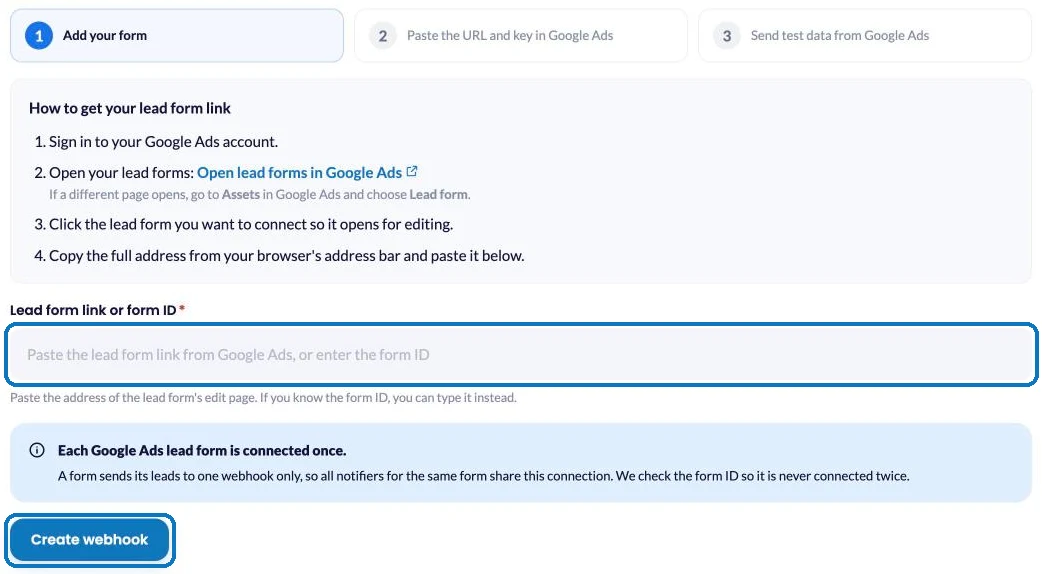
Each Google Ads lead form is connected once. A form can only send its leads to one webhook, so every notifier you build for that form shares this one connection.
Step 2: Paste the Webhook URL and Key into Google Ads
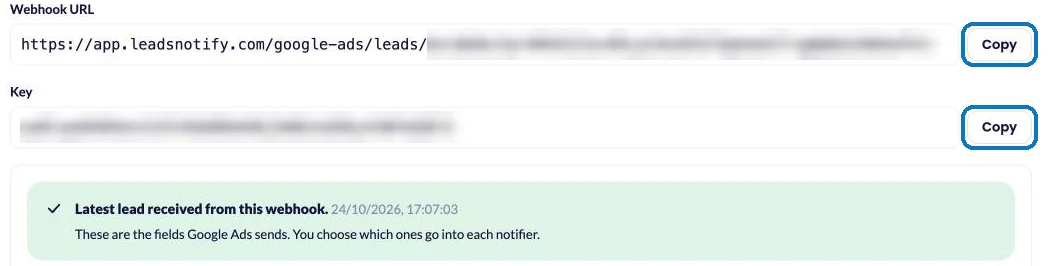
LeadsNotify now shows a Webhook URL and a Key for your form. Click Copy next to each one as you need it.
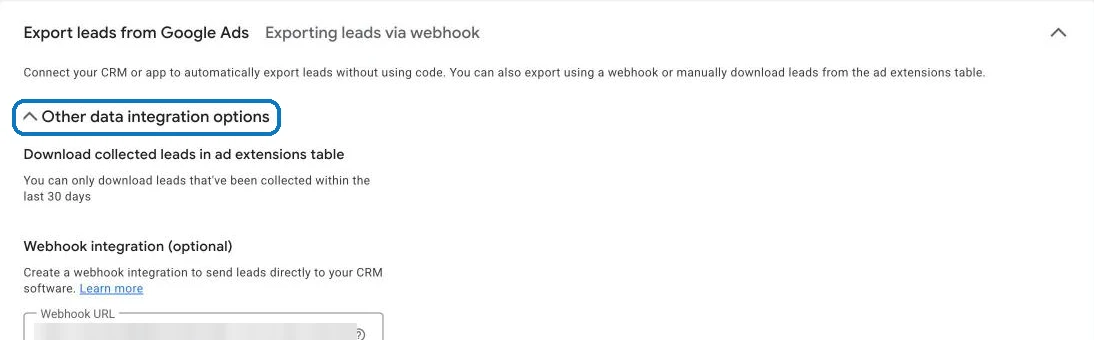
Back in the Google Ads form editor, scroll down to Export leads from Google Ads and open Other data integration options.
Under Webhook integration, paste the URL into Webhook URL and the key into Key. Google sends the key with every lead, which is how LeadsNotify knows the lead really came from your form.
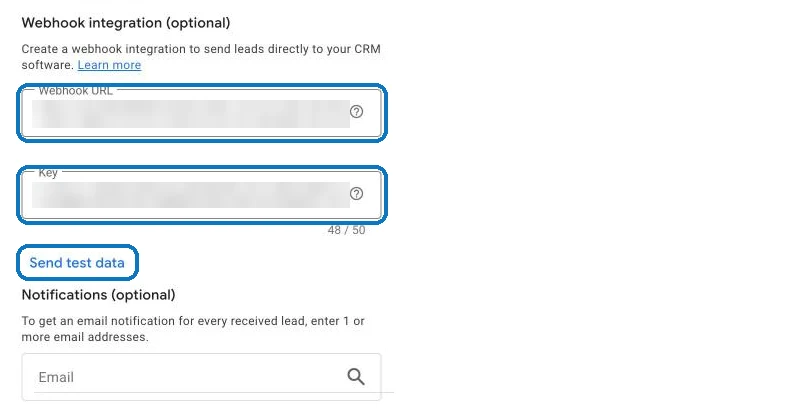
Step 3: Send Test Data from Google Ads
Still in the form editor, click Send test data under the key, then click Save at the bottom of the page. Google posts a sample lead to LeadsNotify straight away.
On the LeadsNotify connection page, all three steps turn green and you see Latest lead received from this webhook with the time, followed by every field Google Ads sent. Google’s test lead uses placeholder values such as “FirstName LastName” and test@example.com, so do not worry that it is not a real person.
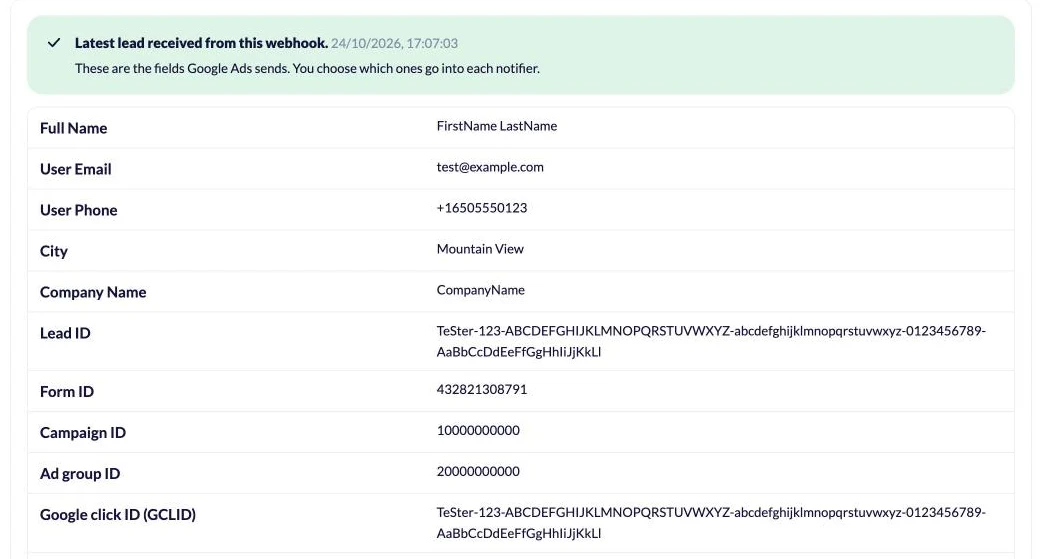
This test matters: LeadsNotify reads the fields from it, and a form only becomes available for notifiers after it has sent one. If you add questions to the form later, click Wait for another test lead on this page and send test data again.
Step 4: Create a Notifier for the Form
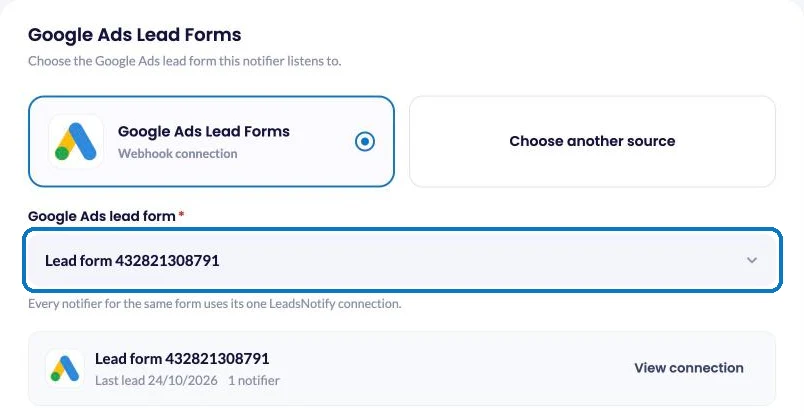
Click Create notifier for this form, or open Create notifier from the left menu and choose Google Ads Lead Forms as the source. Pick your form from the Google Ads lead form dropdown. The card under it shows when the last lead arrived and how many notifiers already use the form. Click Choose destination.
Step 5: Pick Email as the Destination
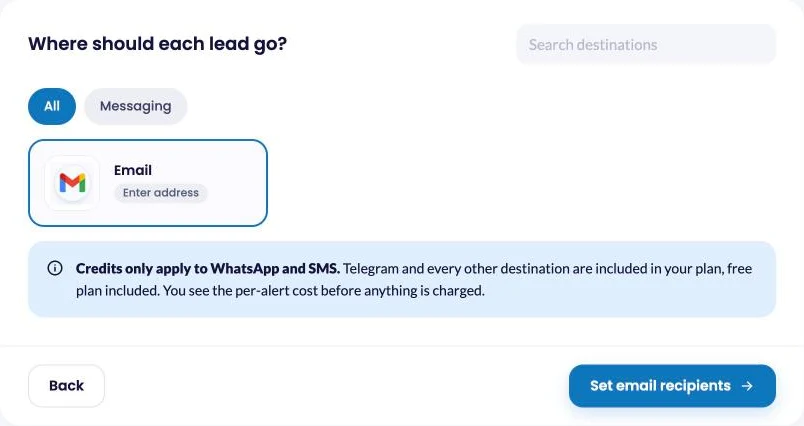
Under Where should each lead go? select Email, then click Set email recipients. Email is included in every plan and uses no message credits.
Step 6: Enter the Inbox That Should Get Each Lead
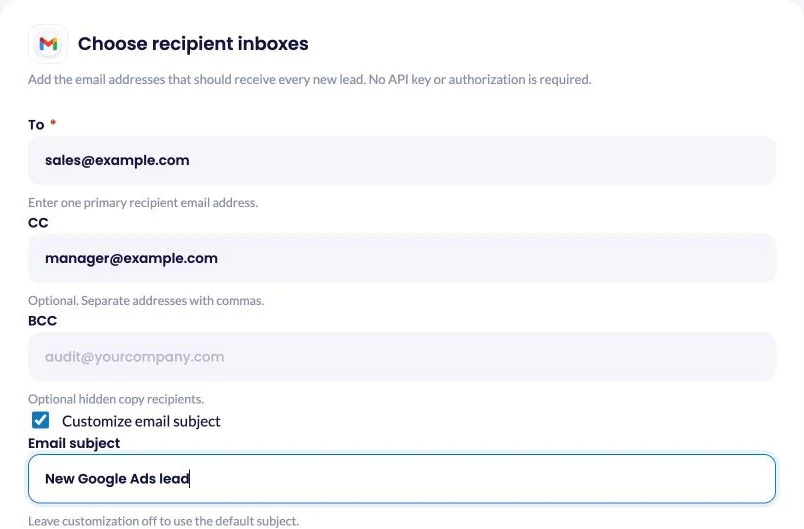
Type the main address under To. Add a manager or a shared inbox under CC, and anyone who needs a hidden copy under BCC. There is no API key or mail setup: LeadsNotify sends the email for you.
Tick Customize email subject to replace the default with something your inbox can filter on, such as “New Google Ads lead”. Under Advanced options you can switch on the branded email template, hide questions the person left empty, and rename or reorder fields.
Click Choose fields.
Step 7: Choose What Each Email Says
You see the questions from your form, taken from the test lead, such as Full Name, User Email, User Phone, City and Company Name. Below them is the lead metadata Google Ads sends: Lead ID, Form ID, Campaign ID, Ad group ID, Google click ID (GCLID), Submitted at and Form name. Tick what you want in the email.
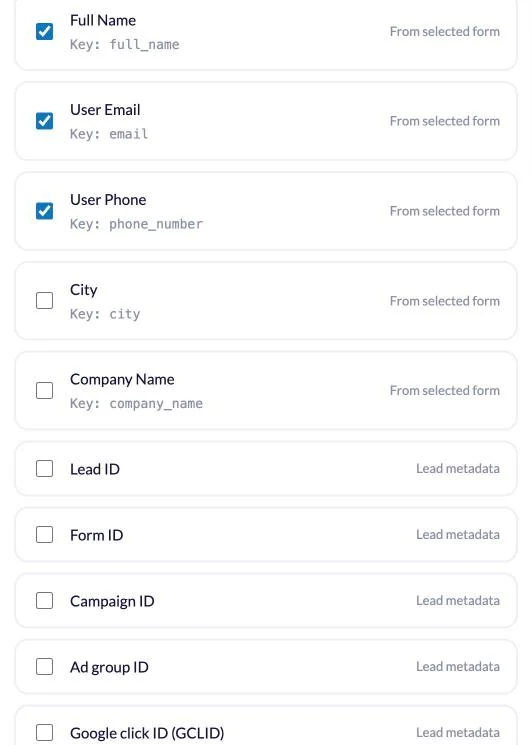
A good default for a sales inbox: name, phone, email, any qualifying question, and Campaign ID. Keep the GCLID if you report sales back to Google Ads later, because it ties the lead to the click that produced it. Click Save notifier.
Step 8: Test the Notifier and Check Lead Delivery
Your notifier is live once it is saved. Test it from the notifier’s last step, then open the inbox you entered and check that the email arrived with the fields you picked.
Every delivery attempt also shows in Lead delivery with the lead ID, the source, the destination, a status of Delivered or Failed, and the mail server’s own reply when something goes wrong. Our guide to the lead delivery log walks through each column.

What About Google Ads’ Own Email Notifications?
Right under the webhook fields, Google Ads has a Notifications box: enter one or more addresses and Google emails you for every lead it receives. It is worth switching on as a backup, and it runs alongside the webhook without any conflict.
Where LeadsNotify adds something is control and visibility:
- You choose the content. Pick which answers and which metadata go into the email, rename fields and set the order.
- You choose the subject. A fixed subject like “New Google Ads lead” makes inbox rules easy.
- To, CC and BCC. Send the lead to the rep who will call and copy the manager.
- A delivery log. Every lead shows as Delivered or Failed, with the mail server’s reply when it fails.
- One place for every channel. Your Facebook, LinkedIn and TikTok lead forms run through the same account and the same steps.
Make Sure Someone Actually Replies
- Send it to the person who will call. Put the rep in To and the manager in CC. The manager gets visibility, the rep gets the ping.
- Use a subject your inbox can filter on. “New Google Ads lead” lets you build a rule that stars it, labels it or forwards it to your phone.
- Keep Campaign ID in the email. A lead from a brand campaign and a lead from a competitor-terms campaign often need different first calls.
- Hide empty answers. Optional questions people skip only add noise. Switch on Hide empty answers under Advanced options.
- Do not rely on the CSV as your backup. Google keeps leads for 60 days and lets you download only the last 30, so an email in your inbox is a better record.
When Google Ads Lead Emails Don’t Arrive
Start on the form’s connection page under Lead sources, then check Lead delivery. If the connection page shows no recent lead, the problem is between Google Ads and LeadsNotify. If the lead is in Lead delivery but marked Failed, the Status column carries the mail server’s reply.
- No test lead after Send test data. The URL or key was pasted with a missing character, or the form was not saved. Copy both again from LeadsNotify, paste them, click Save in Google Ads, then Send test data.
- You can’t pick your form in Create notifier. The form has not sent a test lead yet. Send test data from the form in Google Ads, then reload Create notifier.
- A new question is missing from the email. The field list comes from the last test lead, sent before you added the question. Click Wait for another test lead on the connection page, send test data again, then edit the notifier and tick the new field.
- LeadsNotify won’t add a form a second time. Each form is connected once and shared by all its notifiers. Use the existing connection and create another notifier on it.
- Lead shows Delivered but you can’t find the email. It landed in spam or a promotions tab. Search for the subject line, mark it as not spam and add the sender to your contacts.
- Lead shows Failed with a 5xx reply. The receiving mail server rejected the message. Read the reply in the Status column, fix the address or ask your mail admin, then test again.
Frequently Asked Questions
Do I need a developer, an automation tool or a CRM?
No. Google Ads already has the webhook built in. You copy two values from LeadsNotify into the form, send test data, and LeadsNotify takes care of the email.
How much does it cost?
Email alerts are on every LeadsNotify plan and use no message credits. The free plan includes 50 leads, 1 lead source, 1 notifier, 1 form and 1 email recipient, with no card needed. Paid plans raise the lead count and let you add more sources, notifiers and recipients. Compare the plans.
How fast does the email arrive?
Google Ads sends each lead to the webhook as soon as it is submitted, and LeadsNotify emails it straight away. The Time column in Lead delivery shows how long each delivery took.
Which campaigns does this cover?
The webhook belongs to the lead form, not to a campaign. Any campaign that uses that form sends its leads to the same webhook, so one connection covers them all.
Can I send one form to two inboxes?
Yes. Put the second address in CC or BCC. For a completely separate email, with different fields or a different subject, create a second notifier on the same form.
I have several lead forms. Do I repeat the setup?
Connect each form once in Lead sources, paste its own URL and key into that form in Google Ads, then create a notifier for each. Tick Form name in the fields step so you can tell them apart in the inbox.
What about Facebook, LinkedIn and TikTok leads?
Same account, same notifier steps. See how to send Facebook lead ads to email and how to send TikTok leads to email.
Get Your Next Google Ads Lead by Email
Add the form in LeadsNotify, paste the URL and key into Google Ads, send test data, then build the notifier. Your next Google Ads lead lands in your inbox while the person is still looking at your ad. Set up Google Ads lead email alerts in LeadsNotify, free plan included.
Last Updated on October 24, 2026 by Akash Mehra
Set up a free notification in a few minutes.