

How to Send LinkedIn Lead Gen Forms to WhatsApp (Step-by-Step)
Send LinkedIn leads to WhatsApp automatically. Connect your Page, verify your number, map fields and test it with LeadsNotify in about 5 minutes.
 By Akash Mehra
6 min read
By Akash Mehra
6 min read
Table of contents
LinkedIn leads are expensive. A single lead gen form response from the right job title can cost more than a whole day of Facebook leads, which makes every minute it waits in Campaign Manager a real cost.
LeadsNotify sends each new LinkedIn lead to WhatsApp, on the phone of the person who will call it back, seconds after the form is submitted. You don’t need your own WhatsApp Business API account. This guide shows you how.
Why WhatsApp for LinkedIn Leads?
| Channel | Where the alert lands | What gets in the way |
|---|---|---|
| An inbox shared with everything else | It waits until someone checks their mail | |
| Campaign Manager | A browser tab someone has to open | Nobody downloads leads on a Saturday |
| The phone in your pocket | Very little. It’s the app people check all day |
The faster a B2B buyer hears back, the more likely you are to get the meeting. WhatsApp puts the lead in front of the right person first.
Your Options for WhatsApp Lead Alerts
- The free WhatsApp Business app has no automation hooks, so you’d forward every lead by hand.
- Your own WhatsApp Business API works, but needs Meta business verification, a registered number, approved templates and a developer or provider.
- LeadsNotify has WhatsApp built in. You verify the number that should get the alerts, and every new lead arrives as a WhatsApp message.
How to Send LinkedIn Leads to WhatsApp (About 5 Minutes)
Before you start, you need: a LeadsNotify account, admin access to the LinkedIn Page that runs your lead gen forms, and the phone with the WhatsApp number that should receive the alerts.
Step 1: Connect Your LinkedIn Page
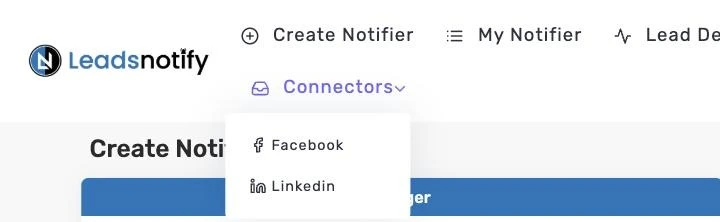
Log in to LeadsNotify. Open Connectors in the top menu and choose Linkedin. Click Connect To Linkedin, sign in, tick the Pages you run lead gen form campaigns from, and approve the permissions LinkedIn asks for.
Every Page you ticked shows as CONNECTED. Adding another Page later? Click Connect To Linkedin again and tick the new Page, leaving the connected Pages ticked. Already connected? Skip to step 2.
Step 2: Create a WhatsApp Notifier
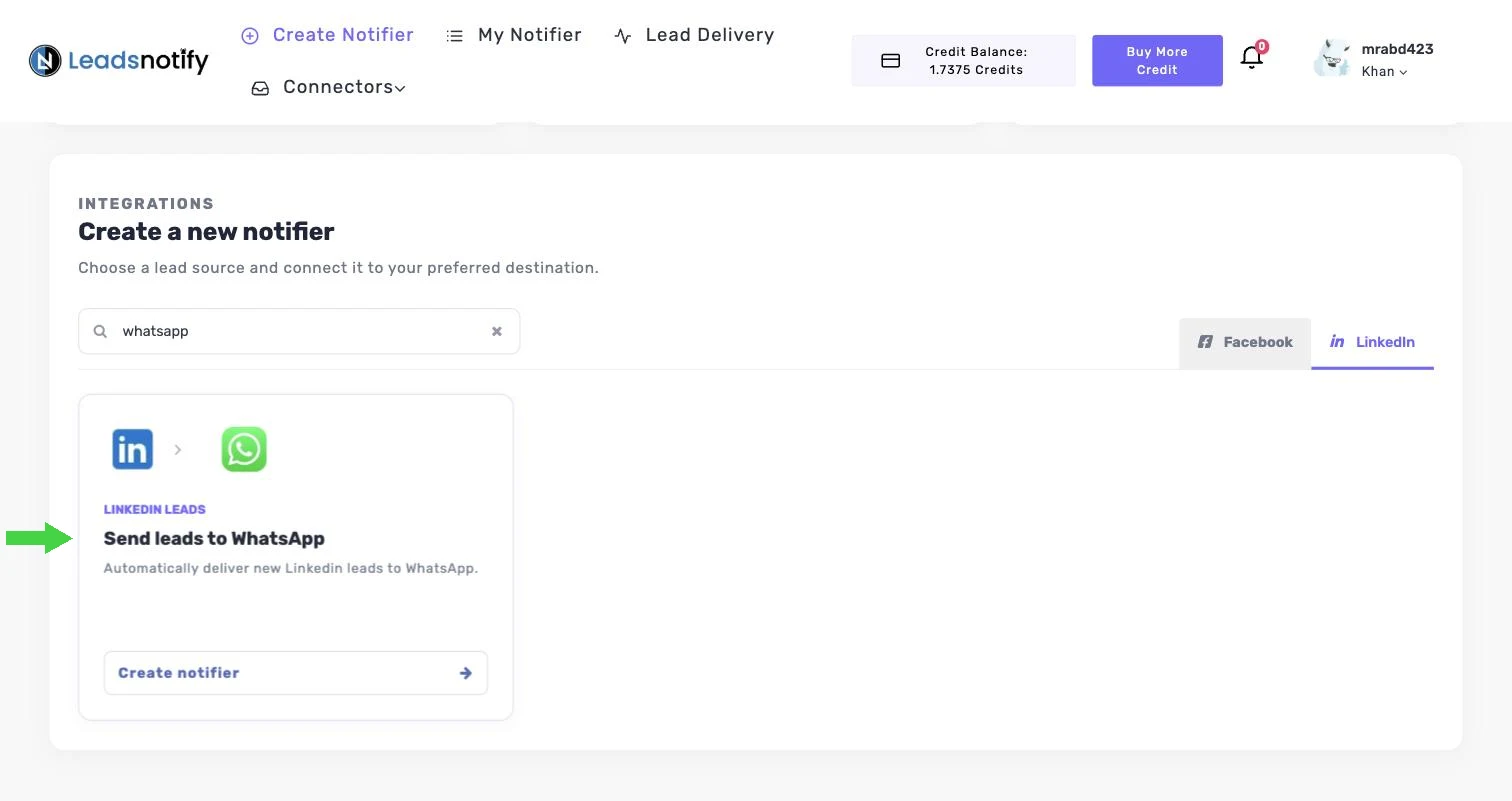
Go back to the dashboard. Under Create a new notifier, select the LinkedIn tab, type “whatsapp” in the search box, find Send leads to WhatsApp and click Create notifier.
Step 3: Pick Your LinkedIn Account and Forms
In the Trigger panel, choose your LinkedIn Page under Select LinkedIn account, then pick one or more forms under Select Form. Only active forms are shown. The Available lead fields list fills in with the fields on those forms.
Step 4: Verify the WhatsApp Number That Gets the Alerts
Under Verify your WhatsApp in the Action panel, pick your Country and type the WhatsApp number without the starting 0. A UK mobile like 07700 900417 becomes United Kingdom (+44) and 7700900417. If you have verified a number before, you can pick it from the list instead.
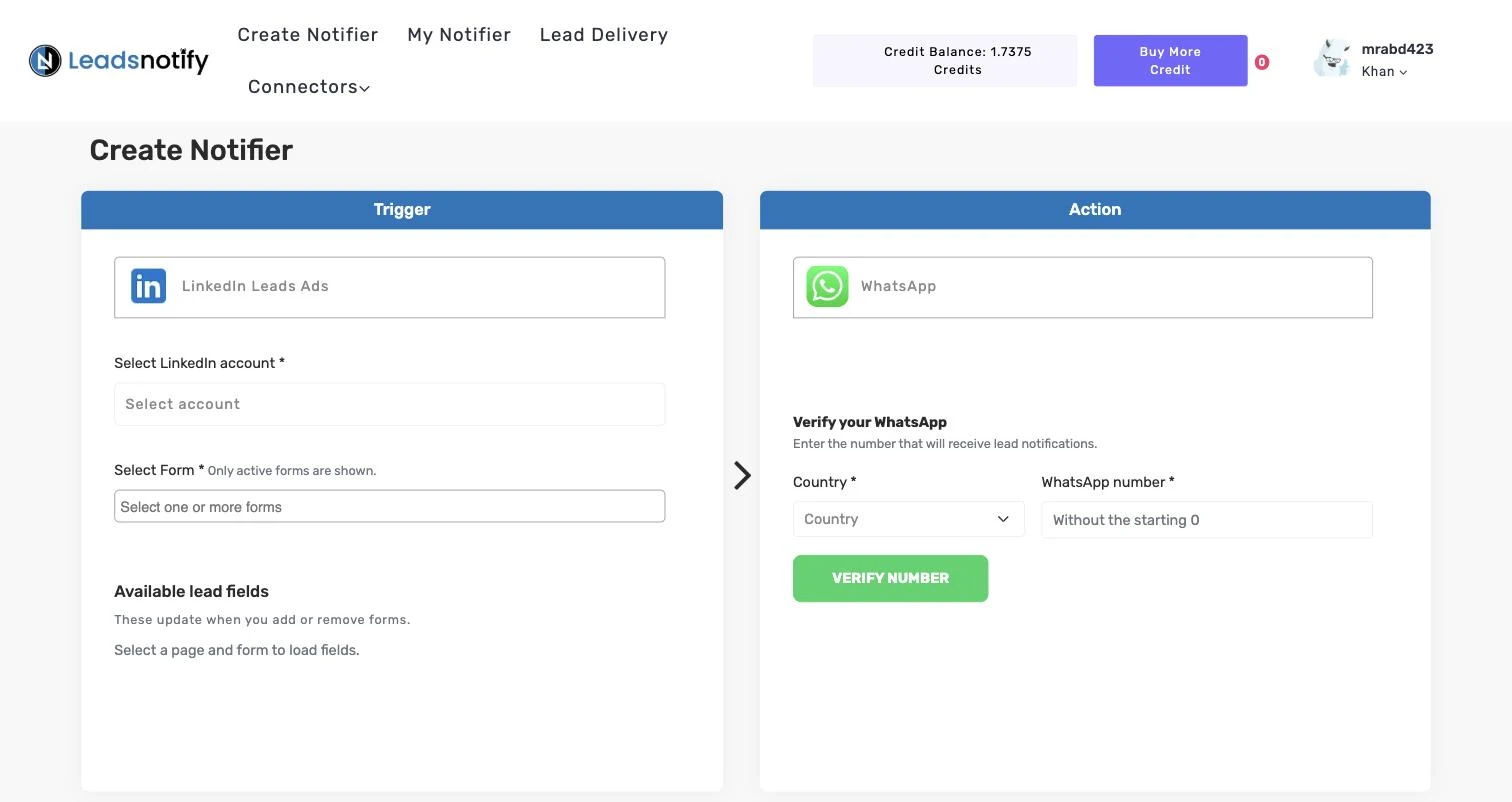
As soon as you pick a country, LeadsNotify shows the WhatsApp notification price for that country. Credit is only deducted after a message is delivered. Click VERIFY NUMBER.
LeadsNotify shows a prefilled message and a QR code. Scan it with your phone, or click OPEN WHATSAPP, and send the message as it is. Come back to the page and it confirms your number automatically. Typed the wrong number? Click Change phone number.
Step 5: Choose What Goes in the Alert, Then Save
Once verified, the number shows as your Verified recipient. Add a Recipient name if you like, then pick the lead details under Choose notification fields. For LinkedIn leads, include Company name and Job title with the name, email and phone. Tick Email me when a lead fails, then click SAVE NOTIFIER.
Step 6: Send a Test Lead
After you submit the notifier, LeadsNotify offers to send a test lead through it. You can also do this later: open My Notifier, click Edit on the notifier, then click TEST NOTIFIER.
The test message lands on your WhatsApp within seconds. If the test lead is there with the right details, the notifier is working.
Want to test with a submission from LinkedIn itself? In Campaign Manager, open your ad account, go to Content & Assets > Lead generation forms, click More next to the form and choose Send Test Lead. Use a real email address you own.
Then open Lead Delivery in LeadsNotify. Every attempt is listed with the Page, the form, the destination and a status of Delivered or Failed, and the Response column shows the exact reply from WhatsApp. Our guide to the lead delivery status dashboard walks through every column.

What WhatsApp Alerts Cost
WhatsApp is the one LeadsNotify destination with a price per message. The free plan includes 10 WhatsApp notifications, enough to set up and test the whole flow. After that, WhatsApp alerts need the Starter plan or above and prepaid credit.
- One credit is one US dollar. Top up under Buy More Credit in the top bar.
- Each delivered alert costs a set amount for the country it goes to. The notifier screen shows it when you pick the country.
- Credit comes off only after delivery. A message that fails costs nothing.
- Click the credit balance in the top bar to see every top-up and WhatsApp charge, and export it as CSV or PDF.
Troubleshooting
| What you see | Likely cause | Fix |
|---|---|---|
| No leads arriving at all | The LinkedIn Page shows DISCONNECTED, often after an admin role changes | Connectors > Linkedin > Connect To Linkedin, and tick the Page again |
| Your form isn’t in Select Form | Only active forms are shown | Check the form and campaign status in Campaign Manager, then reopen the notifier |
| Leads stopped after you edited the campaign | The campaign now uses a different lead gen form | Edit the notifier and select the new form |
| The number won’t verify | The number was typed with the starting 0, the wrong country was picked, or the prefilled message was changed | Click Change phone number, re-enter it, and send the prefilled message exactly as it appears |
| Alerts stopped and nothing else changed | The credit balance reached zero, or the free plan’s 10 WhatsApp notifications are used up | Open credit history and top up. Free plan accounts move to Starter or above first |
| A delivery shows Failed | WhatsApp refused the lead | Open Lead Delivery and read the Response column for the reason |
Frequently Asked Questions
Do I need my own WhatsApp Business API account?
No. LeadsNotify sends the alerts. You only verify the WhatsApp number that should receive them.
What does one WhatsApp alert cost?
It depends on the country the alert goes to. The notifier screen shows the price when you pick the country, and credit is only deducted after delivery.
Can more than one person get the alert?
Each WhatsApp notifier sends to one verified number. To alert a second person, create another notifier for the same form with their number.
Which lead sources work with WhatsApp alerts?
LinkedIn lead gen forms, and Facebook and Instagram lead ads. Here’s how to send Facebook lead ads to WhatsApp.
What happens if I run out of credit?
WhatsApp alerts stop until you top up. Leads still arrive in LeadsNotify, and other notifiers on the same form keep working. We email you when your balance drops below $2.
Get Your Next LinkedIn Lead on WhatsApp
Connect your LinkedIn Page, verify your number, choose your fields and save. Create your free LeadsNotify account and try it with the 10 free WhatsApp notifications.
Last Updated on September 25, 2026 by Akash Mehra
Set up a free notification in a few minutes.