

How to Send LinkedIn Lead Gen Forms to Telegram (Step-by-Step)
Send LinkedIn leads to Telegram automatically. Connect your Page, connect your chat or group, map fields and test it with LeadsNotify in about 5 minutes.
 By Akash Mehra
5 min read
By Akash Mehra
5 min read
Table of contents
A LinkedIn lead is usually a decision maker who just asked for a demo, a quote or a call. The team that replies first has the best chance of winning the deal. The problem is that LinkedIn keeps the lead in Campaign Manager, where nobody is looking.
LeadsNotify sends every new LinkedIn lead gen form response to Telegram, in your private chat or your sales team’s group, seconds after it is submitted. This guide shows you how to set it up.
Why Telegram Works for LinkedIn Lead Alerts
| Channel | Where the alert lands | Best for |
|---|---|---|
| An inbox shared with newsletters and receipts | A permanent record of every lead | |
| One verified phone number | The one person who calls leads back | |
| Telegram | Your private chat, or a group with your whole team | Teams who share and split leads |
- Groups. One alert reaches the whole sales team at once, and a rep can claim it in the chat.
- No per-message fee on Telegram’s side. Telegram’s bot platform is free.
- Phone and desktop. The alert shows up wherever your team has Telegram open.
How to Send LinkedIn Leads to Telegram (About 5 Minutes)
Before you start, you need: a LeadsNotify account on any plan, free included, admin access to the LinkedIn Page that runs your lead gen forms, and Telegram on your phone or computer. For a group, you need permission to add a bot to the group.
Step 1: Connect Your LinkedIn Page
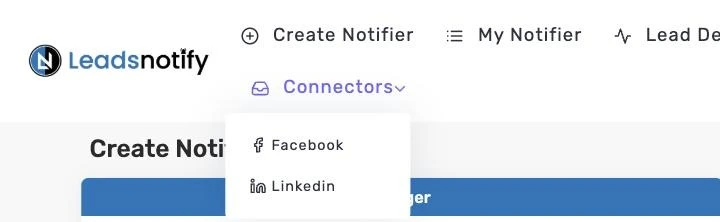
Log in to LeadsNotify. Open Connectors in the top menu and choose Linkedin. Click Connect To Linkedin, sign in, tick the Pages you run lead gen form campaigns from, and approve the permissions LinkedIn asks for.
Every Page you ticked shows as CONNECTED. Adding another Page later? Click Connect To Linkedin again and tick the new Page, leaving the connected Pages ticked. Already connected? Skip to step 2.
Step 2: Create a Telegram Notifier
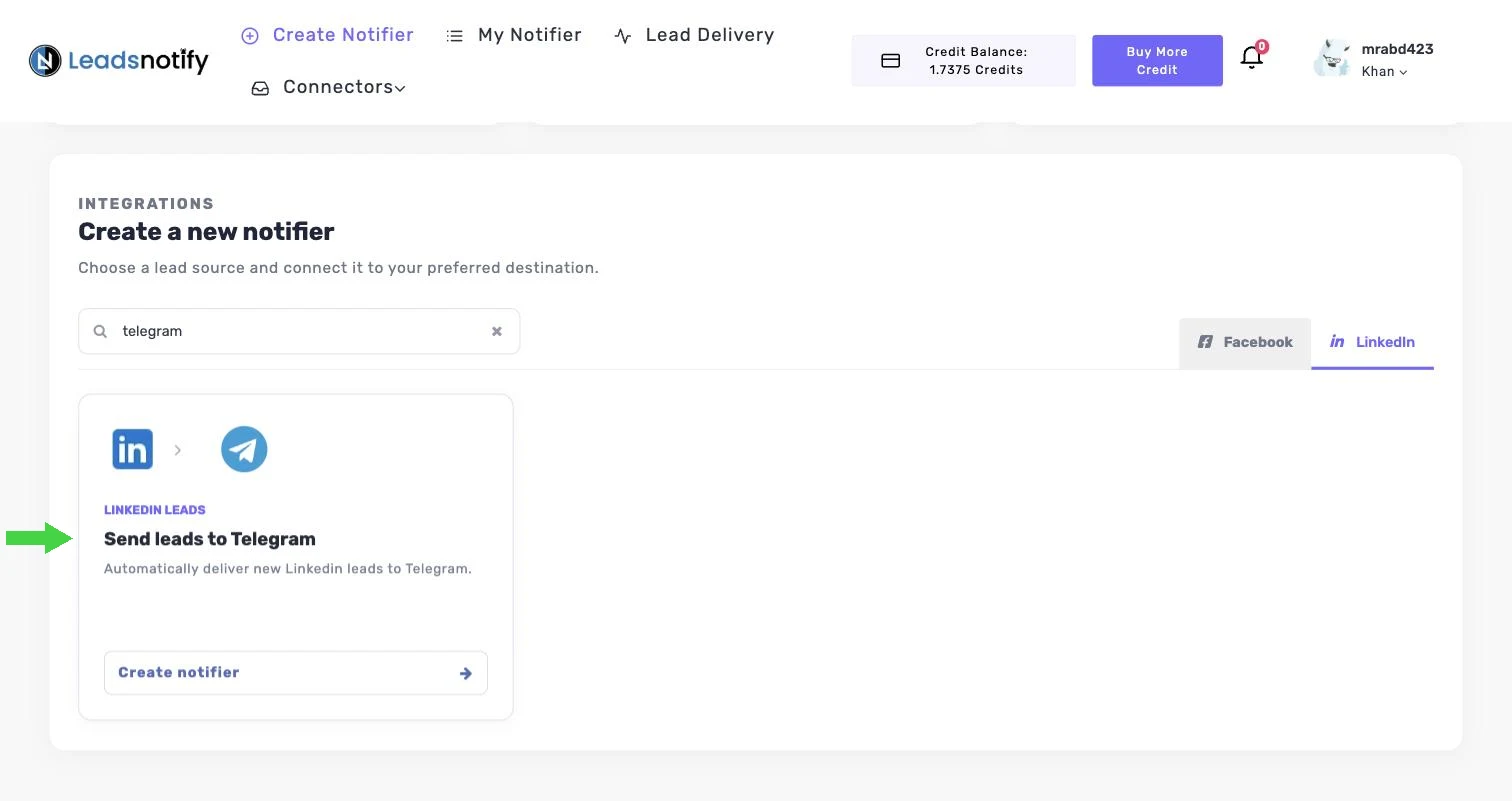
Go back to the dashboard. Under Create a new notifier, select the LinkedIn tab, type “telegram” in the search box, find Send leads to Telegram and click Create notifier.
Step 3: Pick Your LinkedIn Account and Forms
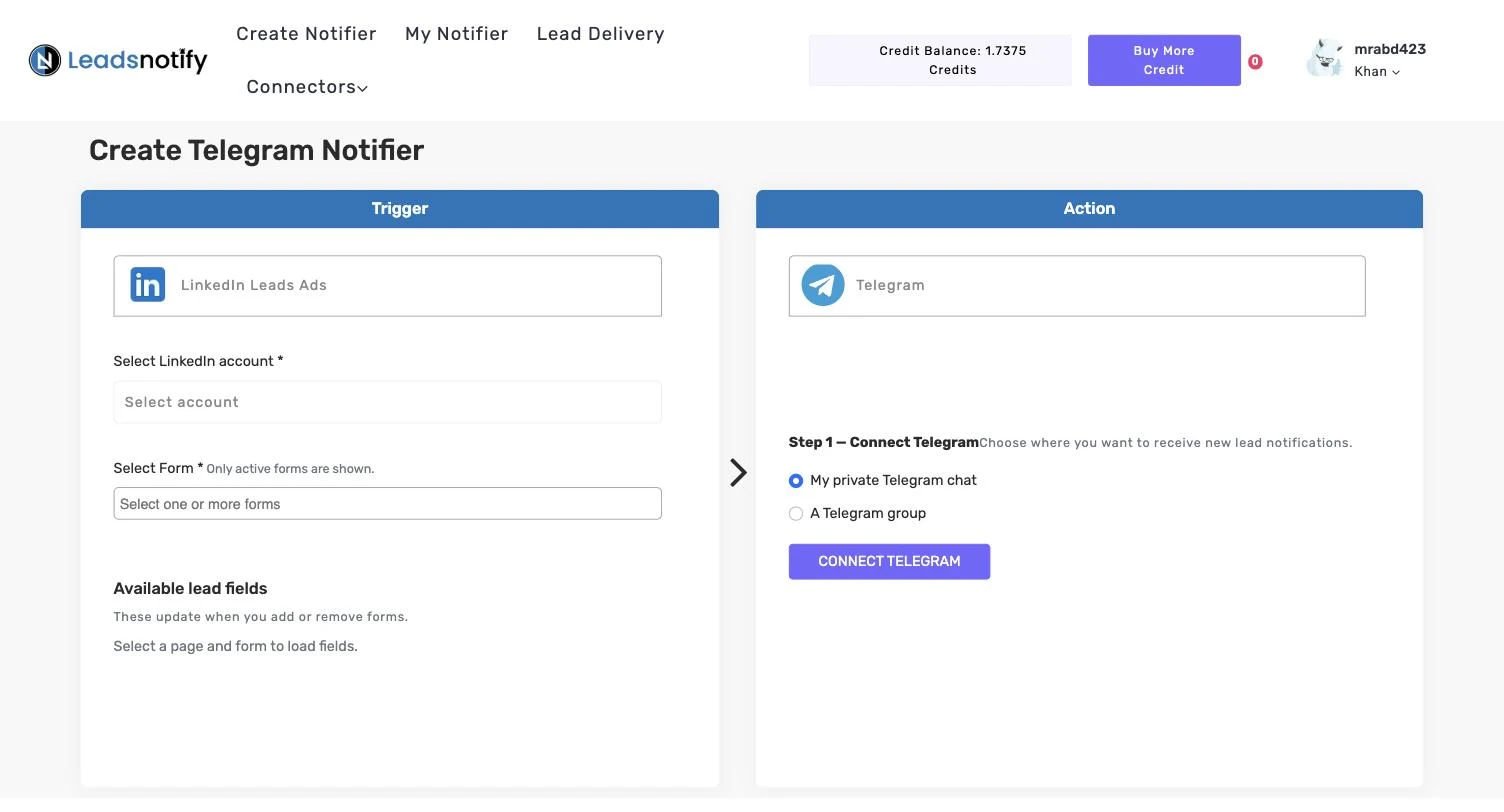
On the Create Telegram Notifier screen, choose your LinkedIn Page under Select LinkedIn account in the Trigger panel, then pick one or more forms under Select Form. The Available lead fields list fills in with the fields on those forms. Pick the form first: LeadsNotify needs a form before it connects Telegram.
Step 4: Choose a Private Chat or a Group, Then Connect Telegram
Under Step 1 — Connect Telegram in the Action panel, choose My private Telegram chat for leads only you follow up, or A Telegram group for leads your team shares. Then click CONNECT TELEGRAM.
LeadsNotify shows a QR code and the command /start. Scan the code with your phone, or click OPEN TELEGRAM on a device with Telegram installed. In Telegram, send /start, then come back to LeadsNotify. The connection confirms automatically. For a group, the card reads Add the bot to your Telegram group.
Connection codes expire. If you see “This connection code expired”, click CONNECT TELEGRAM again for a fresh code.
Step 5: Choose What Goes in the Alert, Then Save
Once connected, the panel shows your connected chat or group by name, with a Change destination button. Under Choose notification fields, pick the lead details for each message, then click SAVE NOTIFIER. For B2B leads, include Company name and Job title next to the name and email.
Step 6: Send a Test and Check Lead Delivery
After you submit the notifier, LeadsNotify offers to send a test lead through it. You can also do this later: open My Notifier, click Edit on the notifier, then click TEST NOTIFIER.
Open your Telegram chat or group to see the alert exactly as your team will. If the test lead is there with the right details, the notifier is working.
Want to test with a submission from LinkedIn itself? In Campaign Manager, open your ad account, go to Content & Assets > Lead generation forms, click More next to the form and choose Send Test Lead. Use a real email address you own.
Then open Lead Delivery in LeadsNotify. Every attempt is listed with the Page, the form, the destination and a status of Delivered or Failed, and the Response column shows the exact reply from Telegram. Our guide to the lead delivery status dashboard walks through every column.

What a Good LinkedIn Lead Alert Looks Like
- Full name, so nobody calls “Unknown”.
- Company name and job title, so the account owner spots their account.
- Email and phone, to follow up without opening another app.
- Form name, when several forms post into one group.
Telegram allows up to 4,096 characters per message, far more than a lead needs. The real limit is attention: leave IDs out of the alert and keep them for your CRM or the Lead Delivery log.
Troubleshooting
| What you see | Likely cause | Fix |
|---|---|---|
| No leads arriving at all | The LinkedIn Page shows DISCONNECTED, often after an admin role changes | Connectors > Linkedin > Connect To Linkedin, and tick the Page again |
| Your form isn’t in Select Form | Only active forms are shown | Check the form and campaign status in Campaign Manager, then reopen the notifier |
| Leads stopped after you edited the campaign | The campaign now uses a different lead gen form | Edit the notifier and select the new form |
| “bot was kicked from the group chat” | Someone removed the bot from the group | Edit the notifier, click Change destination, and connect the group again |
| Alerts stopped after a group settings change | The group became a supergroup and got a new chat ID | Edit the notifier, click Change destination, and connect the group again |
| “This connection code expired” | Connection codes expire | Click CONNECT TELEGRAM again and send /start again |
| A delivery shows Failed | Telegram refused the lead | Open Lead Delivery and read the Response column for the reason |
Frequently Asked Questions
Do I need to create my own Telegram bot?
No. LeadsNotify runs the bot. You connect your chat or group by sending /start.
Do alerts work in a Telegram group?
Yes. Choose A Telegram group in the Action panel, then add the bot when LeadsNotify asks.
Does Telegram charge per message?
No. Telegram doesn’t charge for bot messages like lead alerts.
Which plans include Telegram alerts?
Every plan, the free plan included. The free plan covers 150 leads a month and 2 notifiers. Compare the plans.
Can I get the same lead in Telegram and my CRM?
Yes. Create a second notifier on the same form. See every LinkedIn Lead Gen Forms to Telegram option.
Get Your Next LinkedIn Lead in Telegram
Connect your LinkedIn Page, pick your forms, send /start and save. Create your free LeadsNotify account. Running Facebook lead ads too? Here’s how to send Facebook lead ads to Telegram.
Last Updated on September 25, 2026 by Akash Mehra
Set up a free notification in a few minutes.