How to Send LinkedIn Lead Ads to Slack: The Complete Guide
Send every new LinkedIn lead gen form response to a Slack channel your sales team already watches, with no API access or Slack app to build. Here's the full setup, what it costs, and what to do when alerts stop.

Table of contents
Summary
- LeadsNotify sends every new LinkedIn lead gen form response to a Slack channel your sales team already watches. No Slack app to build, no LinkedIn API access to apply for.
- Setup takes about 5 minutes: connect your LinkedIn Page, create a Slack notifier, connect your Slack workspace, pick a channel and the lead fields, then click SUBMIT.
- Slack alerts are on every LeadsNotify plan, the free plan included.
- Posting to a private channel? Add the LeadsNotify app to that channel first, or it won’t show in the channel list.
- Every delivery shows in Lead delivery as Delivered or Failed, with Slack’s own reply in the Response column.

Stop Letting LinkedIn Leads Wait in Campaign Manager
LinkedIn leads are often the most valuable leads you get: decision makers, asking for a demo, with their company and job title already filled in from their profile. Then the lead sits in Campaign Manager until someone remembers to download it.
B2B sales teams already run their day in Slack, so that’s where the lead should land. The right rep sees the company name and title at a glance, claims the lead in the thread, and the call notes stay attached to it. No CSV downloads, no forwarding, no “did anyone reply to this?”
This guide shows you how to send LinkedIn lead ads to Slack with LeadsNotify, then how to set up the channel so your reps respond while the buyer is still interested.
How to Send LinkedIn Lead Ads to Slack (About 5 Minutes)
Before you start, you need: a LeadsNotify account on any plan, free included, admin access to the LinkedIn Page that runs your lead gen form campaigns, and permission to add apps to your Slack workspace. If your workspace requires admin approval for apps, ask your Slack admin first.
Step 1: Connect Your LinkedIn Account
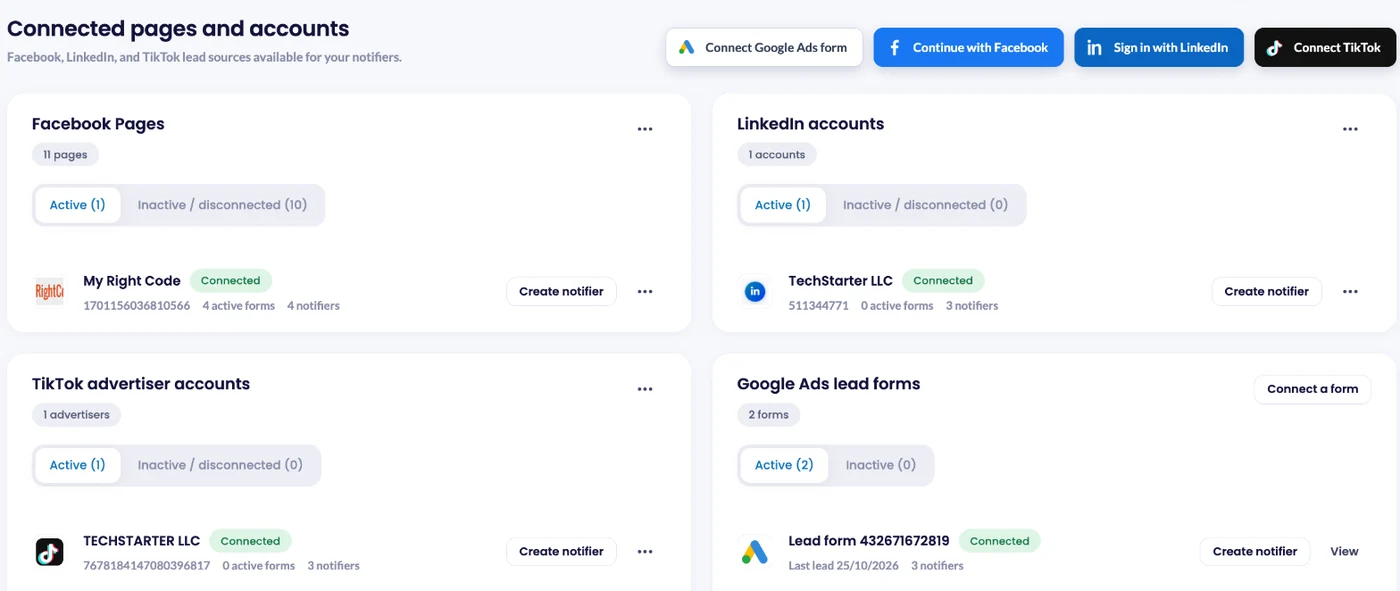
Log in to LeadsNotify and open Lead sources. Click Sign in with LinkedIn, sign in, and approve the permissions LinkedIn asks for. Your account shows as Connected under LinkedIn accounts. Already connected? Skip to step 2.
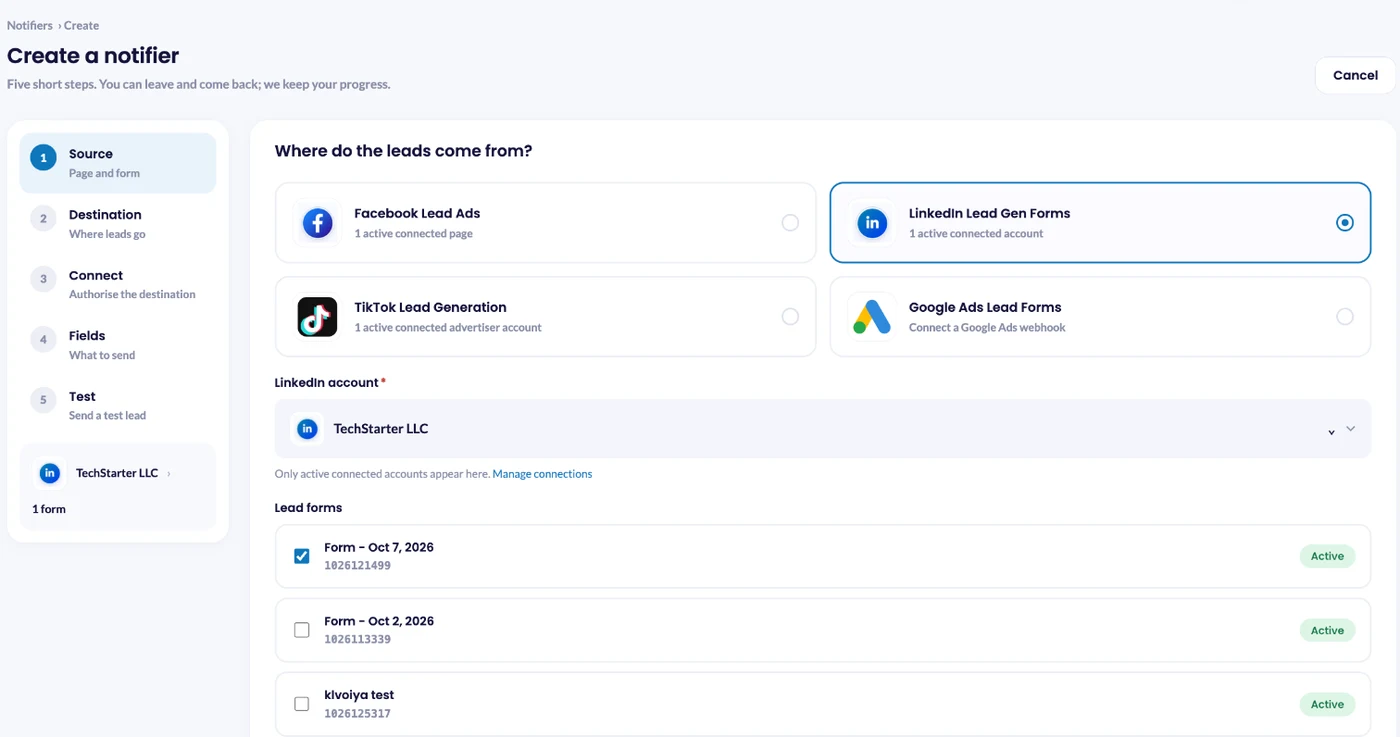
Step 2: Create a Notifier and Pick Your Lead Gen Form
Click Create notifier. In the Source step, choose LinkedIn Lead Gen Forms, select your LinkedIn account and tick one or more lead gen forms. Only active forms are shown. If a form is missing, check that the form and its campaign are active in Campaign Manager.
Click Choose destination, select Slack and click Connect Slack.
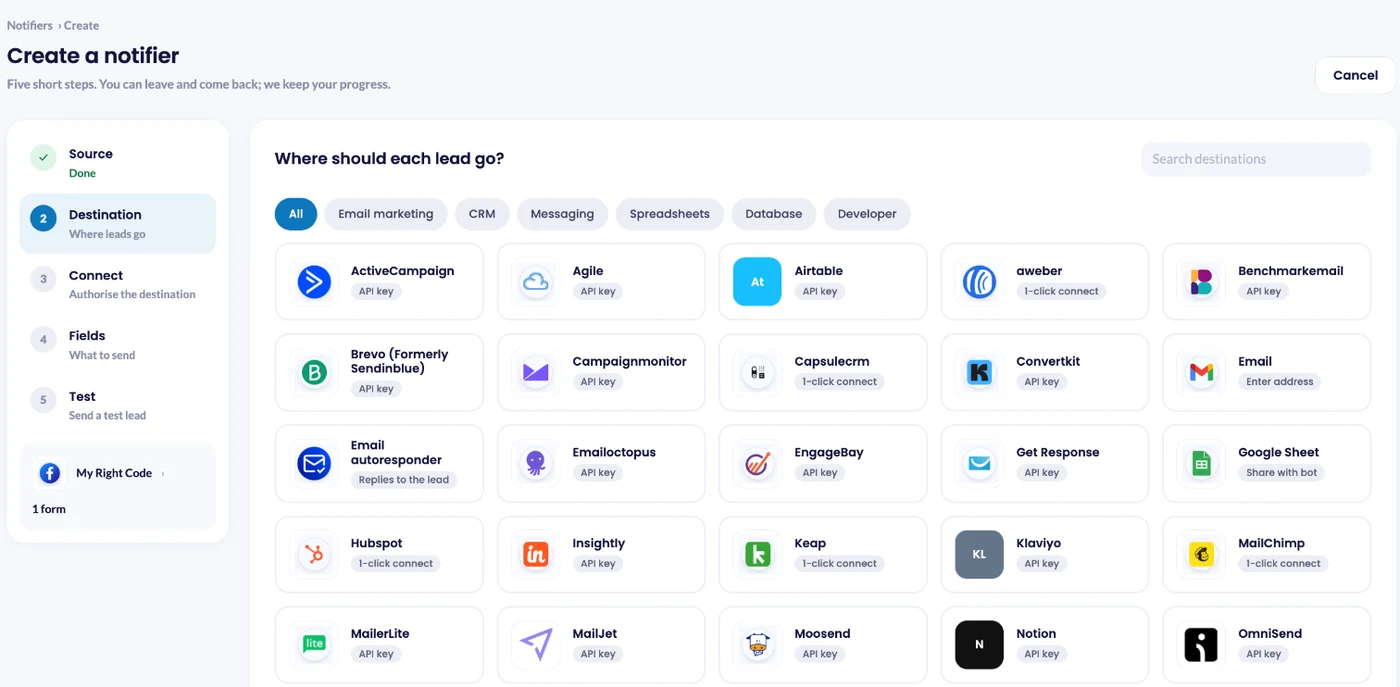
Step 3: Connect Slack
Click Connect Slack. Slack opens in a new window. Sign in, make sure the right workspace is selected, and click Allow. Then return to LeadsNotify.
LeadsNotify asks Slack for four permissions: post messages, post to public channels it hasn’t joined, and read the list of public and private channels. It can’t read your messages.
Step 4: Choose the Slack Channel
Once Slack is connected, pick the channel where leads should go. Private channel not in the list? LeadsNotify only sees a private channel after the app has been added to it. In Slack, open the channel details, go to Integrations and add the LeadsNotify app, then reload the notifier page.
Step 5: Choose the Lead Fields, Then Save
Click Choose fields and pick the details each Slack message should carry. For LinkedIn leads, include company name and job title next to the name and email. Then save the notifier. It appears under Notifiers, and the green switch means it’s live.
Step 6: Send a Test Lead and Check Lead delivery
Saving the notifier opens Review and test delivery.
LeadsNotify cannot create LinkedIn test leads itself, but LinkedIn can, and the test step lists the exact steps for your form. A LinkedIn test lead travels the same way as a real one, so it checks the notifier from start to finish.
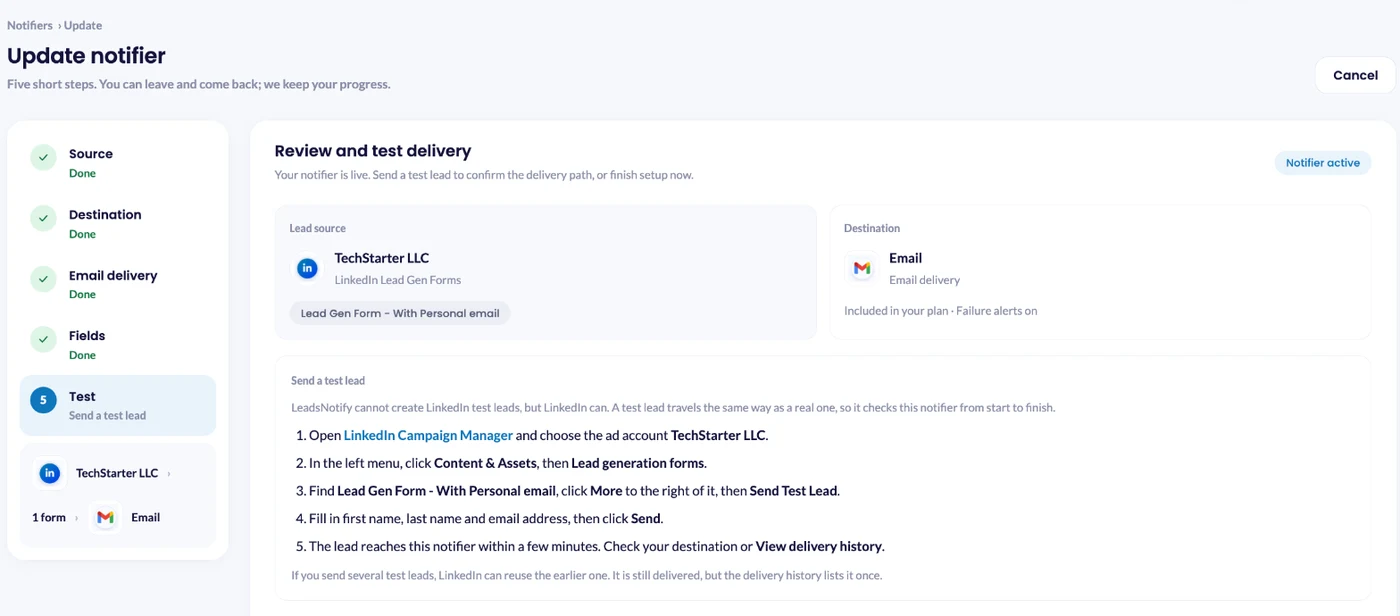
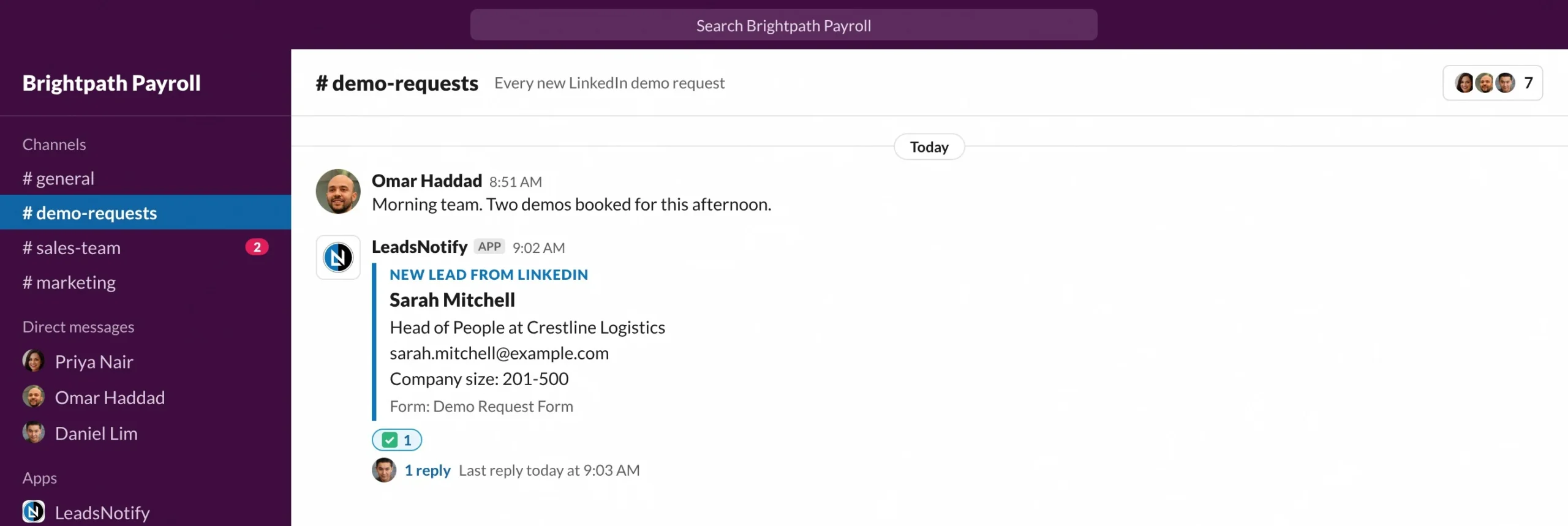
In LinkedIn Campaign Manager, choose your ad account, go to Content & Assets > Lead generation forms, click More next to the form and choose Send Test Lead. Fill in a first name, last name and email address you own, then click Send. The lead reaches your Slack channel within a few minutes. Later, the ⋯ menu next to the notifier in Notifiers has How to send a test lead with the same steps.
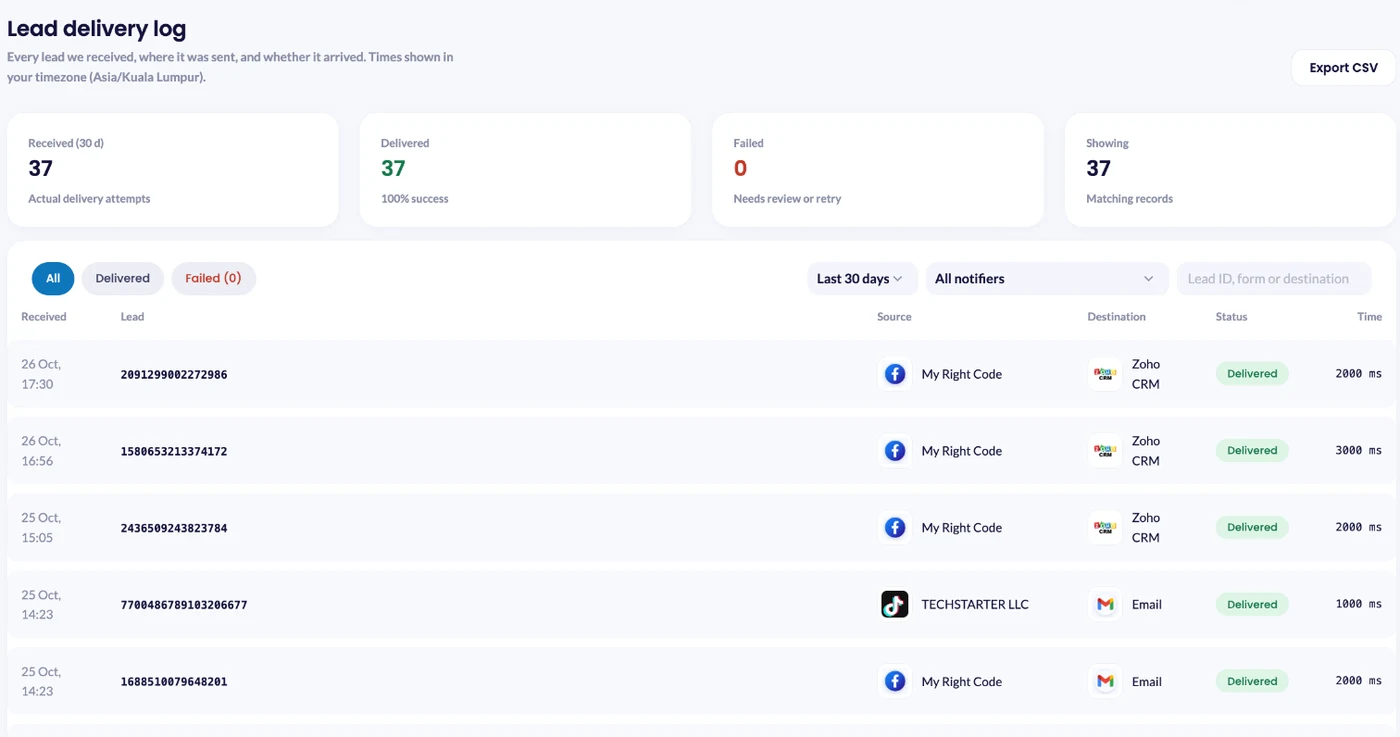
Then open Lead delivery. Every attempt shows the source, the destination, a status of Delivered or Failed and the delivery time.

Make Every LinkedIn Lead Reach the Right Rep
A B2B lead is only worth what happens in the first hour. A few habits make the Slack channel work for your sales team.
- Lead with company and title. Put Company name and Job title in the alert so account owners spot their accounts and a VP gets a different reply from an intern.
- Split channels by intent. Demo requests deserve a faster reply than a content download. Send each form to its own channel with its own notifier.
- Claim leads in the thread. Agree a simple rule, such as replying “mine” or adding a reaction, so two reps never email the same buyer.
- Agencies: one private channel per client. Add the LeadsNotify app to each private channel, then create a notifier for each client’s forms.
- Keep the CRM in the loop. Slack is for speed. Add a second notifier on the same form for email or a tool like Brevo so every lead gets nurtured too.
Everyone in the channel sees each lead’s name, company and email, so keep it to the people who work the leads.
When LinkedIn Leads Don’t Show Up in Slack
Start with the Lead delivery page. It shows whether each lead was Delivered or Failed, and the failure alert email includes the reason.
| What you see | Why | Fix |
|---|---|---|
| No alerts arriving at all | The LinkedIn account shows as disconnected, often after an admin role changes | Lead sources > Sign in with LinkedIn, and reconnect the account |
| Your form isn’t in the list | Only active forms are shown | Check the form and campaign status in Campaign Manager, then reopen the notifier |
| Your private channel isn’t in the list | The LeadsNotify app hasn’t been added to that channel | Add the app in the channel’s Integrations, then reload the notifier |
not_in_channel | The app was removed from a private channel | Add the LeadsNotify app back to the channel |
is_archived or channel_not_found | The channel was archived or deleted | Edit the notifier and pick a live channel |
token_revoked | Someone removed the LeadsNotify app from the workspace | Edit the notifier and connect Slack again |
| Alerts stopped after you edited the campaign | The campaign now uses a different lead gen form | Edit the notifier and select the new form |
Frequently Asked Questions
Do I need LinkedIn API access or my own Slack app?
No. LeadsNotify handles both connections. You connect your LinkedIn Page and your Slack workspace, then pick a channel.
How much do Slack lead alerts cost?
Slack alerts are on every LeadsNotify plan, the free plan included. The free plan covers 50 leads a month and 1 notifier. Solo Marketer, Pro Marketer and Agency raise both limits. Compare the plans. Slack doesn’t charge per message.
Does it work on Slack’s free plan?
Yes. LeadsNotify counts as one of the 10 apps a free Slack workspace can add.
Can LinkedIn leads go to a private Slack channel?
Yes. Add the LeadsNotify app to the private channel first, then it appears under Select Channel.
Can I send the same lead to Slack and my CRM?
Yes. Create a second notifier on the same form. See every LinkedIn lead gen forms to Slack option on our integrations page.
Which lead sources work with Slack alerts?
LinkedIn lead gen forms, and Facebook and Instagram lead ads using instant forms. Here’s how to send Facebook lead ads to Slack.

Get Your Next LinkedIn Lead in Slack
Connect your LinkedIn Page, connect Slack, pick a channel and click SUBMIT. Your next demo request lands in front of the right rep instead of waiting for a download. Set up Slack alerts in LeadsNotify, free on every plan.

Last Updated on October 26, 2026 by Akash Mehra
Set up a free notification in a few minutes.

Abdullah Khan
A Technical Lead and backend architect with 10+ years of experience building reliable, high-scale APIs and automation systems. At LeadsNotify, he helps build and maintain the integrations that route Facebook and LinkedIn leads to email, CRMs, and marketing tools in real time.
Connect on LinkedIn ↗