Brevo LinkedIn Integration: How to Send LinkedIn Leads to Brevo
Want to connect LinkedIn with Brevo and automatically send new leads to your email marketing platform? A Brevo LinkedIn integration can help you move leads from LinkedIn Lead Gen Forms into Brevo without manually exporting and importing contacts. Brevo, formerly known as…

Table of contents
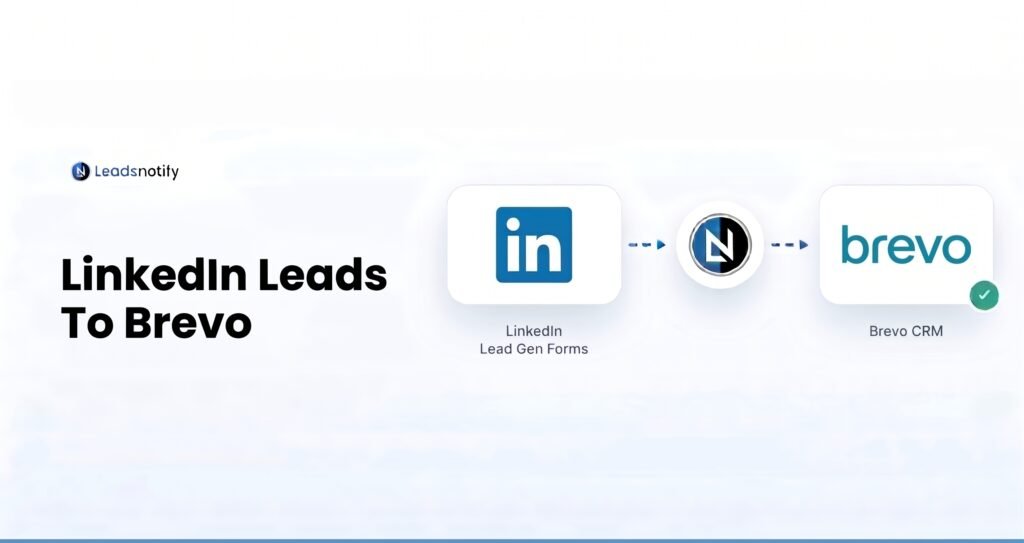
Want to connect LinkedIn with Brevo and automatically send new leads to your email marketing platform? A Brevo LinkedIn integration can help you move leads from LinkedIn Lead Gen Forms into Brevo without manually exporting and importing contacts.
Brevo, formerly known as Sendinblue, is an email marketing and customer communication platform that helps businesses manage contacts, campaigns, automation, and customer engagement. With LeadsNotify, you can connect your LinkedIn lead forms to Brevo and automatically send new leads to a selected Brevo list.
In this guide, we’ll show you how to set up a LinkedIn to Brevo integration using LeadsNotify, connect your LinkedIn lead form, add your Brevo API key, select a destination list, and test the automation.
How to Connect LinkedIn Leads to Brevo
The setup requires three things: your LinkedIn Lead Gen Form, a LeadsNotify account, and your Brevo account. LeadsNotify acts as the connection between LinkedIn and Brevo so that new lead submissions can be transferred automatically.
Step 1: Sign Up and Log In to LeadsNotify
First, sign up or log in to LeadsNotify.
Once you’re logged in, you can create a notifier that connects your LinkedIn lead source with Brevo.
Step 2: Connect Your LinkedIn Account
Next, connect your LinkedIn account to LeadsNotify. Open the Connectors section, find LinkedIn, and follow the connection steps.
If you need help setting up the LinkedIn lead source first, see our guide on how to set up LinkedIn lead notifications.
Step 3: Create a Brevo Notifier
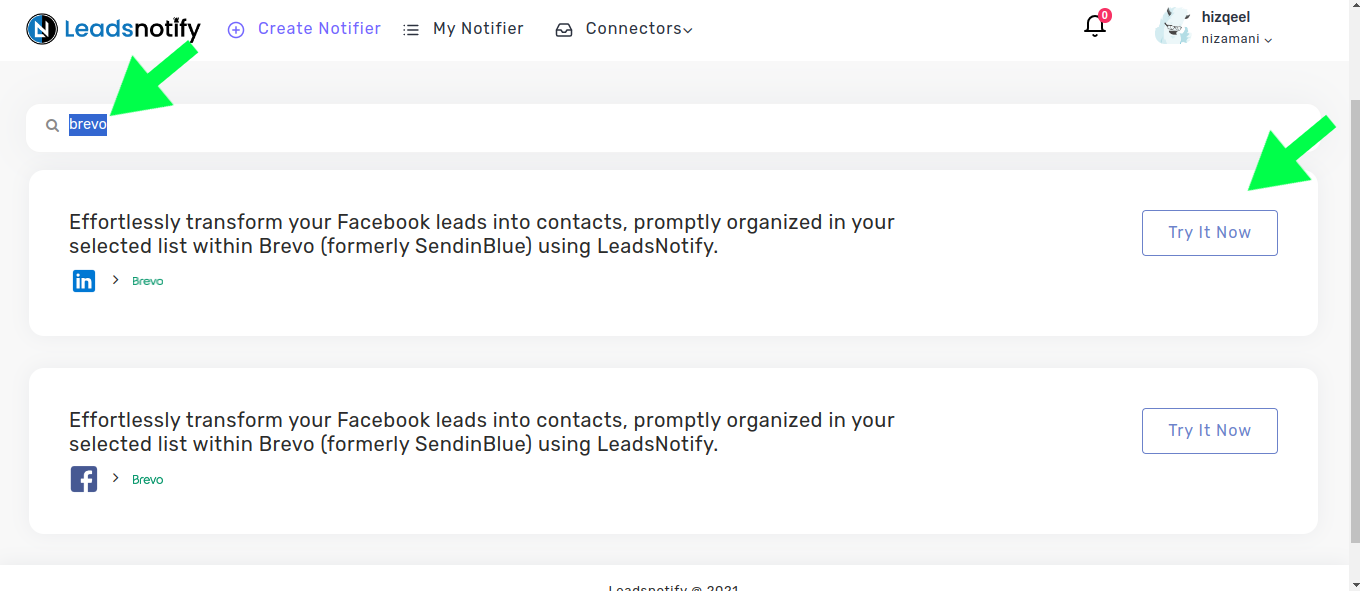
After connecting LinkedIn, open the Create Notifier option in LeadsNotify.
Search for Brevo and click Try Now to begin configuring the integration.
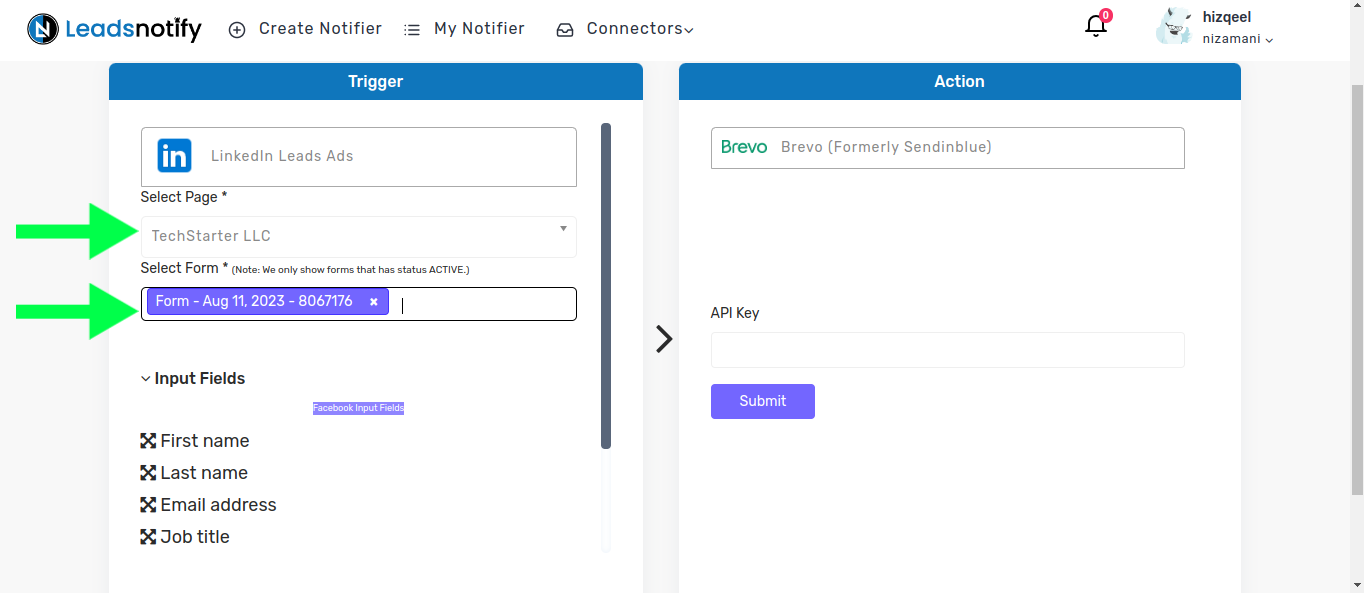
After clicking Try Now, you’ll see the notifier configuration options. The first section allows you to select your LinkedIn page and the lead forms you want to connect.
Select the appropriate LinkedIn Lead Gen Form. LeadsNotify will then display the available fields from that form so you can configure the information that will be sent to Brevo.
Step 4: Get Your Brevo API Key
To connect Brevo with LeadsNotify, you need a Brevo API key. The API key allows LeadsNotify to authenticate with your Brevo account and send lead information to it.
Log in to Brevo and open the area where your API keys are managed. Depending on the current Brevo dashboard interface and account permissions, the exact menu labels may vary. Brevo currently provides API key management through its API Keys & MCP area.
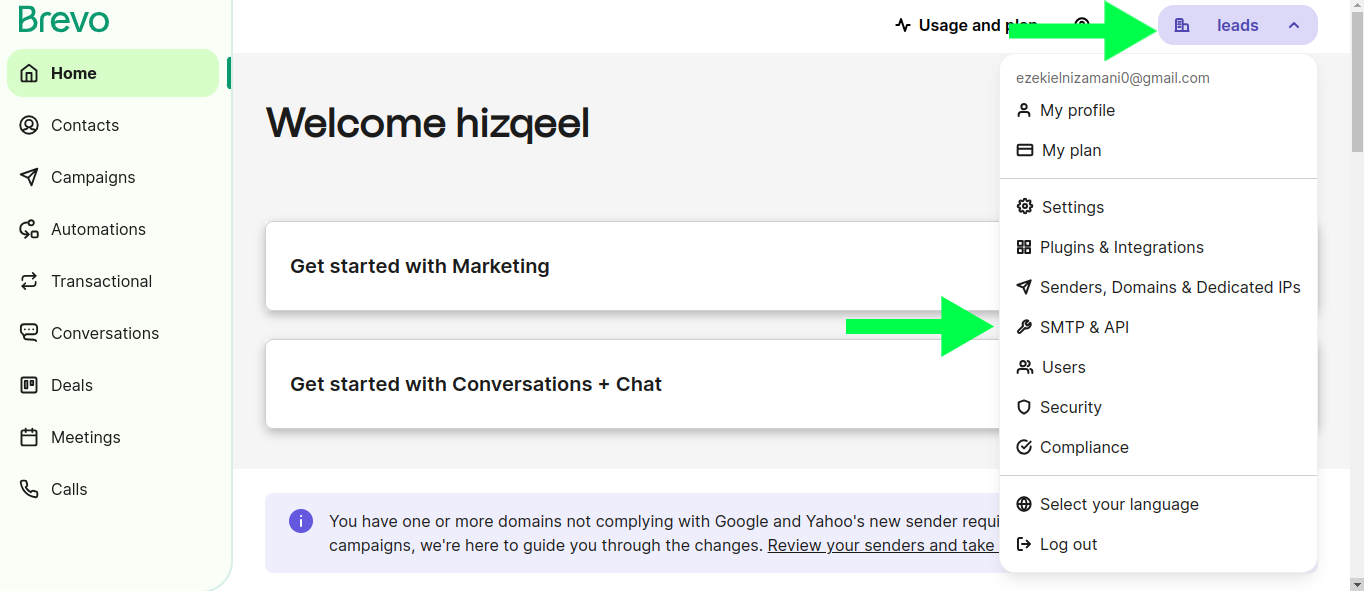
Open the API keys section to view your existing keys or create a new one.
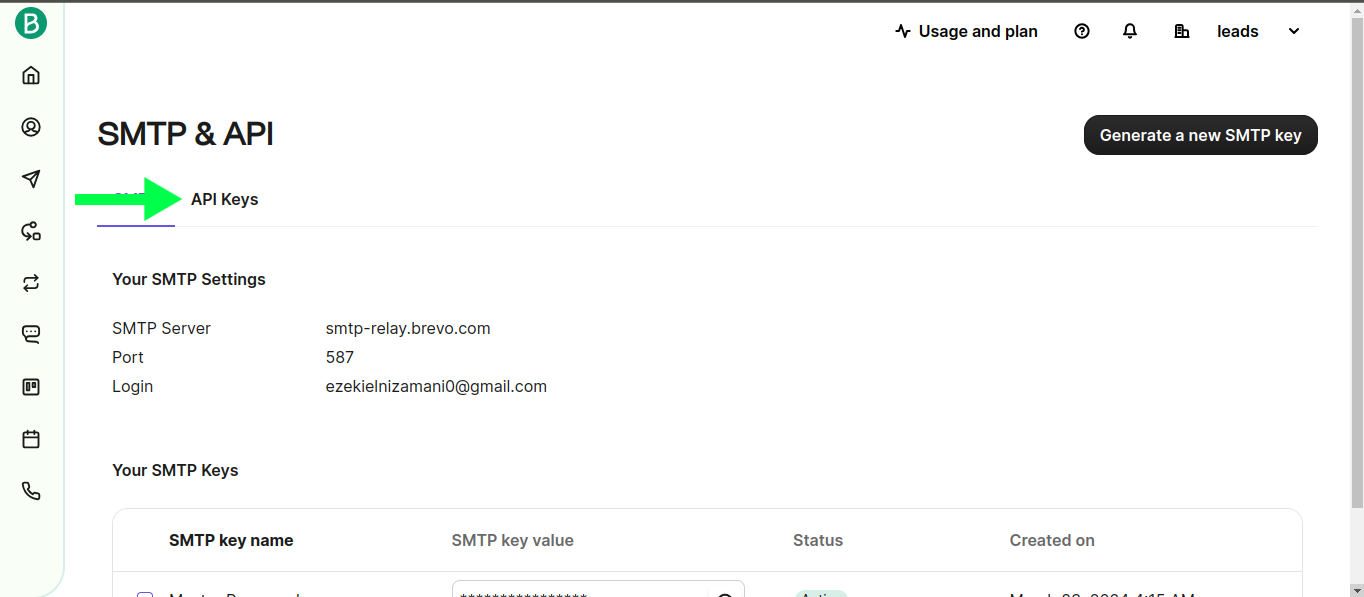
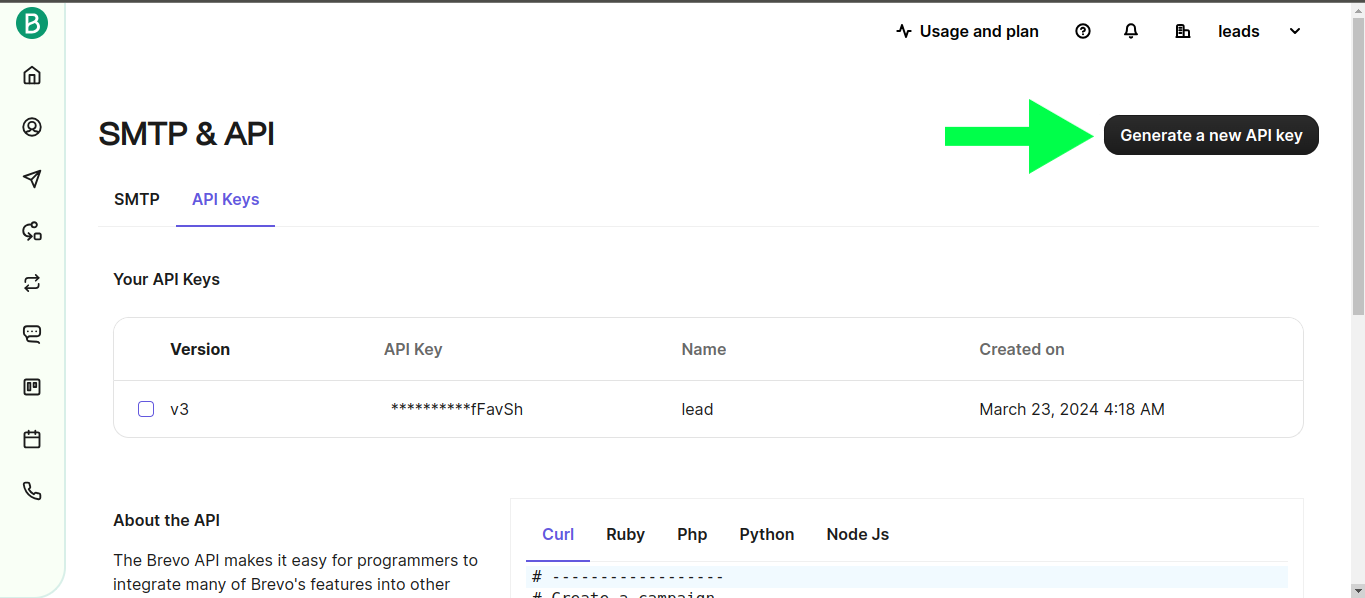
If you need to create a new API key, select the option to generate one and give it a recognizable name, such as LeadsNotify. Keep your API key private and do not share it publicly.
After generating the API key, copy it so you can add it to your LeadsNotify notifier.
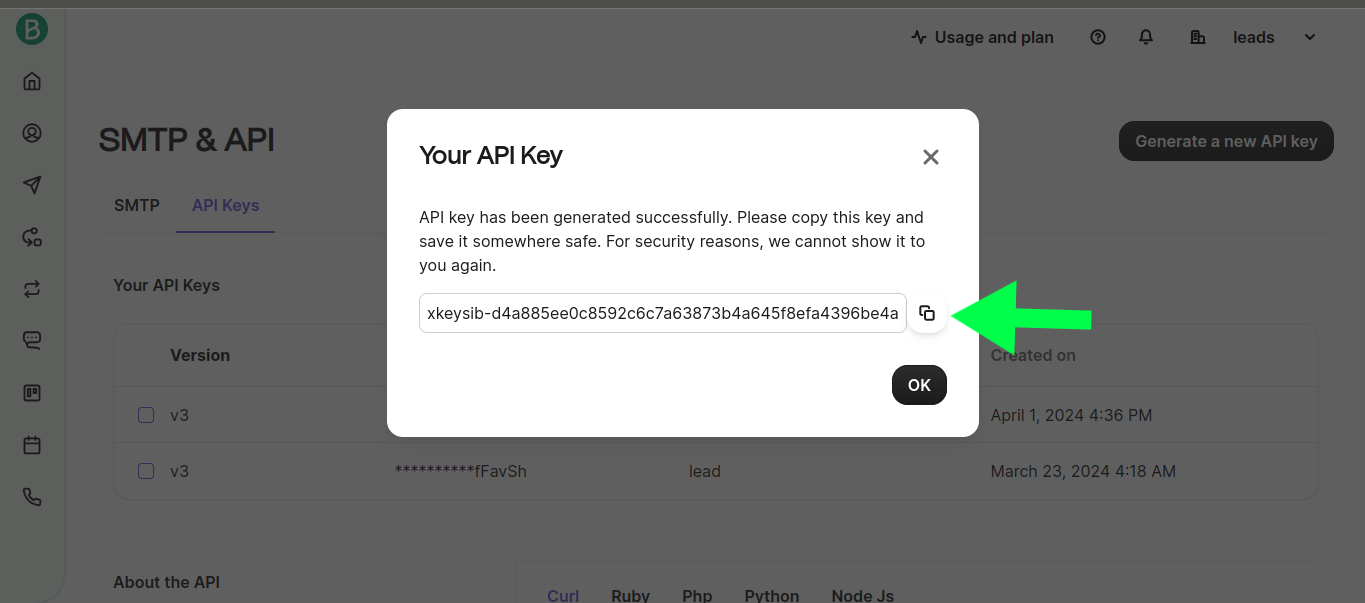
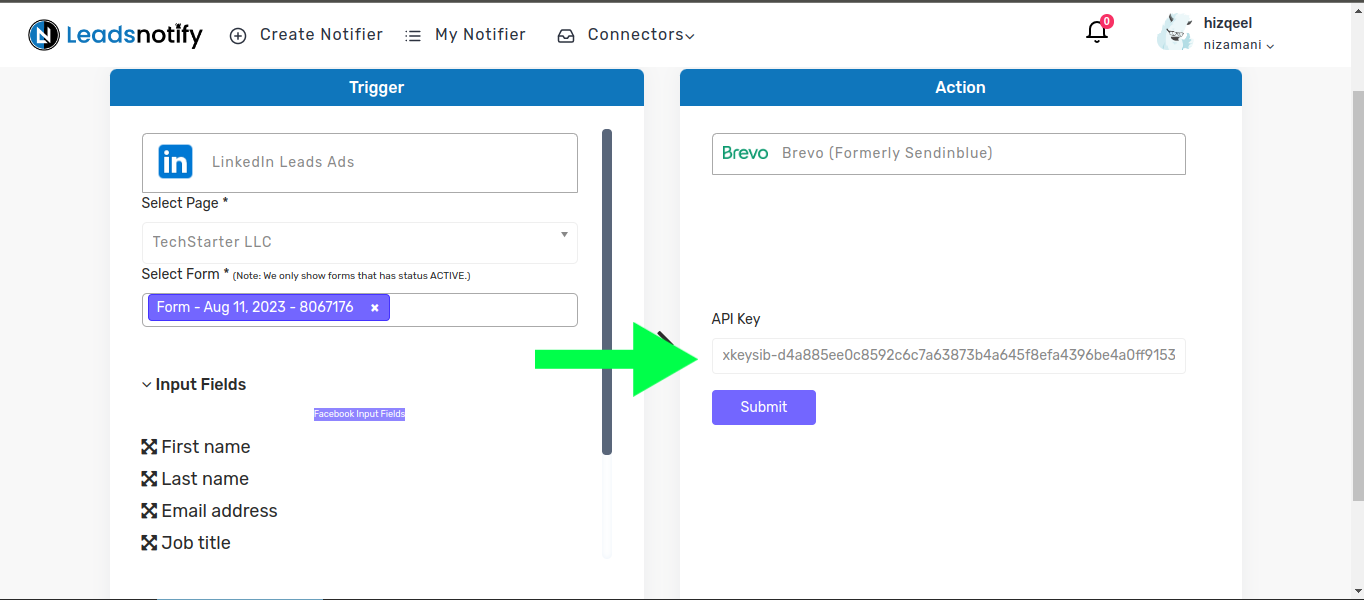
Step 5: Add the Brevo API Key to LeadsNotify
Return to your LeadsNotify notifier and paste the copied API key into the API Key field. Then click Submit to authenticate the Brevo connection.
Step 6: Select the Brevo List
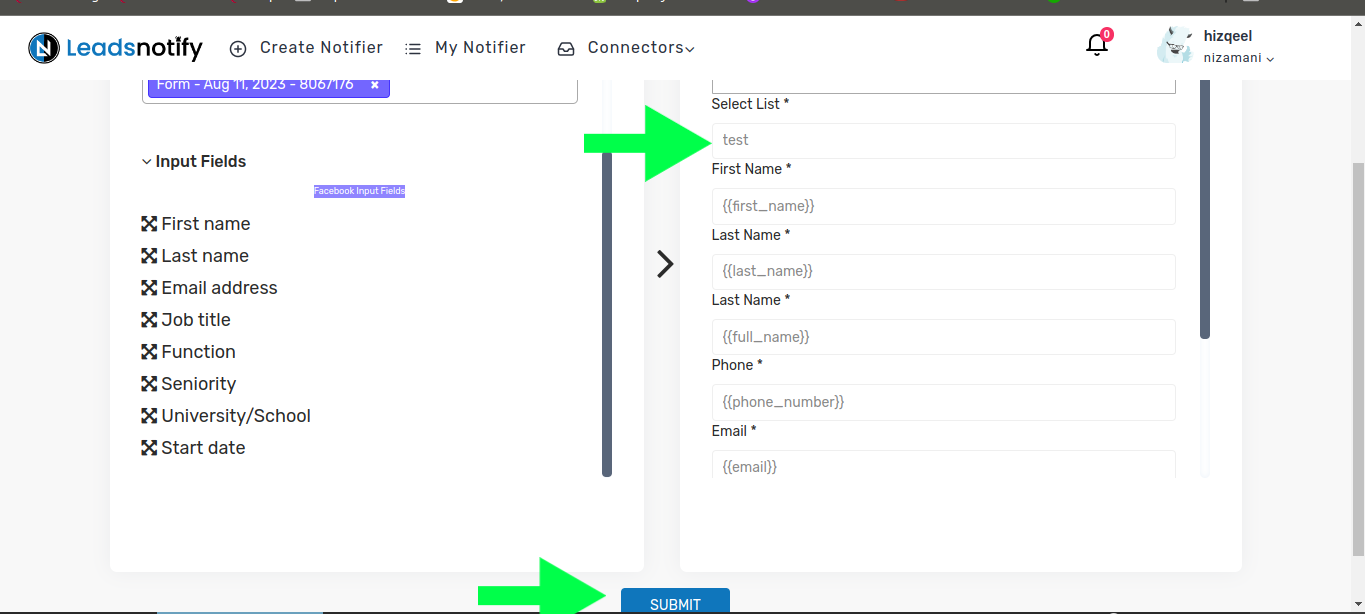
After the API key is successfully accepted, LeadsNotify will display additional fields and a dropdown containing your available Brevo lists.
Select the list where you want your LinkedIn leads to be added, then click Submit to save the integration.
Handling Existing Brevo Contacts
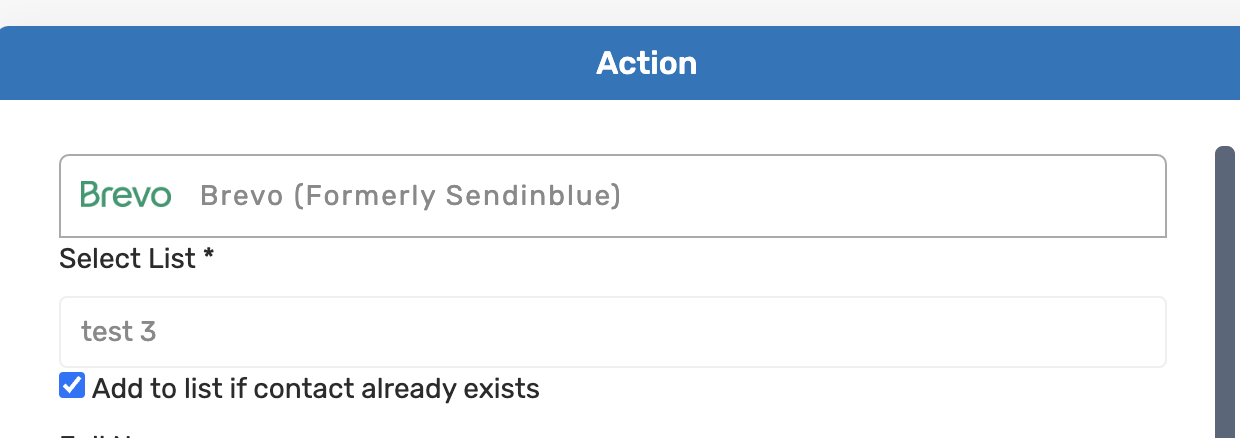
If a LinkedIn lead already exists as a contact in your Brevo account, Brevo may prevent the contact from being created again. LeadsNotify provides an option to handle this situation without unnecessarily creating a duplicate contact.
If the existing-contact option is enabled, the lead can be added to the selected Brevo list instead of being treated as a completely new contact.
How the LinkedIn to Brevo Integration Works
Once the notifier is configured, the workflow is straightforward:
- A prospect submits a connected LinkedIn Lead Gen Form.
- LeadsNotify receives the new lead.
- LeadsNotify processes the lead through your Brevo notifier.
- The lead information is sent to the Brevo list you selected.
- Your team can then use Brevo for email marketing and follow-up.
This automation reduces the need to manually download LinkedIn leads, import contacts, or repeatedly move lead information between platforms.
How to Test the Brevo LinkedIn Integration
After creating the automation, test the workflow before relying on it for live campaigns. A test confirms that your LinkedIn lead form is connected correctly and that LeadsNotify can deliver the lead to the Brevo list you selected.
Step 1: Open LinkedIn Campaign Manager
- Log in and open LinkedIn Campaign Manager.
- Navigate to the Advertise section.
- Select the relevant Campaign Group.
- Select the appropriate Campaign.
- Click the relevant Ad Name.
This will open the ad and its associated lead form. In the original example, the campaign uses a subscriber form to collect lead information.
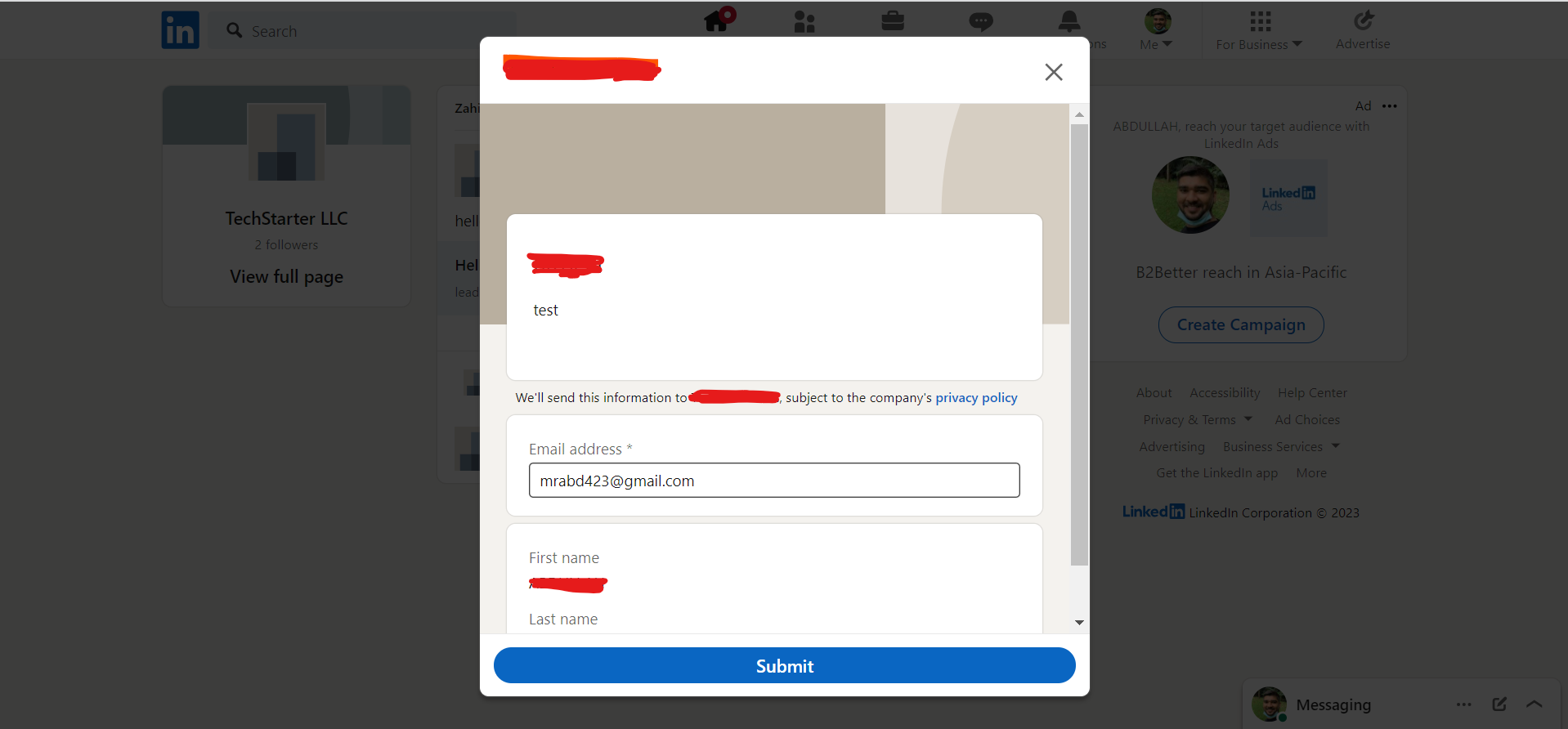
For testing purposes, use the lead form’s submission button to open the form and enter your test information.
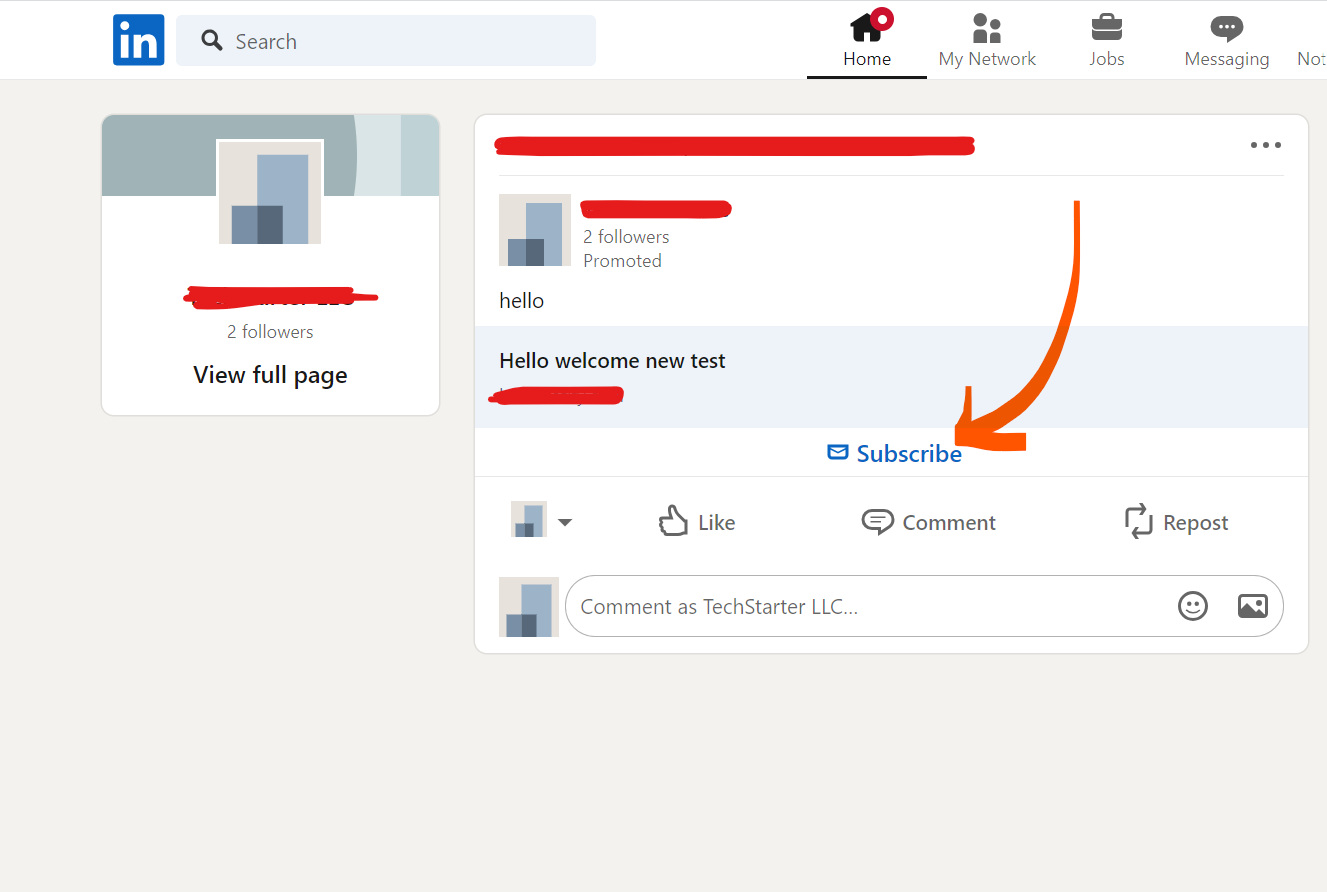
Click the button to open the form. You should then see the fields required to submit the lead, such as the name and email fields shown in the example below.
Step 2: Submit the Test Lead
Submit the LinkedIn form using your test information. LeadsNotify should receive the lead and send it through the Brevo notifier you created.
Step 3: Check Brevo
After submitting the test form, open your Brevo account and check the list you selected during the notifier setup.
If the contact appears in the selected Brevo list, your Brevo LinkedIn integration is working as expected.
If the lead does not appear, check that your LinkedIn account and lead form are connected correctly. Then verify your Brevo API key, selected list, notifier configuration, and delivery status in LeadsNotify.
If you still need assistance, contact support@leadsnotify.com.
Frequently Asked Questions
Can I connect LinkedIn leads to Brevo?
Yes. LeadsNotify can be used to create an automation that receives leads from supported LinkedIn Lead Gen Forms and sends them to a selected Brevo list.
How does the Brevo LinkedIn integration work?
The workflow connects your LinkedIn lead source to LeadsNotify and then configures Brevo as the destination. When someone submits a connected LinkedIn Lead Gen Form, LeadsNotify processes the lead and sends the contact information to the selected Brevo list.
Do I need a Brevo API key?
Yes. The setup described in this guide uses a Brevo API key to authorize the connection between LeadsNotify and your Brevo account.
Can I choose where LinkedIn leads are sent in Brevo?
Yes. During the LeadsNotify configuration, you can select the Brevo list where you want the LinkedIn leads to be added.
Can I test the LinkedIn to Brevo connection?
Yes. Submit a test lead through your LinkedIn Lead Gen Form and then check the selected Brevo list to confirm that the contact was delivered successfully.
What if the LinkedIn lead already exists in Brevo?
If the contact already exists in Brevo, you can use the existing-contact option available in the LeadsNotify integration to handle the lead without unnecessarily creating a duplicate contact.
Is Brevo the same as Sendinblue?
Yes. Brevo is the current name of the platform formerly known as Sendinblue. That’s why you may still see searches such as Sendinblue LinkedIn integration or Sendinblue integrations even though the platform is now branded as Brevo.
Automate LinkedIn Leads with Brevo
Manually moving LinkedIn leads into Brevo can take time and create unnecessary data-entry work. A Brevo LinkedIn integration through LeadsNotify provides a simpler way to transfer new leads from LinkedIn Lead Gen Forms into the Brevo list where your team can manage and follow up with them.
The setup involves connecting your LinkedIn lead source, selecting Brevo in LeadsNotify, adding your Brevo API key, choosing the destination list, and testing the workflow.
If your business relies on LinkedIn lead generation, automating the transfer to Brevo can help your team spend less time moving contact data and more time following up with potential customers.
Ready to connect LinkedIn leads with Brevo? Start with LeadsNotify and create your Brevo notifier.
Related LinkedIn Integrations
Set up a free notification in a few minutes.

Hizqeel Nizamani
Hizqeel Nizamani is a software engineer and backend developer working on CRM integrations, automation, APIs, and lead management systems. At LeadsNotify, he helps build and improve technology that enables businesses to capture, manage, and respond to leads more effectively.
Connect on LinkedIn ↗