

How to Track Facebook Lead Delivery Status in LeadsNotify
When you run Facebook Lead Ads, every lead matters. But sometimes a lead may not reach your CRM, email inbox, or marketing platform immediately. This can happen for several reasons: Facebook may delay or miss a webhook, your connected app may temporarily…

Table of contents
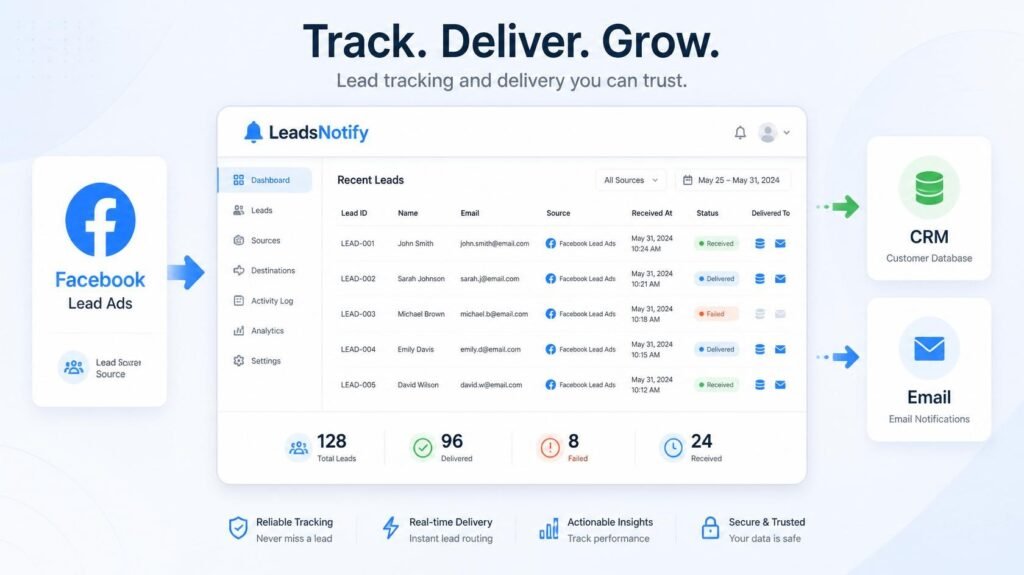
When you run Facebook Lead Ads, every lead matters. But sometimes a lead may not reach your CRM, email inbox, or marketing platform immediately. This can happen for several reasons: Facebook may delay or miss a webhook, your connected app may temporarily reject the request, an email server may have a delivery issue, or an integration API may return an error.
To make this clearer, LeadsNotify now includes a Lead Delivery dashboard.
This dashboard helps you see which leads were received by LeadsNotify and whether they were successfully delivered to your connected destination.
What Is the Lead Delivery Dashboard?
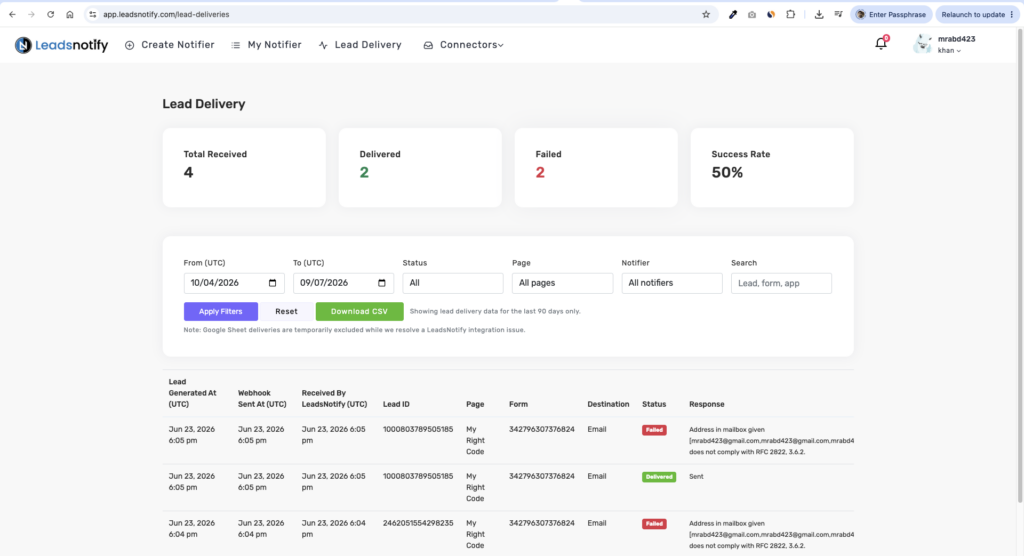
The Lead Delivery dashboard gives you a transparent view of your recent lead activity.
You can see:
- When the lead was generated on Facebook
- When Facebook sent the webhook to LeadsNotify
- When LeadsNotify received and processed the lead
- Which Facebook Page and Form the lead came from
- Which destination was used, such as Email, Brevo, CRM, or another integration
- Whether the delivery was successful or failed
- The response returned by the destination platform
This makes it easier to understand what happened instead of guessing whether the issue is with Facebook, LeadsNotify, your email server, or your connected CRM.
Why This Matters
Previously, if a lead did not appear in your CRM or mailbox, it was hard to know what went wrong.
Now, you can quickly check:
- Did LeadsNotify receive the lead?
- Did Facebook send the webhook?
- Was the lead delivered successfully?
- Did the connected platform return an error?
This helps reduce confusion and gives you a clear record of delivery activity.
Understanding the Timestamp Columns
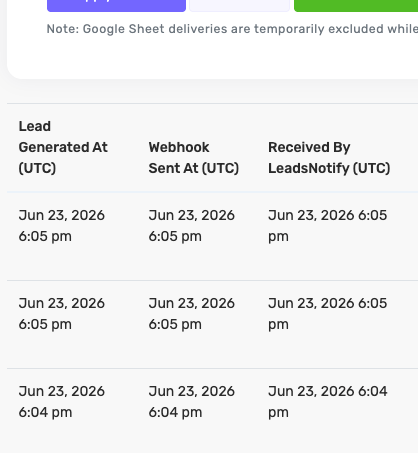
The dashboard includes three important time columns:
Lead Generated At
This is the time Facebook says the lead was created.
Webhook Sent At
This is the time Facebook sent the webhook event to LeadsNotify.
Received By LeadsNotify
This is the time LeadsNotify stored and processed the lead.
All times are shown in UTC for consistency.
Delivery Status: Delivered or Failed
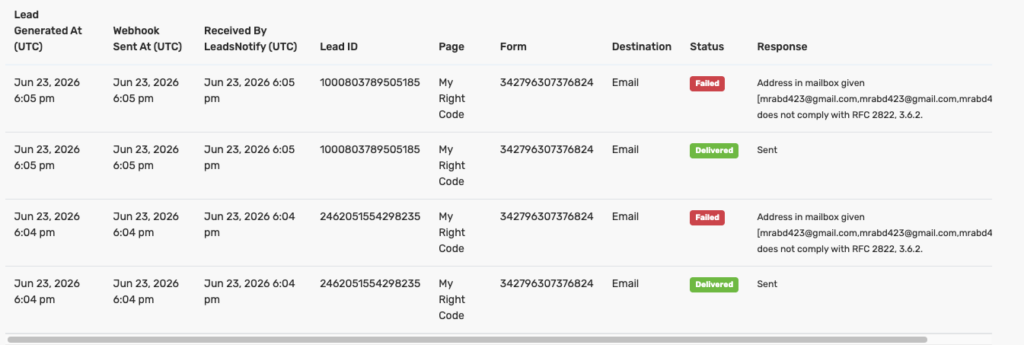
Each row shows the delivery status.
If the lead was successfully sent to the connected destination, you will see:
Delivered
If the connected app, email server, or API returned an issue, you may see:
Failed
For failed deliveries, the response column may show additional details from the destination platform.
Using Filters
You can filter the dashboard by:
- Date range
- Delivery status
- Facebook Page
- Notifier/integration
- Lead ID, form, page, or app name
The dashboard currently shows lead delivery data for the last 90 days.

Downloading the Report as CSV
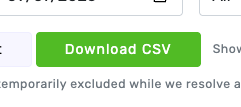
You can also download the filtered report as a CSV file.
This is useful if you want to:
- Share delivery records with your team
- Compare LeadsNotify records with your CRM
- Keep a backup report
- Investigate failed deliveries
Simply apply your filters and click Download CSV.
Important Note About Google Sheet Delivery
Google Sheet delivery is currently not included in this report because of a LeadsNotify-side integration issue. We are working on improving this integration.
This means Google Sheet delivery records may not appear in the Lead Delivery dashboard at this time.
What If a Lead Is Not Shown?
If a lead does not appear in the Lead Delivery dashboard, it usually means LeadsNotify did not receive that lead webhook from Facebook.
In that case, the issue may be related to Facebook webhook delivery, page permissions, form connection, or page access token status.
If the lead appears in the dashboard but shows as failed, then LeadsNotify received the lead, but the connected destination may have rejected or failed the delivery.
Final Thoughts
The Lead Delivery dashboard gives you more visibility and confidence when managing Facebook leads.
Instead of wondering where a lead went, you can now check the delivery record directly inside LeadsNotify.
This helps you identify issues faster, communicate clearly with your team, and make sure your lead delivery workflow is working as expected.
Last Updated on July 9, 2026 by Abdullah Khan
Set up a free notification in a few minutes.

Abdullah Khan
A Technical Lead and backend architect with 10+ years of experience building reliable, high-scale APIs and automation systems. At LeadsNotify, he helps build and maintain the integrations that route Facebook and LinkedIn leads to email, CRMs, and marketing tools in real time.
Connect on LinkedIn ↗