

How to Connect Facebook Lead Ads to GetResponse
Get your Facebook campaign leads directly into GetResponse using Leadsnotify. This Facebook Lead Ads to GetResponse integration helps you automatically send new leads from your Facebook instant forms to your GetResponse campaigns without manually copying contact information. In this guide, we'll show…

Table of contents
Get your Facebook campaign leads directly into GetResponse using Leadsnotify. This Facebook Lead Ads to GetResponse integration helps you automatically send new leads from your Facebook instant forms to your GetResponse campaigns without manually copying contact information.
In this guide, we’ll show you how to connect Facebook Lead Ads to GetResponse, find your GetResponse API key, map your Facebook lead form fields, and test the integration.
How to Connect Facebook Lead Ads to GetResponse
The setup only takes a few steps. You’ll connect your Facebook pages, select the GetResponse integration in Leadsnotify, enter your GetResponse API key, map the lead fields, and send a test lead to verify the connection.
Prerequisites
- An active Leadsnotify account.
- Access to the Facebook page containing the Lead Ads forms you want to connect.
- An active GetResponse account and access to its API settings.
- A GetResponse campaign where you want the Facebook leads to be added.
Step 1: Log in to Leadsnotify
First, log in to Leadsnotify. If you don’t have an account, you can create one and get started with the integration.
Step 2: Connect Your Facebook Pages
Before creating the GetResponse notifier, make sure your Facebook page is connected to Leadsnotify.
If you haven’t connected your Facebook pages yet, follow our guide: How to connect and configure Facebook pages with Leadsnotify.
Step 3: Select the GetResponse Integration
After logging in, you’ll see the available integration options. Search for GetResponse and click Try Now.
This opens the GetResponse notifier configuration where you can connect your Facebook Lead Ads forms with GetResponse.
Step 4: Get Your GetResponse API Key
The GetResponse integration requires an API key to communicate with your GetResponse account.
Log in to your GetResponse account and open Tools → Integrations & API → API to access your API settings.
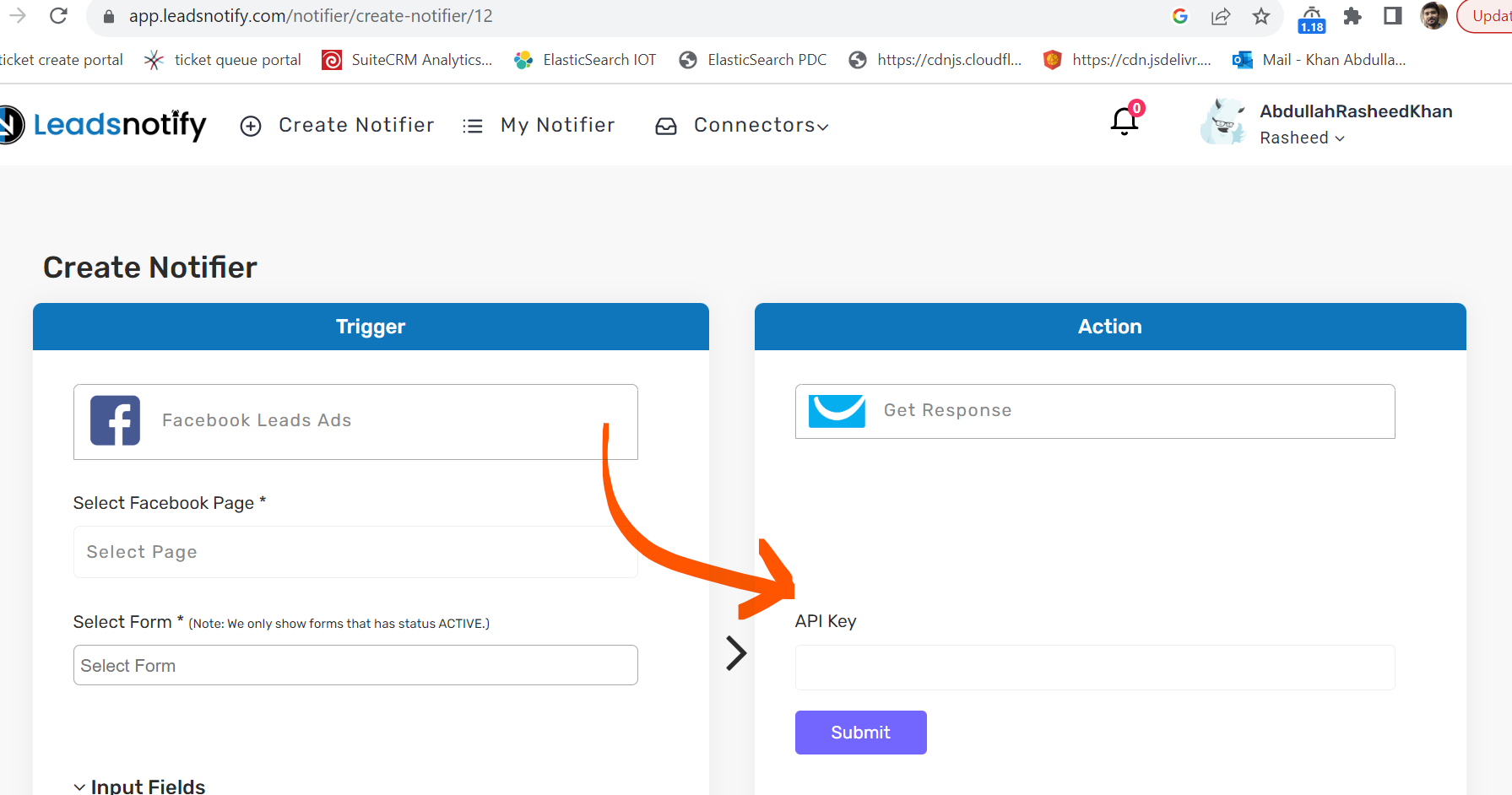
Copy your GetResponse API key and enter it in the API key field in Leadsnotify.
Step 5: Map Facebook Lead Ads Fields to GetResponse
After the API key is accepted, Leadsnotify will retrieve the available GetResponse fields and allow you to map them to your Facebook Lead Ads form fields.
The first field allows you to choose the GetResponse campaign where you want your Facebook leads to be added.
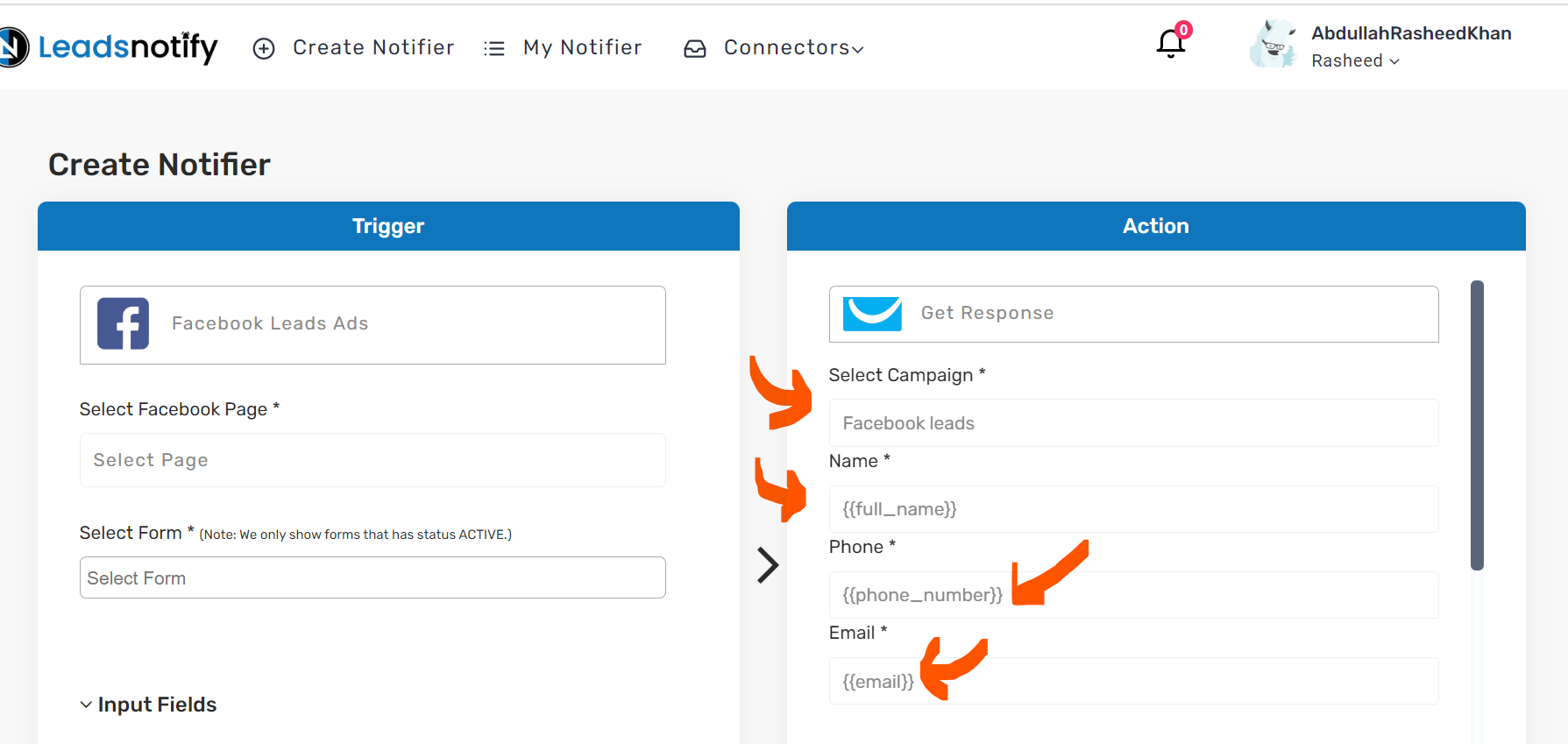
Map the information collected through your Facebook instant form to the corresponding GetResponse fields. Depending on your form, this can include information such as the lead’s name, email address, phone number, and other custom fields.
Step 6: Save and Test the Integration
Once the field mapping is complete, click Submit to save the integration.
After the notifier has been saved, Leadsnotify will give you the option to send a test lead. Use the test option to confirm that the Facebook Lead Ads to GetResponse integration is configured correctly.
After sending the test lead, check your selected GetResponse campaign to confirm that the contact was received.
GetResponse Double Opt-In and Lead Delivery
GetResponse may apply its subscription and confirmation settings to contacts added through an integration. If your leads are not appearing as expected, check the opt-in settings for the selected GetResponse campaign.
The original integration setup recommends checking the GetResponse opt-in configuration before testing. If contacts require confirmation, the lead may not become an active subscriber until the required confirmation step has been completed.
Facebook Lead Ads and Gmail
If your workflow also involves Gmail, you can use Gmail alongside your Facebook Lead Ads and GetResponse workflow for notifications or follow-up communication. The Leadsnotify GetResponse integration itself is designed to send the Facebook lead information to your selected GetResponse campaign.
This means you can keep GetResponse as the destination for your lead list while using your existing email workflow to follow up with new prospects.
Troubleshooting the Facebook Lead Ads to GetResponse Integration
- Lead does not appear in GetResponse: Check that the correct GetResponse campaign is selected and that the integration was saved successfully.
- API key is not accepted: Verify that you copied the correct GetResponse API key and that it is still active.
- Facebook form fields are missing: Check that the correct Facebook page and instant form are connected to Leadsnotify.
- Test lead is not added: Review your GetResponse opt-in settings and confirm that the selected campaign is configured to accept new contacts.
- Real leads work differently from test leads: Test leads and real Facebook leads can follow different validation or opt-in behavior, so verify the workflow with a real lead once your configuration is ready.
How the Facebook Lead Ads to GetResponse Integration Works
Once configured, the workflow is straightforward:
- A prospect submits a Facebook Lead Ad form.
- Leadsnotify receives the new Facebook lead.
- Leadsnotify processes the lead using your GetResponse notifier.
- The mapped lead information is sent to your selected GetResponse campaign.
- GetResponse manages the contact according to your campaign and subscription settings.
Frequently Asked Questions
Can I connect Facebook Lead Ads to GetResponse?
Yes. Leadsnotify can connect supported Facebook Lead Ads forms with GetResponse so new lead information can be sent to a selected GetResponse campaign.
How do I integrate Facebook Lead Ads with GetResponse?
Connect your Facebook page to Leadsnotify, select the GetResponse integration, enter your GetResponse API key, choose your campaign, map the Facebook form fields, and test the notifier.
Can Facebook leads be sent to GetResponse automatically?
Yes. Once the Leadsnotify notifier is configured and active, new leads from the selected Facebook instant forms can be sent automatically to your chosen GetResponse campaign.
Why isn’t my Facebook lead appearing in GetResponse?
Check the Facebook page and form selection, GetResponse API key, campaign selection, field mapping, and GetResponse opt-in settings. You can also send a test lead from Leadsnotify to verify the connection.
Start Sending Facebook Leads to GetResponse
With Leadsnotify, you can connect Facebook Lead Ads with GetResponse and automatically move new leads into your selected GetResponse campaign. The setup involves connecting Facebook, adding your GetResponse API key, mapping your fields, and testing the workflow.
If you’re running Facebook campaigns and using GetResponse for email marketing, this integration can reduce manual lead entry and help you move new prospects into your marketing workflow faster.
Ready to connect Facebook Lead Ads to GetResponse? Create your Leadsnotify account and get started.
Set up a free notification in a few minutes.

Abdullah Khan
A Technical Lead and backend architect with 10+ years of experience building reliable, high-scale APIs and automation systems. At LeadsNotify, he helps build and maintain the integrations that route Facebook and LinkedIn leads to email, CRMs, and marketing tools in real time.
Connect on LinkedIn ↗