How to Send Google Ads Lead Form Leads to Klaviyo (Step-by-Step)
Add every Google Ads lead form submission to a Klaviyo list within seconds. Connect the webhook Google Ads already offers, add a Klaviyo key, pick the list and test it. No code, free plan included.
 By Akash Mehra
8 min read
Table of contents

Summary
- LeadsNotify adds every new Google Ads lead form submission to a Klaviyo list within seconds, through the webhook Google Ads already offers. No code and no CSV downloads.
- Setup has two parts: connect your lead form to LeadsNotify once, then build a notifier that sends it to Klaviyo with a Private API key.
- You choose the Klaviyo list, whether the email is subscribed to marketing, and whether an existing profile gets updated.
- Klaviyo is on every LeadsNotify plan, free included. The free plan covers 50 leads, 1 source and 1 notifier, no card needed.
Prefer to watch? Here is the full setup in one short video.
Why Google Ads Leads Need to Reach Klaviyo Fast
A Google Ads lead form lets someone send you their details without leaving the ad. The lead then sits inside Google Ads, under Assets, until someone signs in and downloads a CSV. Google keeps leads for 60 days and only lets you download the last 30, per Google’s own help page.
Meanwhile your welcome flow in Klaviyo is waiting for a profile that never arrives. Every hour between the form and the first email is an hour the lead spends looking at other options.
Klaviyo’s built-in Google Ads integration does not fix this. It sends your Klaviyo lists and segments out to Google Ads as audiences. It does not bring lead form submissions into Klaviyo. For that you need the lead form’s webhook, and this guide shows you how to point it at Klaviyo through LeadsNotify.
How to Send Google Ads Lead Form Leads to Klaviyo
Before you start, you need: a LeadsNotify account on any plan, free included, access to edit the lead form in Google Ads, and a Klaviyo account where you can create a Private API key.
Step 1: Add Your Lead Form in LeadsNotify
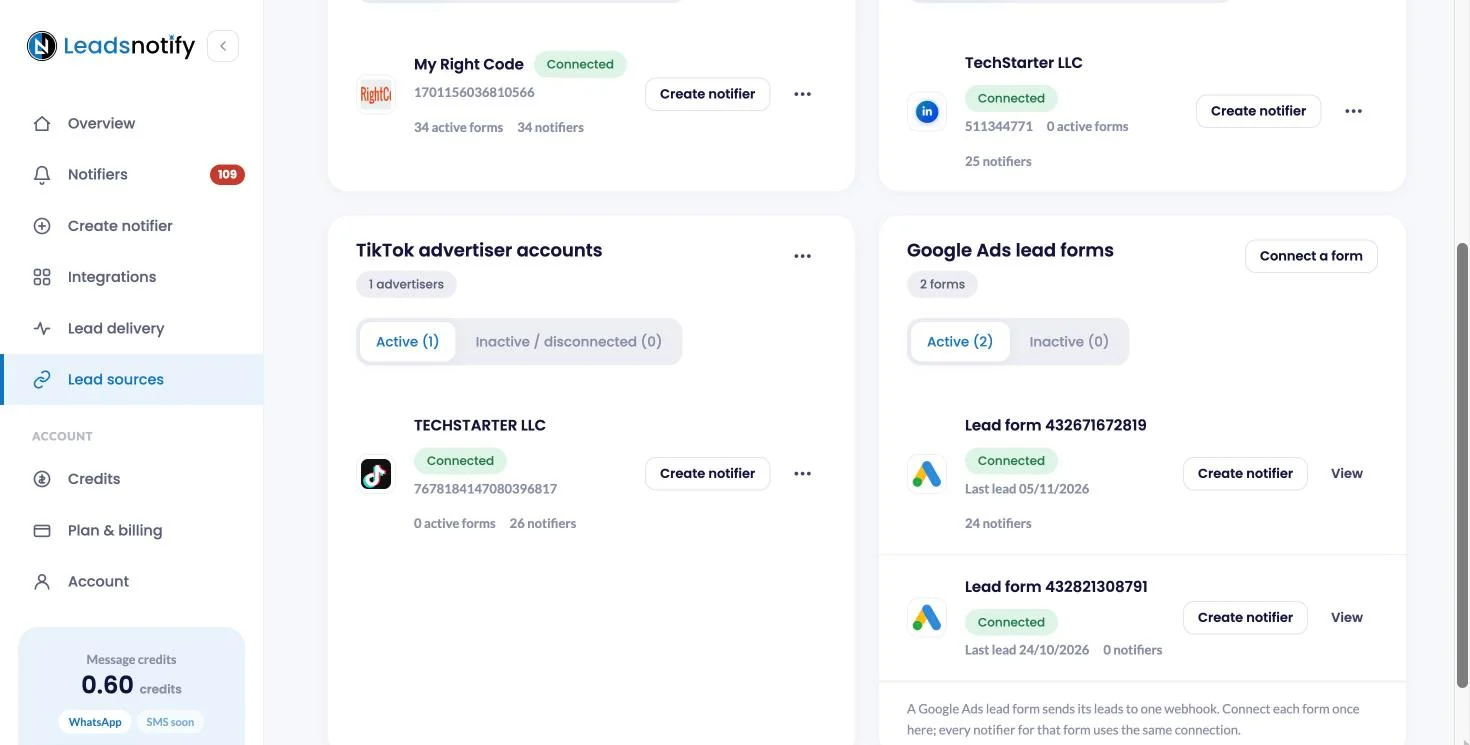
Log in to LeadsNotify, open Lead sources in the left menu and click Connect Google Ads form.

In another tab, open Google Ads, go to Assets and filter by Lead form. Open the form you want, copy the address from your browser’s address bar and paste it into Lead form link or form ID in LeadsNotify. Click Create webhook.
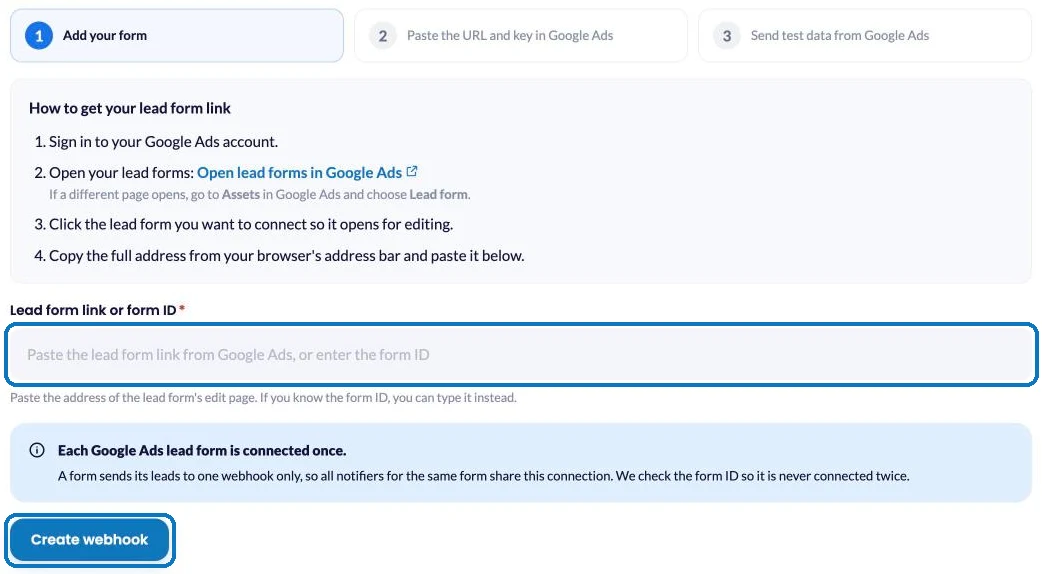
Each Google Ads lead form is connected once. Every notifier you build for that form, Klaviyo or anything else, shares this one connection.
Step 2: Paste the Webhook URL and Key into Google Ads
LeadsNotify shows a Webhook URL and a Key for your form. In the Google Ads form editor, scroll to Export leads from Google Ads, open Other data integration options, and paste them into Webhook URL and Key under Webhook integration. Click Save.
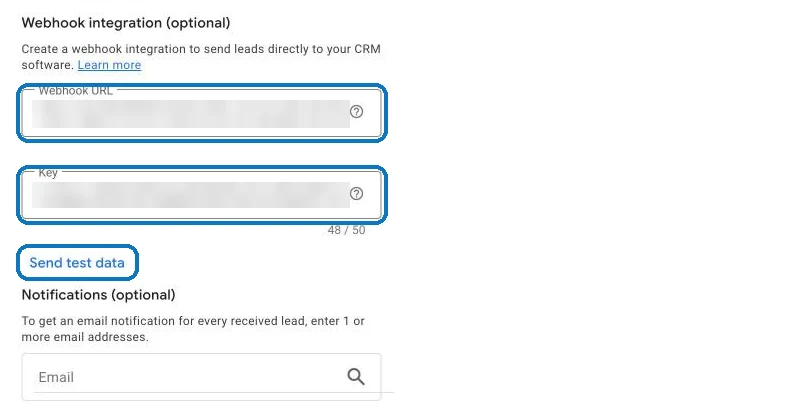
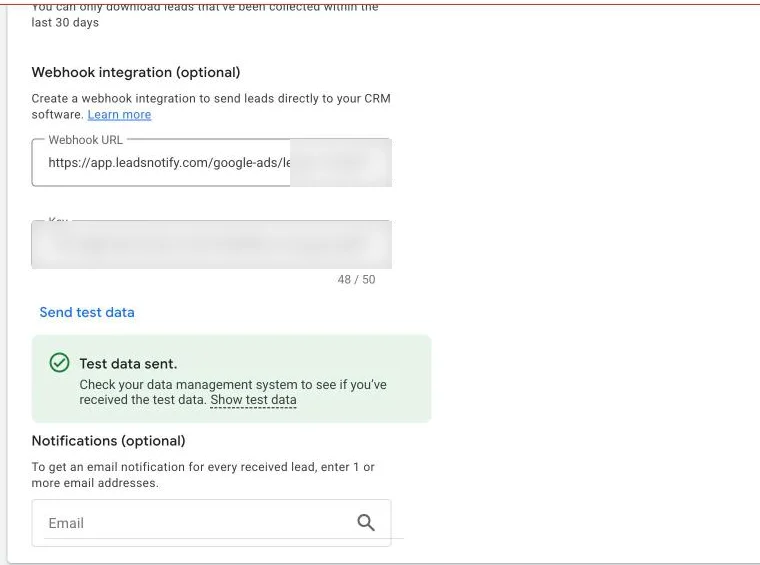
Step 3: Send Test Data Once
Click Send test data under the key. Google posts a sample lead to LeadsNotify straight away, and the form’s connection page shows Latest lead received from this webhook with every field Google Ads sent. LeadsNotify reads your form’s questions from this test, so do it before you build the notifier.
Step 4: Create a Notifier for the Form
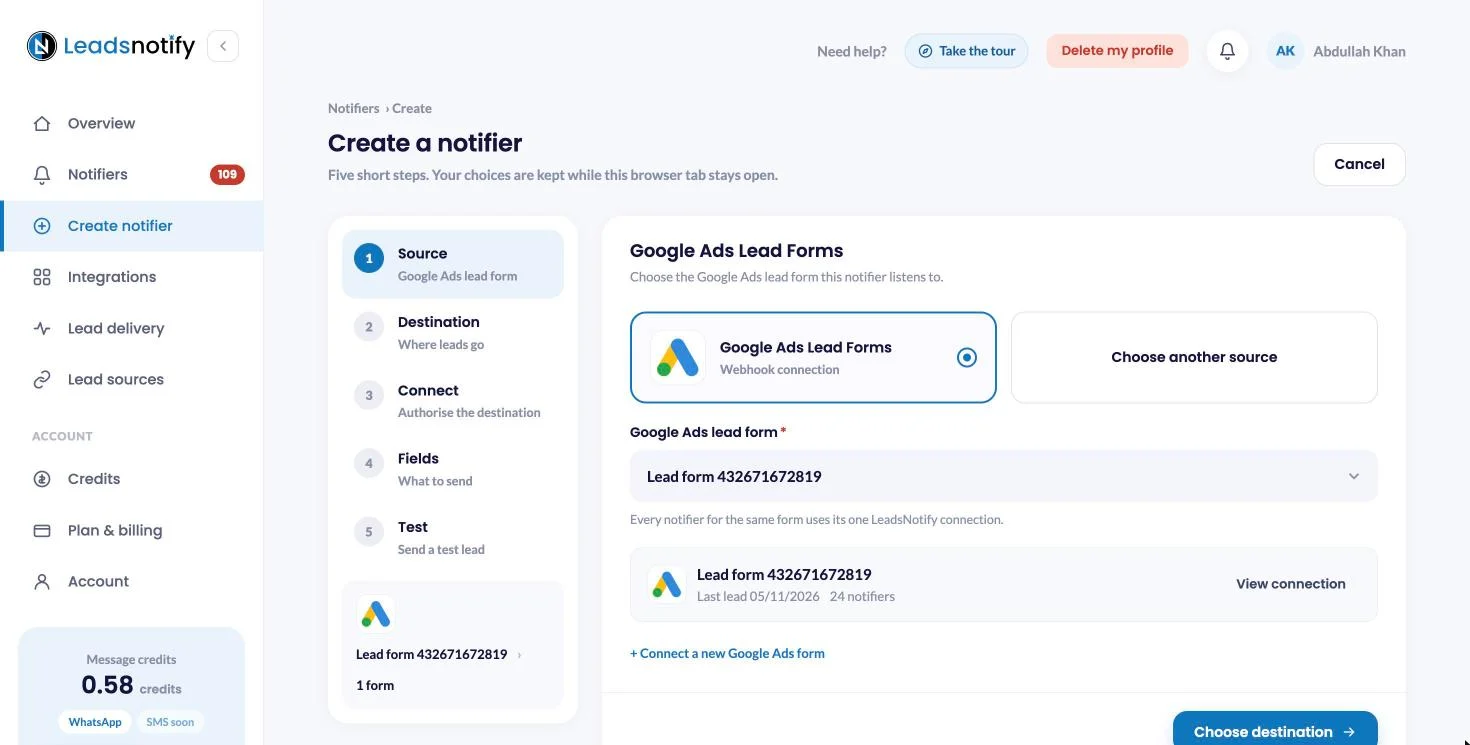
Open Create notifier from the left menu and choose Google Ads Lead Forms as the source. Pick your form from the Google Ads lead form dropdown, then click Choose destination.
Step 5: Choose Klaviyo as the Destination
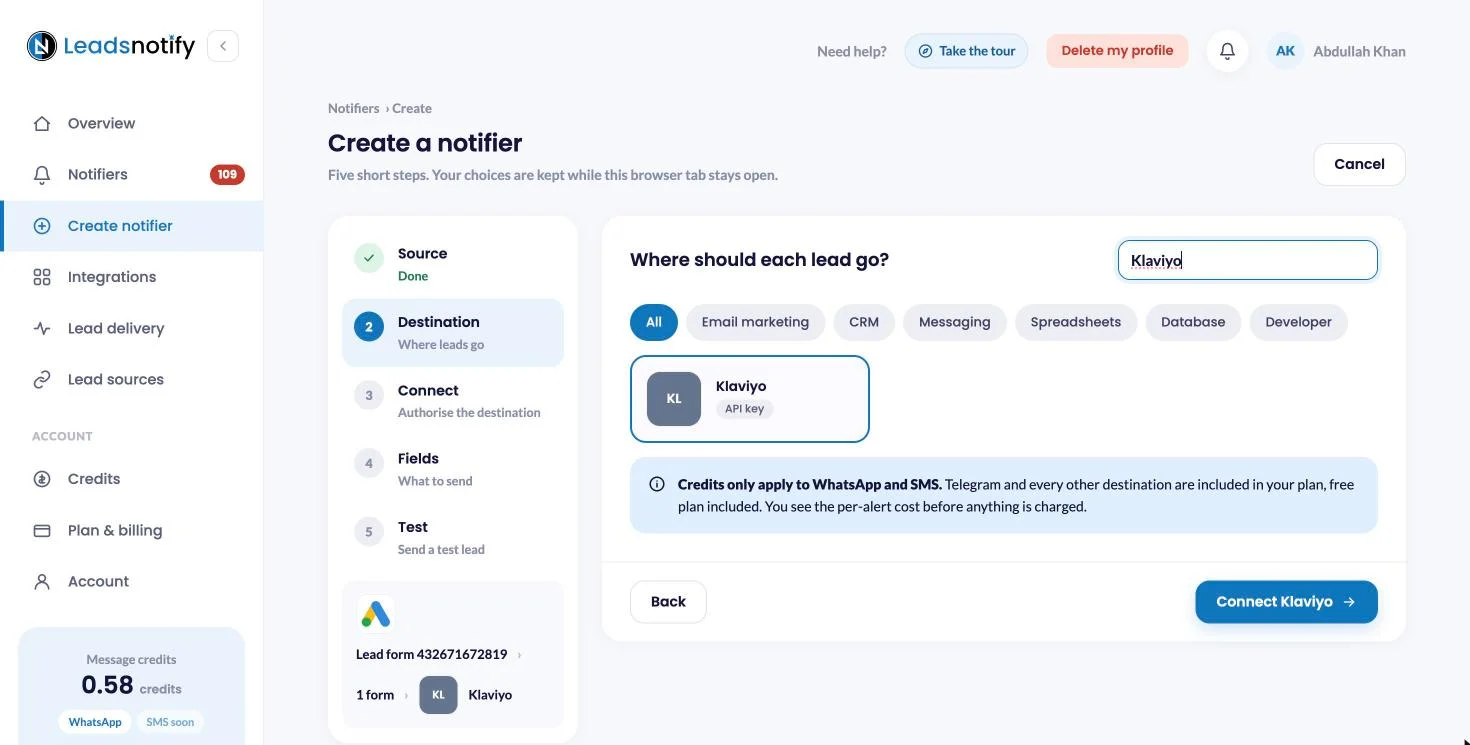
Under Where should each lead go? type Klaviyo in the search box, select it and click Connect Klaviyo. Klaviyo is included in your plan and uses no message credits.
Step 6: Connect Klaviyo with a Private API Key
In Klaviyo, open Settings, then API keys, and click Create Private API Key. Name it LeadsNotify and give it read and write access to Profiles and Lists. Copy the key, which starts with pk_, paste it into Klaviyo Private API Key in LeadsNotify, and click Connect Klaviyo.
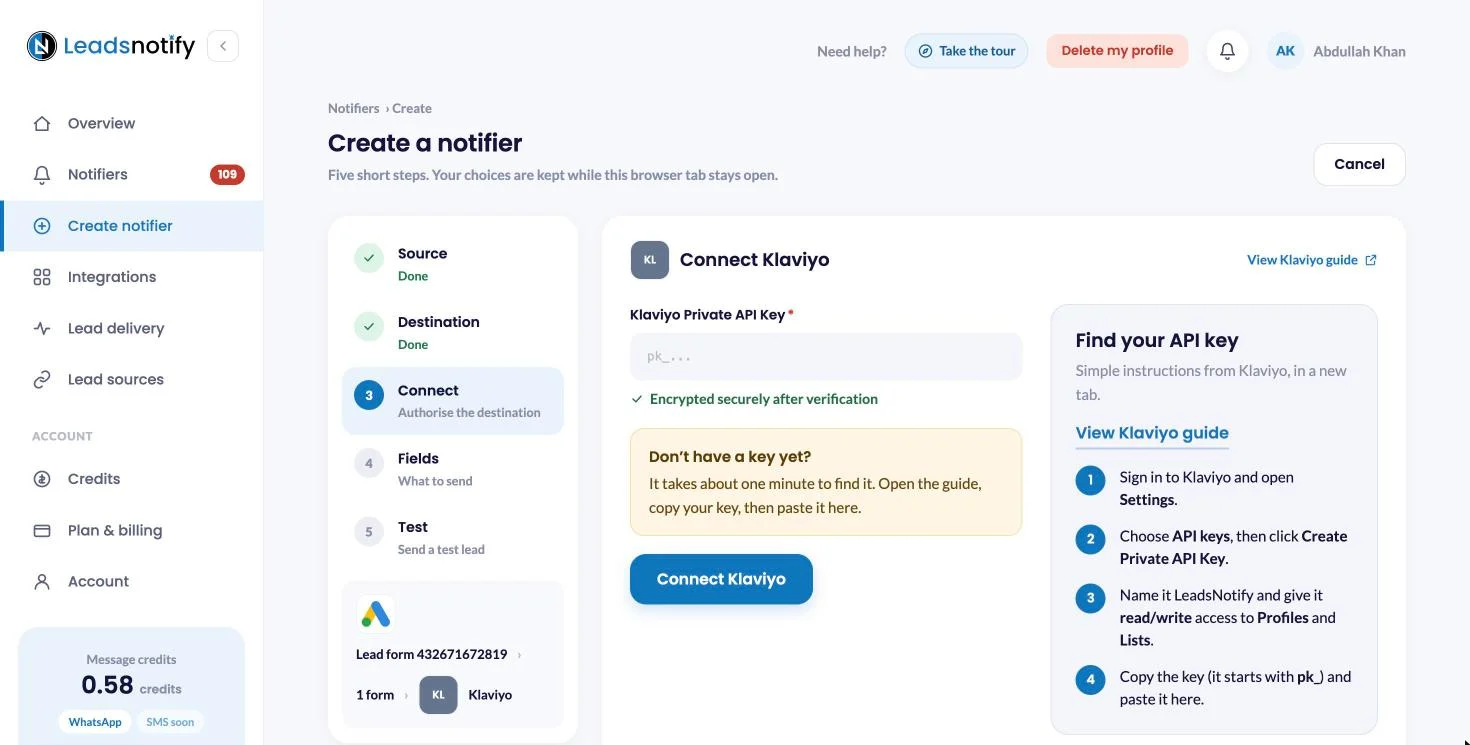
LeadsNotify verifies the key, then stores it encrypted.
Step 7: Pick the List and How Profiles Are Added
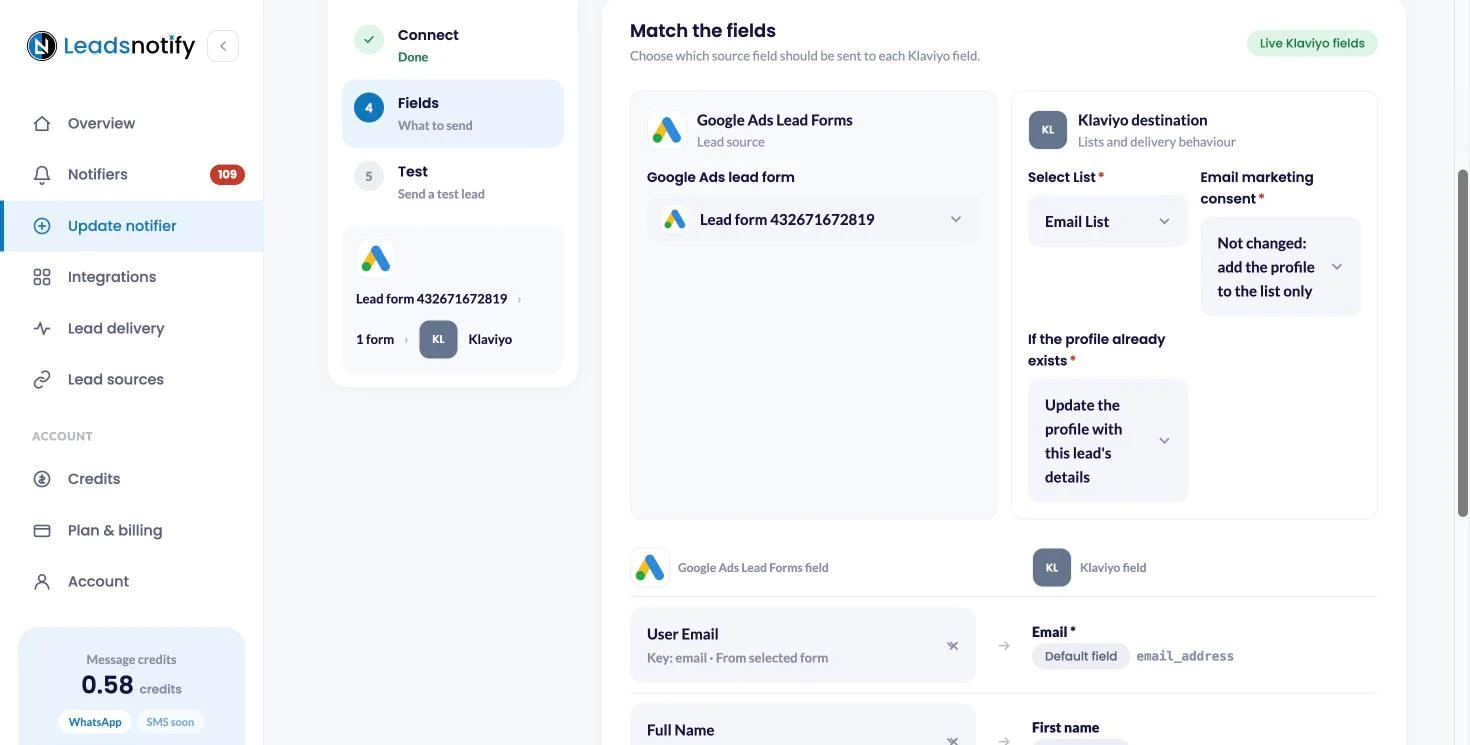
Under Klaviyo destination you make three choices:
- Select List. The Klaviyo list every lead joins. A dedicated list such as “Google Ads leads” makes it easy to trigger a welcome flow just for them.
- Email marketing consent. Subscribed subscribes the email to marketing. Not changed adds the profile to the list and leaves its consent as it is. Only choose Subscribed if your lead form asks for marketing consent.
- If the profile already exists. Update the profile with this lead’s details keeps Klaviyo current when someone fills in your form again. Leave the profile’s details unchanged keeps what Klaviyo already has.
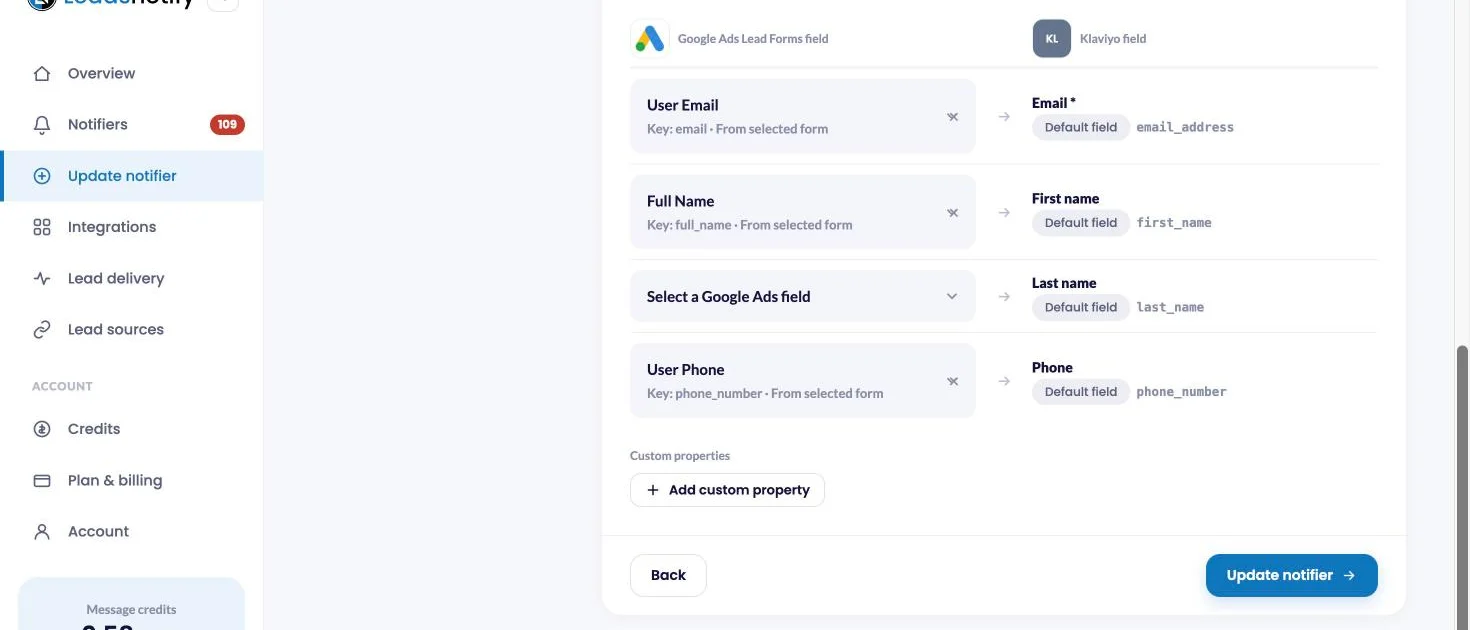
Step 8: Match the Form Fields to Klaviyo
Map User Email to Email, which is required. Then map Full Name to First name and User Phone to Phone. Use Add custom property for anything else your form asks, such as city or company, so it lands on the Klaviyo profile too. Click Save notifier.
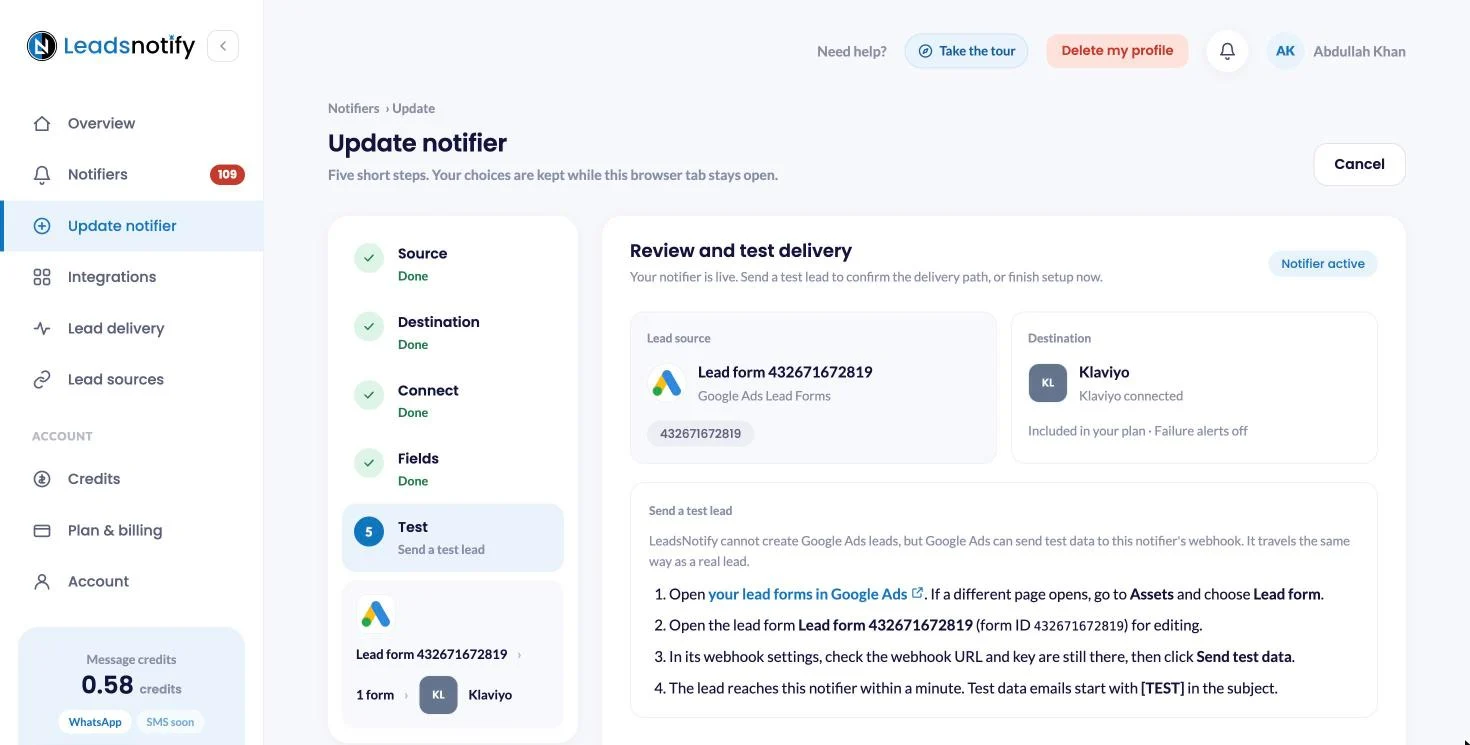
Step 9: Send a Test Lead from Google Ads
Your notifier is live once it is saved. LeadsNotify cannot create Google Ads leads, but Google Ads can send test data to the webhook, and it travels the same way as a real lead. The Test step shows exactly where to click.
Open the lead form in Google Ads and click Send test data in its webhook settings. Leave the form without changing anything else.
Step 10: Check Lead Delivery and Klaviyo
Open Lead delivery in LeadsNotify. The test shows with the source, the destination and a status of Delivered.
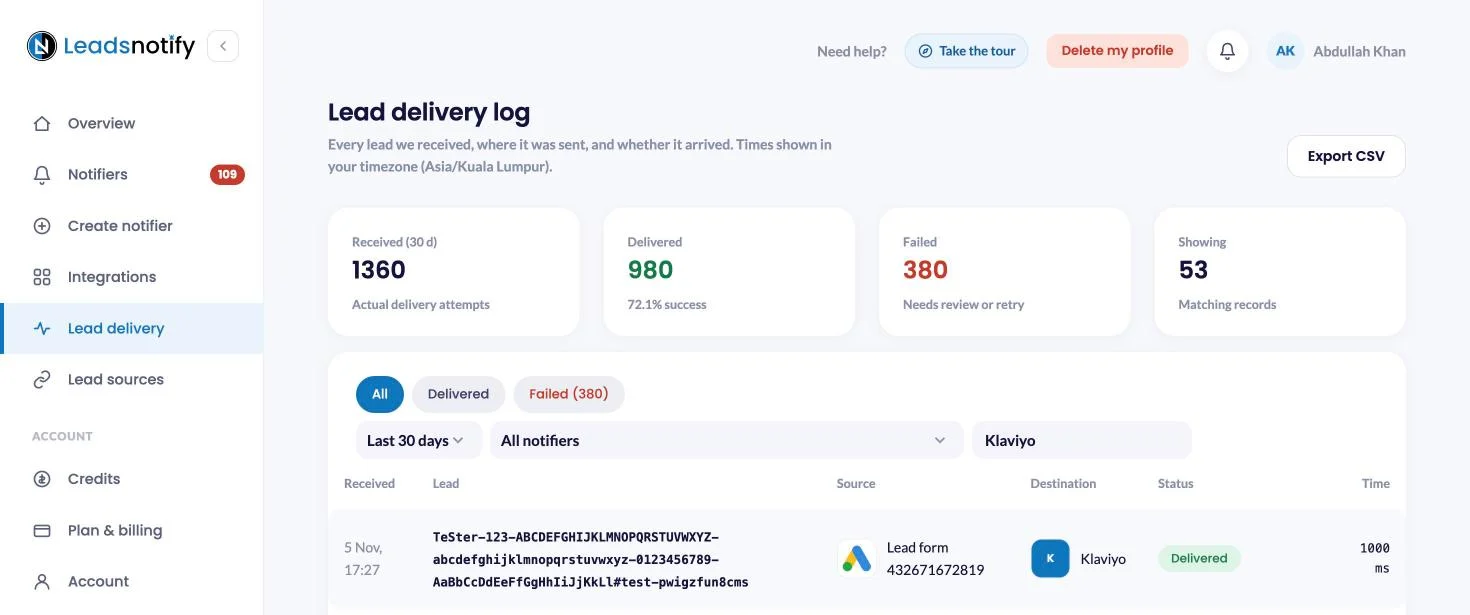
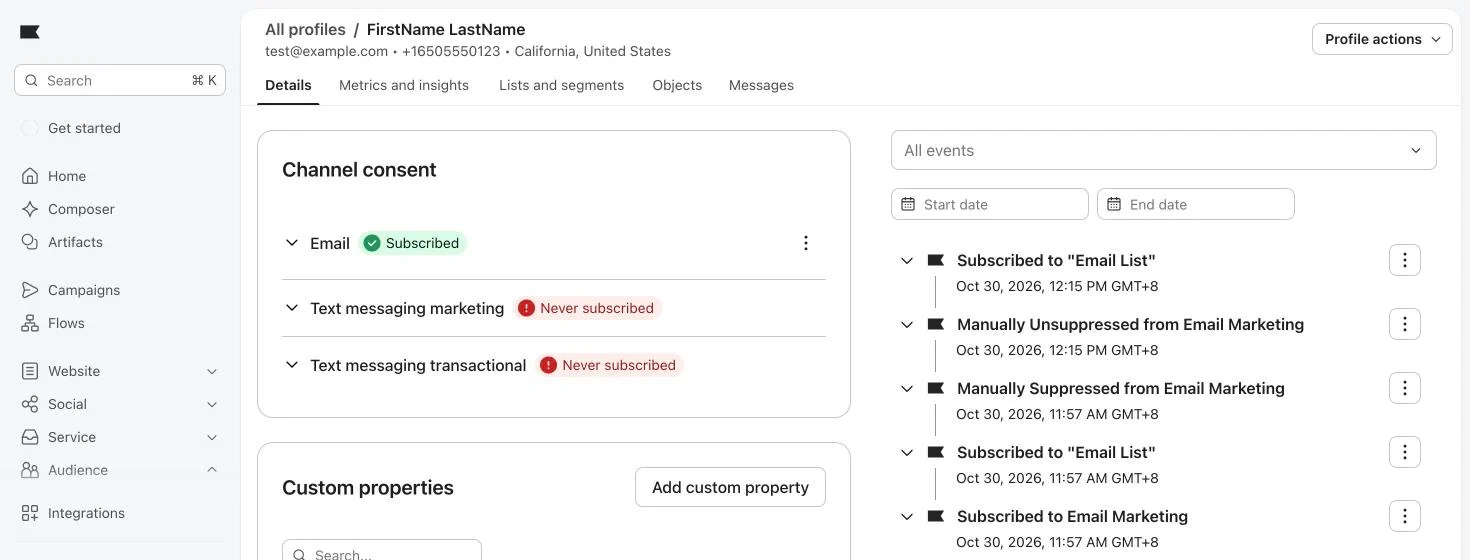
Then search Klaviyo for the email. Google’s test lead uses placeholder values such as “FirstName LastName” and test@example.com, so do not worry that it is not a real person. The profile is on your list with the phone and name you mapped.
What to Send to Klaviyo
- Email first. Klaviyo identifies a profile by its email, so it is the one field you cannot skip.
- Name and phone. Your flows can greet the lead by name, and the phone is there if you add SMS later.
- Qualifying answers as custom properties. Budget, service or location can split your welcome flow into branches.
- One list per lead form. If you run several forms, a list per form keeps each welcome flow relevant.
When Google Ads Leads Don’t Arrive in Klaviyo
Start in Lead delivery. If the lead is not there at all, the problem is between Google Ads and LeadsNotify. If it is there but marked Failed, the Status column carries Klaviyo’s reply.
- No test lead after Send test data. The URL or key in Google Ads is missing a character, or the form was not saved. Copy both again from the form’s connection page in LeadsNotify, paste them, save, and send test data again.
- Klaviyo will not connect. The key is not a Private API key, or it lacks write access to Profiles and Lists. Create a new key with those scopes and paste it again.
- The lead is Delivered but not on your list. Check which list the notifier uses under Select List, then search Klaviyo for the email across all profiles.
- An existing profile did not change. The notifier is set to Leave the profile’s details unchanged. Edit it and choose Update the profile with this lead’s details.
- A new form question is missing. The field list comes from the last test lead. Send test data again, then edit the notifier and map the new question.
Frequently Asked Questions
Does Klaviyo integrate with Google Ads lead forms on its own?
Klaviyo’s Google Ads integration syncs your Klaviyo lists and segments to Google Ads as audiences. It does not import lead form submissions into Klaviyo. The lead form’s webhook does that, and LeadsNotify turns each webhook call into a Klaviyo profile.
Do I need a developer or an automation tool?
No. Google Ads already has the webhook built in. You paste two values into the form, add a Klaviyo key, and pick your list.
How fast do leads reach Klaviyo?
Google Ads sends each lead to the webhook as soon as it is submitted, and LeadsNotify adds it to Klaviyo straight away. The Time column in Lead delivery shows how long each delivery took.
What happens if the same person submits the form twice?
You decide. With Update the profile with this lead’s details, Klaviyo keeps one profile and refreshes it with the new answers. With Leave the profile’s details unchanged, the existing profile stays as it is.
Will leads be subscribed to my emails automatically?
Only if you choose Subscribed under Email marketing consent. Not changed adds the profile to the list without touching its consent, which is the safe choice when your form does not ask for marketing permission.
How much does it cost?
Klaviyo is on every LeadsNotify plan and uses no message credits. The free plan includes 50 leads, 1 lead source and 1 notifier, with no card needed. Compare the plans.
What about Facebook and LinkedIn leads?
Same account, same notifier steps. See how to connect Facebook leads to Klaviyo and how to get LinkedIn leads into Klaviyo. If you want Google Ads leads in your inbox as well, read how to send Google Ads lead form leads to email.
Get Your Next Google Ads Lead into Klaviyo
Connect the form once, add your Klaviyo key, pick the list, and send test data. Your next Google Ads lead starts your Klaviyo flow seconds after the form is submitted. Send Google Ads leads to Klaviyo with LeadsNotify, free plan included. More setups on the Google Ads to Klaviyo integration page.
Last Updated on November 5, 2026 by Akash Mehra
Set up a free notification in a few minutes.