
How to Send LinkedIn Lead Gen Forms to EmailOctopus (Step-by-Step)
Send LinkedIn leads to EmailOctopus automatically. Connect your Page, add your EmailOctopus key and test it with LeadsNotify in 5 minutes.
 By Akash Mehra
6 min read
By Akash Mehra
6 min read
Table of contents
EmailOctopus is an affordable email marketing platform with lists, automations and landing pages. If you run LinkedIn Lead Gen Forms, sending every new lead to EmailOctopus automatically saves you downloading files from Campaign Manager and importing them by hand.
This guide shows you how to send LinkedIn Lead Gen Forms to EmailOctopus with LeadsNotify: connect your LinkedIn Page, connect EmailOctopus, choose where leads go, and test it. It takes about five minutes.
Why Send LinkedIn Leads to EmailOctopus?
EmailOctopus automations can start when a contact joins a list. Getting ad leads there automatically lets your welcome email go out right away.
LinkedIn leads are often your most valuable leads: decision makers, with company and job title already filled in from their profile. They are also the easiest to lose, because they wait in Campaign Manager until someone remembers to download them.
How to Send LinkedIn Lead Gen Forms to EmailOctopus (About 5 Minutes)
Before you start, you need: a LeadsNotify account on any plan, free included, admin access to the LinkedIn Page that runs your lead gen forms, and your EmailOctopus account and permission to create API keys.
Step 1: Connect Your LinkedIn Page
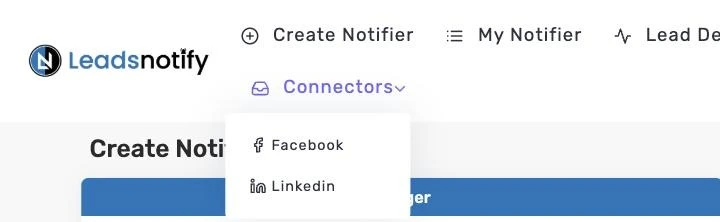
Log in to LeadsNotify. Open Connectors in the top menu and choose Linkedin. Click Connect To Linkedin, sign in, tick the Pages you run lead gen form campaigns from, and approve the permissions LinkedIn asks for.
Every Page you ticked shows as CONNECTED. Adding another Page later? Click Connect To Linkedin again and tick the new Page, leaving the connected Pages ticked. Already connected? Skip to step 2.
Step 2: Create a EmailOctopus Notifier
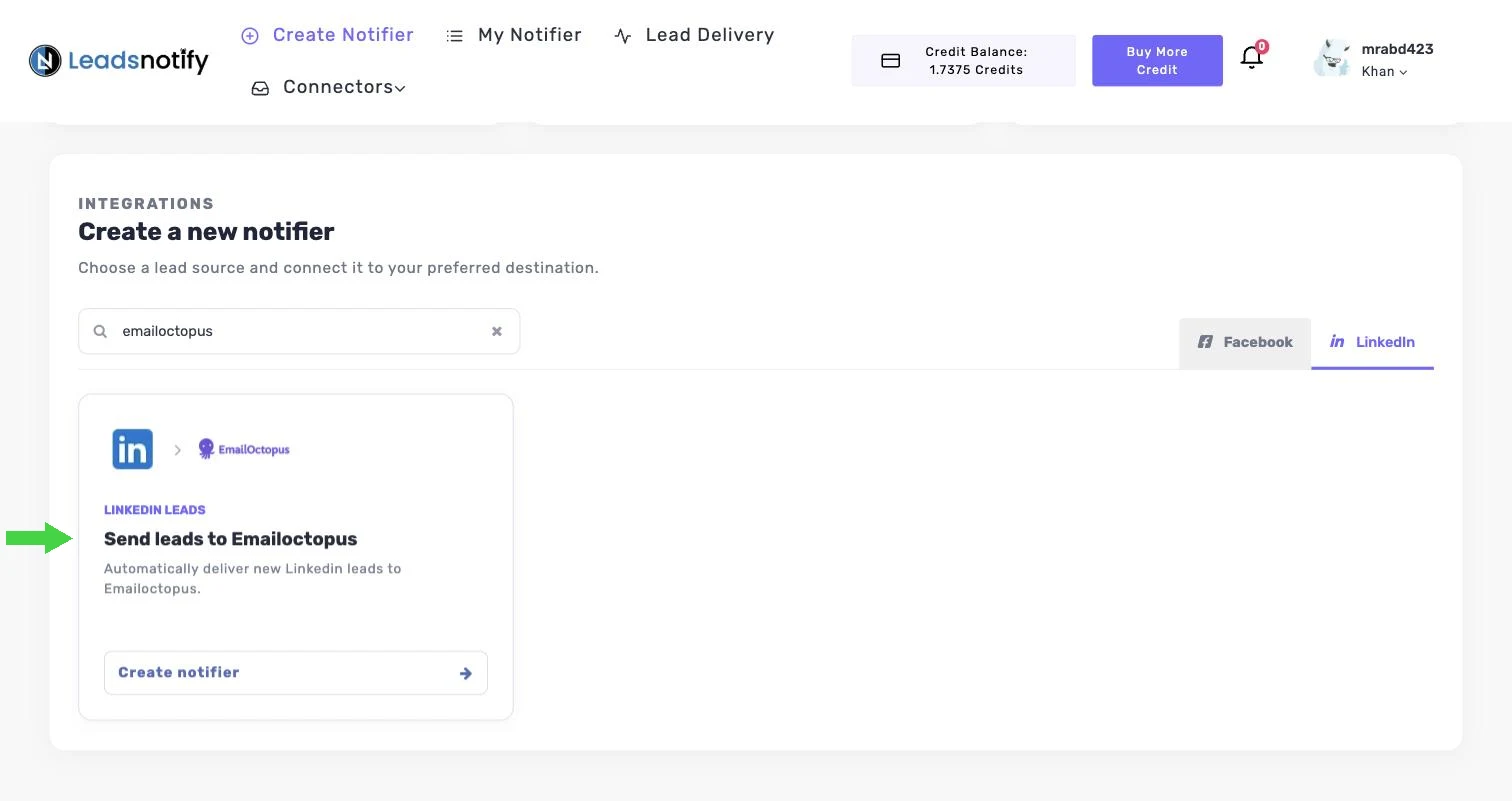
Go back to the dashboard. Under Create a new notifier, make sure the LinkedIn tab is selected, type “emailoctopus” in the search box, find Send leads to EmailOctopus and click Create notifier.
Step 3: Pick Your Page and Lead Gen Forms
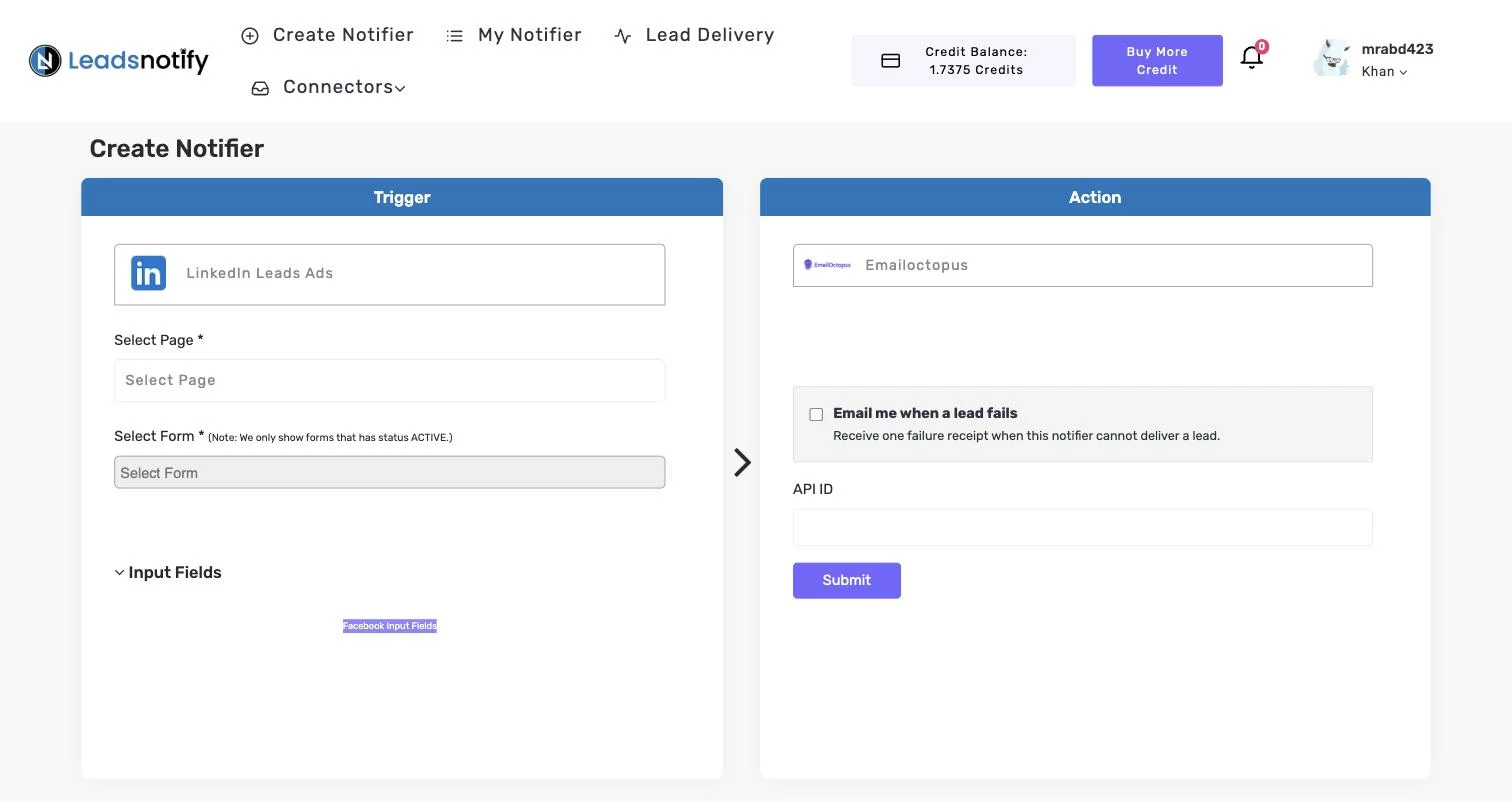
The Create Notifier screen has two sides. The Trigger on the left is where leads come from. The Action on the right is where they go.
In the Trigger panel, choose your LinkedIn Page under Select Page, then pick one or more lead gen forms under Select Form. LeadsNotify then lists the fields on those forms, such as first name, last name, email, company name and job title.
Only active forms are shown. If a form is missing, check that the form and its campaign are active in Campaign Manager.
Step 4: Connect EmailOctopus
The Action panel asks for your EmailOctopus API ID. These let LeadsNotify add leads to your EmailOctopus account.
Where to find your EmailOctopus API ID
- Log in to EmailOctopus.
- Open the API keys page from your account menu (Integrations & API).
- Click Add key (or Create Key), name it LeadsNotify and click Create.
- Copy the key and paste it into the API ID field in LeadsNotify.
EmailOctopus shows a new key only once. Copy it, or use the Download option to keep a copy.
Paste the value into LeadsNotify and click Submit.
Step 5: Choose Where Leads Go, Then Submit
After you click Submit, LeadsNotify loads your EmailOctopus lists. Choose the list new leads should join, then scroll down and click Submit.
Tick Email me when a lead fails so you hear about it if a lead can’t be delivered, then click Submit. Your notifier appears under My Notifier, and the green switch means it’s live.
Step 6: Send a Test Lead and Check Lead Delivery
After you submit the notifier, LeadsNotify offers to send a test lead through it. You can also do this later: open My Notifier, click Edit on the notifier, then click TEST NOTIFIER.
Open Lists in EmailOctopus and look for the test lead in the list you chose. If the test lead is there with the right details, the notifier is working.
Want to test with a submission from LinkedIn itself? In Campaign Manager, open your ad account, go to Content & Assets > Lead generation forms, click More next to the form and choose Send Test Lead. Use a real email address you own.
Then open Lead Delivery in LeadsNotify. Every attempt is listed with the Page, the form, the destination and a status of Delivered or Failed, and the Response column shows the exact reply from EmailOctopus. Our guide to the lead delivery status dashboard walks through every column.

Tips for Getting More From LinkedIn Leads in EmailOctopus
- Set up an EmailOctopus automation triggered by joining the list.
Troubleshooting the LinkedIn Lead Gen Forms to EmailOctopus Integration
Start with the Response column in Lead Delivery. It shows the exact reason EmailOctopus gave for a failed lead.
| What you see | Likely cause | Fix |
|---|---|---|
| No leads arriving at all | The LinkedIn Page shows DISCONNECTED, often after an admin role changes | Connectors > Linkedin > Connect To Linkedin, and tick the Page again |
| Your form isn’t in Select Form | Only active forms are shown | Check the form and campaign status in Campaign Manager, then reopen the notifier |
| Leads stopped after you edited the campaign | The campaign now uses a different lead gen form | Edit the notifier and select the new form |
| A delivery shows Failed | EmailOctopus refused the lead | Open Lead Delivery and read the Response column for the reason |
Frequently Asked Questions
How do I connect LinkedIn Lead Gen Forms to EmailOctopus?
Use LeadsNotify. Connect your LinkedIn Page, create a EmailOctopus notifier, pick your lead gen forms, enter your EmailOctopus API ID, then submit and send a test lead.
Can LinkedIn leads go to EmailOctopus automatically?
Yes. Once the notifier is switched on, every new lead from the forms you picked is sent to EmailOctopus within seconds, with no CSV downloads.
Do I need to write any code?
No. Everything is set up in the LeadsNotify screens. You only need access to your LinkedIn Page and to your EmailOctopus account.
Can I send the same lead to EmailOctopus and another tool?
Yes. Create a second notifier on the same form, for example email alerts or Slack. See every LinkedIn Lead Gen Forms to EmailOctopus option on our integrations page.
What happens if a lead can’t be delivered?
Tick Email me when a lead fails on the notifier and LeadsNotify emails you when EmailOctopus refuses a lead. The Response column in Lead Delivery shows the reason. Here’s more on lead failure email alerts.
Which LeadsNotify plans include it?
Every plan, the free plan included. The free plan covers 150 leads a month and 2 notifiers. Compare the plans.
Start Sending LinkedIn Leads to EmailOctopus
Connect your LinkedIn Page, connect EmailOctopus, pick your forms and click Submit. Your next lead lands in EmailOctopus seconds after the form is sent, instead of waiting for a download. Create your free LeadsNotify account and set up your EmailOctopus notifier today.
Running Facebook lead ads too? Here’s how to send Facebook leads to EmailOctopus.
Last Updated on September 25, 2026 by Akash Mehra
Set up a free notification in a few minutes.