How to Connect Facebook Leads to Klaviyo (Automated Setup)
If you are running social media ad campaigns, you already know that speed is everything. The longer a prospect waits for a follow-up, the colder they get. But if you are wondering how to connect Facebook leads to Klaviyo without manually downloading…

Table of contents

If you are running social media ad campaigns, you already know that speed is everything. The longer a prospect waits for a follow-up, the colder they get. But if you are wondering how to connect Facebook leads to Klaviyo without manually downloading and uploading CSV files every day, you aren’t alone.
In this guide, we will show you exactly how to set up a direct Facebook to Klaviyo integration using LeadsNotify. By automating this process, your new leads from Facebook Lead Ads will instantly trigger your Klaviyo email sequences the moment they hit “submit.”
Why Automate Your Facebook to Klaviyo Pipeline?
Facebook Lead Ads are incredible for capturing high-intent prospects directly from their newsfeed. However, Facebook does not natively push these leads into Klaviyo. Without an integration tool, marketers are stuck performing manual data entry.
Setting up the LeadsNotify Klaviyo integration allows you to:
-
- Eliminate manual CSV exports: Stop wasting hours moving data from your Facebook Page to your email lists.
-
- Trigger instant welcome emails: Enter new Facebook leads into a Klaviyo welcome flow while your brand is still top-of-mind.
-
- Improve lead conversion rates: Industry data shows that responding to a lead within the first 5 minutes drastically increases conversion chances.
Note: Are you running B2B campaigns too? Check out our guide on getting LinkedIn leads into Klaviyo.
Prerequisites: What You Need to Get Started
-
- Admin access to your Facebook Business Page.
-
- An active Klaviyo account.
-
- A specific Klaviyo List created where you want these new Facebook prospects to populate.
-
- A free or premium LeadsNotify account.
How to Connect Facebook Leads to Klaviyo (Step-by-Step Guide)
Follow these straightforward steps to connect your Facebook Lead Forms directly to your Klaviyo marketing lists.
Step 1: Connect your Facebook Account to LeadsNotify
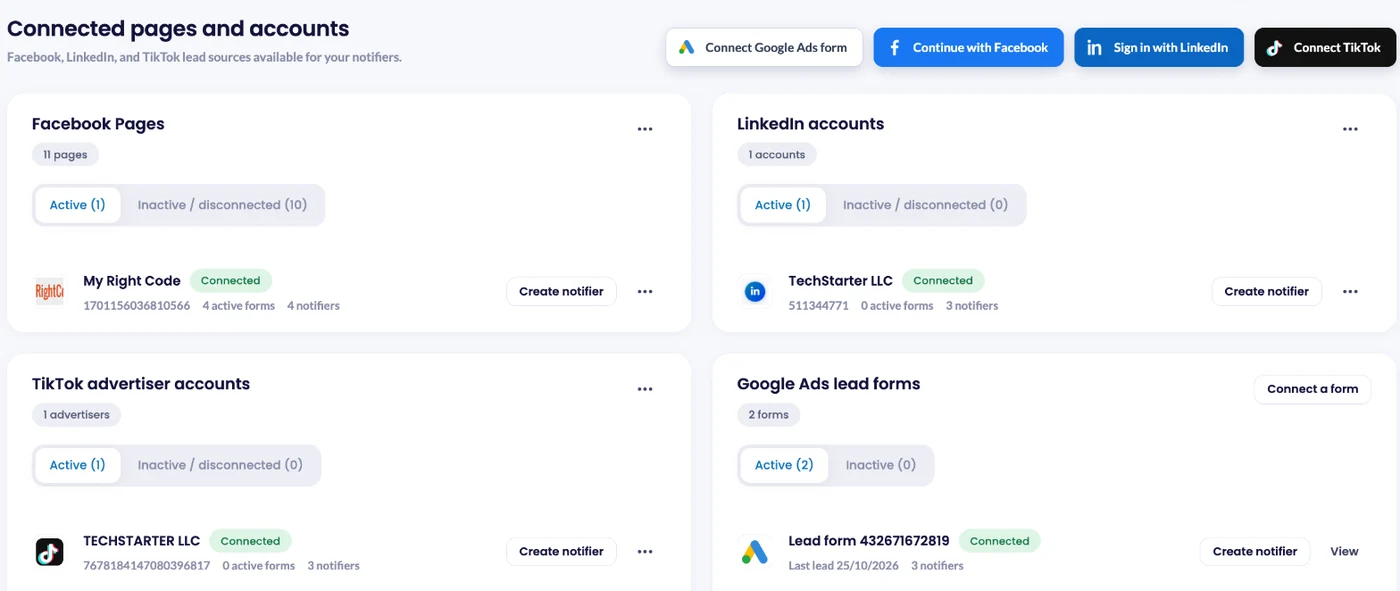
Log in to LeadsNotify and open Lead sources. Click Continue with Facebook, tick the Pages that own your lead forms, and approve the permissions Facebook asks for. Every Page you ticked shows as Connected. Managing a client’s Page? The client has to give your business admin access and leads access first. For more detail, see how to connect Facebook Pages to LeadsNotify. Already connected? Skip to step 2.
Step 2: Create a New Klaviyo Notifier
Click Create notifier. In the Source step, choose Facebook Lead Ads, select your Page and tick one or more forms. Running LinkedIn lead ads? Choose LinkedIn Lead Gen Forms instead.
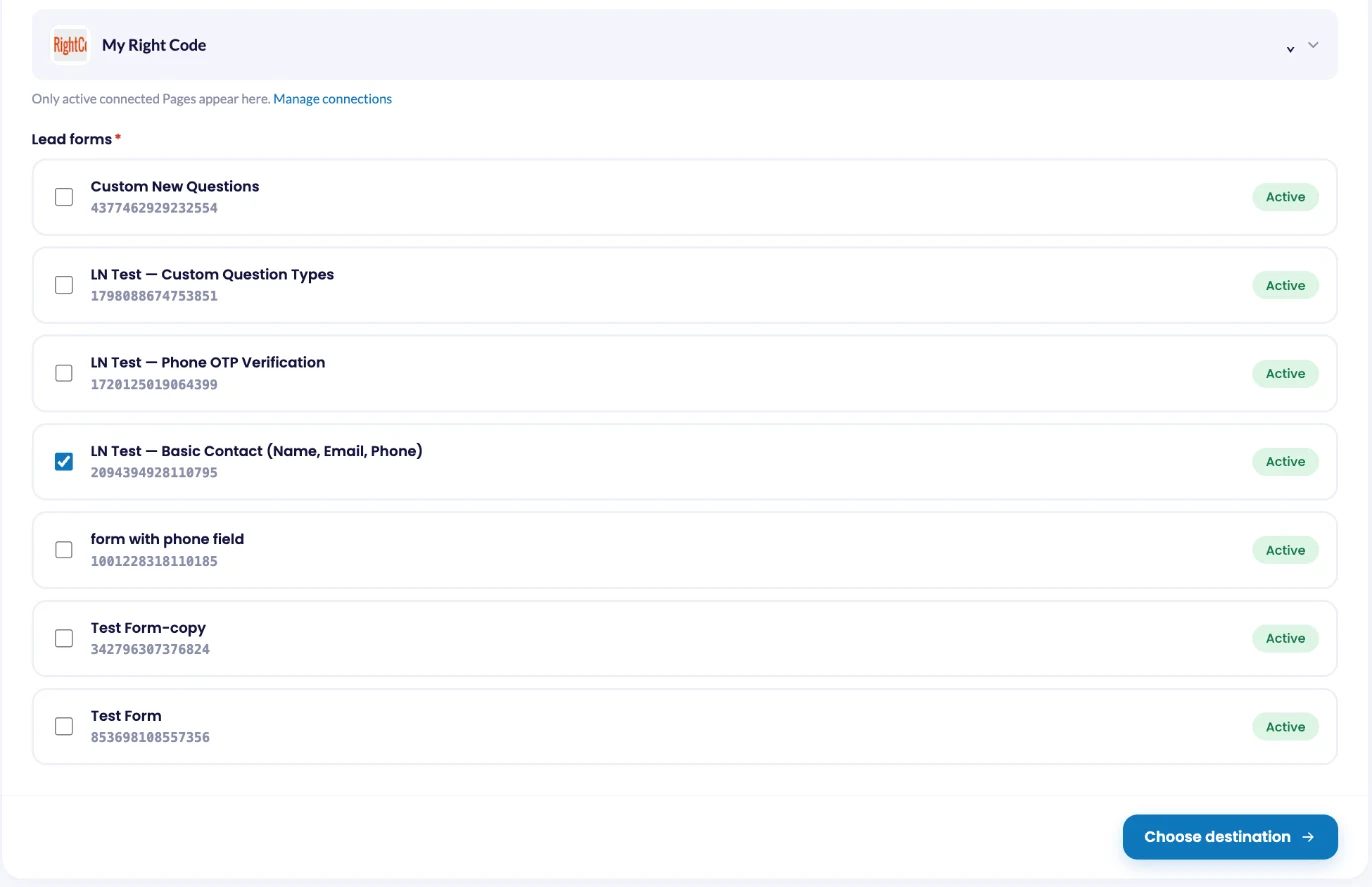
Only active forms are shown. Facebook doesn’t let you edit a published instant form, so if you changed a question, pick the copy your ad is running. New to lead forms? Here’s how to set up a Facebook instant form.
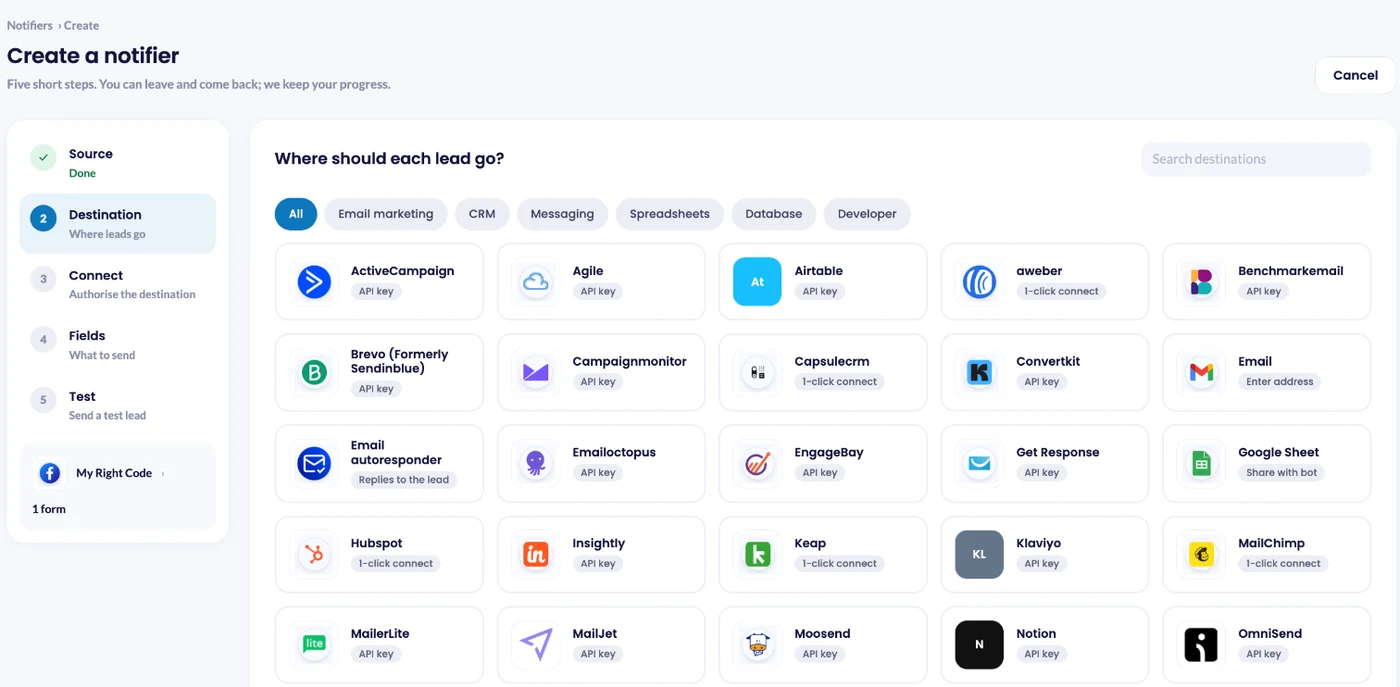
Click Choose destination, select Klaviyo and click Connect Klaviyo.
Step 3: Generate a Klaviyo Private API Key
To securely send Facebook leads to Klaviyo, you need to provide LeadsNotify with a Private API Key.
-
- Log in to your Klaviyo dashboard.
-
- Click your organization name in the bottom left corner and go to Settings.
-
- Navigate to API Keys.
-
- Click Create Private API Key. Name it “LeadsNotify Facebook Integration” so you remember what it is for. Ensure this key has Full Access to “List” and “Profiles.”
-
- Copy the generated API key.
Step 4: Map Your Facebook Fields to Klaviyo
Return to LeadsNotify and paste your Klaviyo key into the API key field in the Connect step, then click Submit.
LeadsNotify authenticates the connection and retrieves your Klaviyo lists. Click Choose fields, select the list where these leads should go, and map your fields (for example, connect the Facebook “Email Address” field to the Klaviyo “Email Address” property). Then save the notifier.
Step 5: Send a Test Lead
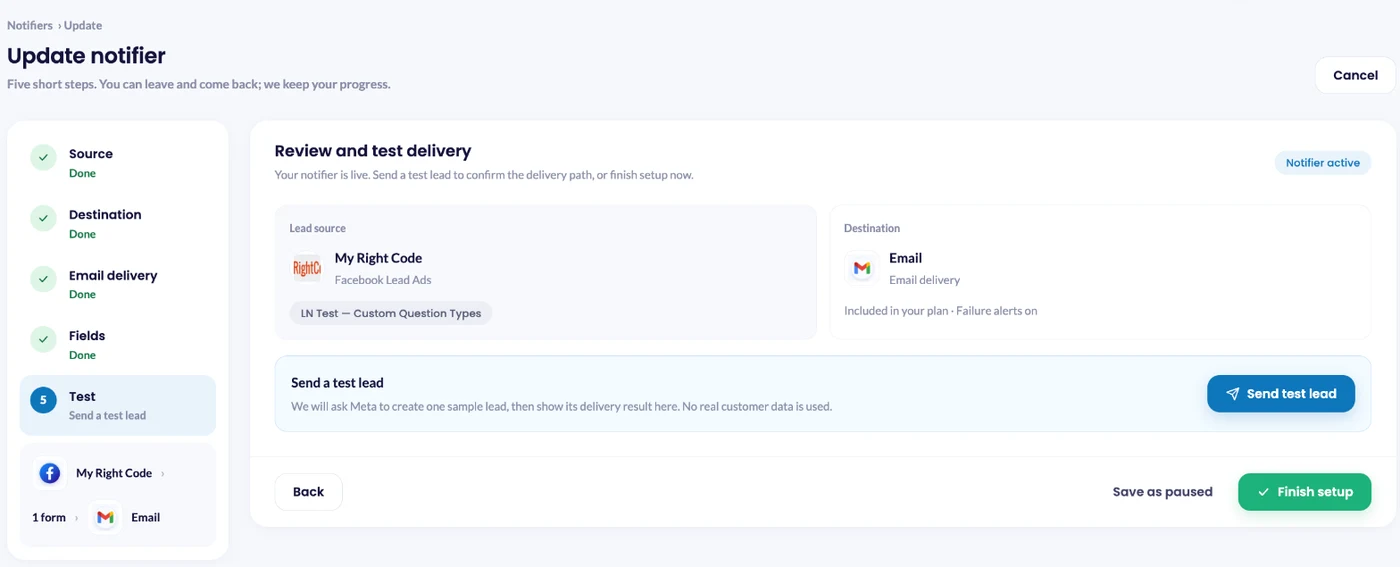
Saving the notifier opens Review and test delivery. Click Send test lead: LeadsNotify asks Meta to create one sample lead on your form and shows the result right there. Then check the profile in your Klaviyo list and the status on the Lead delivery page.
How to Test Your Facebook to Klaviyo Integration
Before spending your ad budget, you must test the workflow to ensure data is passing smoothly. LeadsNotify makes this incredibly easy with a built-in testing feature.
-
- Use the Automated Test Prompt: Once you’ve mapped your fields and clicked “Submit” to save the integration, LeadsNotify will automatically display a popup prompting you to send a test lead.
-
- Send the Test Lead: In the popup, simply select your connected form and click “Send Now.” LeadsNotify will immediately push sample data through the integration.
-
- Check Klaviyo: Log in to Klaviyo and open the List you selected during setup to verify the test contact was added.

Important Note on Klaviyo Double Opt-In
If your test lead does not appear immediately, check your Klaviyo List settings. If Double Opt-In is enabled, Klaviyo will send an automated confirmation email to the test address. The profile will not appear on your active list until you log into that test inbox and click the confirmation link. If you prefer leads to sync instantly, you can disable double opt-in for that specific list inside Klaviyo’s settings.
Frequently Asked Questions
How do I connect Facebook leads to Klaviyo automatically?
The easiest way is to use a dedicated integration tool like LeadsNotify. By connecting your Facebook account to LeadsNotify, you can push all new Instant Form submissions directly into a specific Klaviyo list in real-time.
Can I trigger an email flow when a Facebook lead enters Klaviyo?
Yes! Once LeadsNotify pushes the contact into your chosen Klaviyo List, you can create a Klaviyo Flow triggered by the “Added to List” metric to send an automated welcome email instantly.
What happens if a Facebook lead already exists in my Klaviyo database?
Klaviyo will recognize the duplicate email address. Instead of creating a new contact, it will simply update their existing profile with any new information provided on the Facebook form.
Stop Manually Downloading CSVs Today
Connecting your Facebook Lead Ads directly to Klaviyo ensures that every high-intent prospect receives the right marketing message at the exact moment of their highest interest.
Ready to automate your marketing pipeline? Sign up for LeadsNotify and activate your Klaviyo integration today.
Set up a free notification in a few minutes.

Hizqeel Nizamani
Hizqeel Nizamani is a software engineer and backend developer working on CRM integrations, automation, APIs, and lead management systems. At LeadsNotify, he helps build and improve technology that enables businesses to capture, manage, and respond to leads more effectively.
Connect on LinkedIn ↗