How to Track Competitors’ Ads on Facebook Using Meta Ad Library
In the competitive world of digital marketing, understanding your competitors' advertising strategies can help you make better decisions about your own campaigns. Facebook provides a public resource called the Meta Ads Library, where you can search for ads that businesses and organizations…

Table of contents
In the competitive world of digital marketing, understanding your competitors’ advertising strategies can help you make better decisions about your own campaigns. Facebook provides a public resource called the Meta Ads Library, where you can search for ads that businesses and organizations are currently running or have run in the past.
In this guide, we’ll show you how to track your competitors’ ads on Facebook, search the Meta Ads Library, use its filters, and review the information available for individual ads. You can use these steps to research competitors, identify advertising patterns, and gather ideas for your own campaigns.
If you are planning to run your own lead-generation campaigns, you can also read our guide on how to create and run Facebook/Meta Lead Ads.
Here are the simple steps that will help you understand how to track competitor ads on Facebook.
Step 1: Explore the Facebook Ads Library
There are two convenient ways to find a competitor’s ads: through their Facebook Page or directly through the Facebook Ads Library.
1. View Ads from a Competitor’s Facebook Page
- Visit your competitor’s Facebook Page and navigate to the About section.
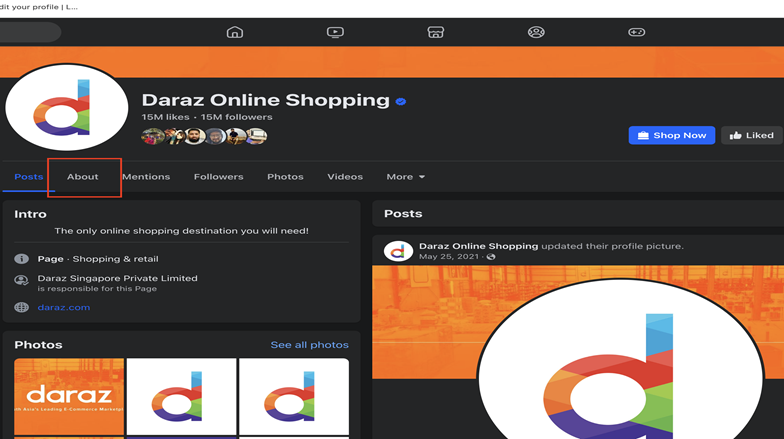
- Then, click the Transparency section. In the Page Transparency window, click See all.
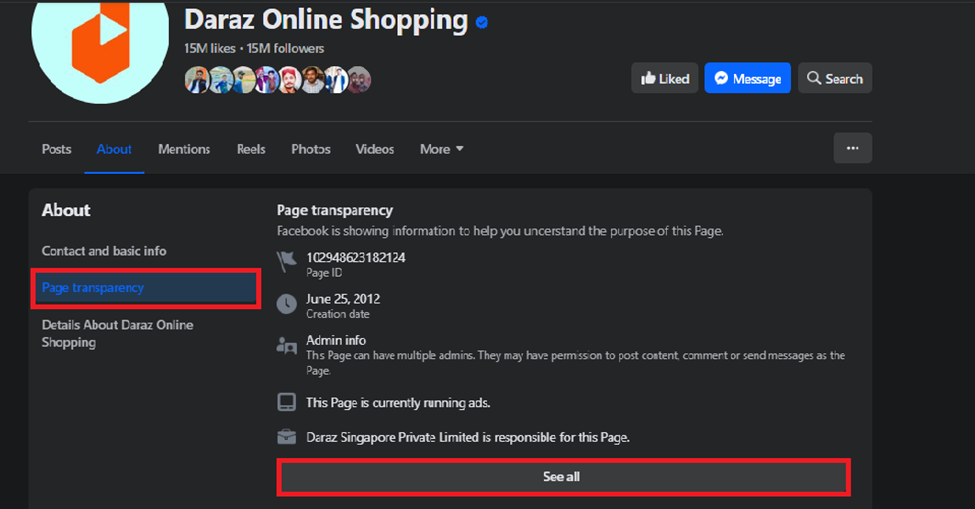
- A popup will open. Scroll down to Ads from this Page and click Go to Ad Library.
- A new tab will open showing the ads associated with that competitor’s Page.
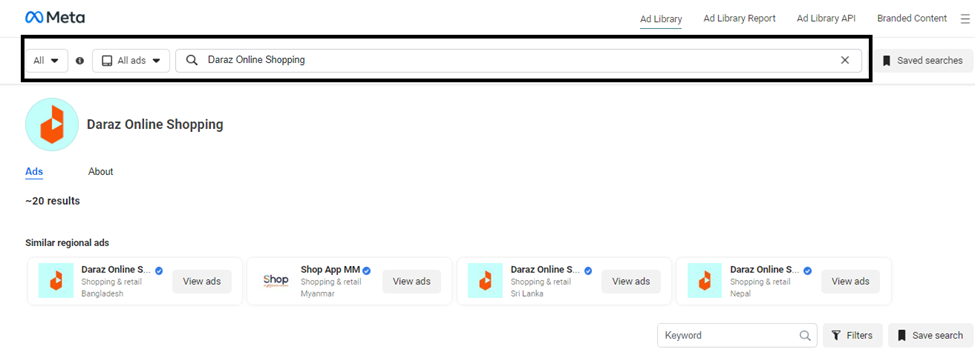
2. Use the Facebook Ads Library Directly
- You can access the Facebook Ads Library directly to browse ads.
- Search for a competitor by entering their brand or Page name. Depending on your location, you may be able to select All Ads or specific categories such as Issues, Elections or Politics.
- The available ad categories and options can vary depending on the country and location selected.
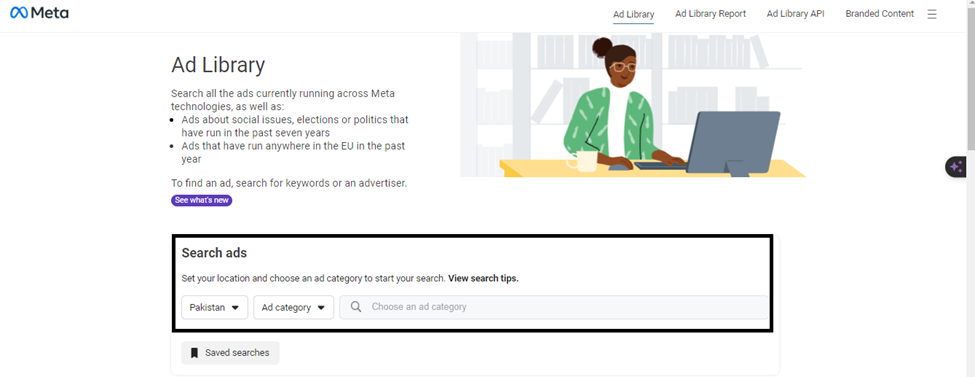
Step 2: Use the Ads Library Search Bar and Filters
Once you open the Facebook Ads Library, you can set your location, choose an ad category, and search for a competitor. These filters help narrow the results so you can focus on the ads and markets that matter to your research.
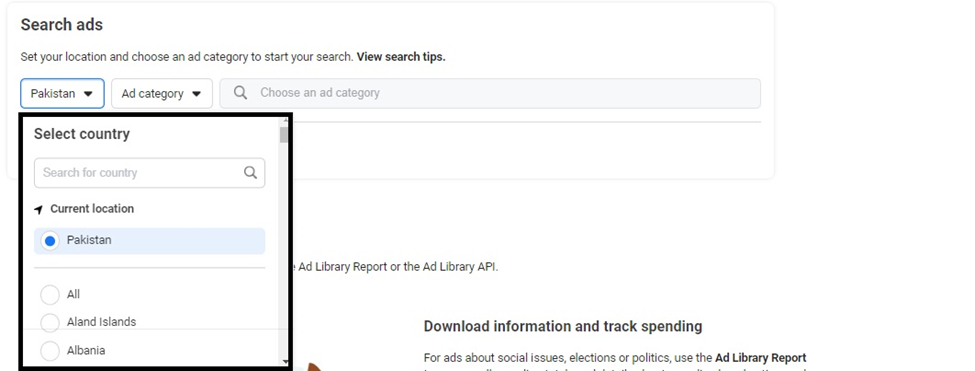
- Location Filter: Select the location where you want to research ads. This helps you narrow your search to a particular country or region.
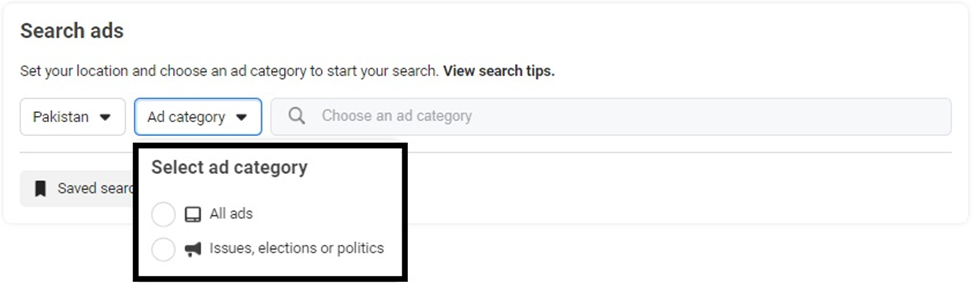
- Ad Category Filter: Depending on the selected location, you may have different ad-category options. For example, political or issue-related ads can have additional transparency information.
- Search Bar: Enter your competitor’s brand or Page name in the search bar to find ads associated with that advertiser.

Search Tips for Finding Competitor Ads
Before reviewing the results, verify that your ad category and location are correctly selected. You can also use different search terms to find more specific results.
- For an exact phrase search, use quotation marks, such as “Mary likes cheese sandwiches”.

- You can search for more than one exact phrase, such as “Mary likes cheese sandwiches” OR “on rye bread”, to explore different phrases.
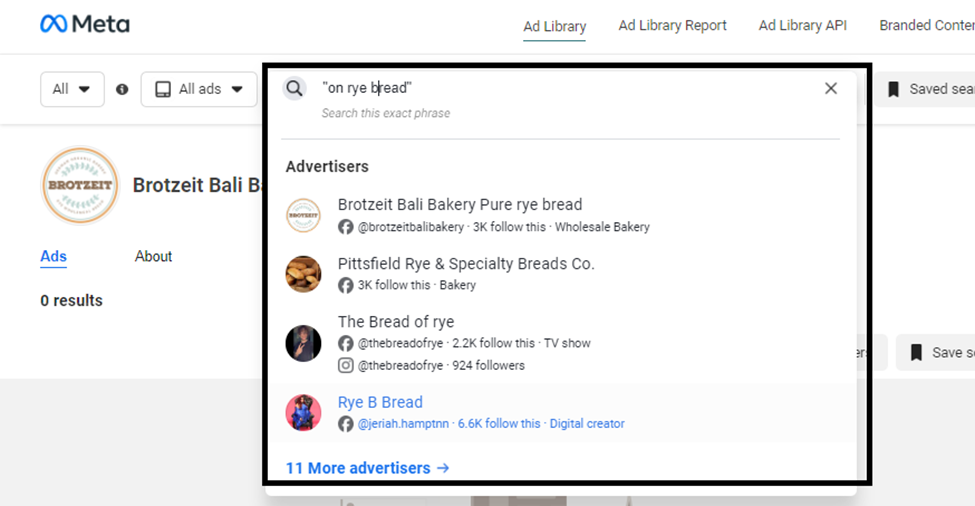
- To find ads containing multiple required terms without requiring them to appear in the same sequence, search using the individual terms, such as Sandwiches, Cheese, Mary.
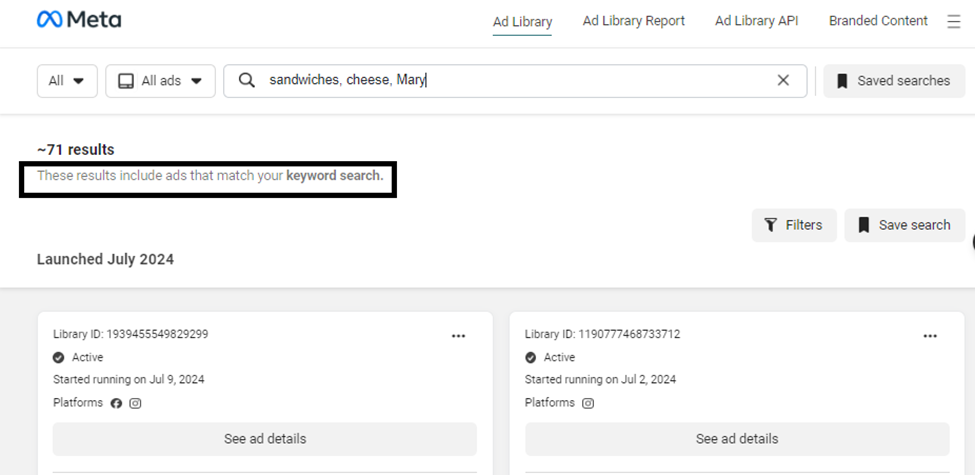
Step 3: Analyze Facebook Ads Library Search Results
After searching for a competitor’s brand or Page, the Ads Library will display the ads associated with that advertiser. This is where you can begin gathering competitive intelligence and identifying patterns in your competitors’ advertising.
- Total Number of Ads: The results page can show the number of ads associated with the advertiser. This gives you a quick overview of the volume of advertising activity.
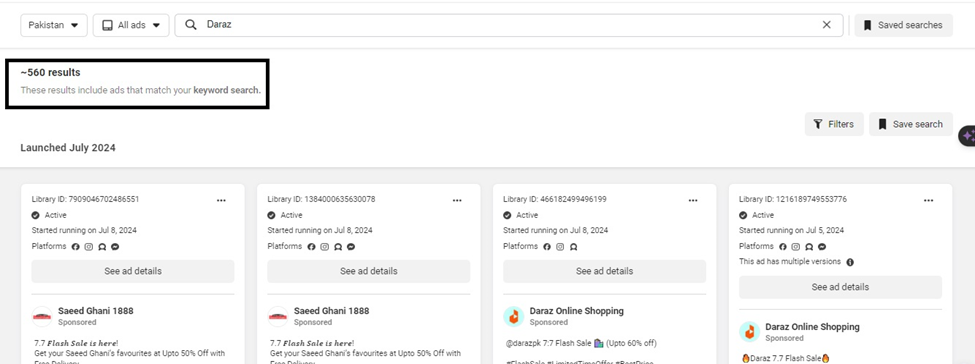
- Active and Inactive Ads: The results can include ads that are currently active as well as ads that are no longer running. Reviewing both can help you understand a competitor’s current campaigns and advertising history.
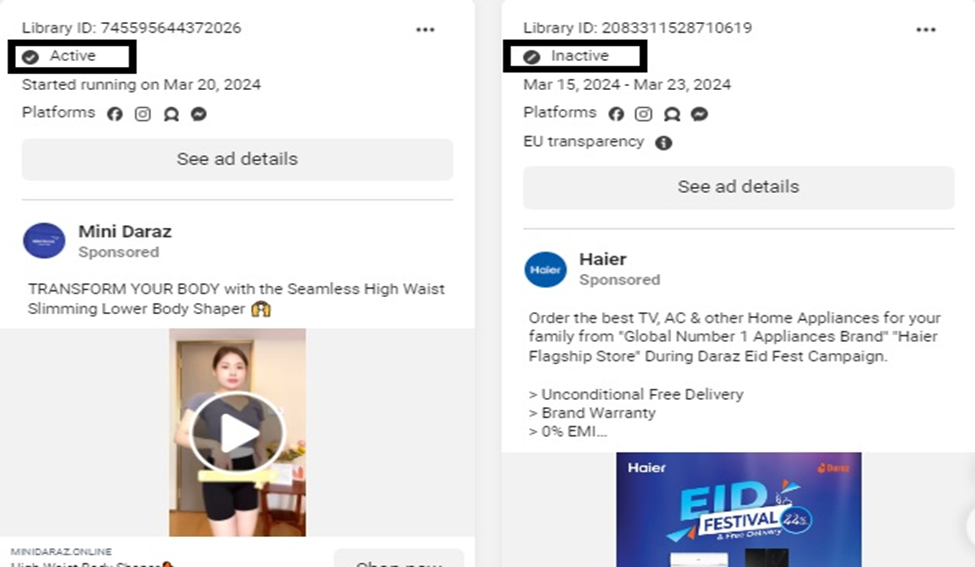
From the search results, select Page Ads and then open See ad details when available. The ad details can provide additional information about the individual advertisement.
- Library ID: Each ad can have a unique Ad Library ID that helps identify the specific advertisement.
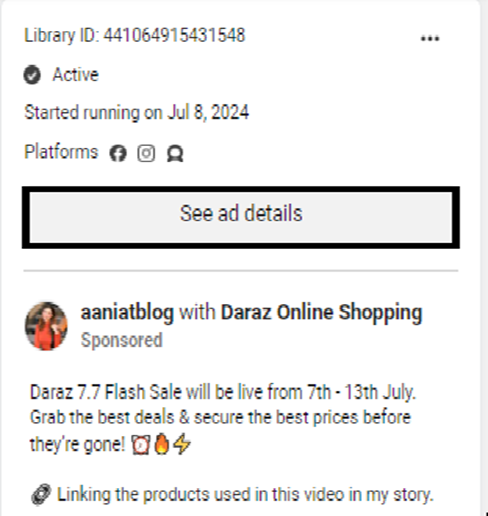
- Starting Date: The ad details can show when an advertisement started running, helping you understand how long a campaign has been active.
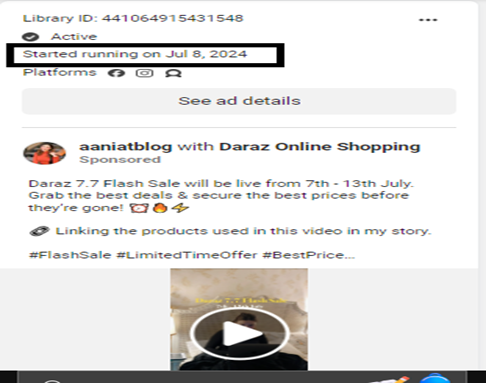
- Platforms: Ad details can show where the advertisement is running, such as Facebook, Instagram, or other Meta placements where applicable.

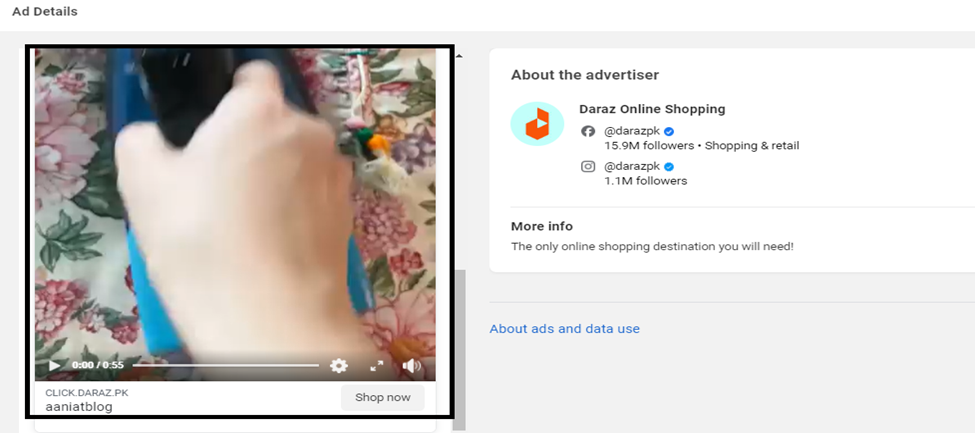
- Advertiser: The ad details identify the Page or advertiser associated with the campaign, helping you confirm which competitor is running the advertisement.

- Ad Content: Review the creative, copy, offer, headline, call to action, and other visible elements of the advertisement. This can help you identify recurring messages and creative approaches.

- Media Type: Ads may use different creative formats, including images, videos, or carousel-style formats. Reviewing these formats can help you understand how competitors present their offers.
Step 4: Use Facebook Ads Library Filters
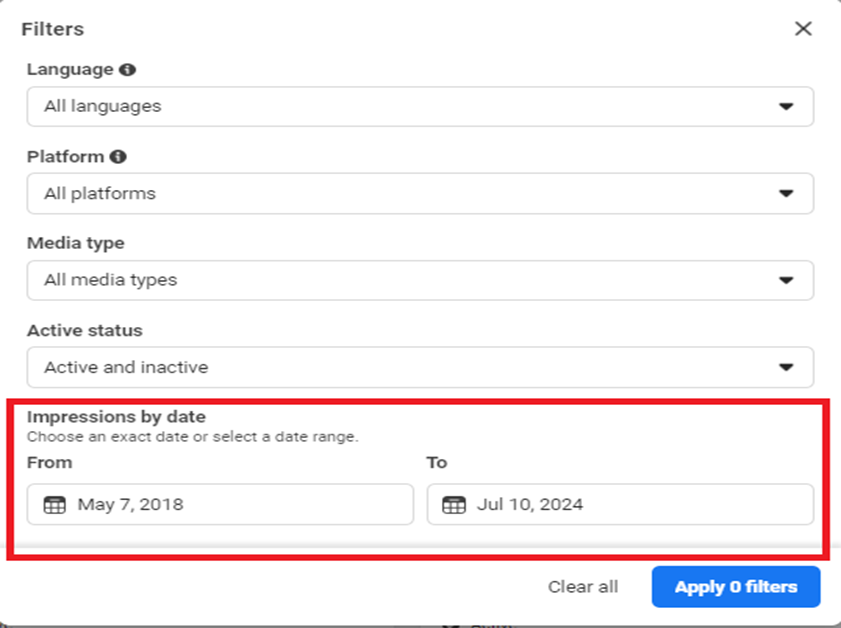
The Facebook Ads Library also provides filters that can help you narrow down competitor advertising results. On the left side of the Ads Library page, look for the Filters option.

When you open the Filters menu, you may see several options for refining your search. Available filters can vary depending on the country, ad category, and other selections.
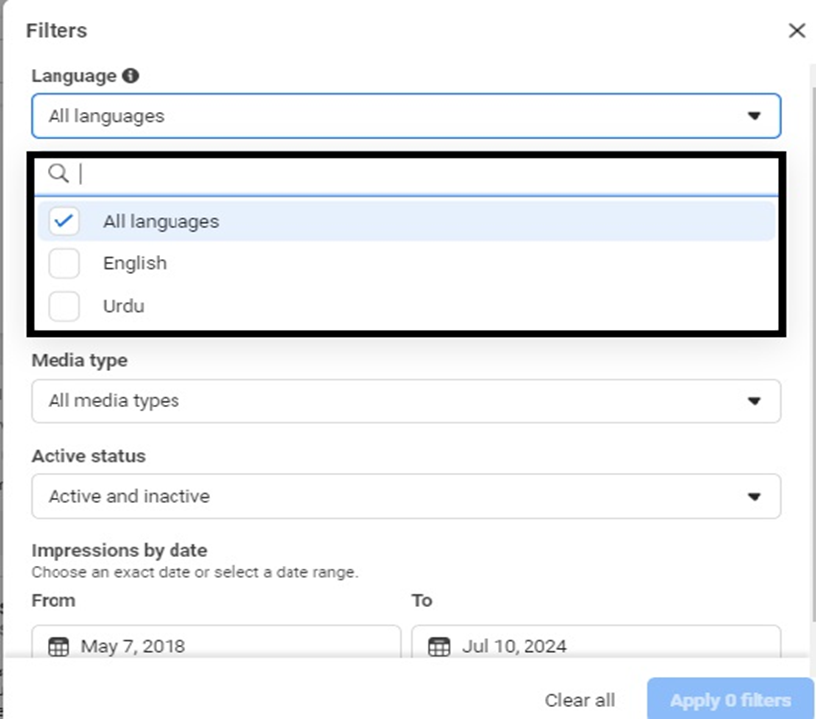
- Language Filter: Use the language filter to narrow results based on the language used in the advertisements.
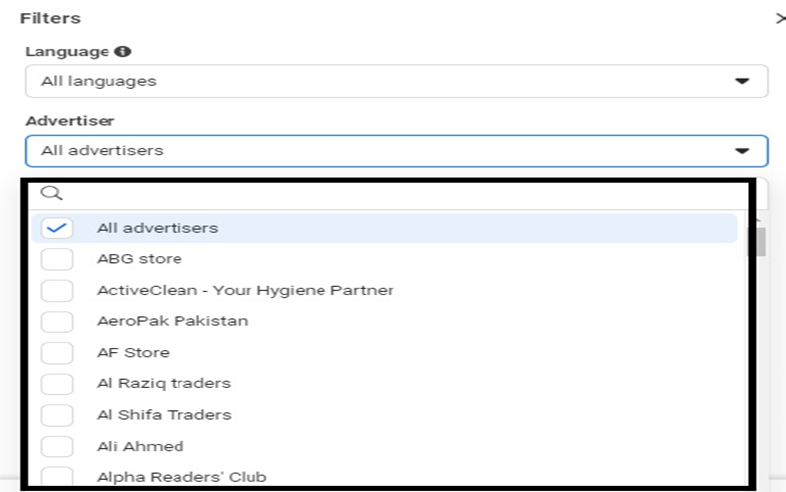
- Advertiser Filter: Search for advertisements from a specific advertiser or Page to narrow your competitor research.
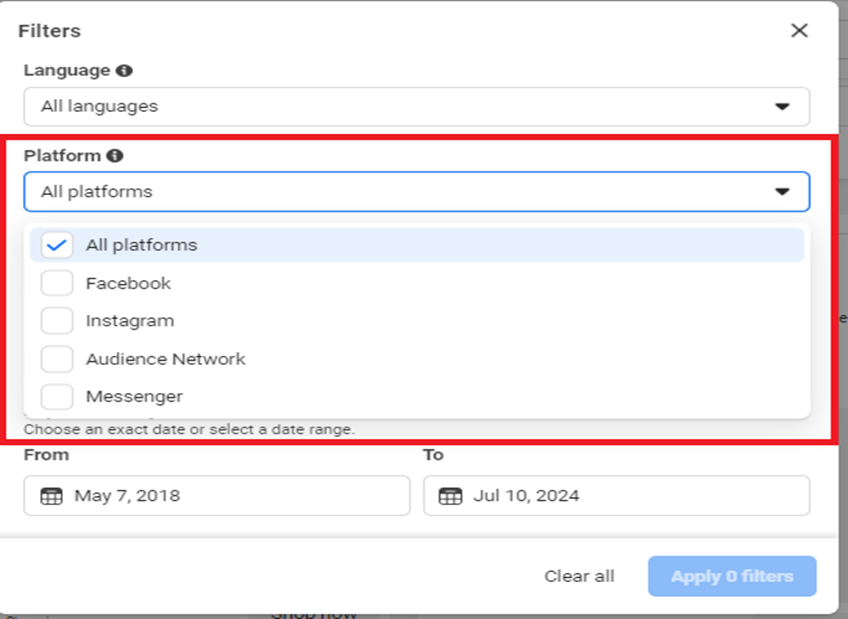
- Platform Filter: Choose a platform or placement where available to focus your research on where the competitor’s ads are being shown.
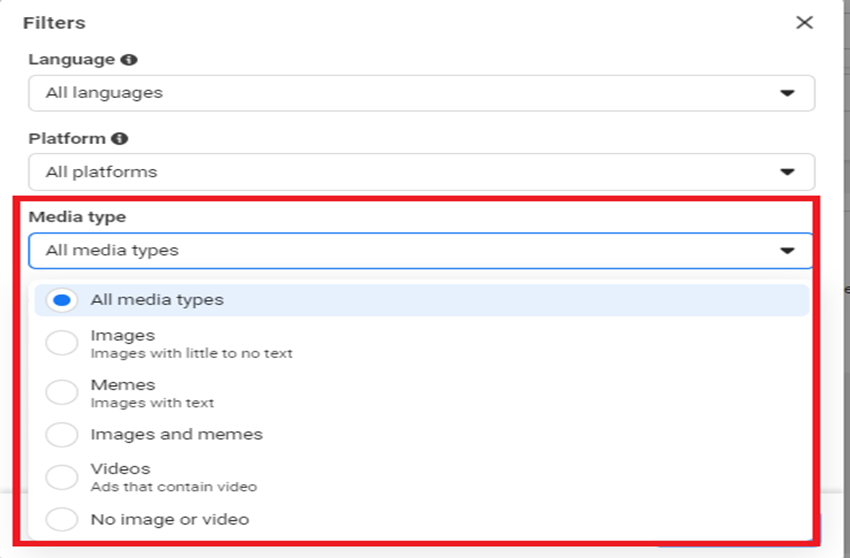
- Media Type Filter: Filter ads by media format, such as images, videos, or carousel ads, when those options are available.
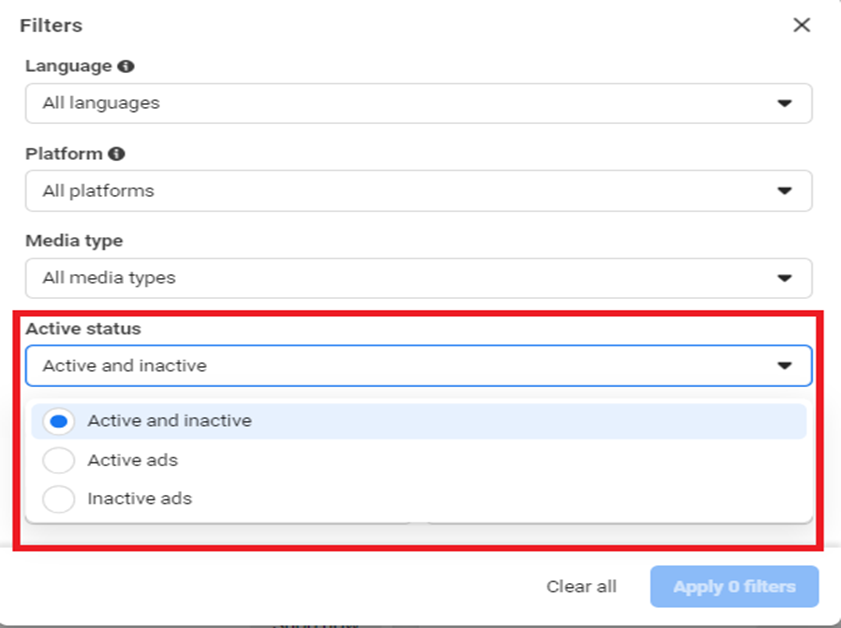
- Active Status Filter: Use the active-status options to focus on ads that are currently running or advertisements that are no longer active, depending on what is available for the selected search.
- Impressions by Date: Where available for the selected ad category, date-related information can help you examine advertising activity over a specific period.
How to Use Competitor Ad Research
Finding competitor ads is only the first step. The real value comes from analyzing what you find and looking for patterns across multiple advertisements.
- Compare ad creatives: Look for repeated images, videos, headlines, and visual styles.
- Study messaging: Pay attention to the problems, benefits, offers, and calls to action competitors emphasize.
- Look for recurring campaigns: If a similar message or creative appears repeatedly, it may indicate an important campaign theme.
- Review different ad formats: Compare image, video, and carousel creatives to understand how competitors communicate their offers.
- Compare markets: Use location and other available filters to see whether messaging changes between markets.
Remember that the Ads Library shows publicly available advertising information. It does not provide access to a competitor’s private campaign data, targeting strategy, conversion data, or advertising account.
Can You Track Competitors’ Display Ads With Facebook Ads Library?
If by display ads you mean visual advertisements such as image, video, or carousel ads appearing across Meta’s platforms, the Ads Library can help you research the creatives and advertisements that are available for your selected search.
However, Facebook Ads Library should not be treated as a complete display-ad tracking platform. It is primarily a transparency and ad-research resource. The information available can depend on the ad category, location, and the information Meta makes publicly available.
What About Political or Issue Ads?
The Meta Ads Library also provides transparency information for political, election, and issue-related advertising. Depending on the country and selected category, these ads can have additional information available for research.
If you are searching specifically for political ads, make sure you select the appropriate ad category and location before searching. The available options can change depending on where you are searching from.
Frequently Asked Questions
Can I track my competitors’ ads on Facebook?
Yes. You can use the Meta Ads Library to search for ads associated with a competitor’s Facebook Page or advertiser. You can then review available ad creatives, formats, platforms, and other public information.
Is Facebook Ads Library free?
Yes. The Facebook Ads Library is publicly accessible and can be used to research advertisements without having access to the competitor’s advertising account.
Can I see a competitor’s inactive ads?
Depending on the ad category and information available, you can find both active and inactive advertisements. This can be useful when researching a competitor’s advertising history.
Can I see how much my competitor spends on Facebook ads?
For standard commercial advertising, the Ads Library does not provide a complete view of a competitor’s advertising budget or return on ad spend. Additional transparency information may be available for certain political or issue-related advertisements.
Can I see who a competitor targets with their Facebook ads?
No. The Ads Library can show public information about advertisements, but it does not provide a complete view of a competitor’s private audience targeting settings, conversion data, or campaign performance.
Can I use competitor ads to improve my own campaigns?
Yes. Competitor research can help you identify common offers, creative formats, messaging themes, and calls to action. Use those observations as research and inspiration rather than copying another company’s advertising.
Final Thoughts
Learning how to track competitors’ ads on Facebook does not require access to their advertising account. The Facebook Ads Library gives marketers a useful way to search for public advertisements, compare creatives, review campaign activity, and understand how competitors present their offers.
By combining competitor ad research with your own campaign data, you can make more informed decisions about your advertising strategy. Look beyond individual ads and pay attention to recurring messages, creative formats, offers, and campaign themes.
If you are ready to create your own Facebook lead-generation campaign, start with our guide on how to create and run Facebook/Meta Lead Ads.
By following these steps, you can gain valuable insights into your competitors’ Facebook advertising strategies and use that information to make more informed, data-driven marketing decisions.
Set up a free notification in a few minutes.

Abdullah Khan
A Technical Lead and backend architect with 10+ years of experience building reliable, high-scale APIs and automation systems. At LeadsNotify, he helps build and maintain the integrations that route Facebook and LinkedIn leads to email, CRMs, and marketing tools in real time.
Connect on LinkedIn ↗