How to Send LinkedIn Lead Gen Forms to a Webhook
Send every new LinkedIn lead to your own URL as a POST request. Set up a LinkedIn Lead Gen Forms webhook with LeadsNotify, no API access needed.
 By Akash Mehra
5 min read
By Akash Mehra
5 min read
Table of contents
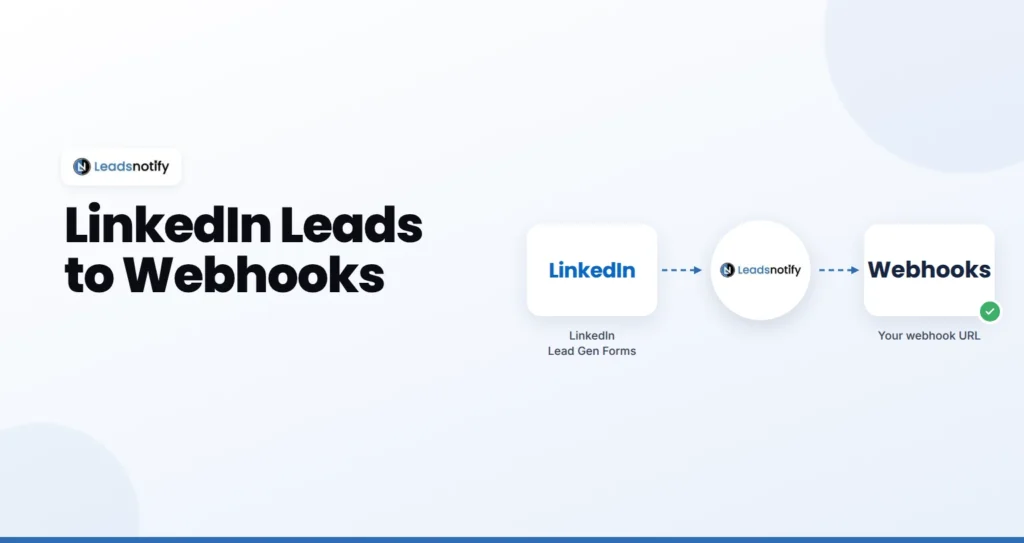
LinkedIn Lead Gen Forms collect some of the best B2B leads you can buy, but LinkedIn keeps them in Campaign Manager. If your leads need to reach your own app, a database or an internal system, a webhook is the most direct route.
With LeadsNotify you paste one URL, and every new LinkedIn lead is sent to it as an HTTP POST request seconds after the form is submitted. No LinkedIn Marketing API access to apply for, no polling job to maintain.
What Is a LinkedIn Lead Gen Forms Webhook?
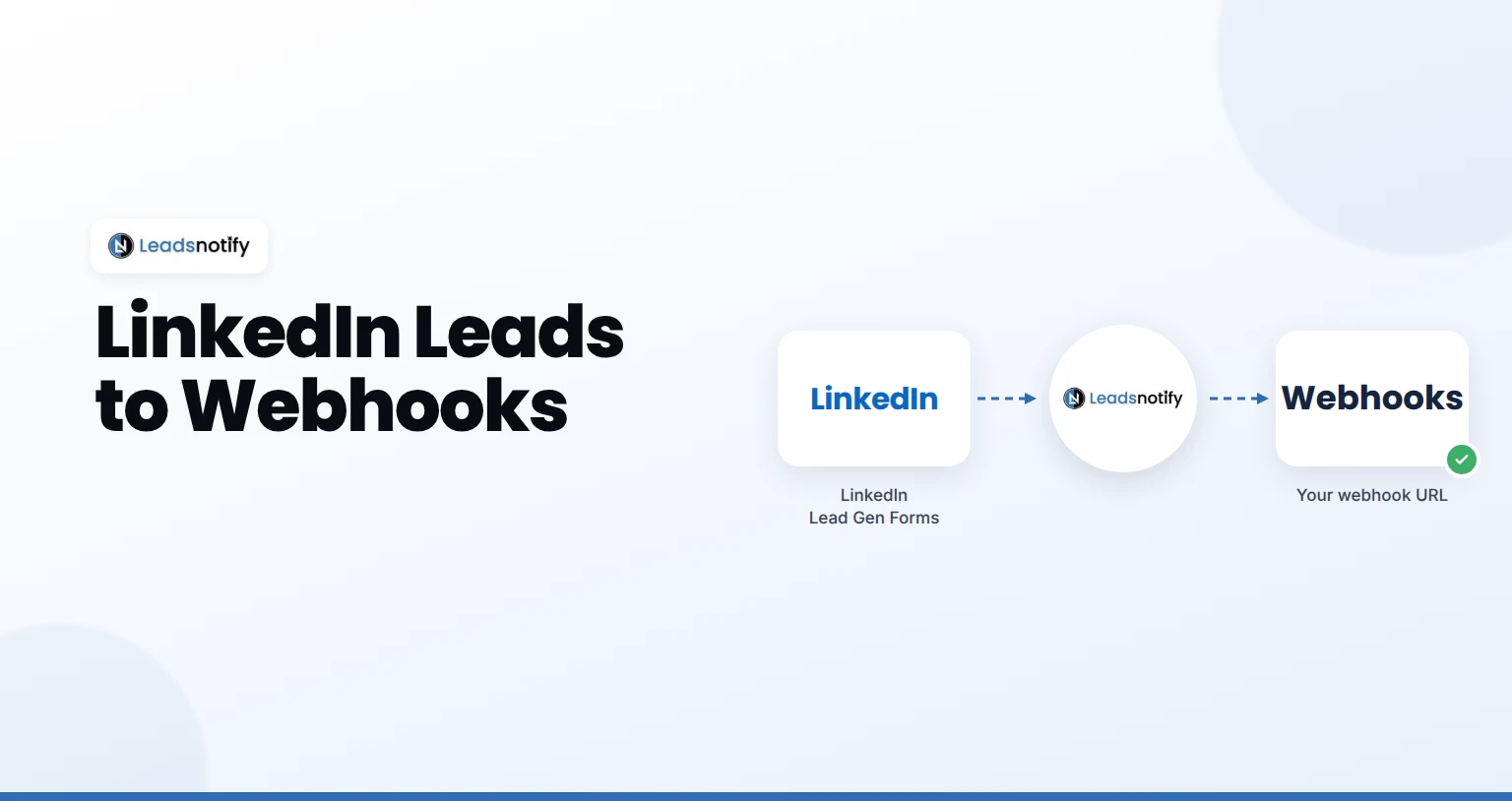
A webhook sends data to a URL the moment an event happens. Here the event is a new LinkedIn lead. Instead of your system asking LinkedIn for new leads every few minutes, the lead is pushed to your URL as soon as LeadsNotify receives it.
| Approach | How it works | What you maintain |
|---|---|---|
| Manual download | Export a CSV from Campaign Manager | Someone remembering to do it |
| Build on the LinkedIn API | Apply for access, then poll for new leads | API approval, tokens, a polling job and error handling |
| LeadsNotify webhook | Each new lead is POSTed to your URL | An endpoint that accepts the request |
What You Can Connect With a Webhook
- Your own application or CRM, through an endpoint your developers build.
- An automation platform that gives you a catch or webhook URL, to route leads into tools LeadsNotify does not connect to directly.
- A serverless function that enriches the lead, then writes it to a database.
- An internal system for lead scoring or routing.
How to Send LinkedIn Leads to a Webhook (About 5 Minutes)
Before you start, you need: a LeadsNotify account on any plan, free included, admin access to the LinkedIn Page that runs your lead gen forms, and a URL that accepts POST requests.
Step 1: Connect Your LinkedIn Page
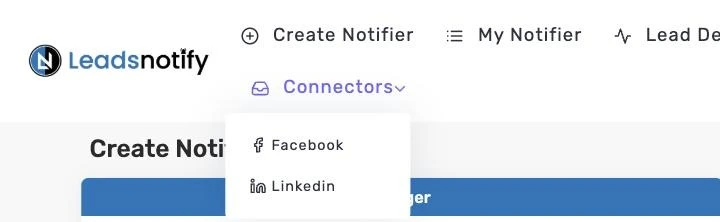
Log in to LeadsNotify. Open Connectors in the top menu and choose Linkedin. Click Connect To Linkedin, sign in, tick the Pages you run lead gen form campaigns from, and approve the permissions LinkedIn asks for.
Every Page you ticked shows as CONNECTED. Adding another Page later? Click Connect To Linkedin again and tick the new Page, leaving the connected Pages ticked. Already connected? Skip to step 2.
Step 2: Create a Webhooks Notifier
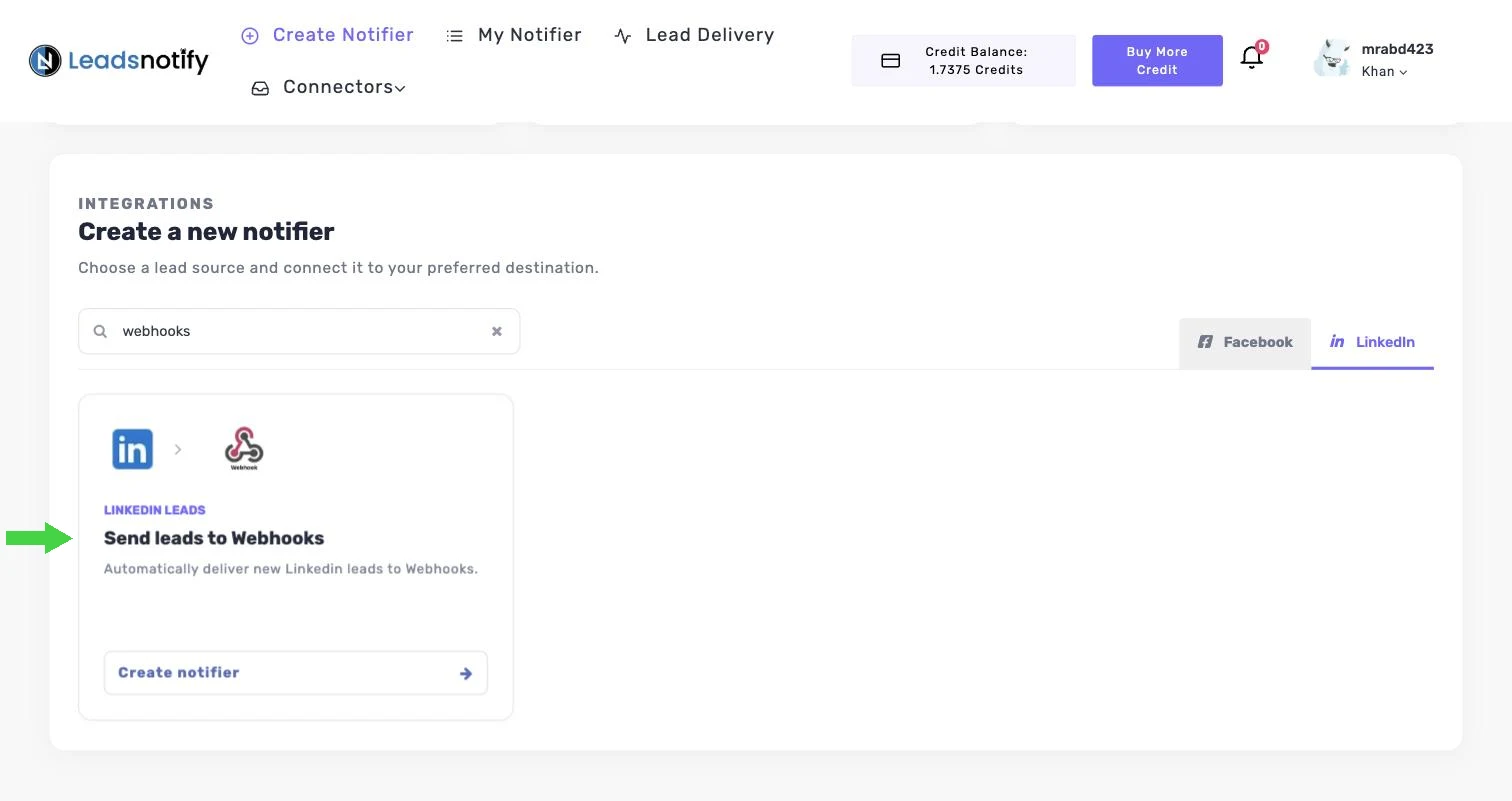
Go back to the dashboard. Under Create a new notifier, select the LinkedIn tab, type “webhooks” in the search box, find Send leads to Webhooks and click Create notifier.
Step 3: Pick Your Page and Lead Gen Forms
The Create Notifier screen has two sides. The Trigger on the left is where leads come from. The Action on the right is where they go.
In the Trigger panel, choose your LinkedIn Page under Select Page, then pick one or more lead gen forms under Select Form. LeadsNotify then lists the fields on those forms, such as first name, last name, email, company name and job title.
Only active forms are shown. If a form is missing, check that the form and its campaign are active in Campaign Manager.
Step 4: Enter Your Webhook URL
In the Action panel, paste your endpoint into the URL field, for example https://yourapp.com/leads/linkedin. Use an HTTPS address.
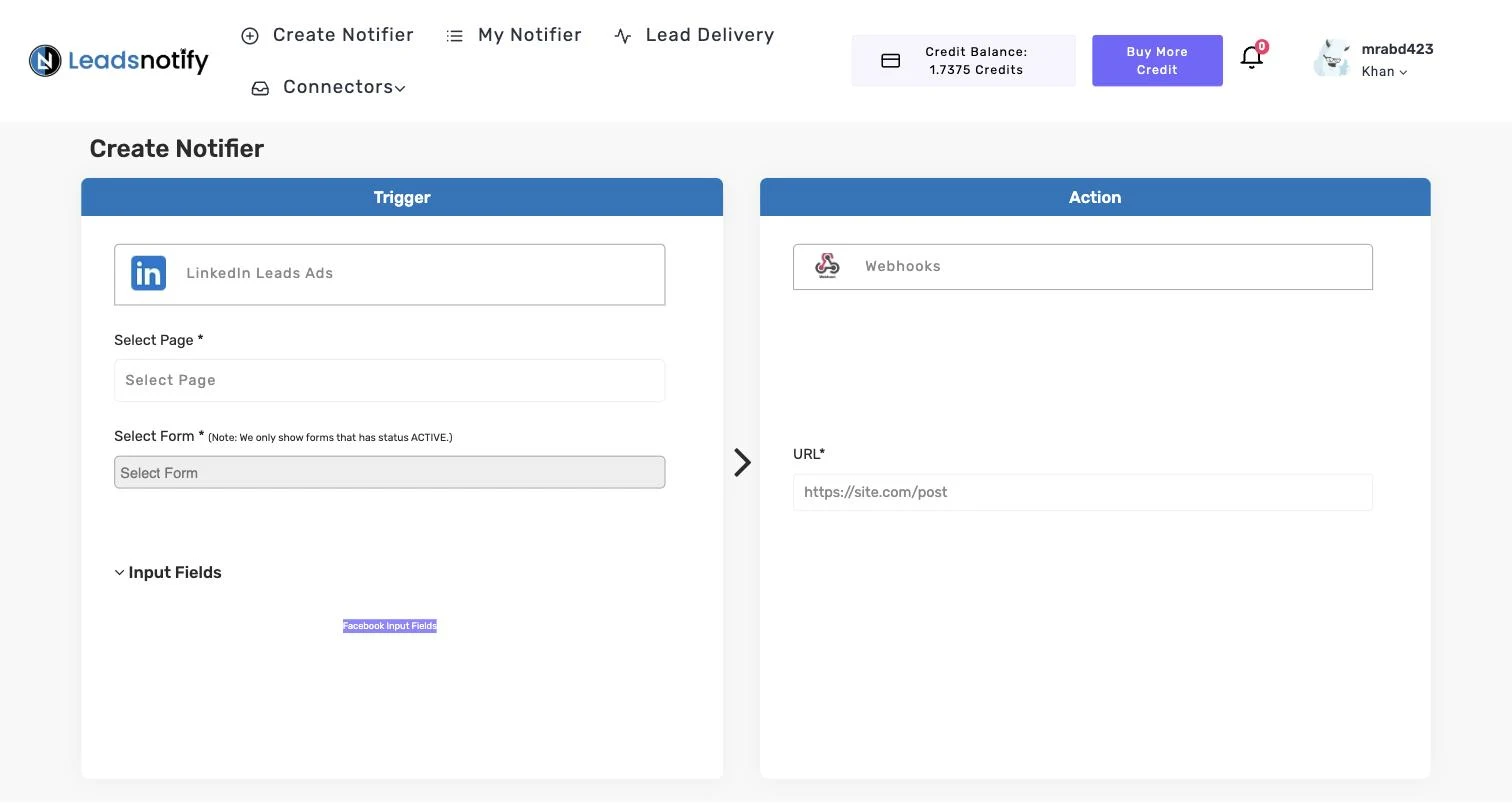
Tick Email me when a lead fails if the option is shown, then save the notifier. It appears under My Notifier, and the green switch means it’s live.
Step 5: Send a Test Lead and Inspect the Request
Open My Notifier, click Edit on the notifier and click TEST NOTIFIER. LeadsNotify posts a test lead to your URL. Check your endpoint’s logs to see the exact fields and structure it received, and build your processing around that. If your endpoint isn’t ready yet, point the notifier at a temporary request inspector URL first.
You can also send a test from LinkedIn: in Campaign Manager, go to Content & Assets > Lead generation forms, click More next to the form and choose Send Test Lead.
Then open Lead Delivery. Every attempt shows Delivered or Failed, and the Response column shows what your endpoint replied. See the lead delivery status dashboard guide for every column.

Webhook Endpoint Best Practices
- Reply fast with a 2xx status. Accept the request, store the lead, then do slow work such as enrichment in the background.
- Use HTTPS so lead data is encrypted in transit.
- Keep the URL private. Add a hard-to-guess path or a token in the URL so random traffic cannot post fake leads.
- Handle duplicates. Use the lead’s ID to ignore a lead you have already stored.
- Watch failures. Turn on failure emails so you hear about it when your endpoint is down.
Troubleshooting LinkedIn Lead Webhooks
| What you see | Likely cause | Fix |
|---|---|---|
| No leads arriving at all | The LinkedIn Page shows DISCONNECTED, often after an admin role changes | Connectors > Linkedin > Connect To Linkedin, and tick the Page again |
| Your form isn’t in Select Form | Only active forms are shown | Check the form and campaign status in Campaign Manager, then reopen the notifier |
| Leads stopped after you edited the campaign | The campaign now uses a different lead gen form | Edit the notifier and select the new form |
| Failed with a 4xx response | Your endpoint rejected the request, for example a missing token or wrong path | Check the URL and the validation on your endpoint |
| Failed with a 5xx response or a timeout | Your endpoint crashed or took too long | Check your server logs and reply before doing slow work |
| A delivery shows Failed | your endpoint refused the lead | Open Lead Delivery and read the Response column for the reason |
Frequently Asked Questions
Do I need LinkedIn Marketing API access?
No. LeadsNotify connects to your LinkedIn Page and forwards the leads. You only provide the URL.
What method does the webhook use?
LeadsNotify sends each lead to your URL as an HTTP POST request. Send a test lead to see the exact fields your endpoint receives.
Can I send leads to a webhook and a CRM at the same time?
Yes. Create a second notifier on the same form. See every LinkedIn Lead Gen Forms to Webhooks option on our integrations page.
What if my endpoint is down?
The delivery shows as Failed in Lead Delivery with the response, and if failure emails are on, you get an email so you can act.
Which plans include webhooks?
Every plan, the free plan included. The free plan covers 150 leads a month and 2 notifiers. Compare the plans.
Send Your Next LinkedIn Lead to Your Own System
Connect your LinkedIn Page, paste your URL, and test it. Create your free LeadsNotify account. Using Facebook lead ads too? Here’s how to send Facebook leads to a webhook.
Last Updated on September 25, 2026 by Akash Mehra
Set up a free notification in a few minutes.