How to Connect Facebook Lead Ads to Zoho CRM
Zoho CRM is a customer relationship management platform that helps businesses manage leads, contacts, sales activities, and customer information in one place. If you are generating leads through Facebook Lead Ads, sending those leads directly to Zoho CRM can help your team…

Table of contents
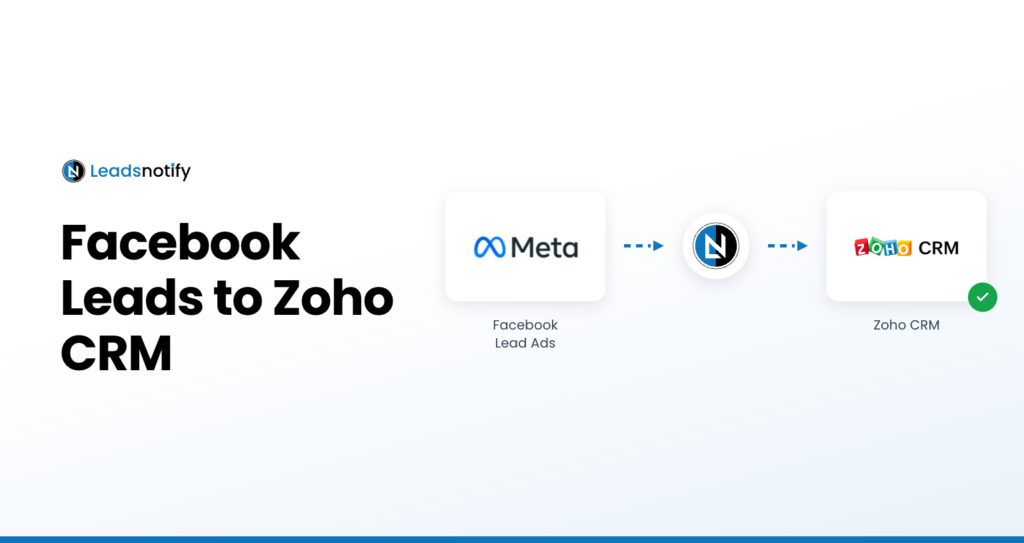
Zoho CRM is a customer relationship management platform that helps businesses manage leads, contacts, sales activities, and customer information in one place. If you are generating leads through Facebook Lead Ads, sending those leads directly to Zoho CRM can help your team follow up faster and keep new leads organized.
In this guide, we’ll show you how to connect Facebook Lead Ads to Zoho CRM using LeadsNotify. Once configured, new Facebook leads can be transferred to Zoho CRM automatically, without manually exporting and importing lead data.
How to Connect Facebook Lead Ads to Zoho CRM
LeadsNotify makes it possible to connect your Facebook Lead Ads with Zoho CRM through a simple notifier configuration. You can select the Facebook page and lead forms you want to use, connect your Zoho CRM account, map the lead fields, and test the integration before using it with new leads.
Step 1: Sign Up and Connect Your Facebook Page
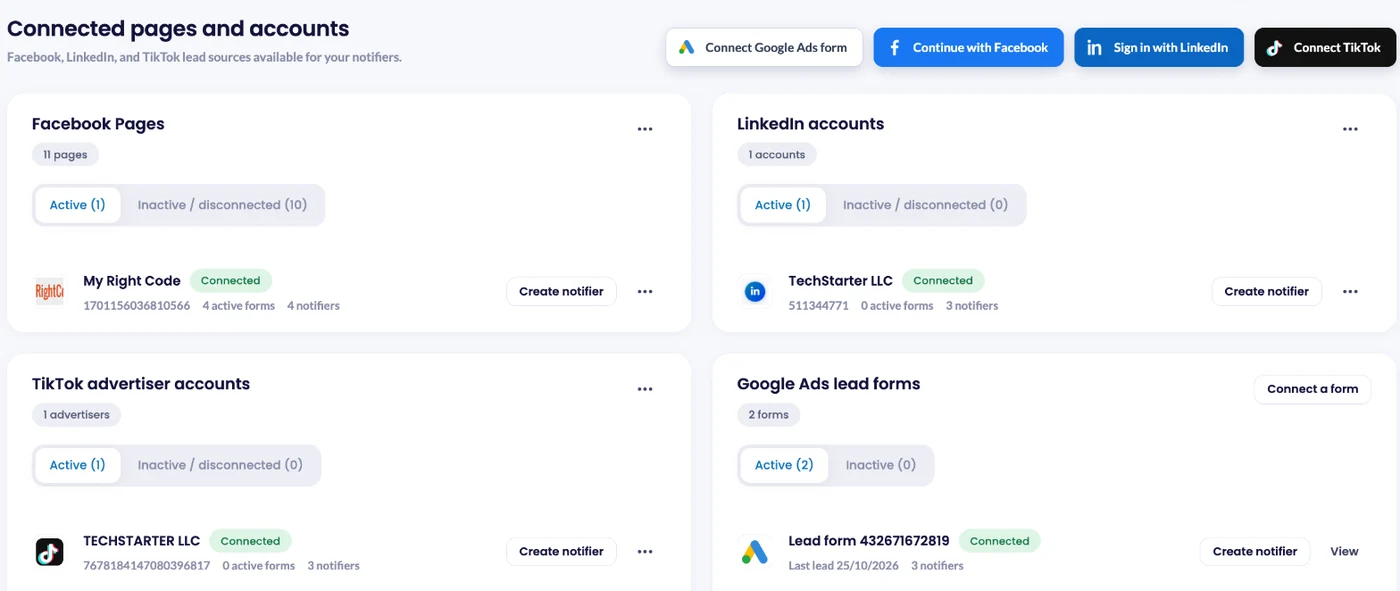
First, sign up or log in to LeadsNotify. Open Lead sources, click Continue with Facebook, choose the Page that runs your Lead Ads and approve the permissions. The Page then shows as Connected.
Step 2: Create a Notifier and Select Your Lead Form
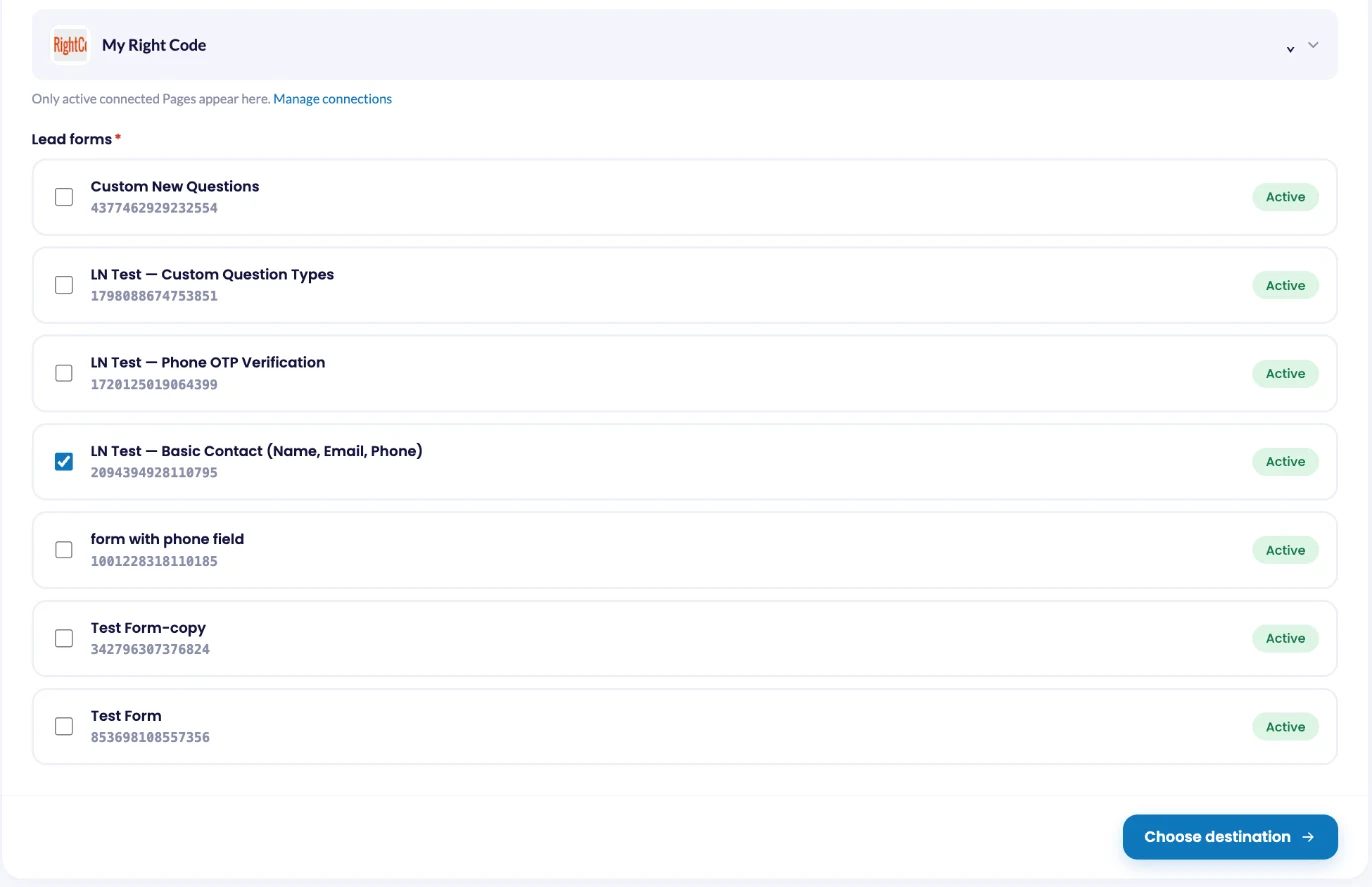
Click Create notifier. In the Source step, choose Facebook Lead Ads, select your Facebook Page and tick the lead forms that should send leads to Zoho CRM.
Step 3: Choose Zoho CRM as the Destination
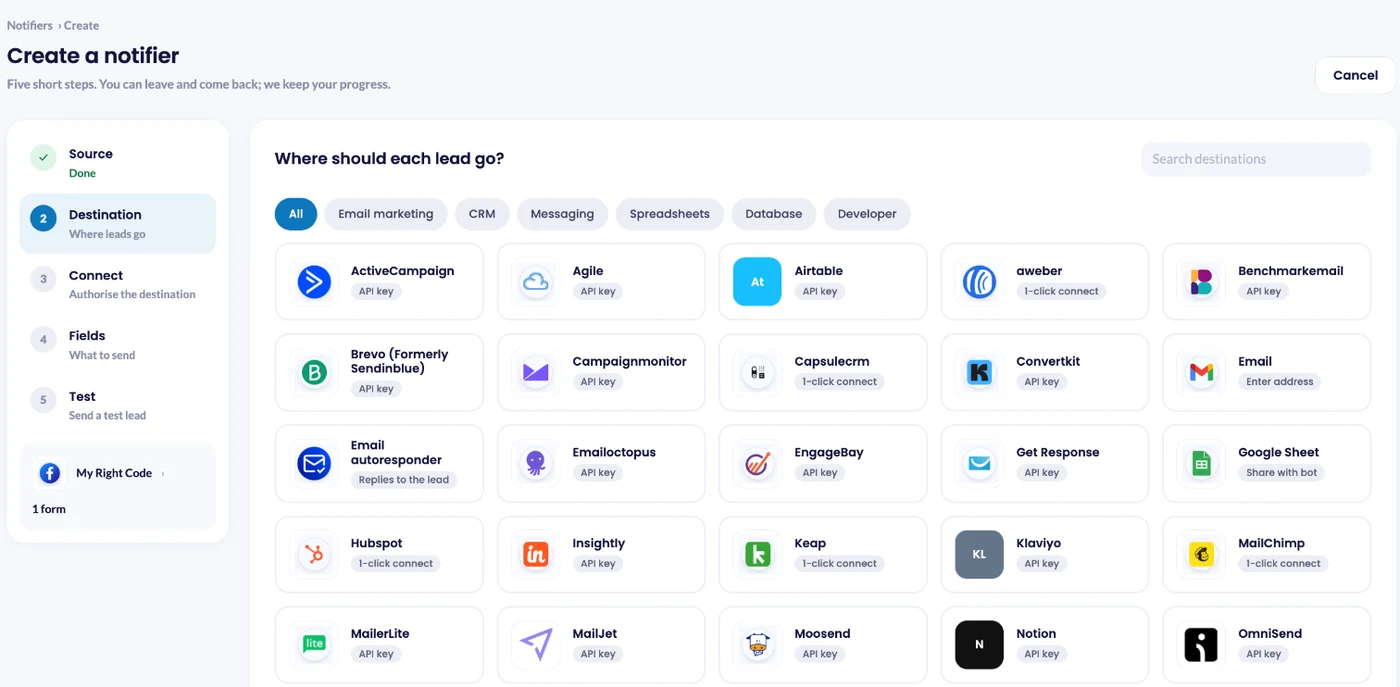
Click Choose destination, select Zoho CRM and click Connect Zoho CRM.
Step 4: Connect Zoho CRM
Click the Connect Zoho CRM button. A Zoho sign-in window opens. Sign in, choose the CRM organization that should receive your leads and click Accept. No API key is needed, and nothing is written to Zoho CRM until you finish the last step.
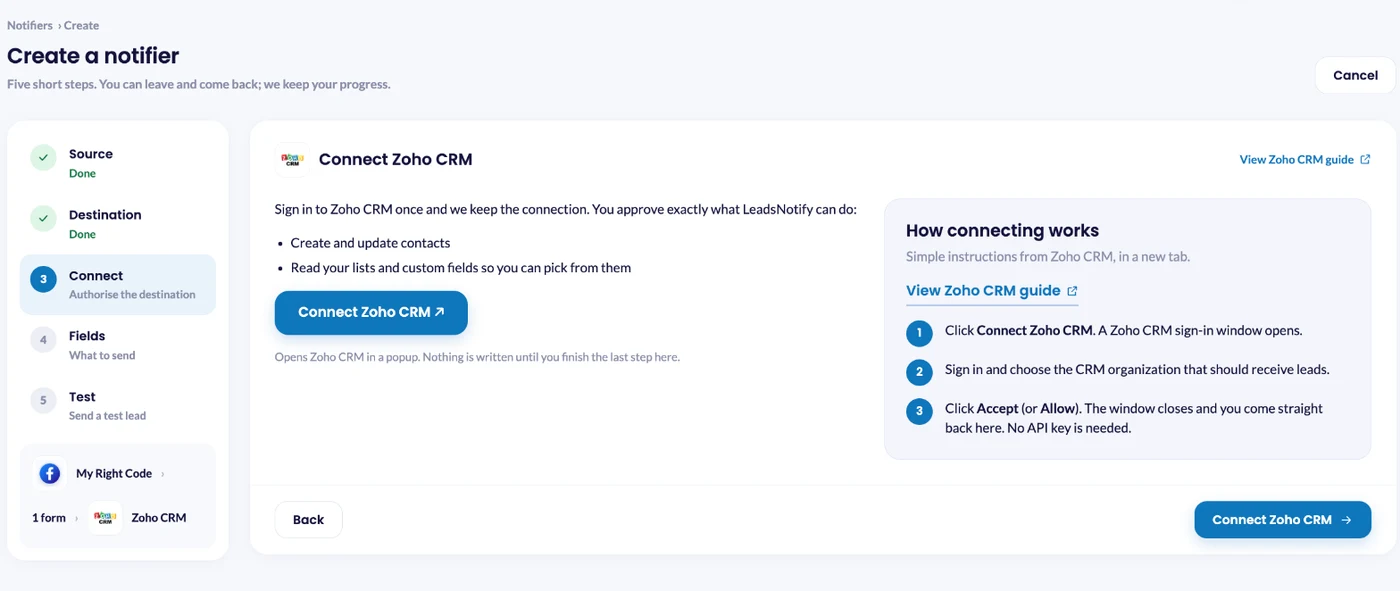
The window then closes and you come straight back to LeadsNotify. The available Zoho CRM fields, including custom fields, are loaded into the notifier.
Step 5: Map Facebook Lead Fields to Zoho CRM
In the Fields step, first choose whether each lead is created in Zoho CRM as a Lead or a Contact. The Zoho CRM fields shown below come from the module you pick, and common fields are matched to your form’s questions for you.
Check each match and map any remaining Facebook form fields to the right Zoho CRM fields. LeadsNotify also supports custom fields, so you can match your Facebook lead information with the fields you have set up in Zoho CRM.
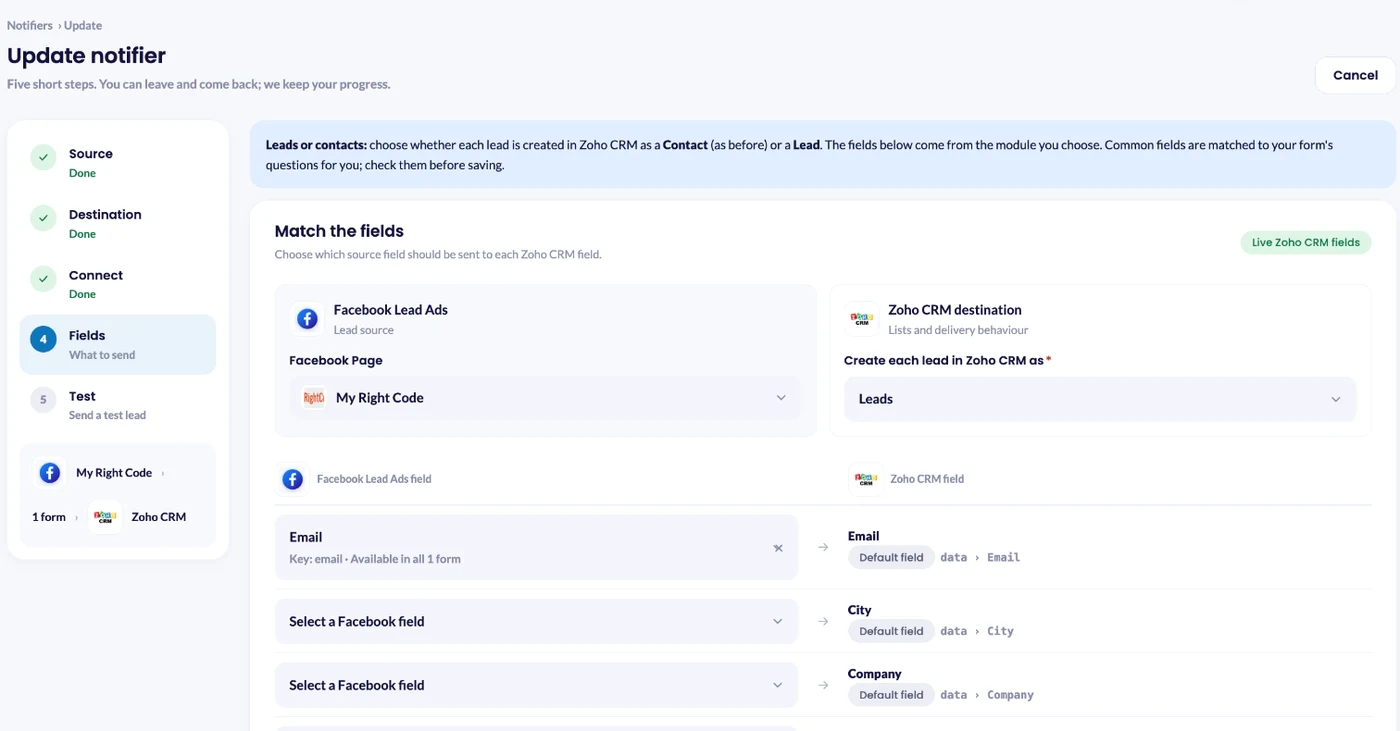
When everything is mapped correctly, save the notifier.
How to Test the Facebook Lead Ads to Zoho CRM Integration
After you save, LeadsNotify switches the notifier on and opens Review and test delivery. This lets you check that your Facebook Lead Ads and Zoho CRM connection works before relying on it for new leads.
- Click Send test lead. LeadsNotify asks Meta to create one sample lead on your form. No real customer data is used.
- Watch the delivery result appear on the same screen.
- Open your Zoho CRM account and check that the lead has been created.
- Open Lead delivery in LeadsNotify to see the status and delivery time.
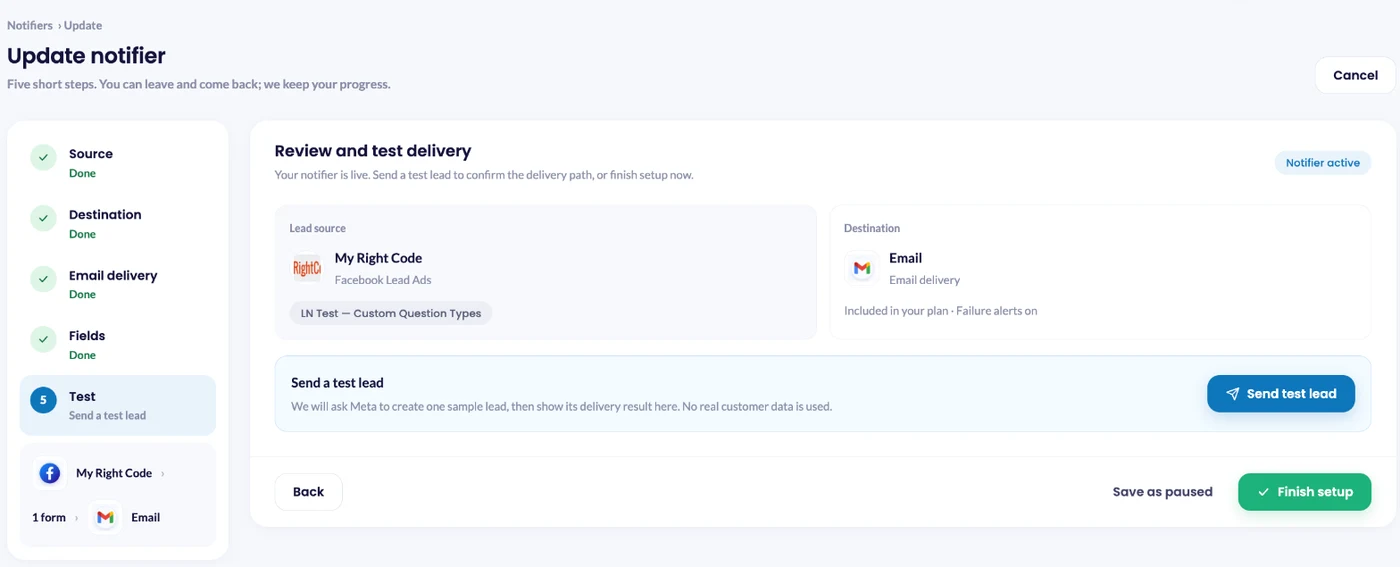
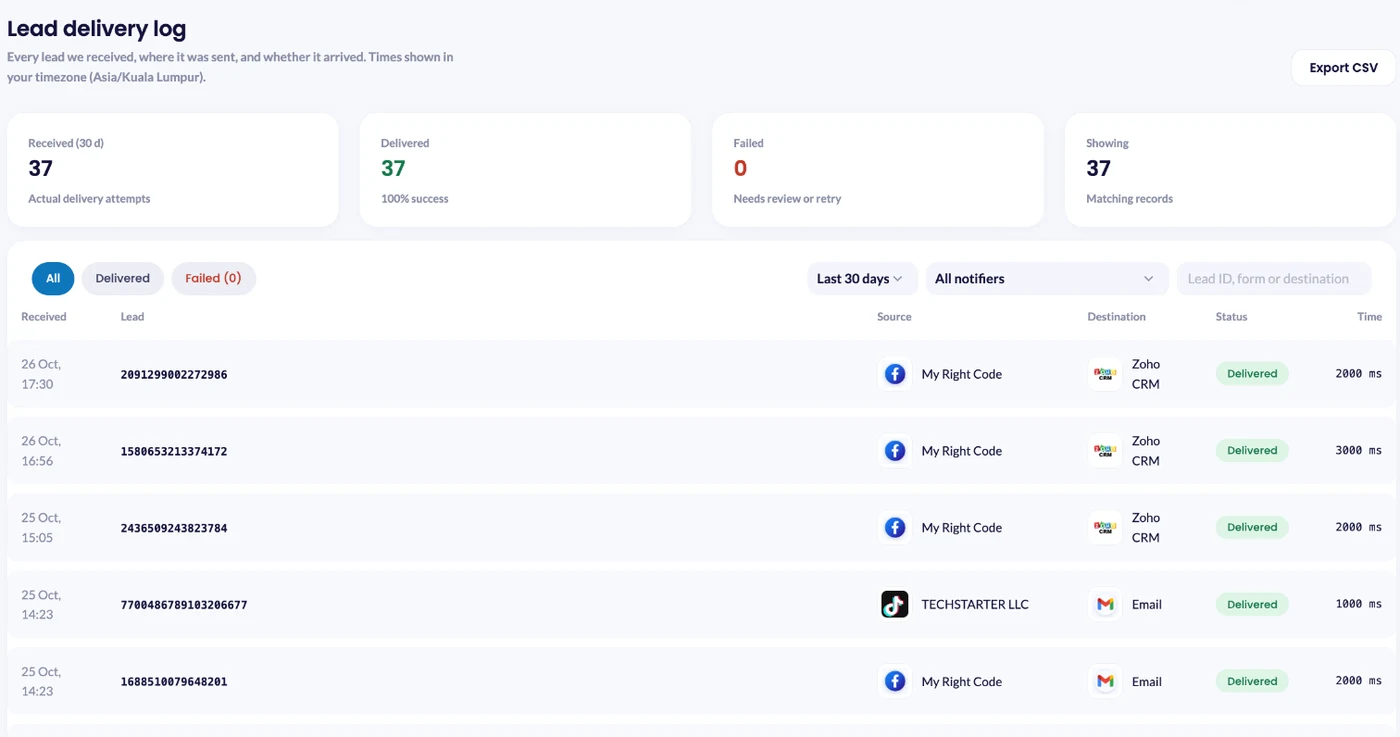
If the test lead appears in Zoho CRM with the correct information, click Finish setup. Your Facebook Lead Ads to Zoho CRM integration is ready to receive new leads automatically.
Why Connect Facebook Lead Ads to Zoho CRM?
Connecting Facebook Lead Ads to Zoho CRM can reduce manual lead handling and help your sales team respond to new prospects faster. Instead of downloading leads from Facebook and importing them into your CRM, the integration can transfer the lead information automatically.
- Faster lead delivery: New Facebook leads can be transferred to Zoho CRM automatically.
- Less manual work: Avoid repeatedly exporting and importing Facebook lead data.
- Better lead organization: Keep new Facebook leads inside your Zoho CRM workflow.
- Custom field mapping: Match Facebook lead fields with the appropriate Zoho CRM fields.
- Easy testing: Send a test lead before relying on the integration for live campaigns.
Start Sending Facebook Leads to Zoho CRM
With LeadsNotify, you can connect Facebook Lead Ads to Zoho CRM, select the pages and forms you want to use, map your lead fields, and test the setup in a few steps.
If you want to connect Facebook leads to Zoho CRM without manually moving lead data between platforms, LeadsNotify provides a simple way to set up the integration.
Set up a free notification in a few minutes.

Abdullah Khan
A Technical Lead and backend architect with 10+ years of experience building reliable, high-scale APIs and automation systems. At LeadsNotify, he helps build and maintain the integrations that route Facebook and LinkedIn leads to email, CRMs, and marketing tools in real time.
Connect on LinkedIn ↗