How to Connect Facebook Pages to Leadsnotify
LeadsNotify makes it easy to connect your Facebook pages so you can use your Facebook Lead Ads forms with different lead notifications and marketing integrations. Once your Facebook pages are connected, you can select the pages and instant forms you want to…

Table of contents
LeadsNotify makes it easy to connect your Facebook pages so you can use your Facebook Lead Ads forms with different lead notifications and marketing integrations. Once your Facebook pages are connected, you can select the pages and instant forms you want to use when creating a notifier.
In this guide, we’ll show you how to connect Facebook pages with LeadsNotify, select the pages you want to use, and configure Facebook Lead Ads forms for your integrations.
Prerequisites
- You need an active LeadsNotify account.
- You need access to the Facebook pages you want to connect.
- If you want to send Facebook leads to another platform, make sure you also have access to the account for that destination platform.
How to Connect Facebook Pages to LeadsNotify
Follow these steps to connect your Facebook pages with LeadsNotify.
Step 1: Log in to LeadsNotify
First, log in to your LeadsNotify account.
Step 2: Open Lead Sources
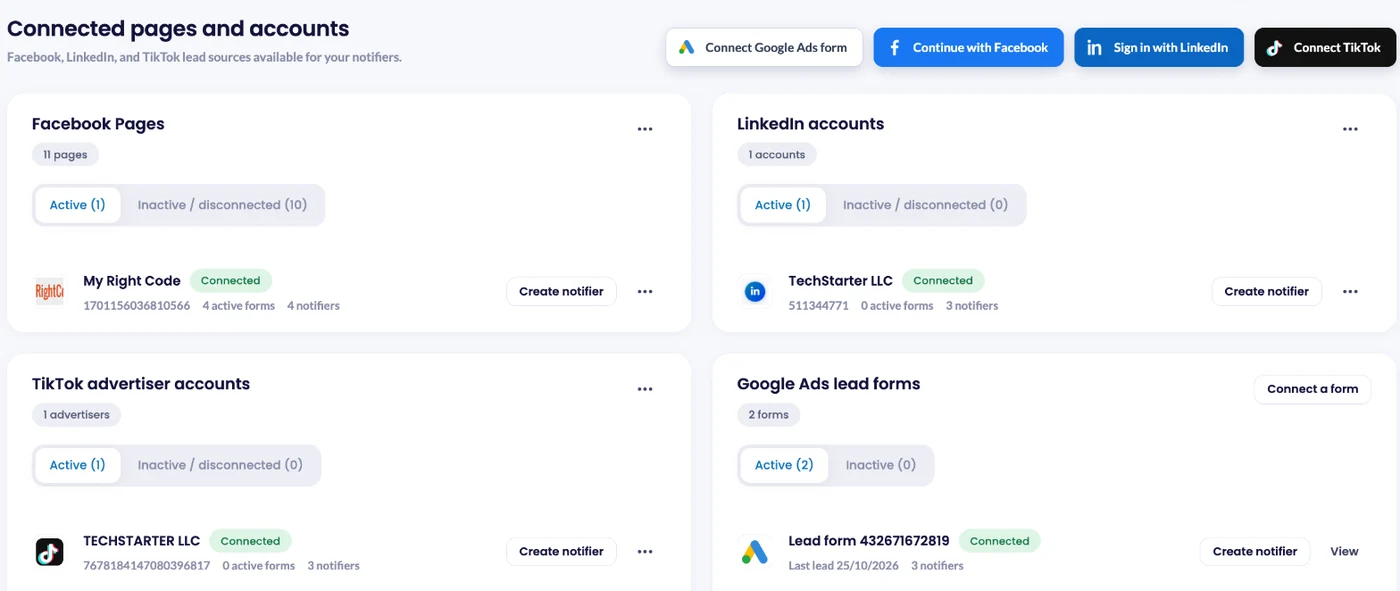
After logging in, click Lead sources in the left menu. This page lists every connected Facebook Page, LinkedIn account, TikTok advertiser account and Google Ads lead form.
Click Continue with Facebook at the top of the page.
Step 3: Select Your Facebook Pages
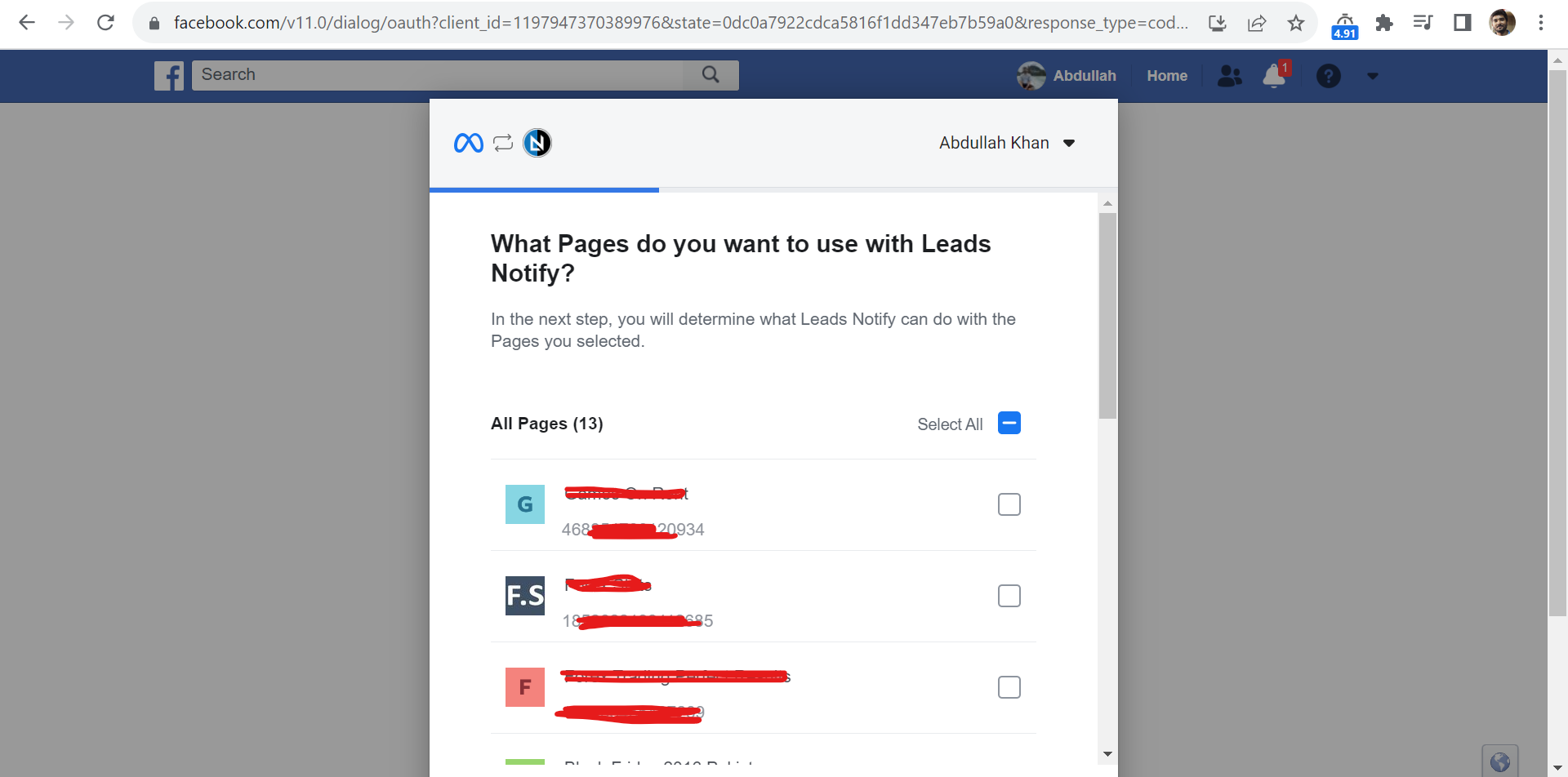
Facebook asks you to select the pages you want to connect with LeadsNotify. Select the Facebook pages you want to use and continue through the authorization process.
Step 4: Complete the Facebook Connection
After selecting your pages, approve the permissions and click OK. Facebook redirects you back to LeadsNotify, where each Page shows as Connected under Facebook Pages. Disconnected Pages are listed under the Inactive / disconnected tab.
Once the connection is complete, your connected Facebook pages can be used when creating notifiers. You can also click Create notifier next to a Page to start one straight away.
What Can You Do After Connecting Facebook Pages?
Once your Facebook pages are connected, you can create different integrations that use your Facebook Lead Ads forms as the lead source.
- Get Facebook lead notifications by email or SMS.
- Send Facebook leads to Brevo.
- Send Facebook leads to Capsule CRM.
- Send Facebook leads to ActiveCampaign.
- Send Facebook leads to GetResponse.
- Send Facebook leads to MailerLite.
- Connect Facebook leads with other supported platforms.
How the Facebook Pages Connector Works
After your Facebook pages are connected, every notifier follows the same short setup: Source, Destination, Connect, Fields and Test.
The Source step is the Facebook configuration. It decides which Facebook page and instant forms LeadsNotify should watch for new leads. The Destination and Connect steps decide where those leads go, such as a CRM, a marketing platform or a notification channel.
Configure Your Facebook Page and Forms
When you click Create notifier and choose Facebook Lead Ads, LeadsNotify asks you to pick your Facebook page and forms.
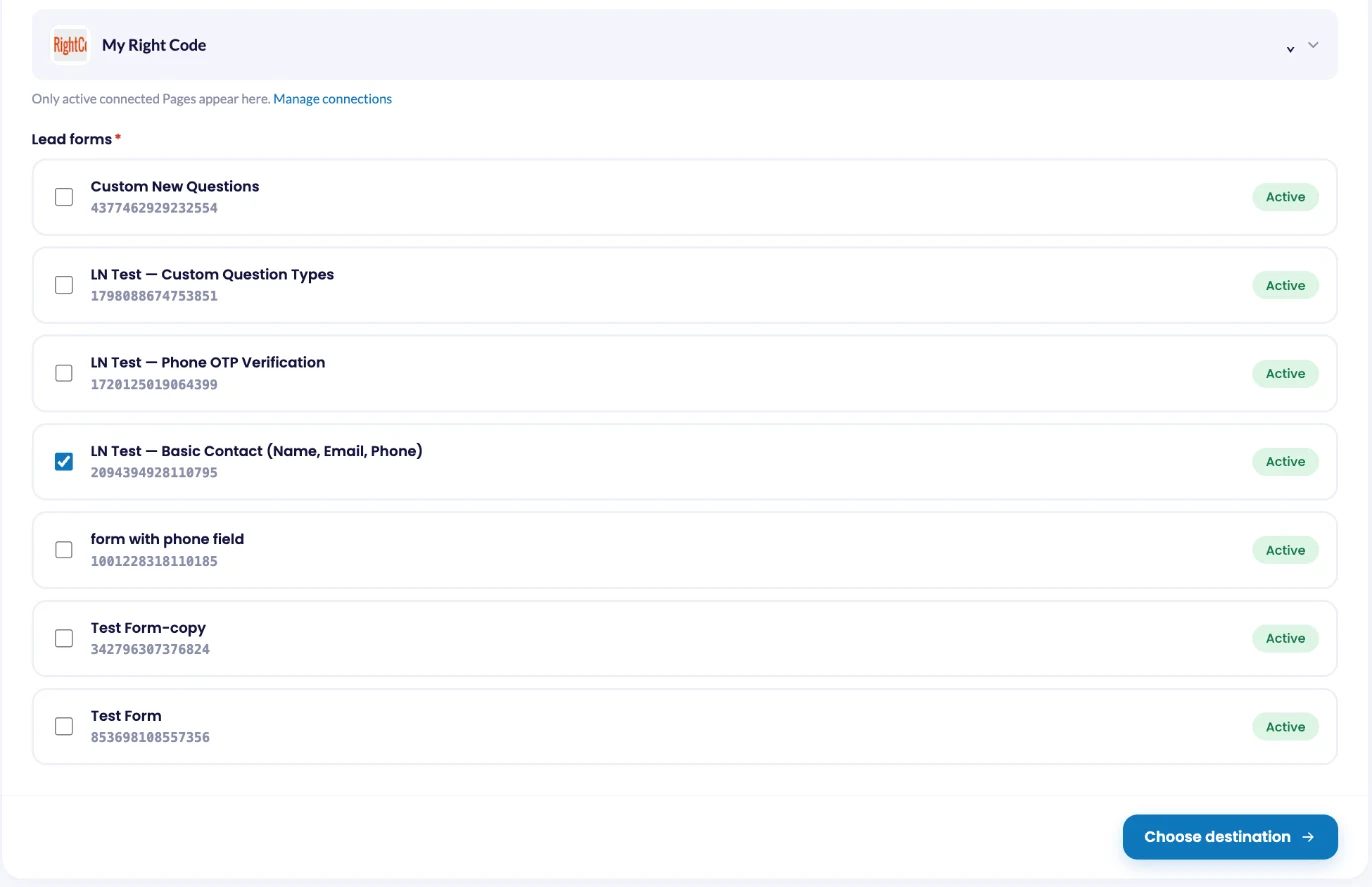
Select the Facebook Page you want to use and then select the relevant instant forms.
You can select multiple instant forms. Once you select the forms, LeadsNotify retrieves the available fields from those forms and makes them available for field mapping.
This makes it easier to map Facebook Lead Ads information to the fields required by the CRM, marketing platform, or other destination you’re connecting.
Troubleshooting Facebook Page Connections
If your Facebook page is not appearing in LeadsNotify, check that you are logged into the correct Facebook account and that the account has the required access to the page.
If a connected page does not show the expected instant forms, verify that the forms belong to the selected Facebook page and that your Facebook connection is still active.
You can also reconnect your Facebook account if your page permissions or Facebook account access have changed.
Facebook Pages Connector FAQs
What is the Facebook Pages connector in LeadsNotify?
The Facebook Pages connector allows you to connect Facebook pages to LeadsNotify so you can use their Lead Ads instant forms when creating integrations and notifiers.
Can I connect multiple Facebook pages?
Yes. You can select the Facebook pages available to your connected Facebook account and use the appropriate page when configuring your LeadsNotify notifier.
Can I select multiple Facebook instant forms?
Yes. LeadsNotify allows you to select multiple instant forms. The available fields from the selected forms can then be used when configuring field mappings.
What happens after I connect my Facebook page?
After the connection is completed, you can create LeadsNotify integrations using your connected Facebook page and its available instant forms as the lead source.
Start Connecting Your Facebook Pages
That’s all. Once your Facebook pages are connected to LeadsNotify, you can use your Facebook Lead Ads forms as the source for different notifiers.
Whether you want to receive Facebook lead notifications or send leads to a CRM or marketing platform, connecting your Facebook pages is the first step toward automating your lead workflow with LeadsNotify.
Ready to connect your Facebook pages? Log in to LeadsNotify and connect your Facebook pages to get started.
Set up a free notification in a few minutes.

Abdullah Khan
A Technical Lead and backend architect with 10+ years of experience building reliable, high-scale APIs and automation systems. At LeadsNotify, he helps build and maintain the integrations that route Facebook and LinkedIn leads to email, CRMs, and marketing tools in real time.
Connect on LinkedIn ↗