
How to Connect LinkedIn Leads with Omnisend
Connecting Omnisend with LinkedIn lead generation can help you automatically send new leads into your marketing platform instead of manually copying contact information. With LeadsNotify, you can create an Omnisend LinkedIn integration that transfers leads from LinkedIn Lead Gen Forms to Omnisend.…

Table of contents
Connecting Omnisend with LinkedIn lead generation can help you automatically send new leads into your marketing platform instead of manually copying contact information. With LeadsNotify, you can create an Omnisend LinkedIn integration that transfers leads from LinkedIn Lead Gen Forms to Omnisend.
In this guide, we’ll show you how to connect LinkedIn leads with Omnisend, configure the Omnisend connector in LeadsNotify, create an API key, select where your leads should be added, and test the automation.
This workflow is useful for businesses running LinkedIn marketing campaigns that want to move new leads into Omnisend quickly and continue their email and marketing automation without manually importing contacts.
What is Omnisend?
Omnisend is an omnichannel marketing automation platform built primarily for e-commerce businesses. It provides tools for email marketing, SMS, automation workflows, audience segmentation, and customer communication.
When you generate leads through LinkedIn Lead Gen Forms, sending those contacts into Omnisend can help you keep your lead data organized and continue your marketing workflow from one platform.
How to connect LinkedIn leads with Omnisend
To create the integration, you’ll connect your LinkedIn lead source to LeadsNotify and then configure Omnisend as the destination. The process requires your Omnisend API key and the LinkedIn page and form you want to use.
Step 1: Sign up and log in to LeadsNotify
First, sign up or log in to LeadsNotify.
Once you are logged in, you can create a notifier that connects your LinkedIn lead source with Omnisend.
Step 2: Connect your LinkedIn account
Next, connect your LinkedIn account to LeadsNotify.
If you need help with the lead-source connection process, you can also review our guide to setting up lead notifications.
After LinkedIn is connected, LeadsNotify can access the available LinkedIn pages and lead forms that you want to use for your Omnisend workflow.
Step 3: Create an Omnisend notifier
After connecting LinkedIn, open the Create notifier option in LeadsNotify.
Click Create notifier. In the Source step, choose LinkedIn Lead Gen Forms, then select your LinkedIn account and the lead forms you want to connect. LeadsNotify loads the fields from those forms. Click Choose destination, select OmniSend and continue to connect it.
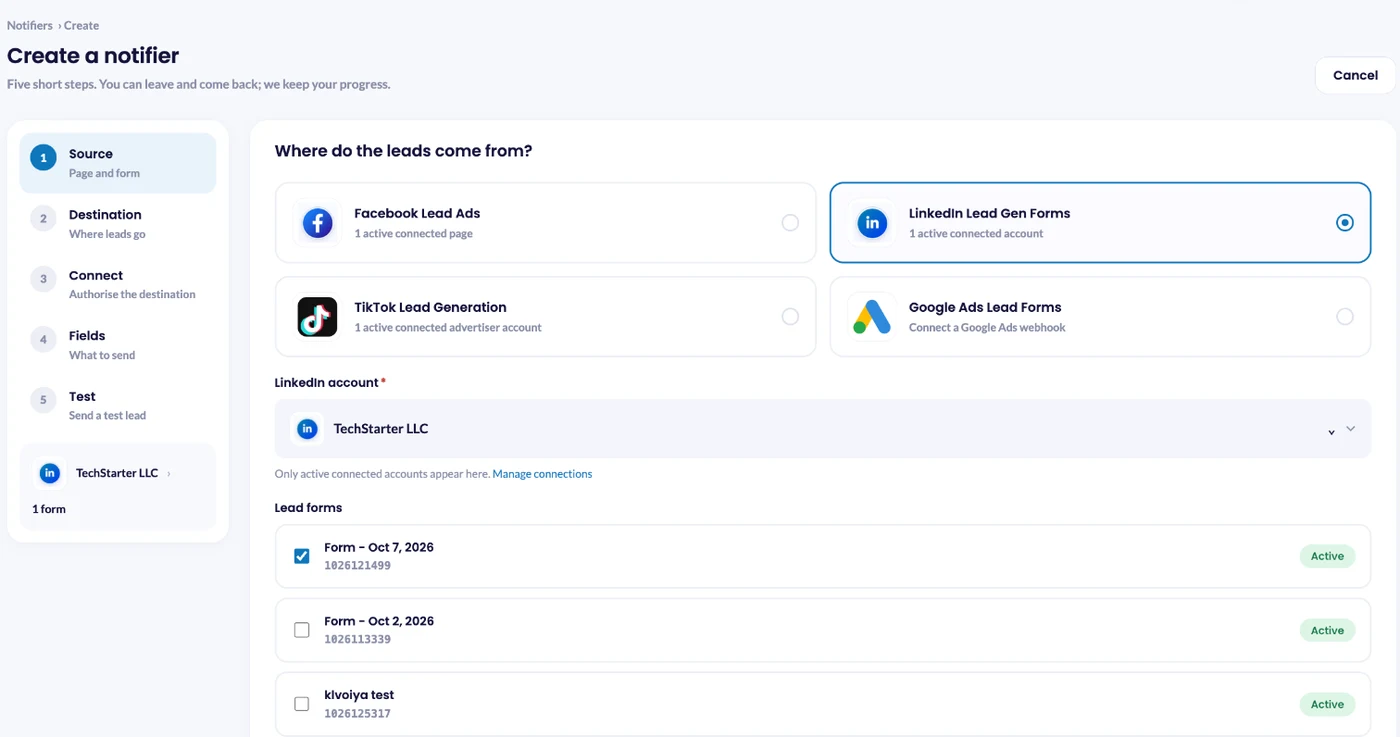
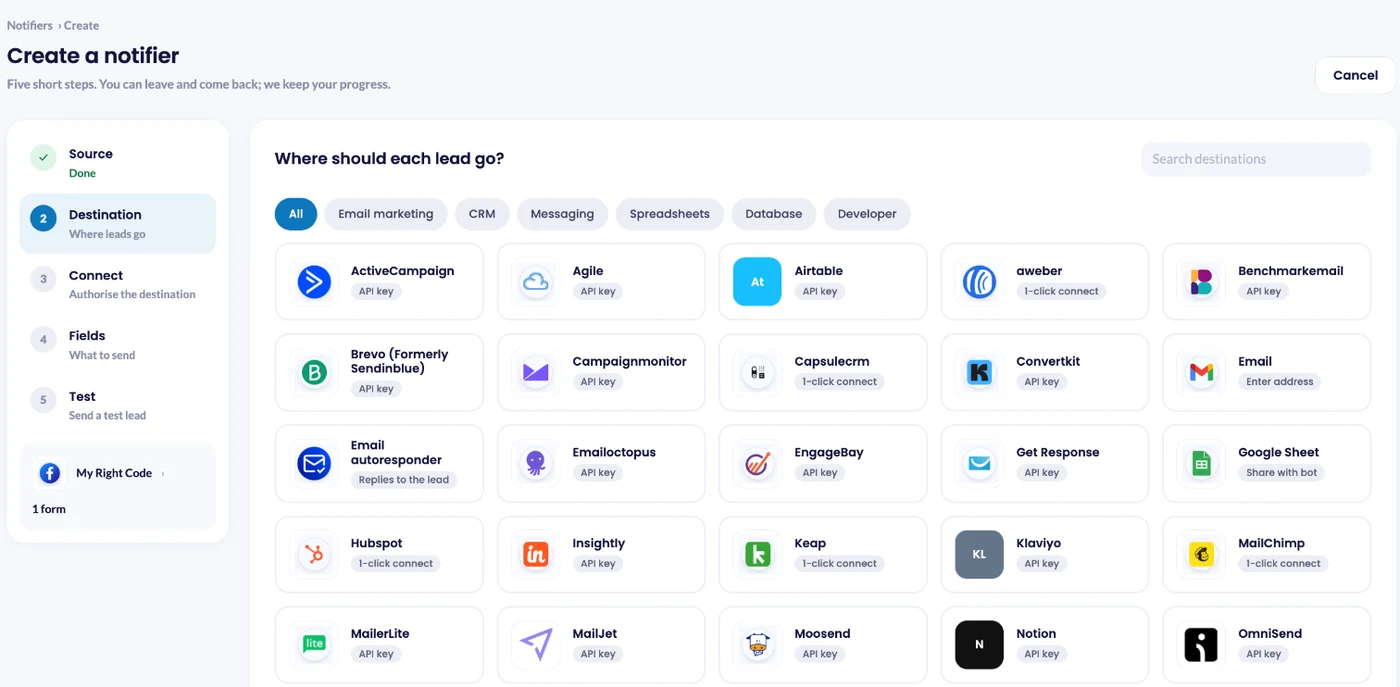
Select the appropriate instant form. LeadsNotify will then display the fields available from that LinkedIn form so you can configure the information that will be sent to Omnisend.
Step 4: Get your Omnisend API key
To connect Omnisend with LeadsNotify, you need an Omnisend API key. The API key allows LeadsNotify to communicate with your Omnisend account and send the lead information to it.
Log in to your Omnisend account and open your store settings.
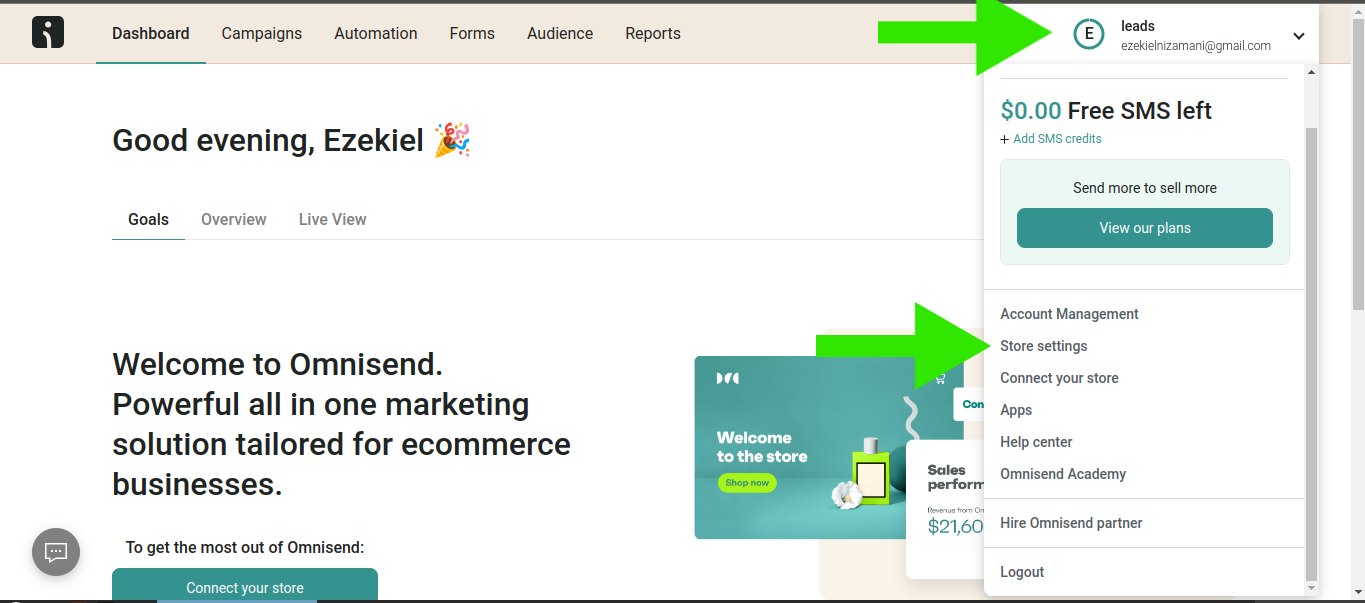
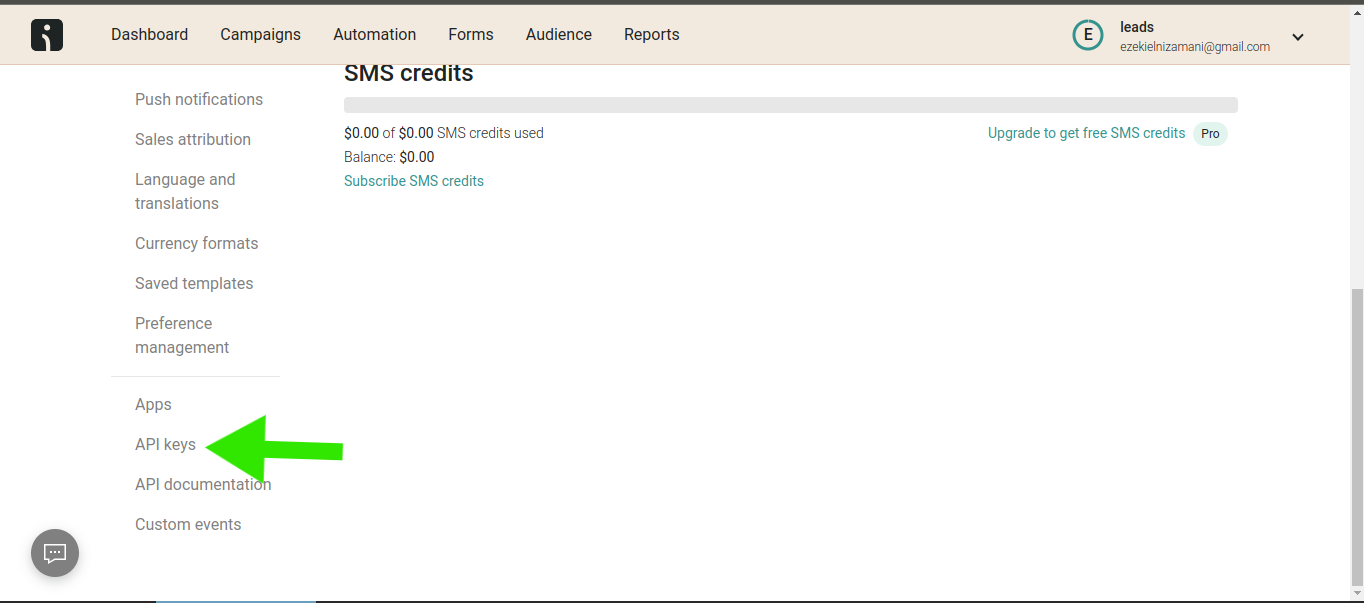
From the settings area, scroll down and select API Keys.
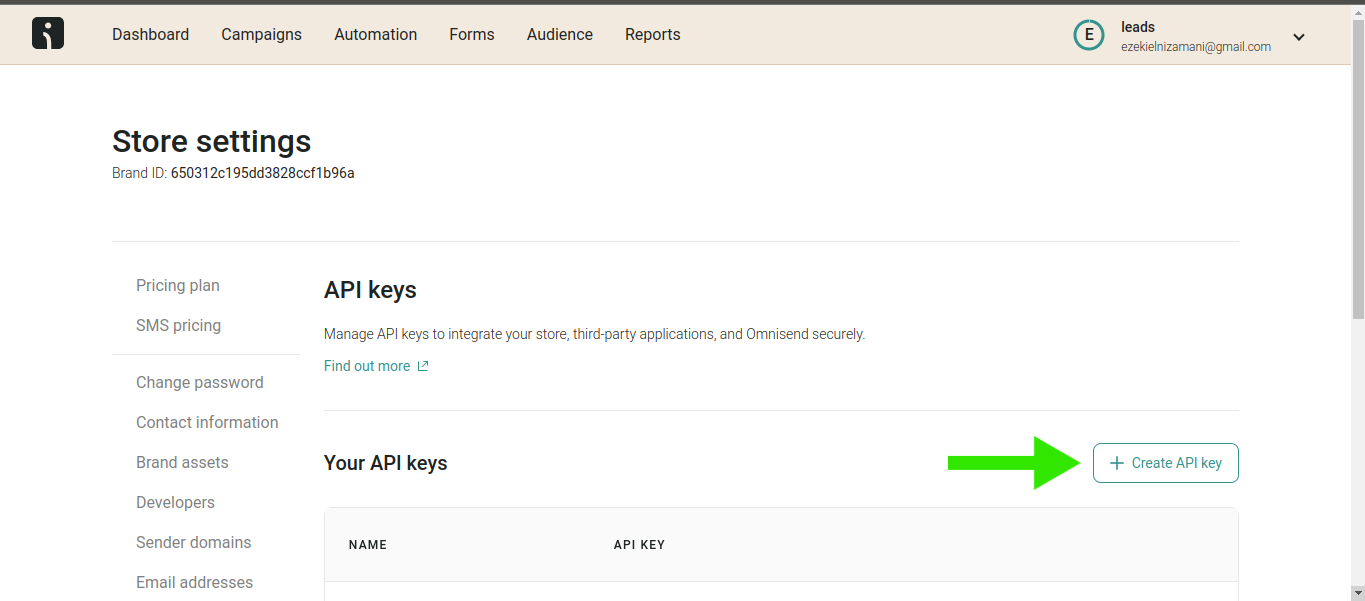
Click the Create API Key button.
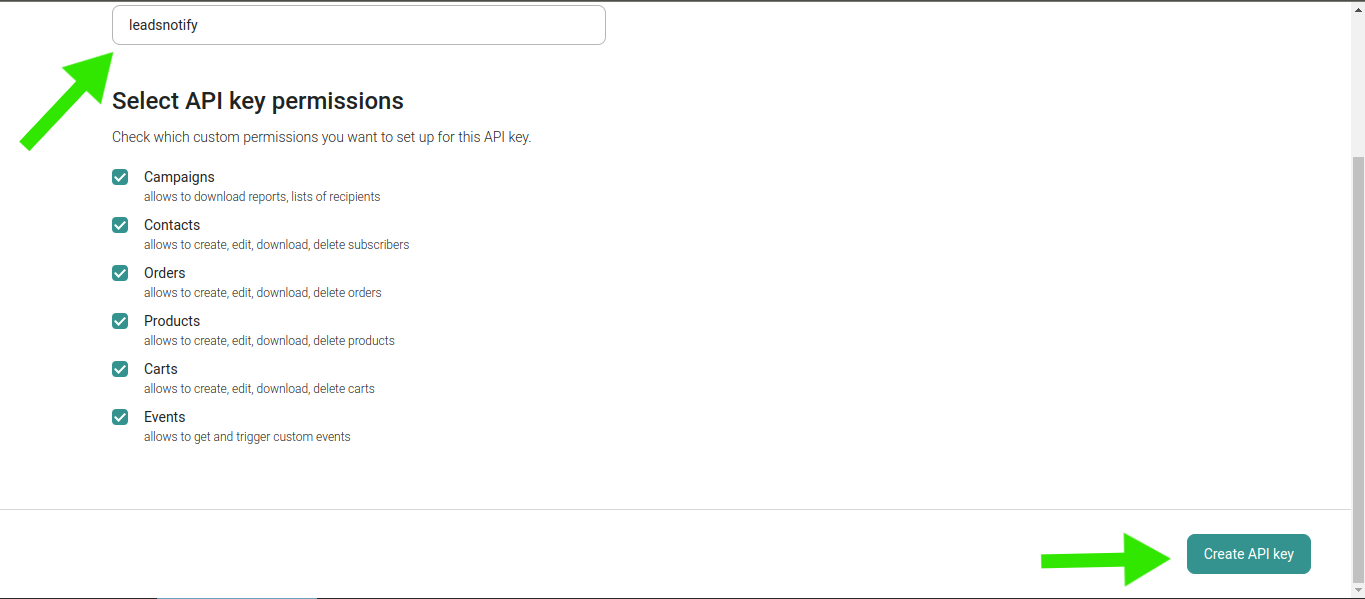
Omnisend will ask you to provide a name for the API key. You can use a name such as LeadsNotify so that you can easily identify what the key is being used for.
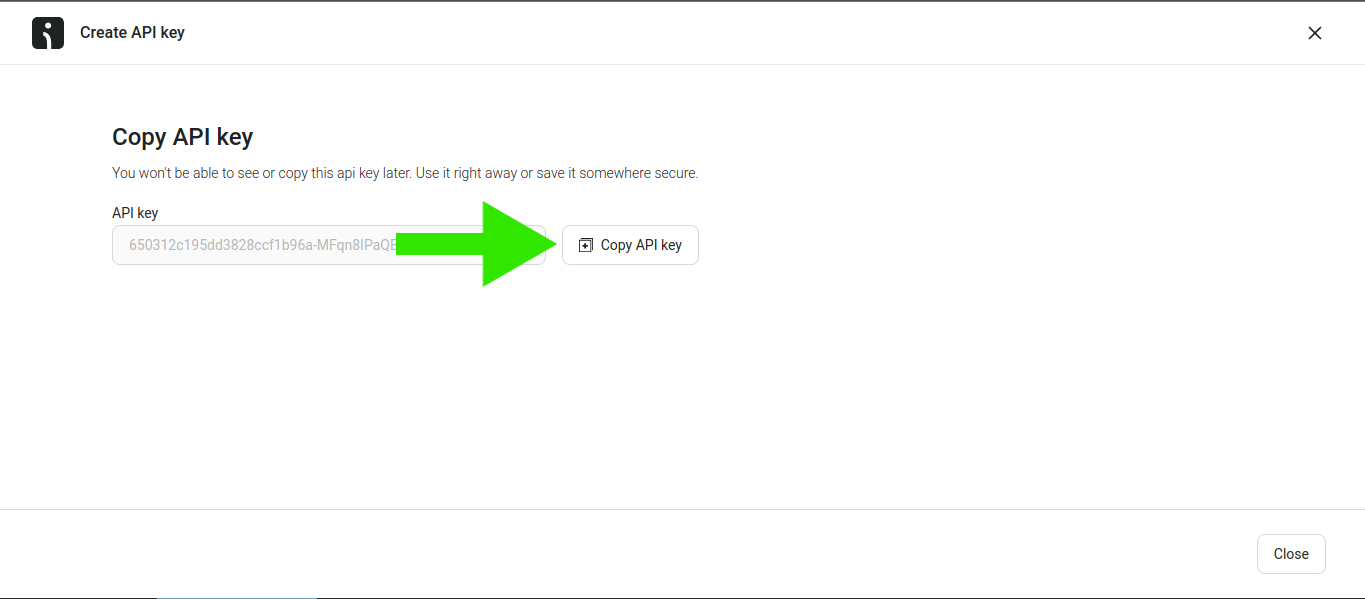
After creating the API key, copy it so you can add it to the LeadsNotify notifier.
Step 5: Add the API key to LeadsNotify
Return to the LeadsNotify notifier and paste the copied Omnisend API key into the API Key field.
Once you have entered the key, click Submit to authenticate the Omnisend connection.
Step 6: Select the Omnisend tag
After the API key is successfully submitted, LeadsNotify will display additional input fields and a tag dropdown.
Select the Omnisend tag where you want the LinkedIn leads to be added, then click Choose fields and save the notifier.
How the LinkedIn to Omnisend automation works
Once the notifier is configured, the workflow is straightforward:
- A prospect submits a LinkedIn Lead Gen Form.
- LeadsNotify receives the new lead.
- LeadsNotify processes the lead through the configured notifier.
- The lead information is sent to Omnisend.
- The contact can then be managed through your Omnisend marketing workflow.
This Omnisend automation reduces the need to manually copy or import new LinkedIn leads and helps you move contacts into your marketing workflow more efficiently.
How to test the Omnisend LinkedIn integration
Before relying on the automation for live campaigns, it is a good idea to submit a test lead and confirm that it reaches Omnisend successfully.
Testing the integration helps confirm that your LinkedIn lead form, LeadsNotify notifier, API key, and Omnisend destination are configured correctly.
Step 1: Send a LinkedIn Test Lead
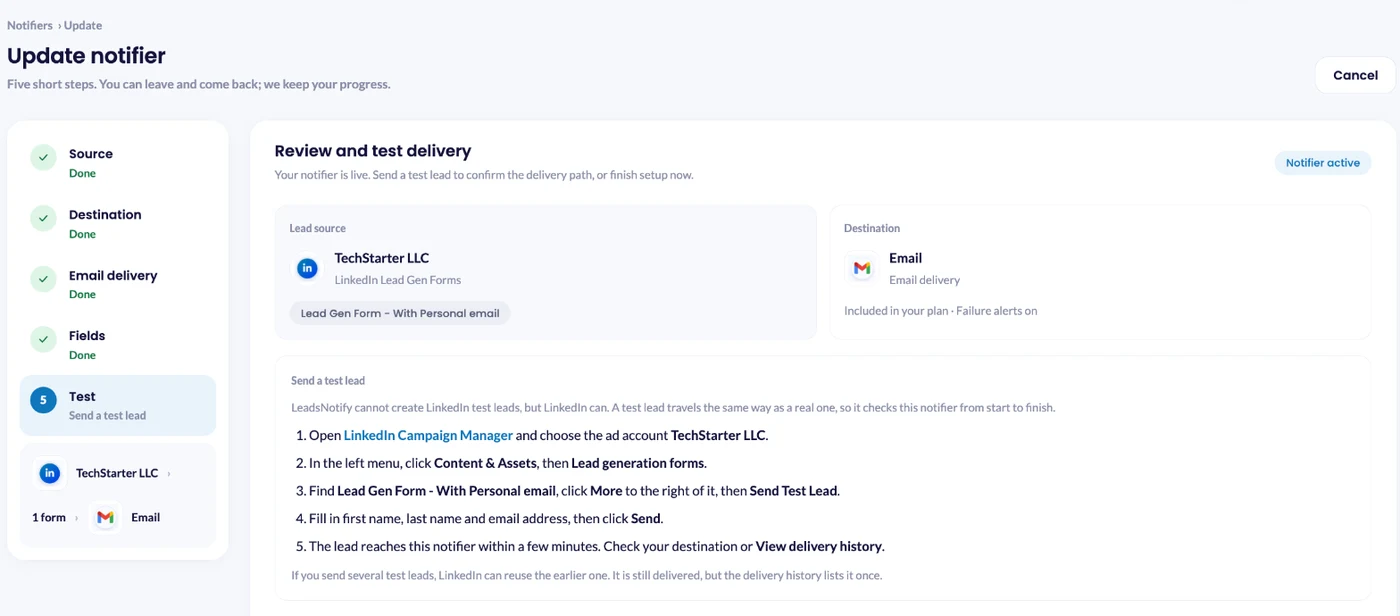
LeadsNotify cannot create LinkedIn test leads itself, but LinkedIn can. In LinkedIn Campaign Manager, choose your ad account, go to Content & Assets > Lead generation forms, click More next to the form and choose Send Test Lead. Fill in a name and an email address you own, then click Send. The lead reaches your notifier within a few minutes, and the ⋯ menu next to the notifier in Notifiers has How to send a test lead with the same steps.
Step 2: Check Omnisend
After submitting the test form, open your Omnisend account and check whether the lead has been added to the selected audience or tag.
If the contact appears in Omnisend, your LinkedIn-to-Omnisend automation is working as expected.
If the lead does not appear, check your LinkedIn connection, notifier configuration, API key, selected tag, and delivery status in LeadsNotify.
If you need additional assistance, contact support@leadsnotify.com.
Benefits of connecting LinkedIn leads to Omnisend
Connecting LinkedIn lead generation with Omnisend can make your lead-management and marketing workflow more efficient.
- Reduce manual data entry: New leads can be transferred automatically instead of being copied manually.
- Speed up lead processing: Leads can reach your marketing system sooner after submitting a LinkedIn form.
- Keep leads organized: You can use Omnisend tags and existing marketing workflows to organize incoming contacts.
- Support marketing automation: New contacts can become part of your existing Omnisend automation workflows.
- Improve consistency: An automated connection can reduce the risk of forgetting to import new leads.
Best practices for an Omnisend LinkedIn integration
- Test the integration first: Submit a test lead before sending traffic to your LinkedIn campaign.
- Check your LinkedIn form: Make sure the correct page and lead form are selected in LeadsNotify.
- Use a dedicated API key: Give your Omnisend API key a recognizable name so you can identify its purpose later.
- Choose the correct tag: Select the Omnisend tag that matches the audience or campaign you are running.
- Monitor delivery: If a lead does not appear in Omnisend, check the delivery information in LeadsNotify.
- Review your automation regularly: Connected services, permissions, credentials, and APIs can change, so periodically verify that the workflow continues to operate correctly.
Frequently asked questions
Can I connect LinkedIn leads to Omnisend?
Yes. LeadsNotify can be used to create an automation that receives leads from supported LinkedIn Lead Gen Forms and sends them to Omnisend.
How does the Omnisend LinkedIn integration work?
The integration connects your LinkedIn lead source to LeadsNotify and uses Omnisend as the destination. When a prospect submits a connected LinkedIn lead form, LeadsNotify processes the lead and sends the information to Omnisend.
What is the Omnisend connector in LeadsNotify?
The Omnisend connector allows you to configure Omnisend as the destination for a LeadsNotify notifier. You can connect your LinkedIn lead form, authenticate Omnisend using an API key, and select the appropriate tag for incoming leads.
Can I test the LinkedIn to Omnisend integration?
Yes. You can Send a test lead from LinkedIn Campaign Manager with Send Test Lead on your form and then check Omnisend to confirm that the contact was transferred successfully.
What should I do if a LinkedIn lead does not appear in Omnisend?
First, check that the correct LinkedIn page and lead form are connected. Then verify your Omnisend API key, selected tag, notifier configuration, and delivery status in LeadsNotify.
Do I have to manually import LinkedIn leads into Omnisend?
No. With a properly configured LeadsNotify notifier, supported LinkedIn leads can be transferred automatically to Omnisend, reducing the need for manual data entry or imports.
Automate LinkedIn leads with Omnisend
Manually moving LinkedIn leads into a marketing platform can take time and create unnecessary data-entry work. Connecting LinkedIn with Omnisend through LeadsNotify provides a simpler way to transfer new leads into your marketing workflow.
The setup involves connecting your LinkedIn lead source, selecting Omnisend as the destination, creating an Omnisend API key, adding it to LeadsNotify, selecting the appropriate tag, and testing the workflow.
If your business uses LinkedIn lead generation and Omnisend for marketing automation, this integration can help you spend less time moving contact information and more time engaging with new leads.
Ready to connect LinkedIn leads with Omnisend? Sign up for LeadsNotify and create an Omnisend notifier to get started.
Set up a free notification in a few minutes.

Hizqeel Nizamani
Hizqeel Nizamani is a software engineer and backend developer working on CRM integrations, automation, APIs, and lead management systems. At LeadsNotify, he helps build and improve technology that enables businesses to capture, manage, and respond to leads more effectively.
Connect on LinkedIn ↗