
How to Connect LinkedIn Leads with Insightly CRM
Connecting Insightly with LinkedIn lead generation can help you automatically send new leads from LinkedIn Lead Gen Forms into your CRM. Instead of manually copying lead information, you can use LeadsNotify to connect LinkedIn with Insightly and streamline your lead management workflow.…

Table of contents
Connecting Insightly with LinkedIn lead generation can help you automatically send new leads from LinkedIn Lead Gen Forms into your CRM. Instead of manually copying lead information, you can use LeadsNotify to connect LinkedIn with Insightly and streamline your lead management workflow.
In this guide, we’ll show you how to connect LinkedIn leads with Insightly using LeadsNotify. You’ll learn how to connect your LinkedIn account, configure an Insightly notifier, add your Insightly API key, and test the integration to make sure new leads are being delivered correctly.
What is Insightly CRM?
Insightly is a cloud-based customer relationship management platform that helps businesses manage leads, contacts, organizations, projects, sales opportunities, and customer relationships in one place.
For businesses generating leads through LinkedIn, connecting the lead source with Insightly can make it easier to move new prospects into the CRM and begin the follow-up process without manually importing every contact.
How to connect LinkedIn leads to Insightly
With LeadsNotify, you can create an automation that connects your LinkedIn lead forms to Insightly. The basic workflow is simple: connect LinkedIn to LeadsNotify, select Insightly as the destination, authorize the connection with your Insightly API key, and then test the workflow.
Step 1: Sign up and log in to LeadsNotify
First, sign up or log in to LeadsNotify.
Once you are logged in, you can create a notifier that connects your LinkedIn lead source with Insightly.
Step 2: Connect your LinkedIn account
Open Lead sources in LeadsNotify and click Sign in with LinkedIn, then approve the permissions. Your LinkedIn account shows as Connected.
If you need additional help setting up your lead connection, you can also review our guide on setting up lead notifications and connecting a lead source.
Once LinkedIn is connected, LeadsNotify can use the available lead forms that you want to include in your Insightly workflow.
Step 3: Create an Insightly notifier
After connecting LinkedIn, go to the Create notifier option in LeadsNotify.
Click Create notifier. In the Source step, choose LinkedIn Lead Gen Forms, then select your LinkedIn account and the lead forms you want to connect. LeadsNotify loads the fields from those forms. Click Choose destination, select Insightly and continue to connect it.
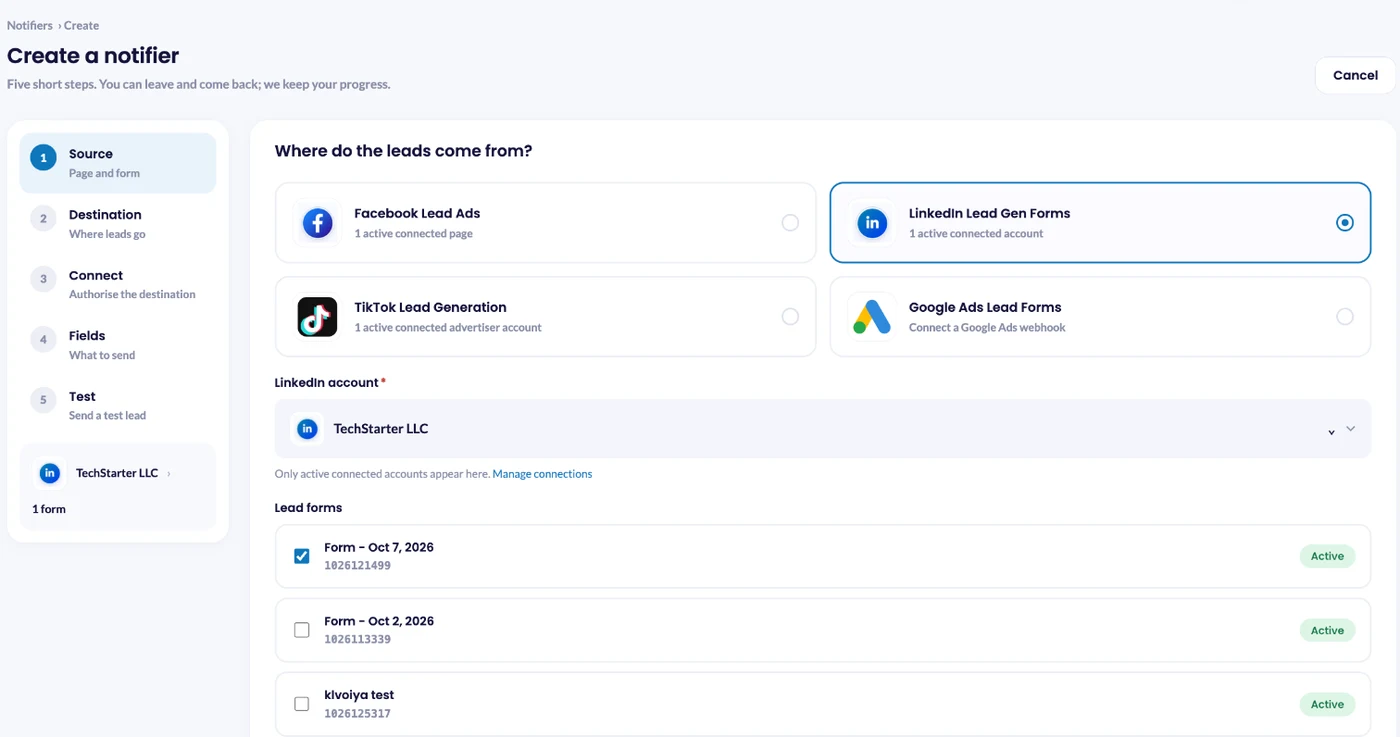
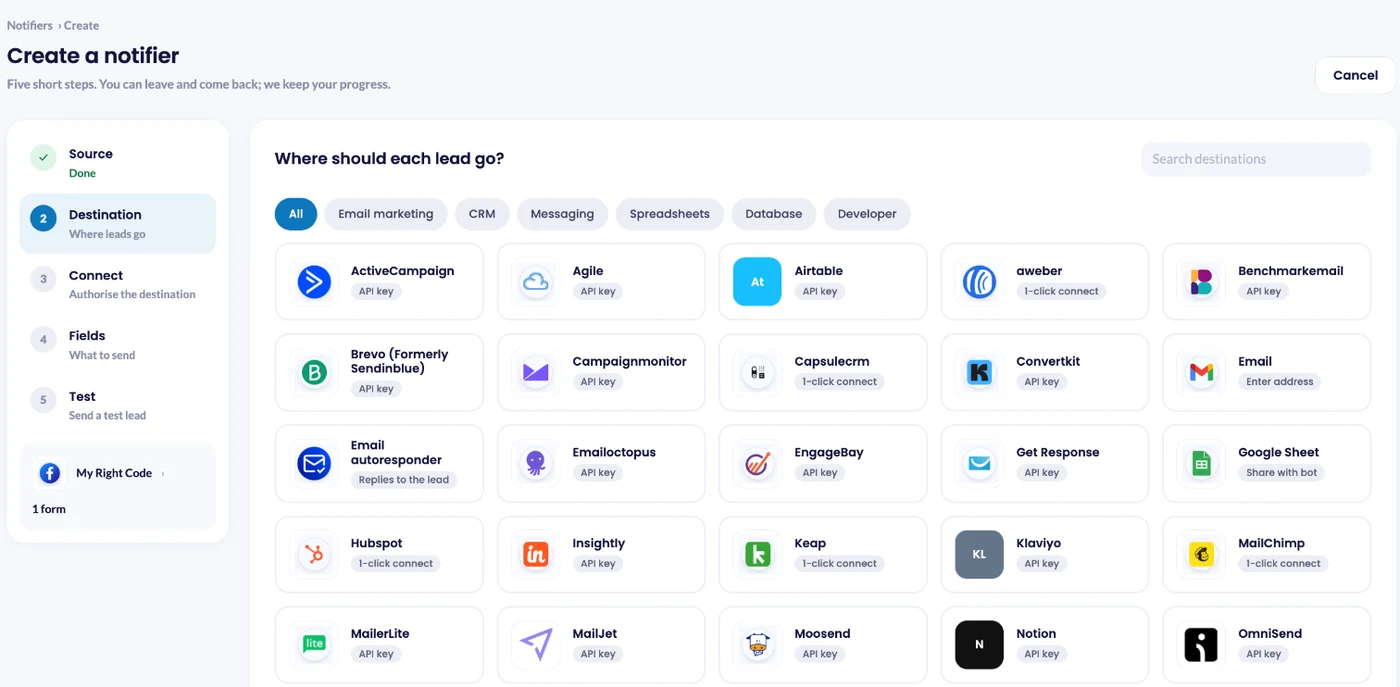
Once you select the appropriate LinkedIn instant form, LeadsNotify will display the fields available from that form.
Step 4: Add your Insightly API key
In the right-hand section of the notifier, you will need to enter your Insightly API key. This key allows LeadsNotify to connect to your Insightly account.
To find your API key, log in to your Insightly account, open your profile settings, and navigate to User Settings. Scroll down until you find your API key.
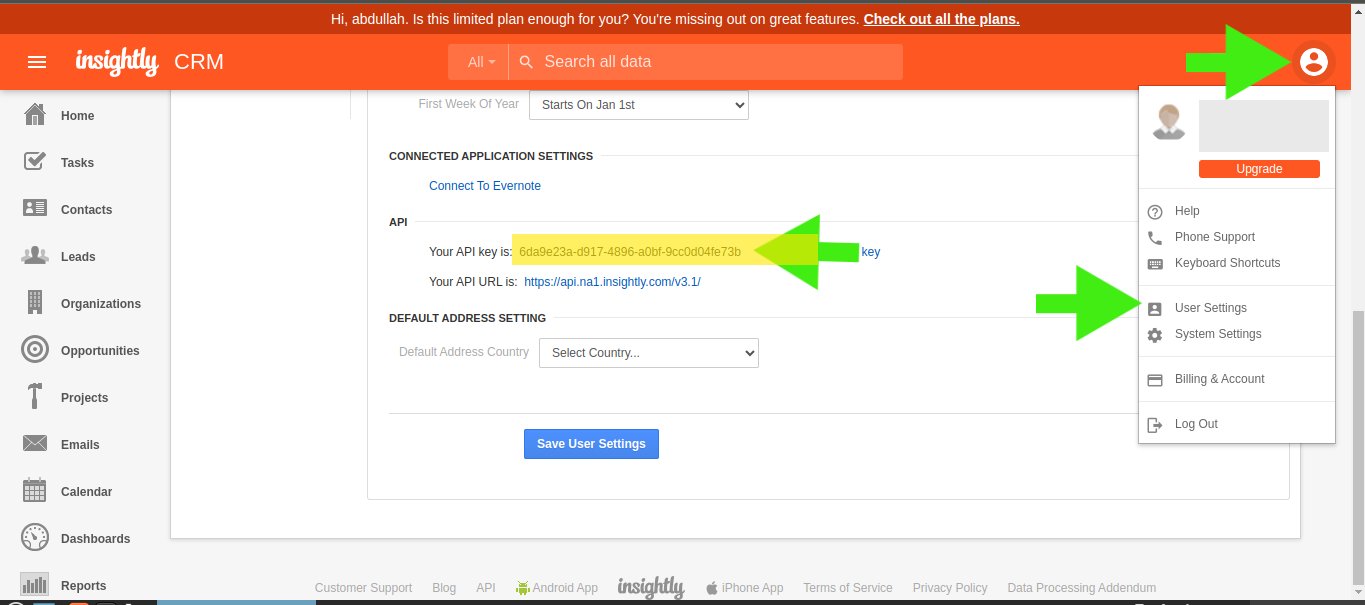
Copy the API key and return to the LeadsNotify notifier configuration.
Step 5: Connect Insightly to LeadsNotify
Paste the copied API key into the API Key field in LeadsNotify and click Submit.
After the API key is accepted, LeadsNotify will display the available input fields for the integration. Review the fields and make sure the information from your LinkedIn lead form is configured correctly.
Scroll to the bottom of the configuration page and click Submit to complete the Insightly connection.
How the LinkedIn to Insightly integration works
Once the notifier is configured, the LinkedIn-to-Insightly workflow works as follows:
- A prospect submits a LinkedIn Lead Gen Form.
- LeadsNotify receives the new lead.
- The configured notifier processes the lead.
- The lead information is sent to Insightly.
- Your team can manage the new lead or contact inside Insightly.
This automated workflow can help reduce manual data entry and makes it easier to move new LinkedIn prospects into your CRM for follow-up.
How to import LinkedIn leads into Insightly
If you are looking for a way to import leads into Insightly, connecting your LinkedIn lead forms to LeadsNotify provides an automated alternative to manually transferring contact information.
Instead of exporting a list and manually importing contacts into Insightly, you can configure the integration so that new leads from a connected LinkedIn form are sent to Insightly through the notifier.
This is particularly useful when your business receives leads regularly from LinkedIn campaigns and wants those contacts available in the CRM without repeated manual data entry.
How to test the Insightly LinkedIn integration
After configuring the integration, it is important to test the workflow before relying on it for live lead generation campaigns.
A test lead can confirm that your LinkedIn form is connected correctly and that LeadsNotify can successfully send the lead to Insightly.
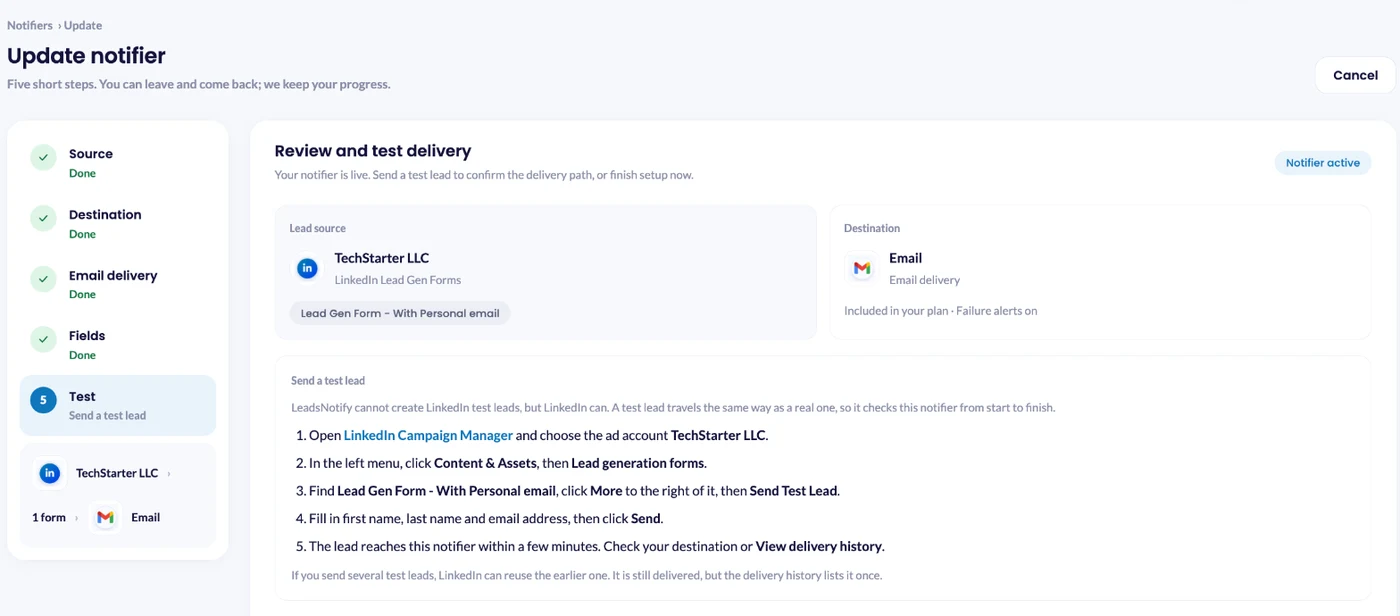
Step 1: Send a LinkedIn Test Lead
LeadsNotify cannot create LinkedIn test leads itself, but LinkedIn can. In LinkedIn Campaign Manager, choose your ad account, go to Content & Assets > Lead generation forms, click More next to the form and choose Send Test Lead. Fill in a name and an email address you own, then click Send. The lead reaches your notifier within a few minutes, and the ⋯ menu next to the notifier in Notifiers has How to send a test lead with the same steps.
Step 2: Check Insightly
After submitting the test form, open your Insightly account and check whether the new lead or contact has been received.
If the lead appears in Insightly, your Insightly LinkedIn integration is working as expected.
If the lead does not appear, review your LinkedIn connection, Insightly API key, notifier configuration, and delivery status in LeadsNotify.
If you still need assistance, contact support@leadsnotify.com.
Best practices for LinkedIn and Insightly lead management
- Test before launching campaigns: Submit a test lead and confirm that it reaches Insightly successfully.
- Check your lead fields: Make sure the information collected by your LinkedIn form is configured correctly in the notifier.
- Monitor lead delivery: Check LeadsNotify if a lead does not appear in Insightly.
- Keep your CRM organized: Use a consistent process for managing new LinkedIn leads once they enter Insightly.
- Protect your API key: Treat your Insightly API key as a credential and avoid sharing it publicly.
Frequently asked questions
Can I connect LinkedIn leads to Insightly?
Yes. You can use LeadsNotify to connect supported LinkedIn lead forms with Insightly and automatically send new lead information to your CRM.
How does the Insightly LinkedIn integration work?
The integration connects your LinkedIn lead source to LeadsNotify and uses Insightly as the destination. When a prospect submits a connected LinkedIn lead form, LeadsNotify processes the lead and sends the information to Insightly.
How can I import leads into Insightly?
You can manually import lead data into Insightly or automate the process by connecting a lead source such as LinkedIn with an integration tool. With LeadsNotify, new leads from connected LinkedIn forms can be sent automatically to Insightly.
Where can I find my Insightly API key?
Your Insightly API key can be found in your Insightly account settings. In the workflow described in this guide, the API key is copied from the appropriate user settings area and entered into the LeadsNotify notifier.
Can I test the LinkedIn and Insightly connection?
Yes. You can submit a test lead through your LinkedIn lead form and then check Insightly to confirm that the lead was received.
What should I do if a LinkedIn lead does not appear in Insightly?
First, check that your LinkedIn connection, lead form, Insightly API key, and notifier configuration are correct. Then review the delivery status in LeadsNotify. If the problem continues, contact support@leadsnotify.com for assistance.
Automate LinkedIn lead management with Insightly
Manually moving LinkedIn leads into Insightly can take time, especially when your campaigns generate new leads regularly. Connecting LinkedIn with Insightly through LeadsNotify provides a way to automate this part of your lead-management workflow.
The setup involves connecting LinkedIn to LeadsNotify, creating an Insightly notifier, adding your Insightly API key, configuring the lead fields, and testing the workflow.
Once everything is working correctly, new leads from your connected LinkedIn forms can be delivered to Insightly automatically, allowing your team to focus more on lead follow-up and less on manual data entry.
Ready to connect your LinkedIn leads with Insightly? Sign up for LeadsNotify and create your Insightly notifier.
Set up a free notification in a few minutes.

Hizqeel Nizamani
Hizqeel Nizamani is a software engineer and backend developer working on CRM integrations, automation, APIs, and lead management systems. At LeadsNotify, he helps build and improve technology that enables businesses to capture, manage, and respond to leads more effectively.
Connect on LinkedIn ↗